Invite someone to view or comment on a project
Type their email in Share project and click Invite. They join as a guest, free, who can view and comment but not edit.
Last updated Aug 29, 2026
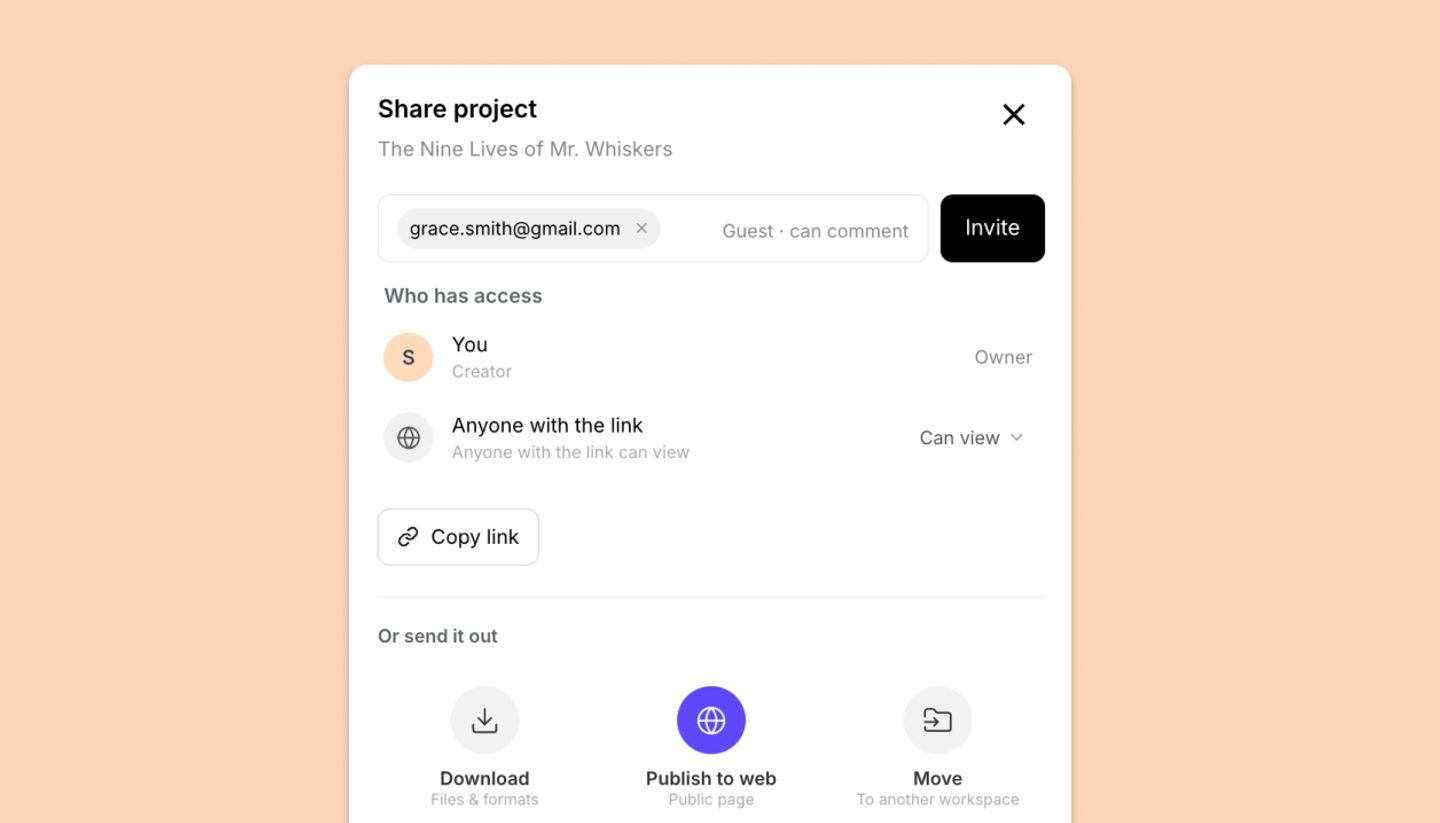
- Open the project and click
Shareat the top right. - In
Add people by email, type the address. An address outside your workspace showsInvite as a guest; select it. - Click
Invite. The person appears underWho has accessasInvite sent · Guestand they receive an email with a link. - They open the link, sign in or create a free account, and click
Accept & view. From then on the project is in their Shared with me list and their row readsGuest · can comment.
Troubleshooting
- "This person is already a workspace member and can access all projects in this workspace." Members don't need a guest invite; set their level in the Who has access list instead.
- "There is already a pending guest invite for this email." Use Resend invite on their row rather than inviting again.
- They say the link doesn't work. Invites expire; the page tells them to ask you for a new one. Resend invite from their row.
Common questions
Was this article helpful?
Need more help?
Send us a message. We reply within 3 days, usually sooner.