Publish tiers: Public and Unlisted
A published page is Public (listed on your public profile) or Unlisted (only people with the link). Turning it off is Unpublish. Who can open the live project in the editor is set separately, in Share.
Last updated Sep 12, 2026
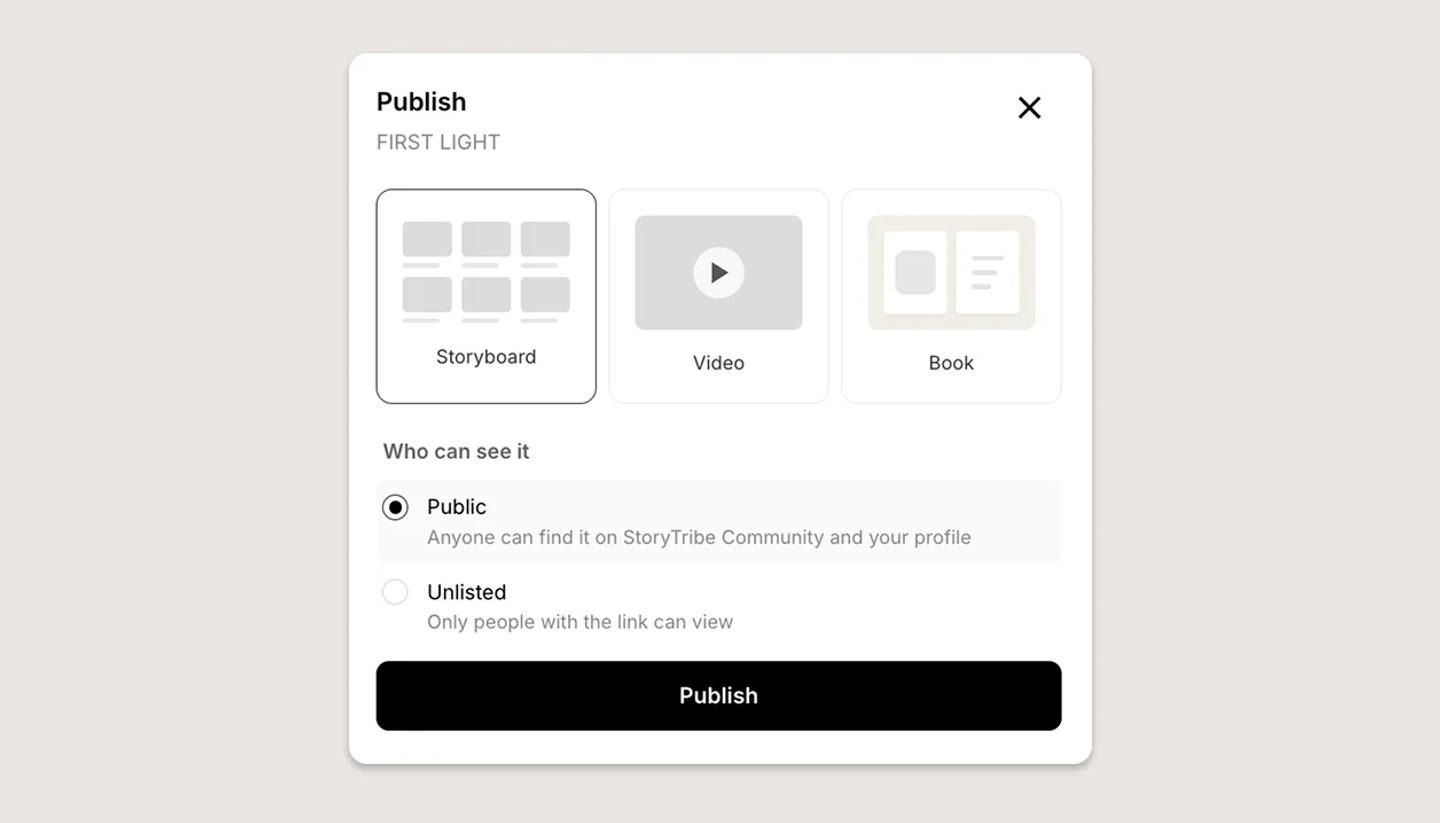
- Public. The page is listed on your public profile, where anyone can find it. This is the option already selected when you open the Publish dialog.
- Unlisted. Only people with the link can view it. The page stays off your profile, and anyone you send the link to can open it and forward it.
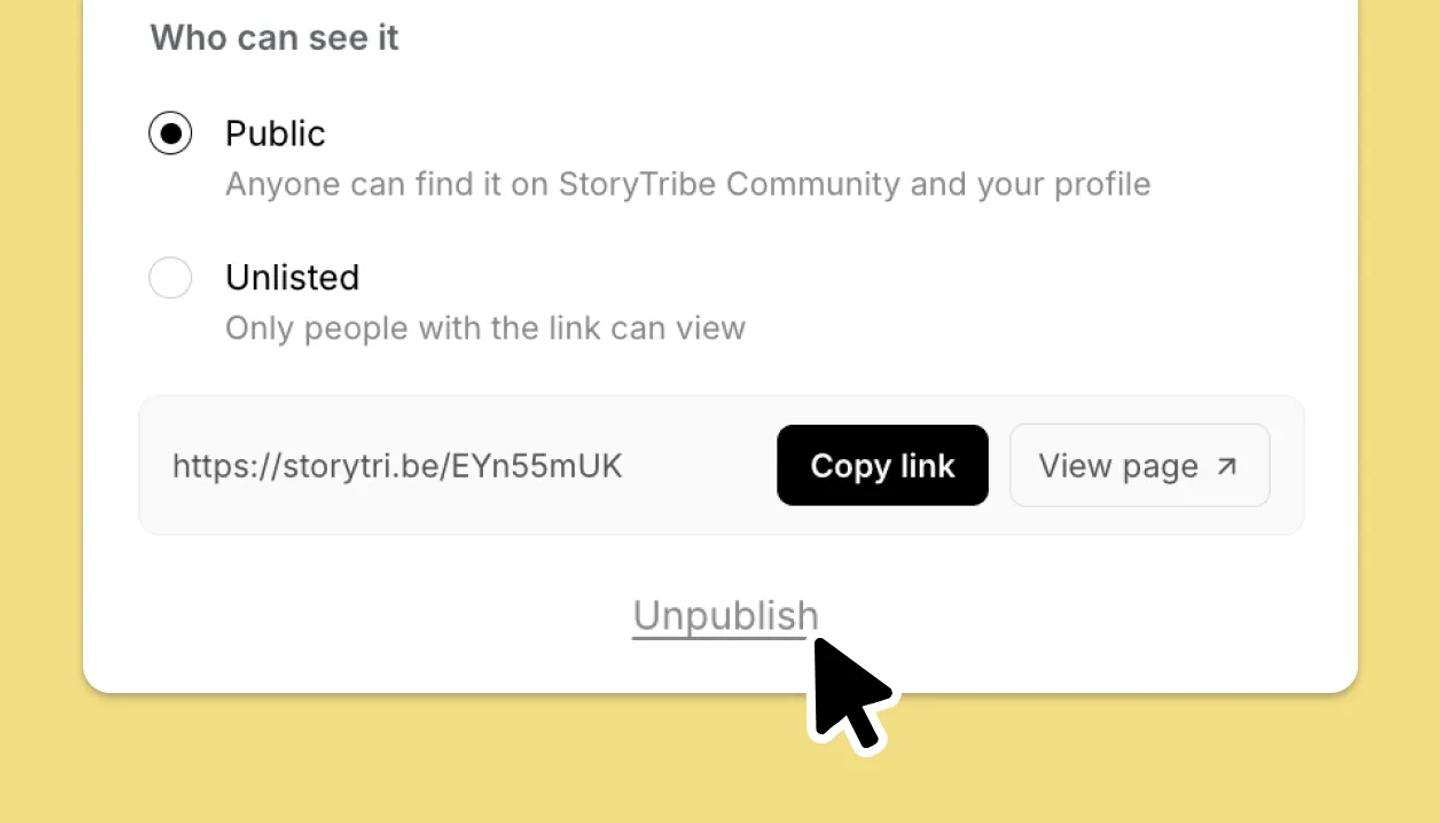
- Unpublish. The page comes down. It is a link under the page link in a Published project's publish dialog.
One page, one link
The setting applies to the project's single published page, whichever format it is showing: Storyboard, Video or Book. Switching format keeps both the link and the setting. Switching between Public and Unlisted also keeps the link.
Client work and private work: use Share
Publishing puts a read-only page on the web, so it suits work you're happy for people to find or pass around. For client work, or anything you want kept private, use Share instead: invite the people who need it by email, or turn the link on only when that's acceptable for the project. Share also shows the live project, so they see your latest work rather than a snapshot.
Common questions
Need more help?
Send us a message. We reply within 3 days, usually sooner.