Publish or unpublish a project to your profile
Publish turns a personal project into a read-only page: a Storyboard, Video or Book, Public on your profile or Unlisted for people with the link. Unpublish takes it down at once.
Last updated Sep 12, 2026
Publish
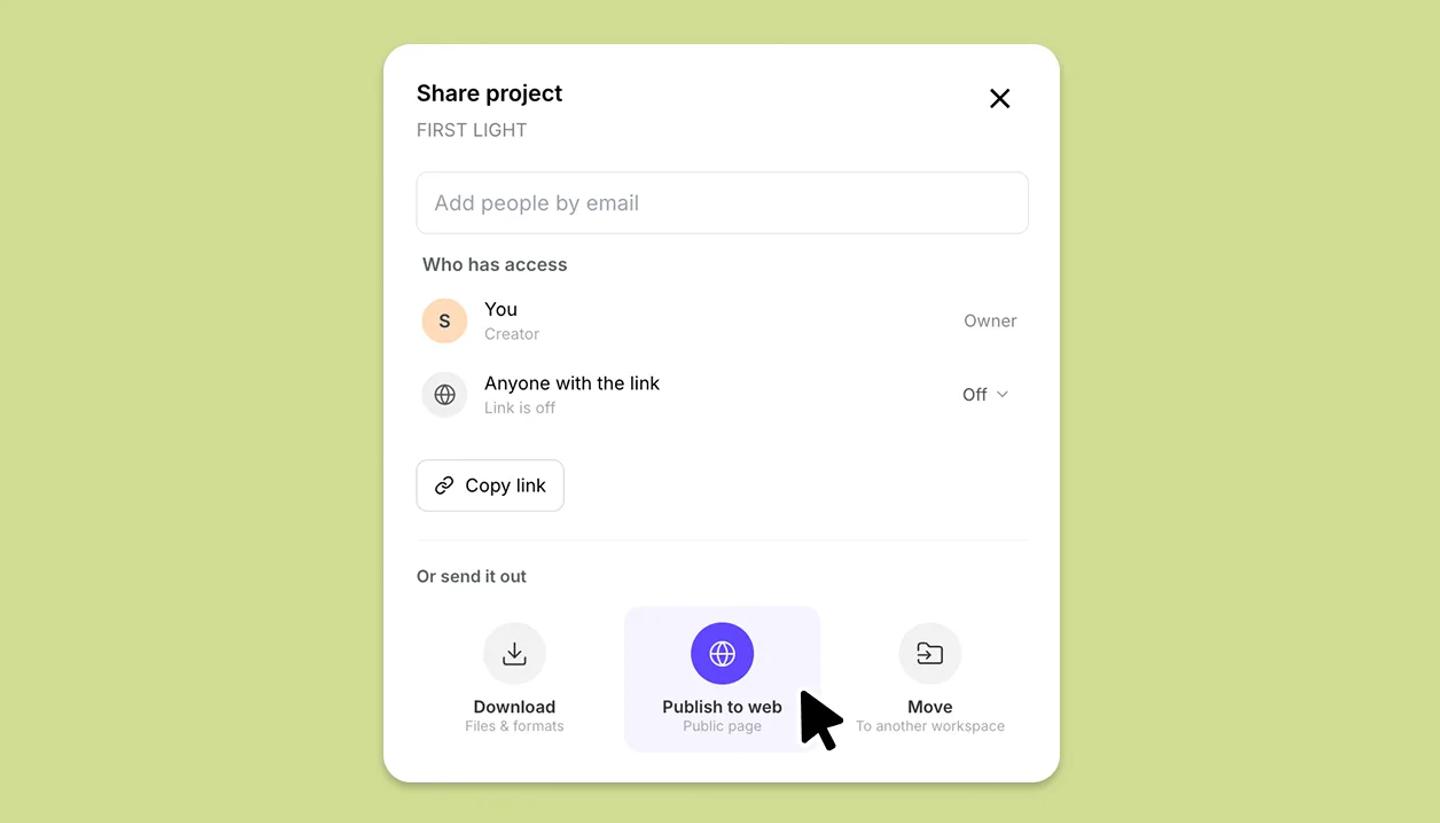
- Open the project, click
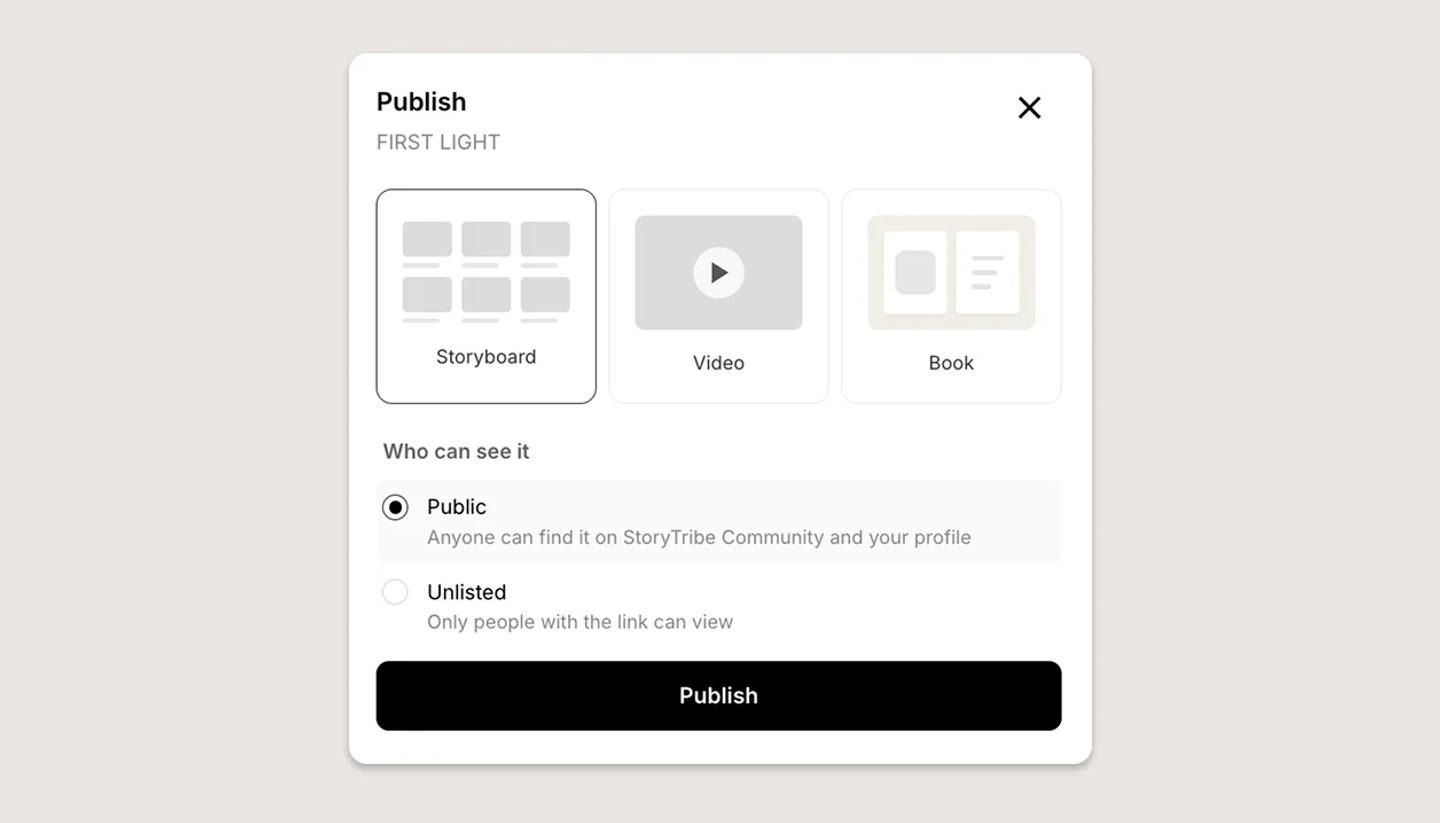
Share, then click thePublish to webtile. From the projects page, the card menu hasPublishinstead. - Pick the format:
Storyboard,VideoorBook. Video stays grayed out withCreate a video firstuntil you have made one. - For a Book, choose a
Cover:Photo,Solid colororAura. - Under
Who can see it, choosePublicorUnlisted. Public is already selected. - Click
Publish. The dialog then shows the page link withCopy linkandView page.
Change or update it
A project has one published page and one link. Publish again to bring it up to date with your latest changes.
Clicking another format card switches the page to that format straight away, with no extra confirmation. Switching between Public and Unlisted works the same way. Either way the link stays the same.
Unpublish
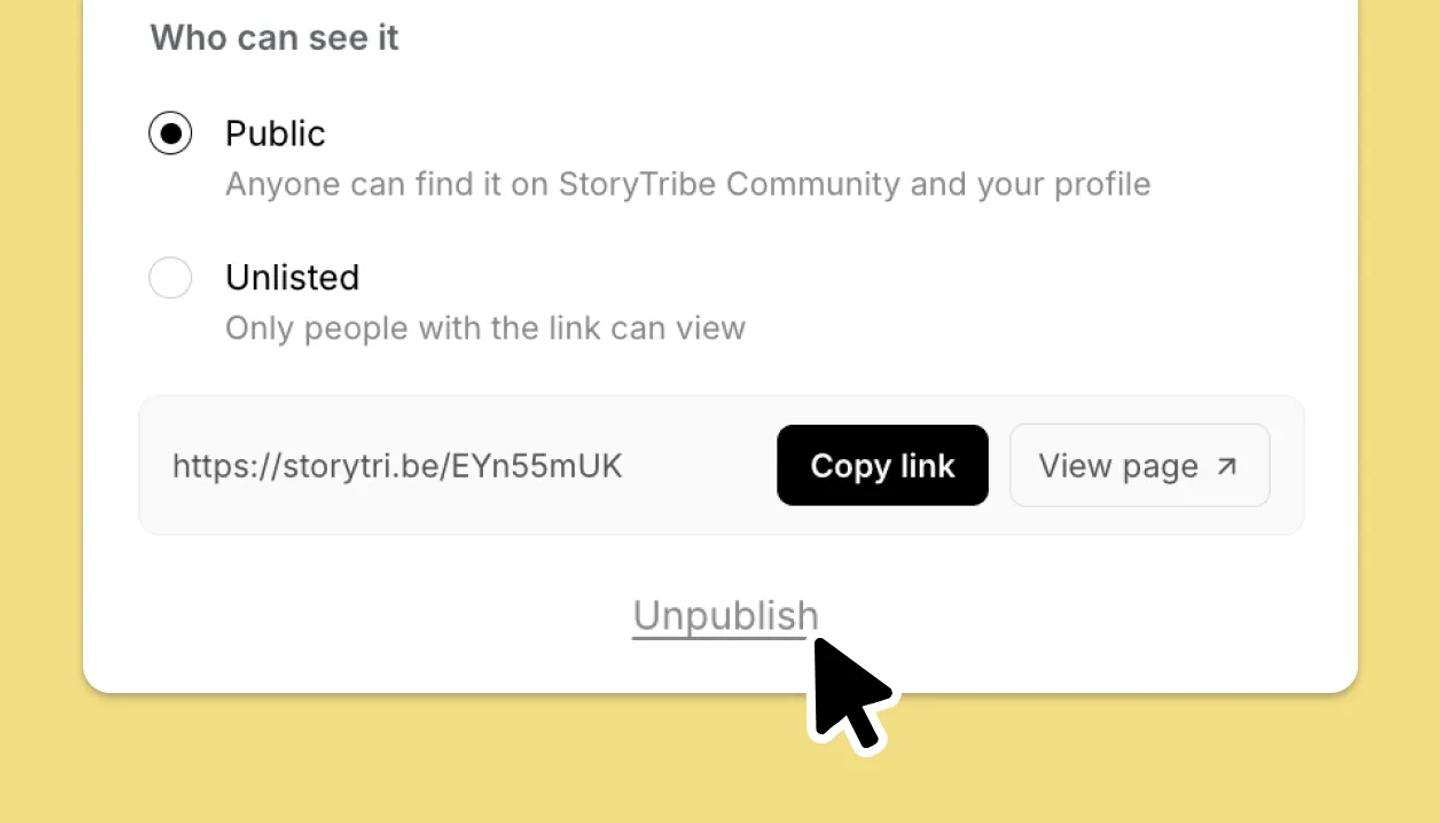
Open the Publish dialog and click Unpublish, the small link under the page link. It applies at once, with no confirmation.
The page leaves your public profile, and anyone who opens the link now sees This project isn't available. You can still open the project yourself while signed in.
A project that is currently Public also has Unpublish in its card menu on the projects page.
Common questions
Related articles
Sharing vs publishing: which do I need?Need more help?
Send us a message. We reply within 3 days, usually sooner.