Sharing vs publishing: which do I need?
Share decides who can open the live project. Publish makes a separate read-only page of it. Use Share to work with people, Publish to show finished work. Publishing is for personal projects only.
Last updated Sep 12, 2026
Two buttons, two questions. Share answers who can open this project. Publish answers whether there is a public page of it. They work independently. A project can be shared with your team and never published, or published and shared with nobody.

Share: who can open the live project
The Share button in the editor header opens Share project. You add people by email and give each one Can edit, Can comment, Can view or No access. You also set what Anyone with the link can do: Off, Can view or Can comment.
The link goes to the editor, so people always see the current version. Use Share for collaborators, clients who should comment, and anyone who needs the project as it stands rather than a snapshot.
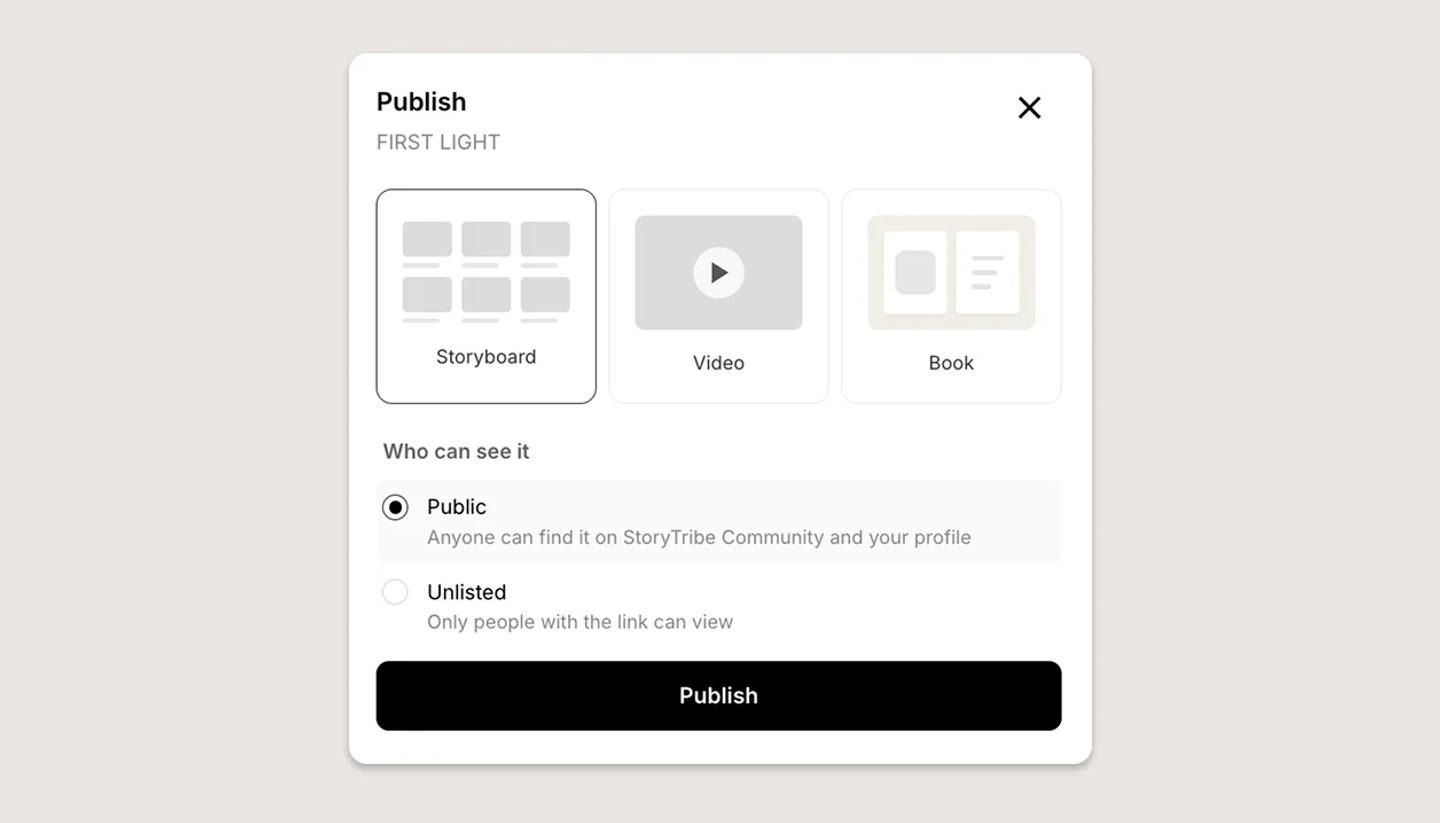
Publish: a read-only page of your work
The Publish to web tile sits inside Share, under Or send it out, and appears only when the project is open in the editor. It creates a separate page of the project as a Storyboard, a Video or a Book, on its own link.
- Public. Anyone can find it on StoryTribe Community and your profile.
- Unlisted. Only people with the link can view.
Viewers of a published page read it and nothing more. They never enter the editor.
Side by side
- What opens. Share opens the editor. Publish opens a separate page.
- What they see. Share shows the whole live project. Publish shows the one format you chose.
- Signing in. Someone invited by email signs in to accept. Anyone with the link can view without an account, and signs in only to comment. A published page needs no account at all.
- Editing. Only Share can grant it, and only inside a workspace.
- Turning it off. In Share, set the link to Off and remove people. In Publish, click Unpublish.
Common questions
Need more help?
Send us a message. We reply within 3 days, usually sooner.