Invite someone to edit (Studio Plan)
Editing together is a workspace feature. On a workspace project, invite the person as Can edit; they join the workspace and use a seat.
Last updated Aug 29, 2026
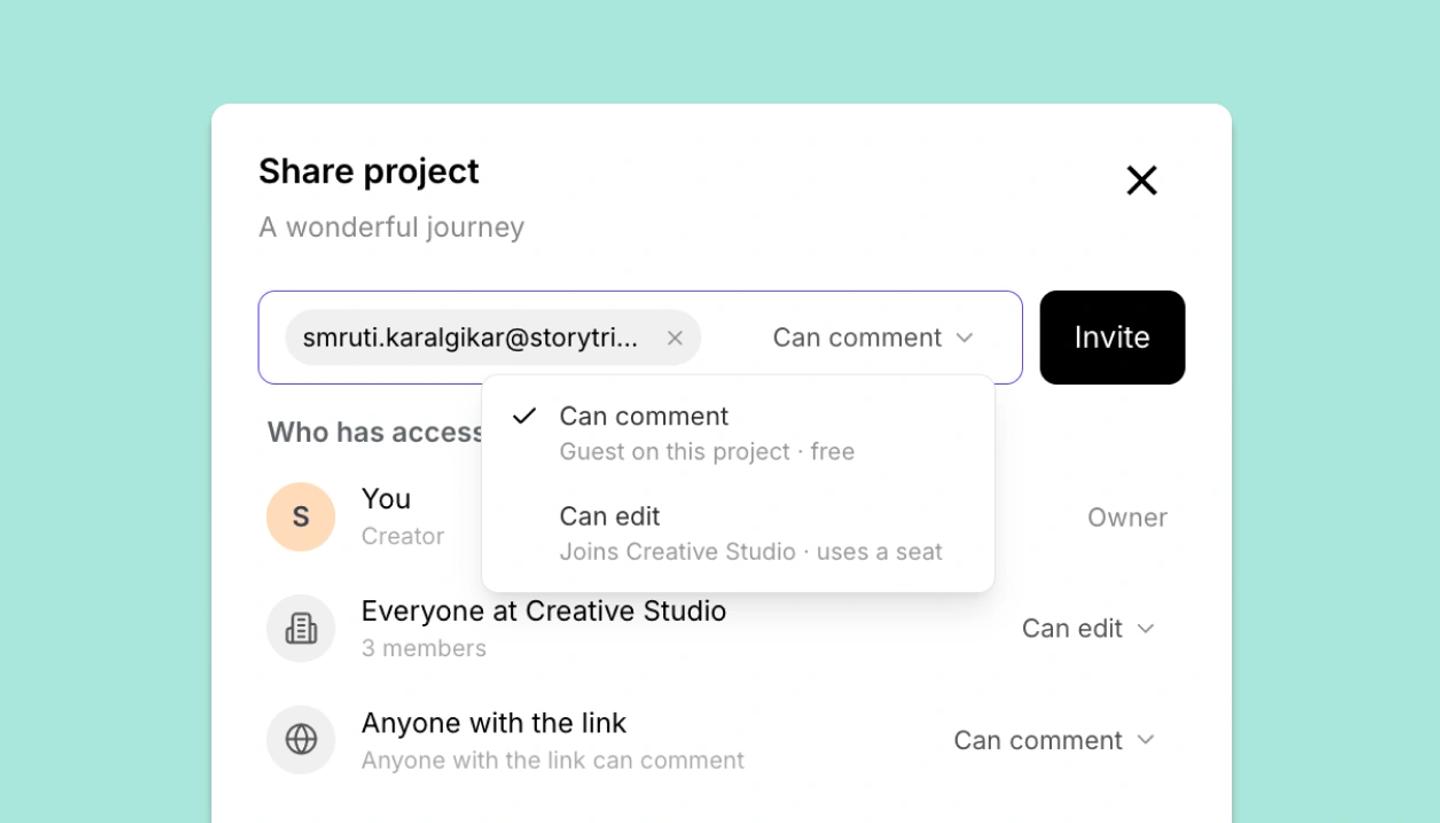
Editors have to be members of the workspace the project lives in. If the project is personal, the Share dialog shows Edit together with your team: either See plans to start a new Studio Plan subscription, or Move it into a workspace you already have.
Give an existing member edit access
- Open
Shareon the workspace project. - If
Everyone at your workspaceis already Can edit, they can edit now. Otherwise type their name, pickCan editin the dropdown and clickAdd. That creates a personal override for them.
Invite someone new as an editor
- As the workspace Owner or an Admin, type the outside email in
Add people by emailand chooseCan edit(Joins the workspace · uses a seat). - Click
Invite. You'll seeInvite sent. A seat is held for them.If the workspace is out of seats, the dialog saysInviting … as an editor needs one more seat.The Owner can then clickAdd seat & invite. This adds a prorated charge today. - They accept the invite, join the workspace as a Member, and open the project with edit access. Their row shows
Invite sent · Memberuntil then.
Troubleshooting
- They can open it but not edit. Check their row: a guest is always comment-only, and an override of Can view beats the workspace default.
- "Team project · View only on mobile". On a phone, a project with two or more editors opens read-only. Edit it on a computer or tablet.
Was this article helpful?
Need more help?
Send us a message. We reply within 3 days, usually sooner.