Move a project into a workspace
Choose Move to from the project card menu, or the Move tile in Share inside the editor. Pick Personal or an active workspace, then confirm. A project moved into a workspace arrives private.
Last updated Sep 12, 2026
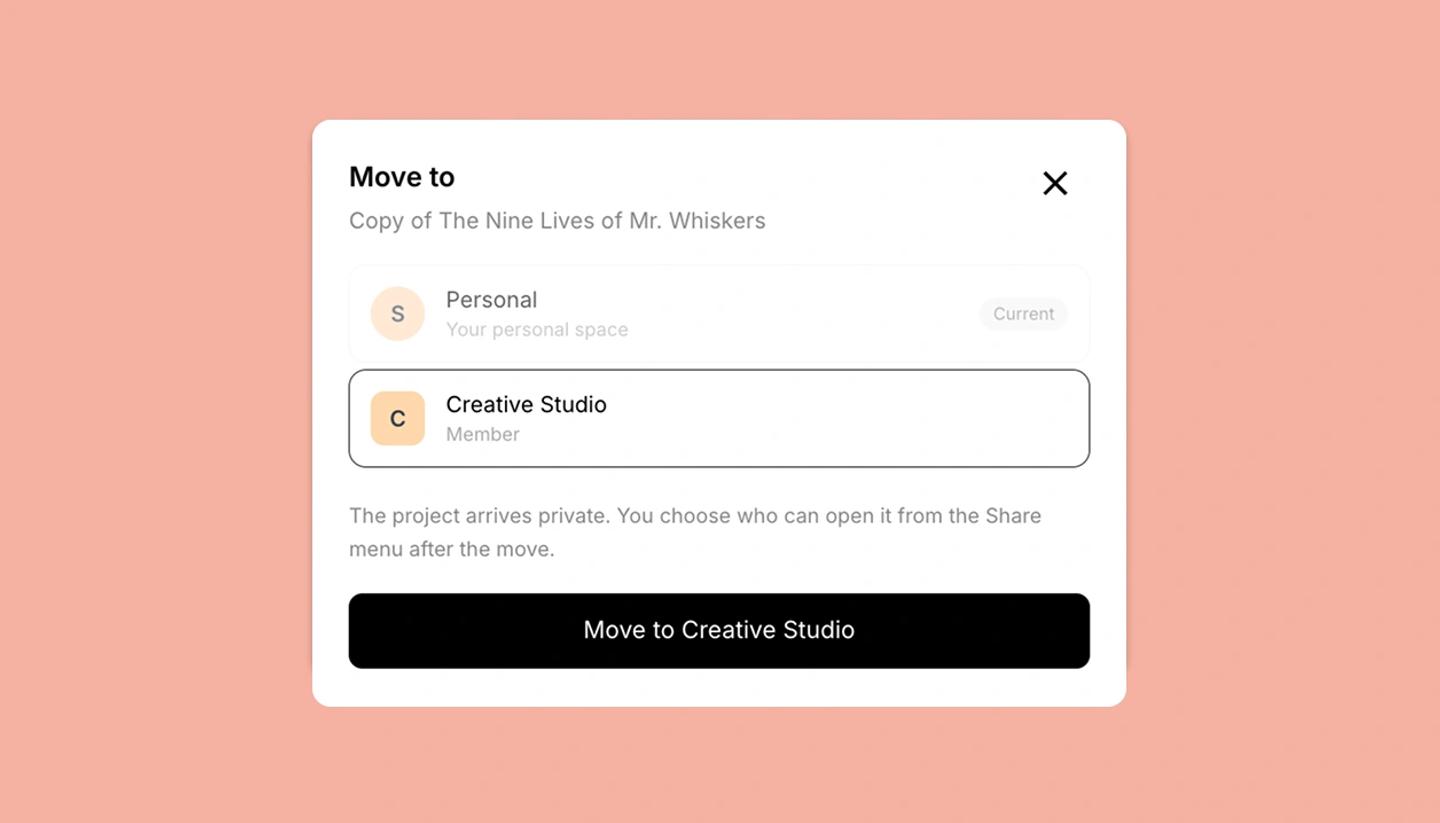
You need a workspace on an active Studio plan to move a project into one. Only the project's creator, or an Owner or Admin of its workspace, can move it.
Move it
- Open the project card's menu and choose
Move to. - Pick the destination. The current home is marked
Currentand cannot be picked. - Click the button at the bottom, which names your destination. A message confirms the move.
Inside the editor the same dialog opens from the Move tile in Share, under Or send it out.
Where you can move it
- Personal into a workspace. Any workspace you belong to whose Studio plan is active. Lapsed ones are not offered.
- A workspace back to Personal. This is the only destination offered, and it is always the creator's personal space.
- One workspace to another. Not offered. Move it to Personal first, then into the other workspace.
What changes
- Access resets. A project moved into a workspace arrives private, and you set who can open it in Share afterward.
- Moving out hides it from the team. Workspace members stop seeing a project that has returned to Personal.
- Credits follow where the project belongs. A workspace project draws on the shared workspace pool. A personal project draws on your own monthly allowance. Credits already spent stay spent.
When Move is grayed out
- You are not the creator or a workspace manager. The tile reads
Owner only. - Your workspace plan has lapsed. The card menu explains that the workspace is inactive and asks you to reactivate Studio first.
- You have no workspace yet. The tile offers
Upgrade to Studio, orFinish setupif you already have Studio but have not created the workspace.
Was this article helpful?
Need more help?
Send us a message. We reply within 3 days, usually sooner.