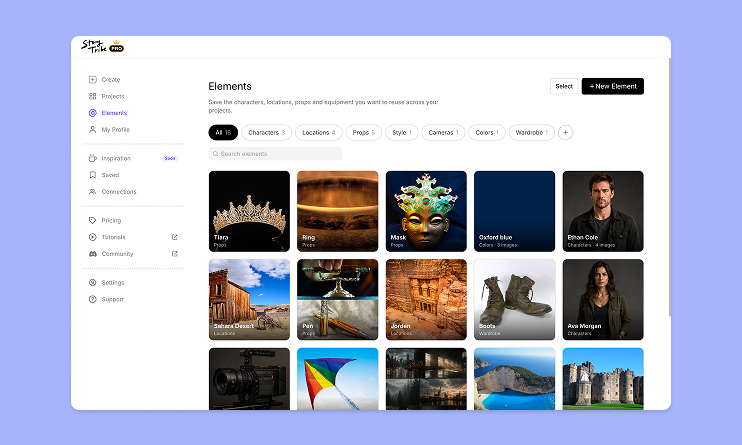
How to use Elements in StoryTribe
Build one reusable library of your characters, locations, props, and styles. Then bring any of them into a script, a storyboard, or an AI prompt with a single @.

StoryTribe
StoryTribe Team
Create faster, iterate visually, and stay consistent — StoryTribe AI is designed for storytelling workflows, not one-off images.
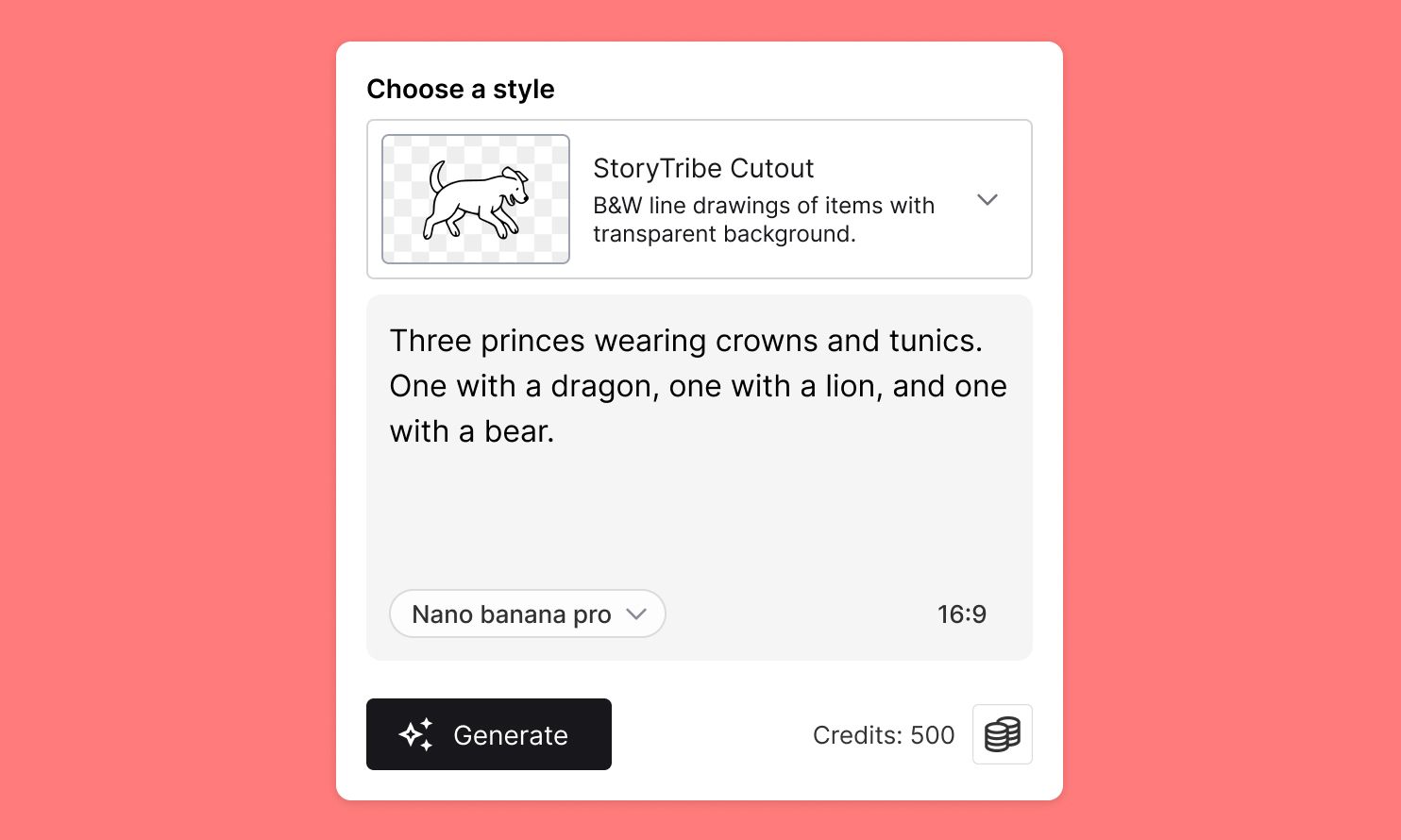
Most AI image tools are built to generate a single impressive image. That’s great —until you’re actually trying to tell a story.
StoryTribe AI was built for people who work in sequences, scenes, and narratives. Whether you’re sketching ideas, storyboarding, or iterating quickly with a team, you need more than random visuals. You need consistency, speed, and control.
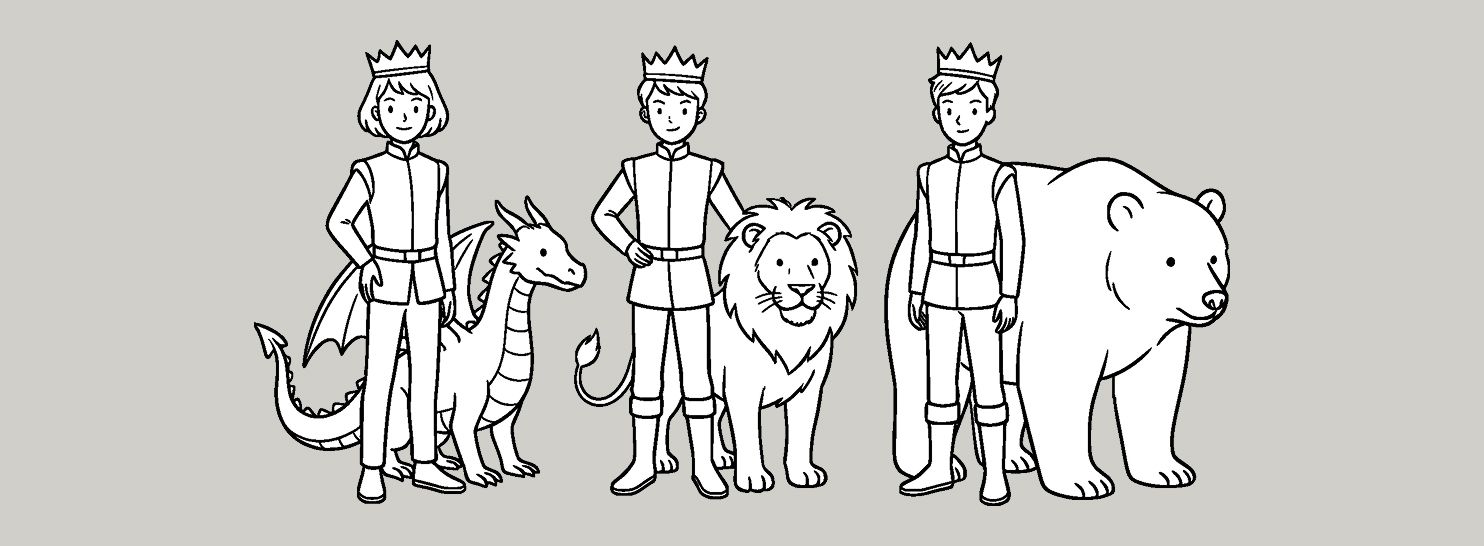
That’s where StoryTribe AI is different.
We’re an AI platform designed specifically for storytellers, combining AI generation with customisable characters, reusable assets, and a canvas workflow that supports fast iteration without compromising output quality.
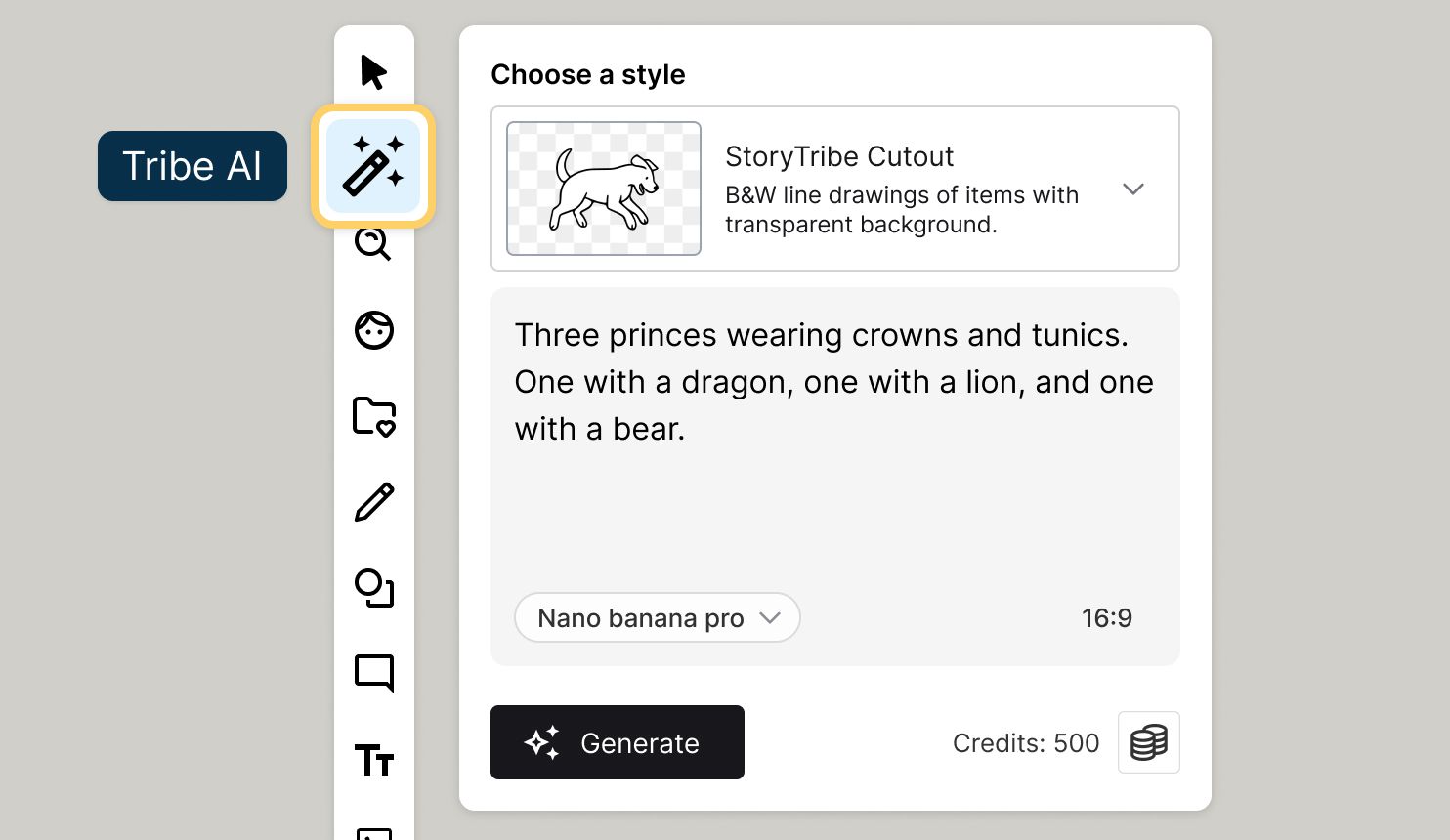
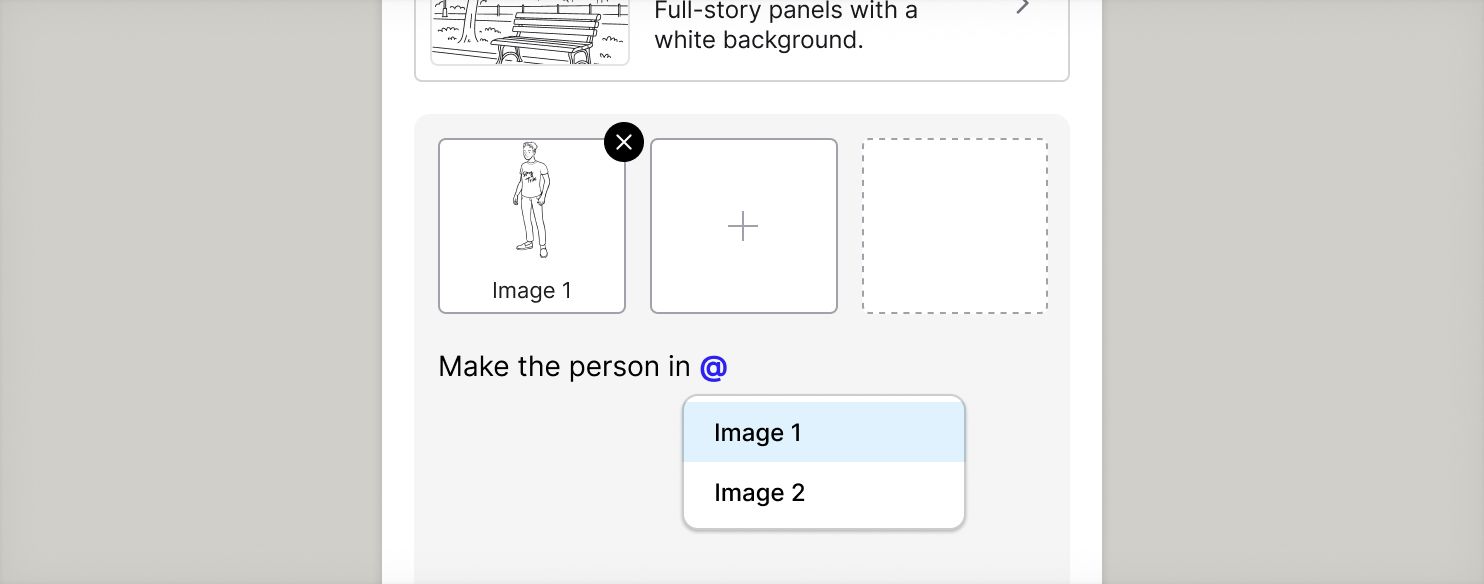
You can upload up to three reference images to guide the AI to generate image.
These references help the AI understand the style, composition, or elements you want in the generated image.
How it works:
You can also click any uploaded image to view it in full size before using it as a reference.
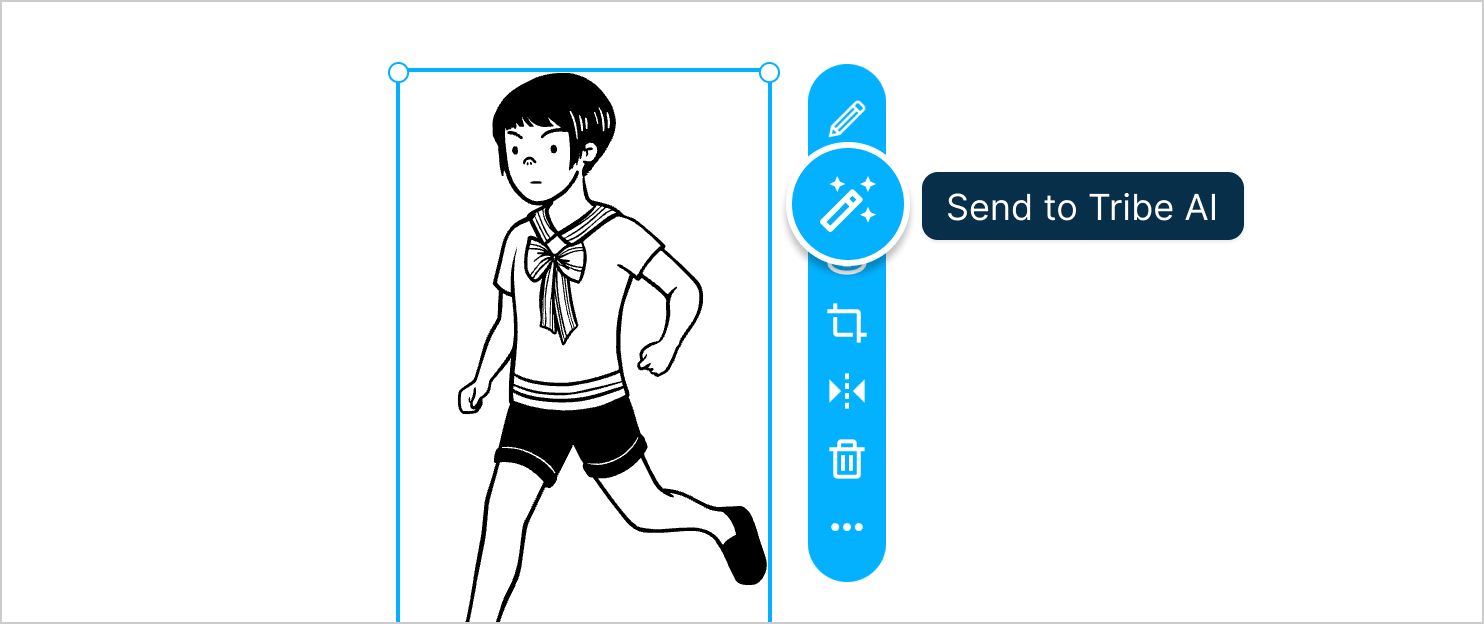
You can also use characters or props already on your canvas as references for Tribe AI. Simply select the item and click “Send to Tribe AI” in the blue contextual toolbar. Tribe AI will use it as a reference to generate images that match the style and features of your existing StoryTribe characters or objects.
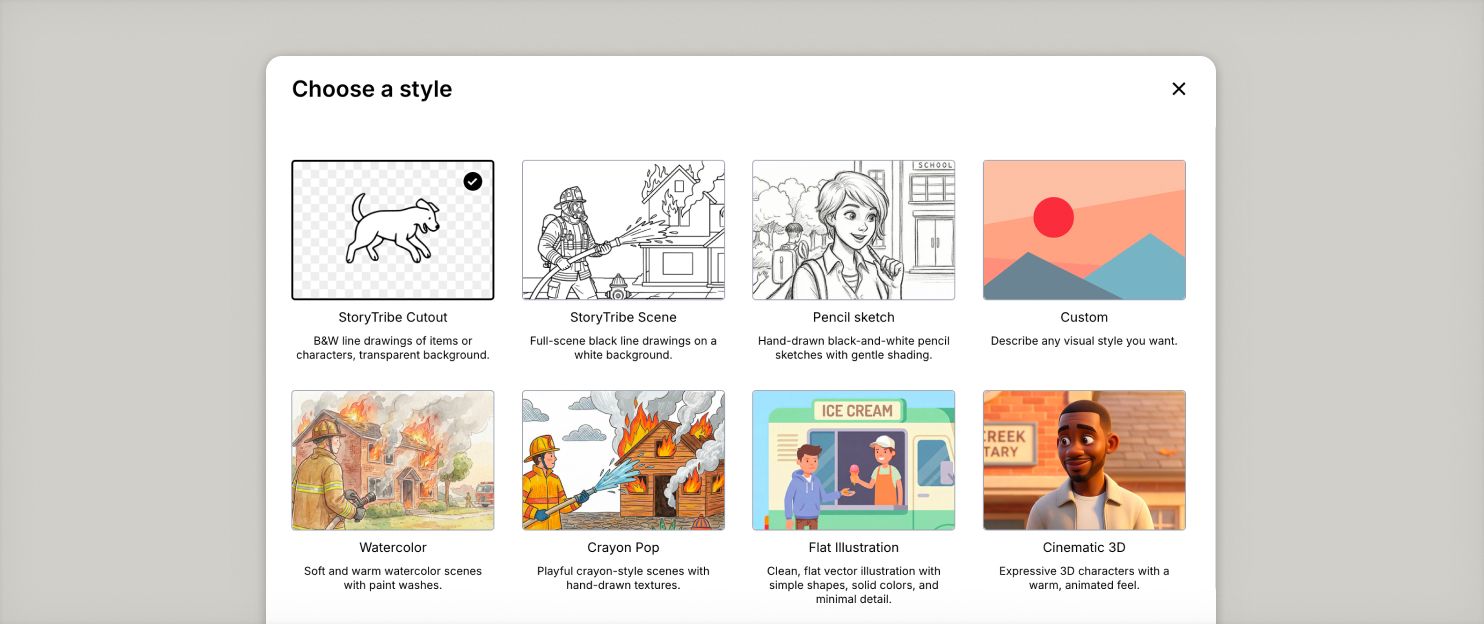
Tribe AI offers multiple visual styles to help you match the look and feel of your storyboard.
You can start with StoryTribe styles such as StoryTribe Cutout and StoryTribe Scene. These are designed to work seamlessly with StoryTribe’s character and props library, so you can mix and match assets while keeping visual consistency.
These styles are ideal for:
You can also choose from other styles such as Pencil Sketch, Watercolor, Flat Illustration, Cinematic 3D, and more.
For full control, select Custom to describe your own visual style using text.
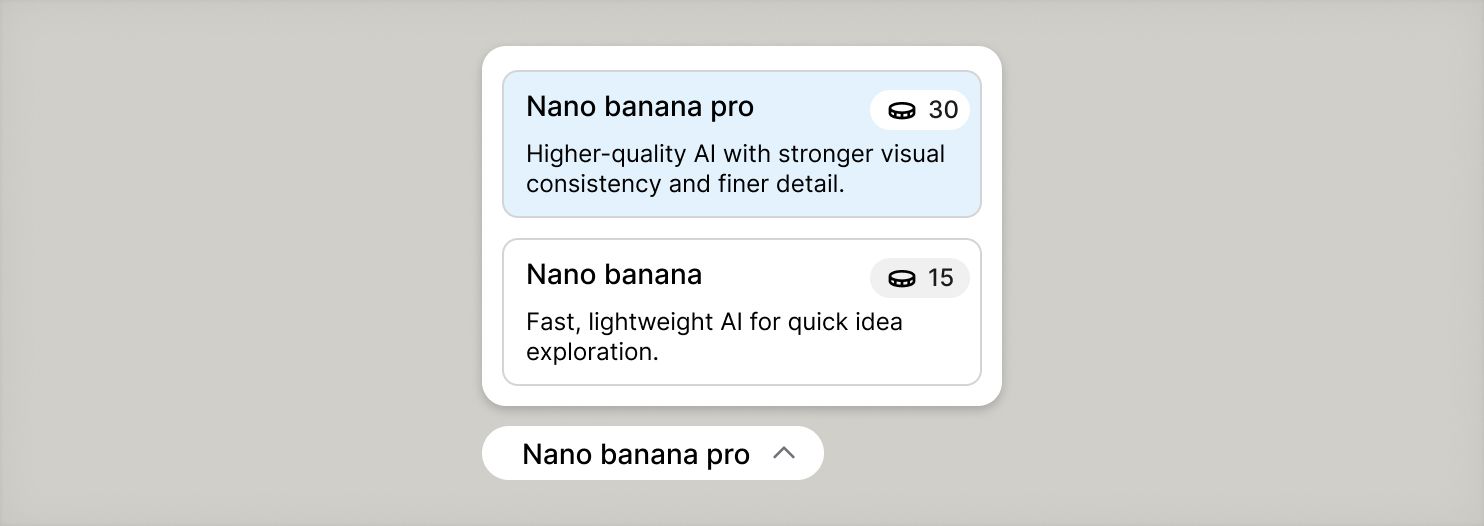
Tribe AI currently offers two AI models.
You can choose the model that best fits your workflow before generating an image.
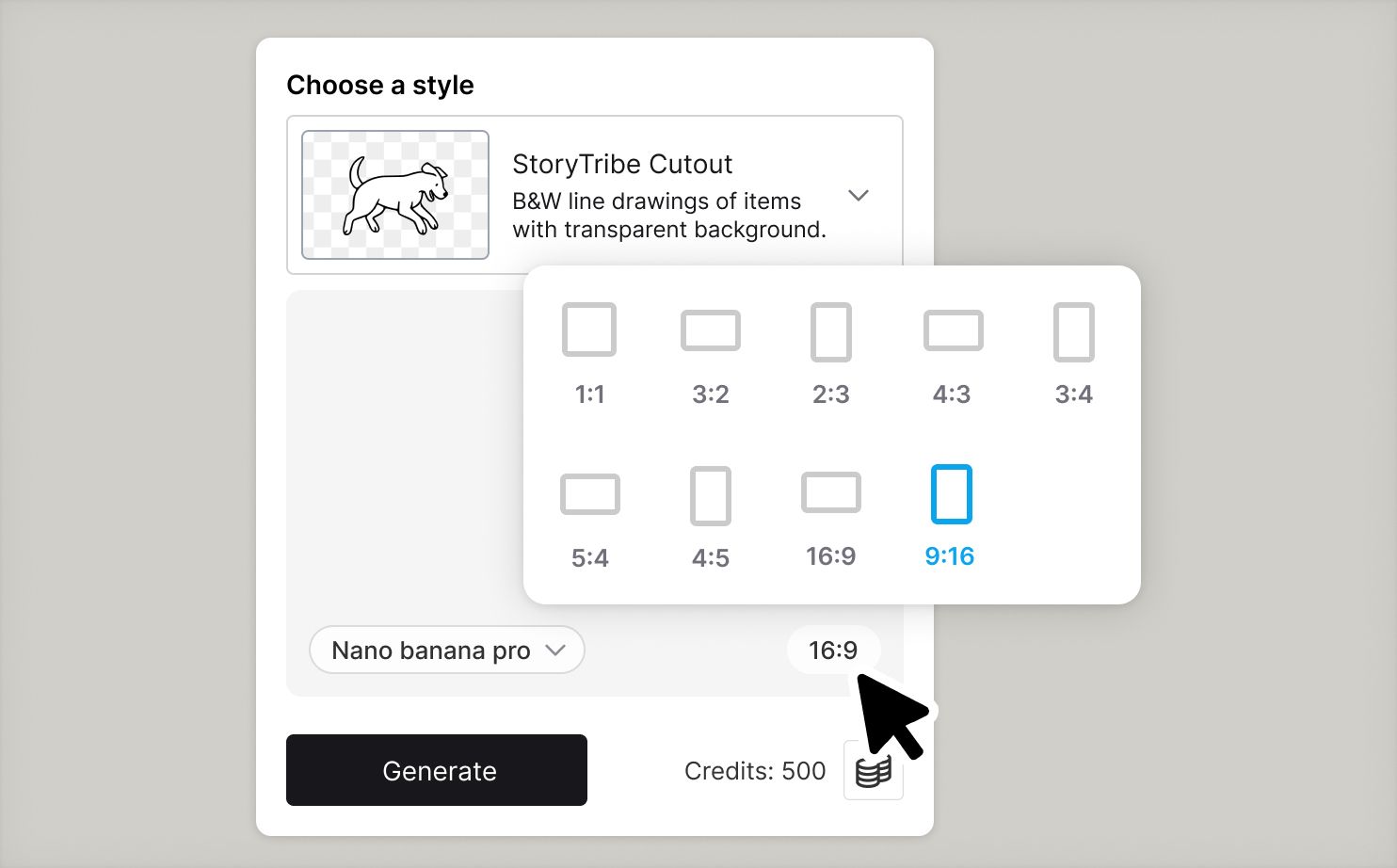
Tribe AI also lets you choose the aspect ratio of your generated image.
The aspect ratio selector is located inside the prompt box in the bottom-right corner, making it easy to switch between formats like square, portrait, landscape, or widescreen.
Tribe AI works on a credit-based system. Each time you generate an image, credits are used based on the AI model you select.
If you notice anything not working as expected, please report it to [email protected]. Including a screenshot or short video recording helps us resolve issues faster.
You can also get help directly in the app by clicking the Help button (question mark icon) at the bottom of the screen, then selecting Help → Contact support to speak with one of our support team.
Build one reusable library of your characters, locations, props, and styles. Then bring any of them into a script, a storyboard, or an AI prompt with a single @.
StoryTribe
StoryTribe Team
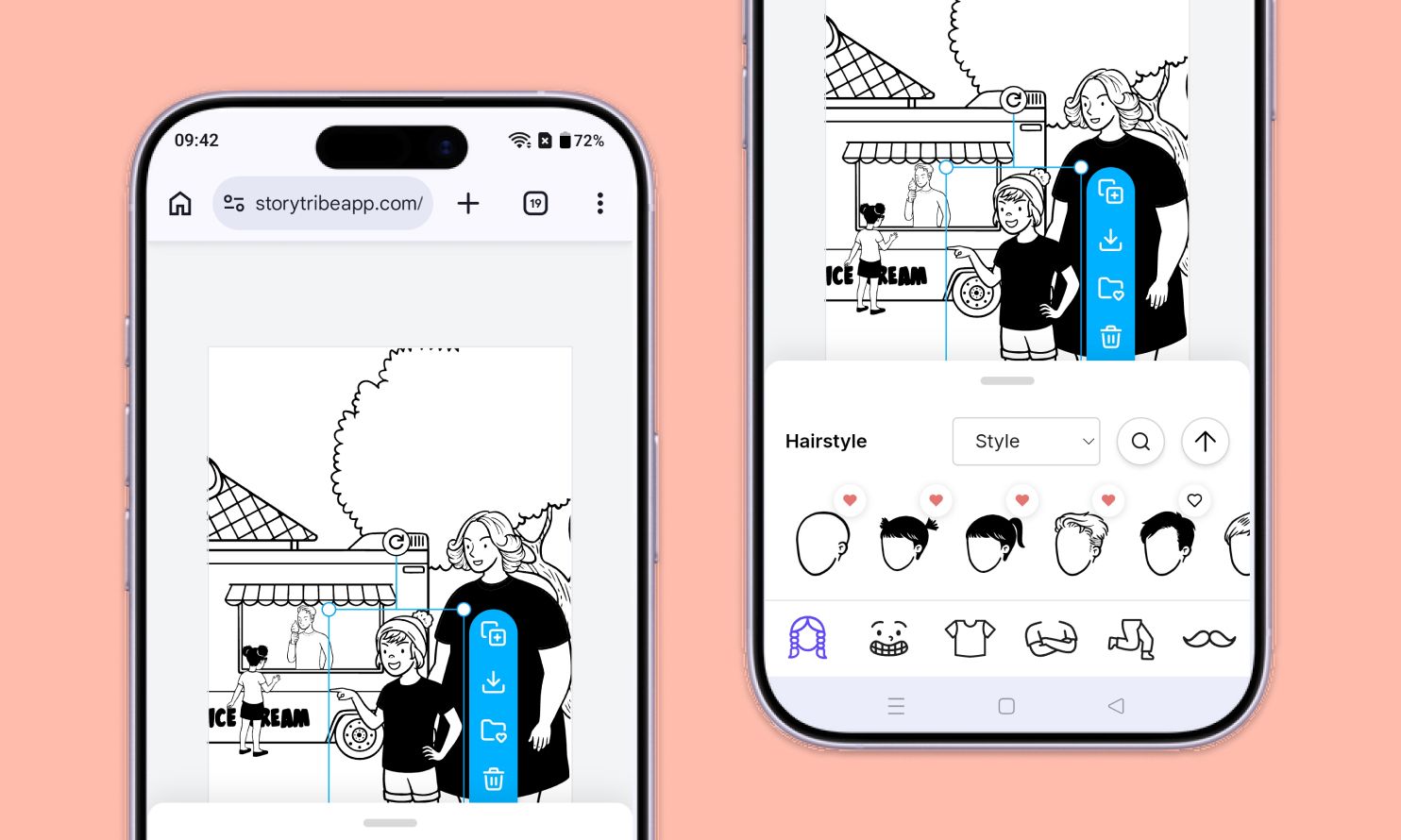
Don't let device-switching break your flow. The full StoryTribe editor now lives on your phone. Build wherever ideas strike.
StoryTribe
StoryTribe Team
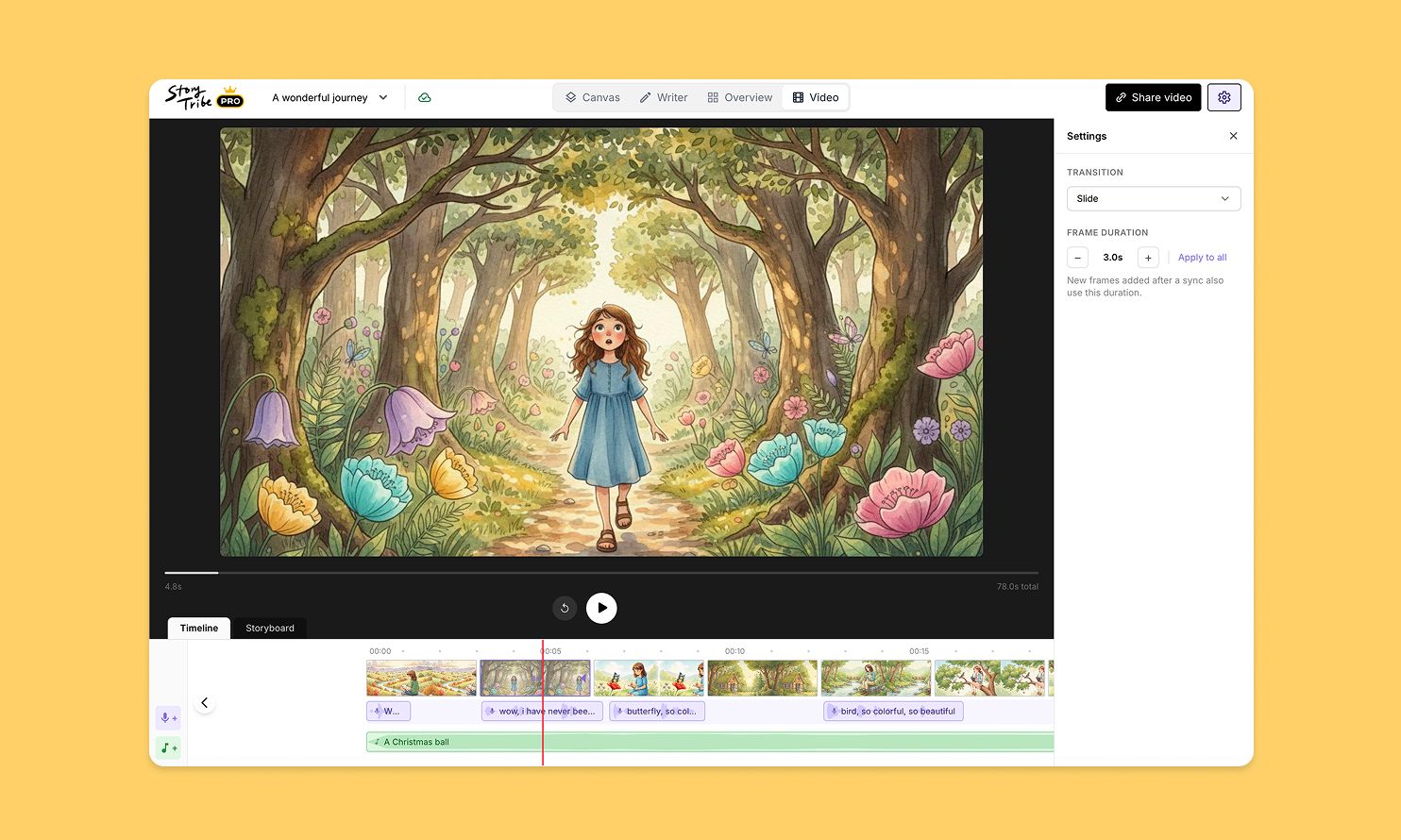
Turn your storyboard into a shareable video — set the timing, add music, and send a link. No extra tools needed.
StoryTribe
StoryTribe Team