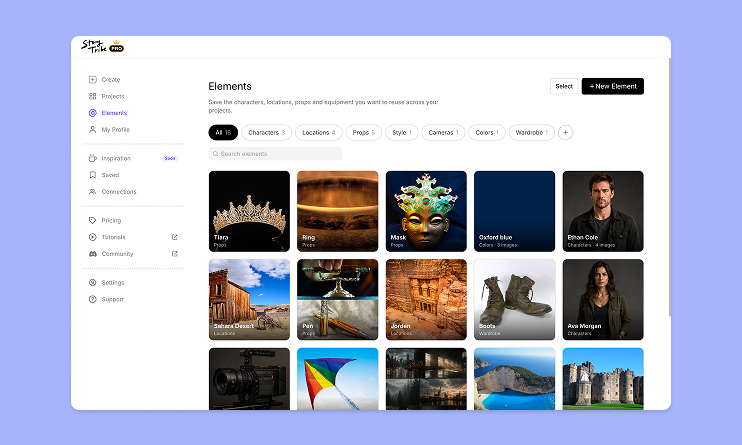
How to use Elements in StoryTribe
Build one reusable library of your characters, locations, props, and styles. Then bring any of them into a script, a storyboard, or an AI prompt with a single @.

StoryTribe
StoryTribe Team
StoryTribe makes it easy to export your work so you can share annotated storyboards with colleagues or students, or print them for review and discussion.
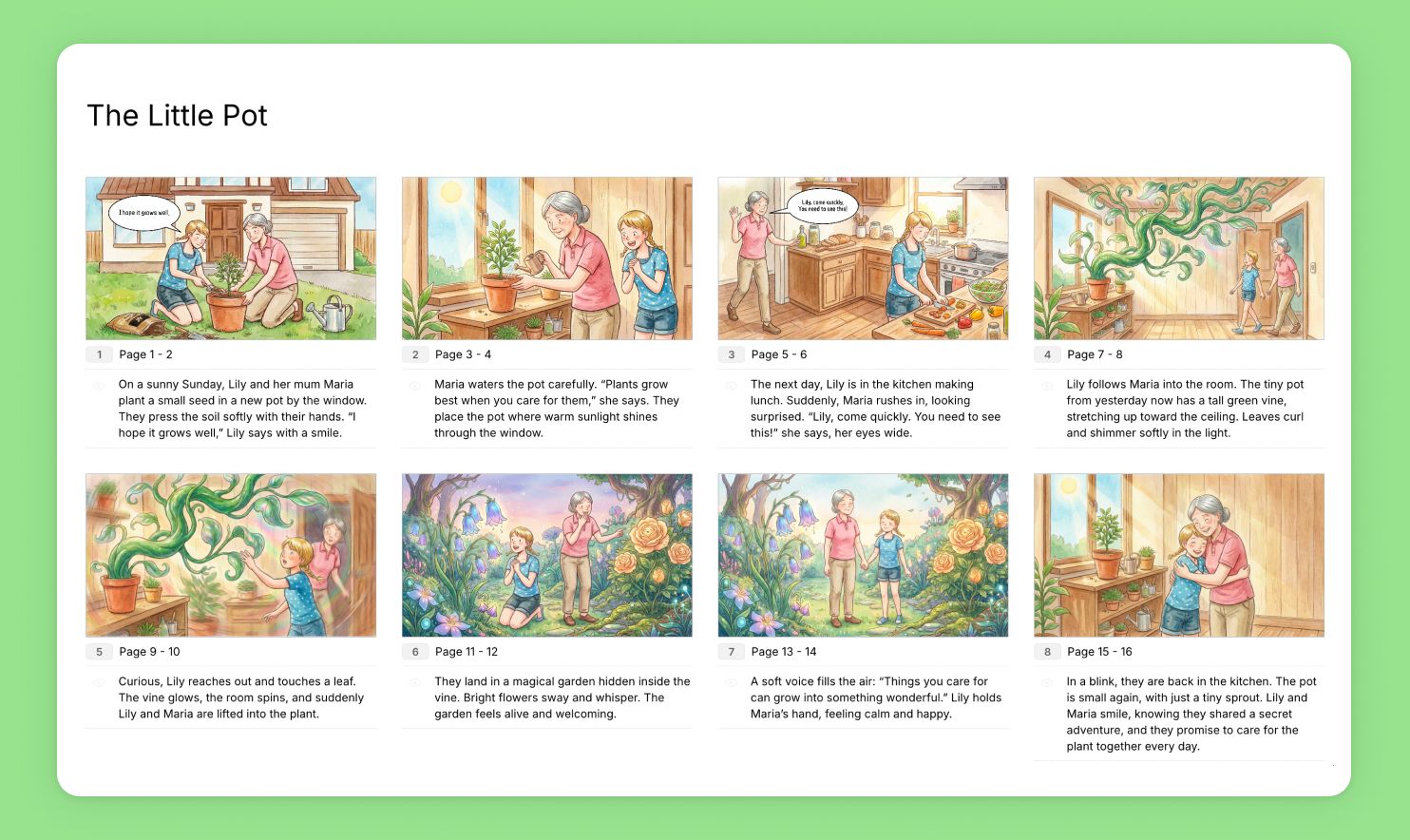
StoryTribe offers flexible download options, letting you export individual assets or complete storyboards in multiple formats.
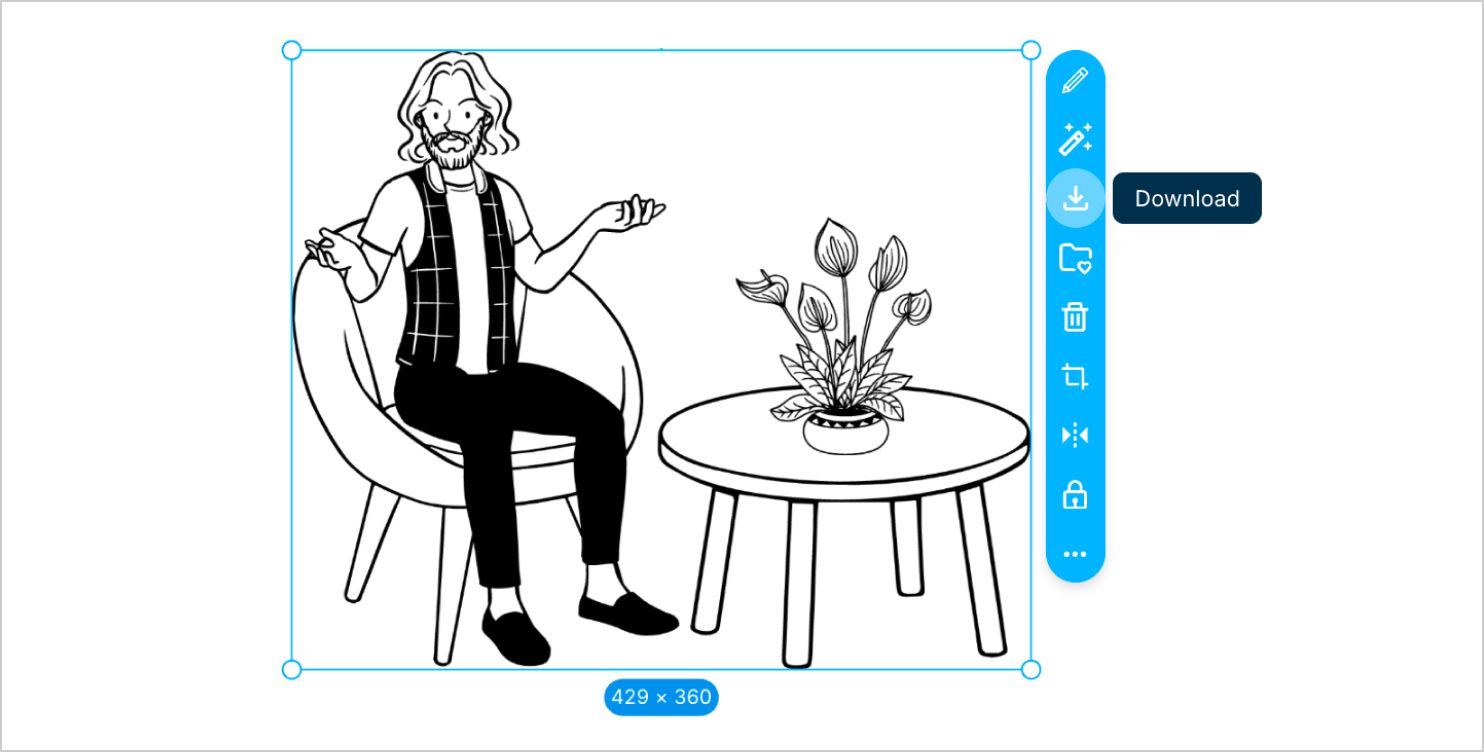
Export any part of your storyboard — characters, props, scenes, or grouped elements — and reuse them in presentations, design mockups, blog posts or social content.
To export storyboard elements:
Note: The exported PNG is generated at 2× the size of the element as it appears on the canvas. To increase the download resolution, simply scale the element up on the canvas before exporting.
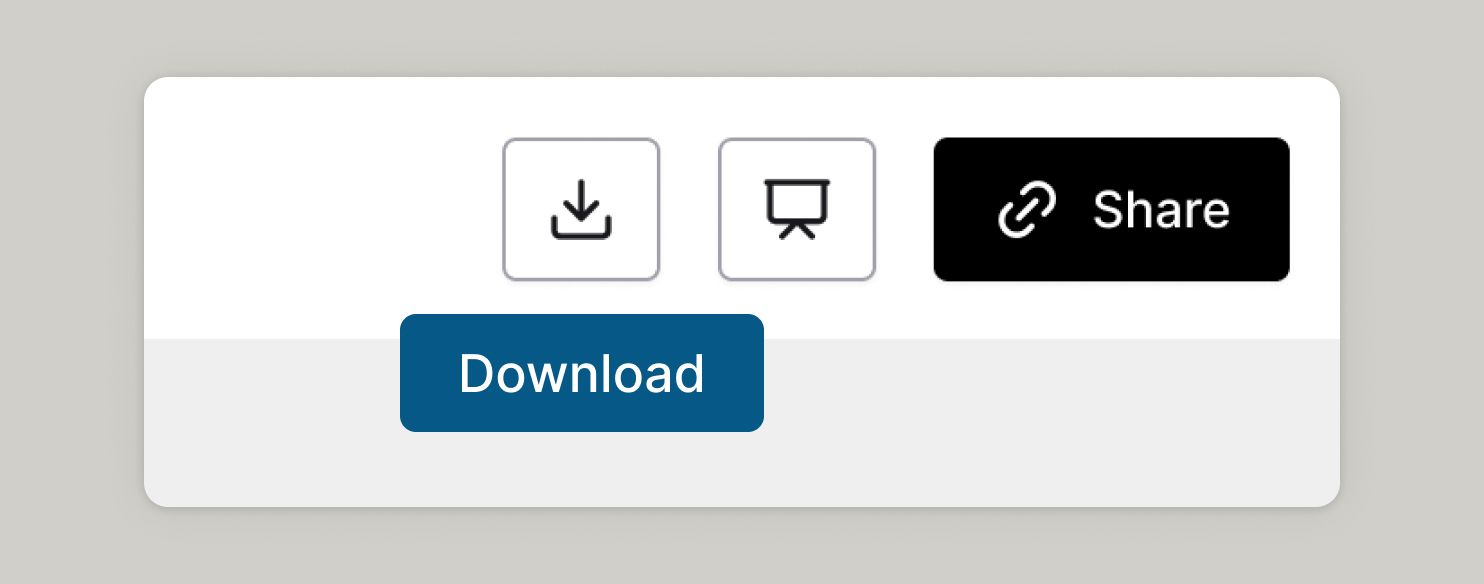
You can download your storyboard using the Download icon in the top right corner of your editor. This option lets you export either individual frames as high-quality images, or your full storyboard as a shareable document.
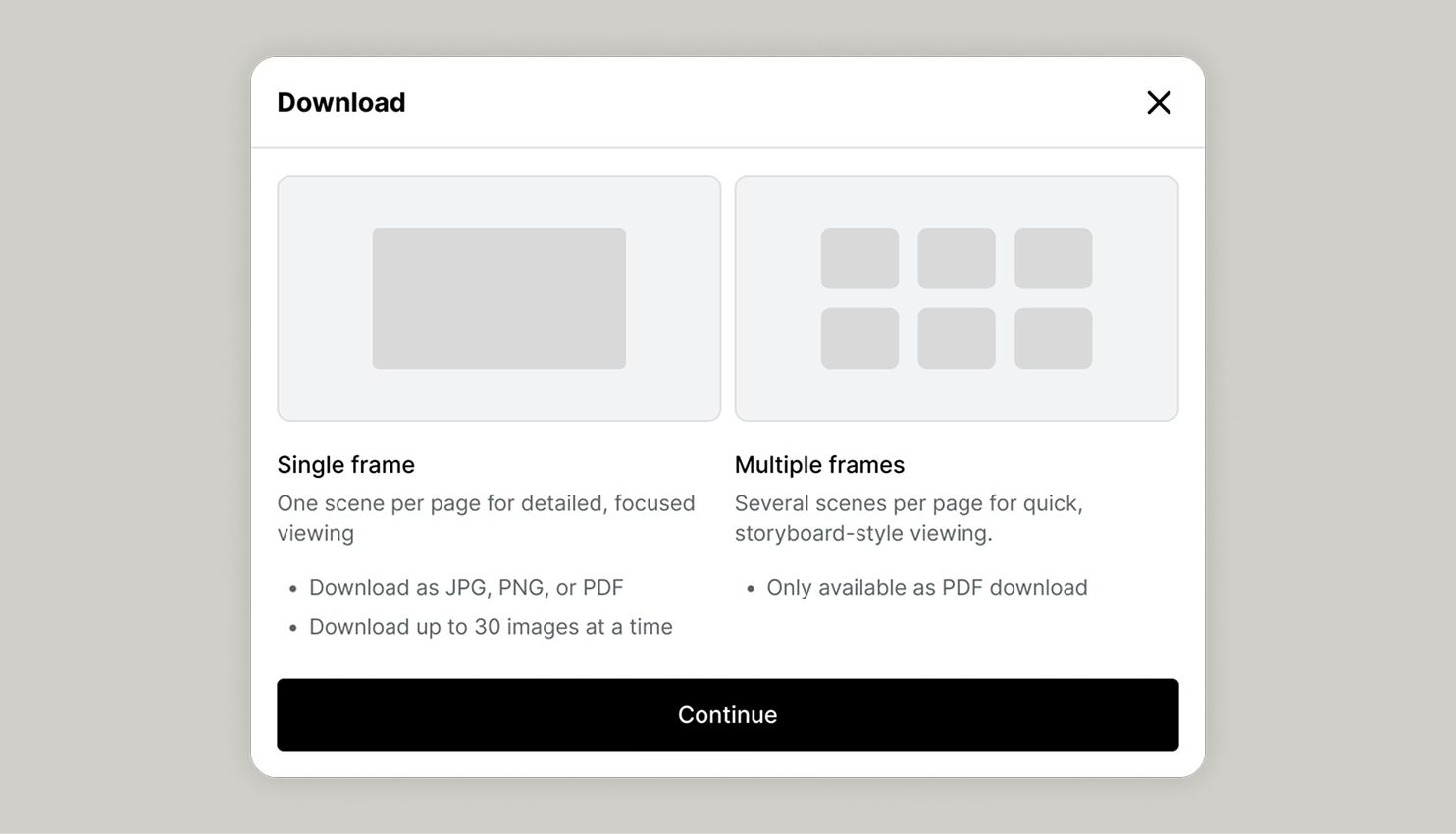
StoryTribe offers two download options:
Single Frame Download
This option is ideal when you need high-resolution exports of each frame, for use in presentations or design work.
Multiple Frame Download
This option is best when you want to export the entire storyboard at once, especially if you want to include scripts or annotations and share it with collaborators.
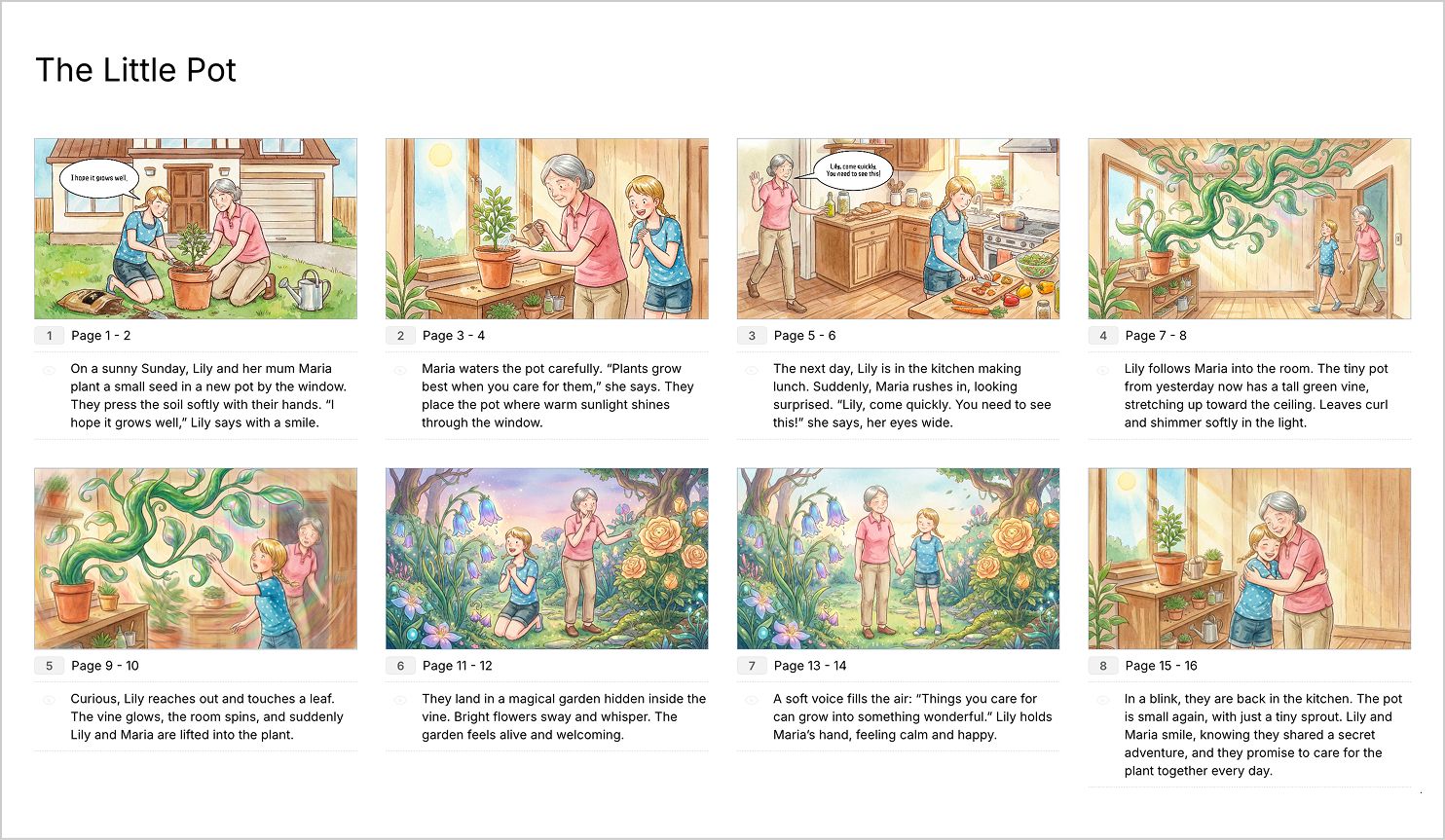
If you notice anything not working as expected, please report it to [email protected]. Including a screenshot or short video recording helps us resolve issues faster.
You can also get help directly in the app by clicking the Help button (question mark icon) at the bottom of the screen, then selecting Help → Contact support to speak with one of our support team.
Build one reusable library of your characters, locations, props, and styles. Then bring any of them into a script, a storyboard, or an AI prompt with a single @.
StoryTribe
StoryTribe Team
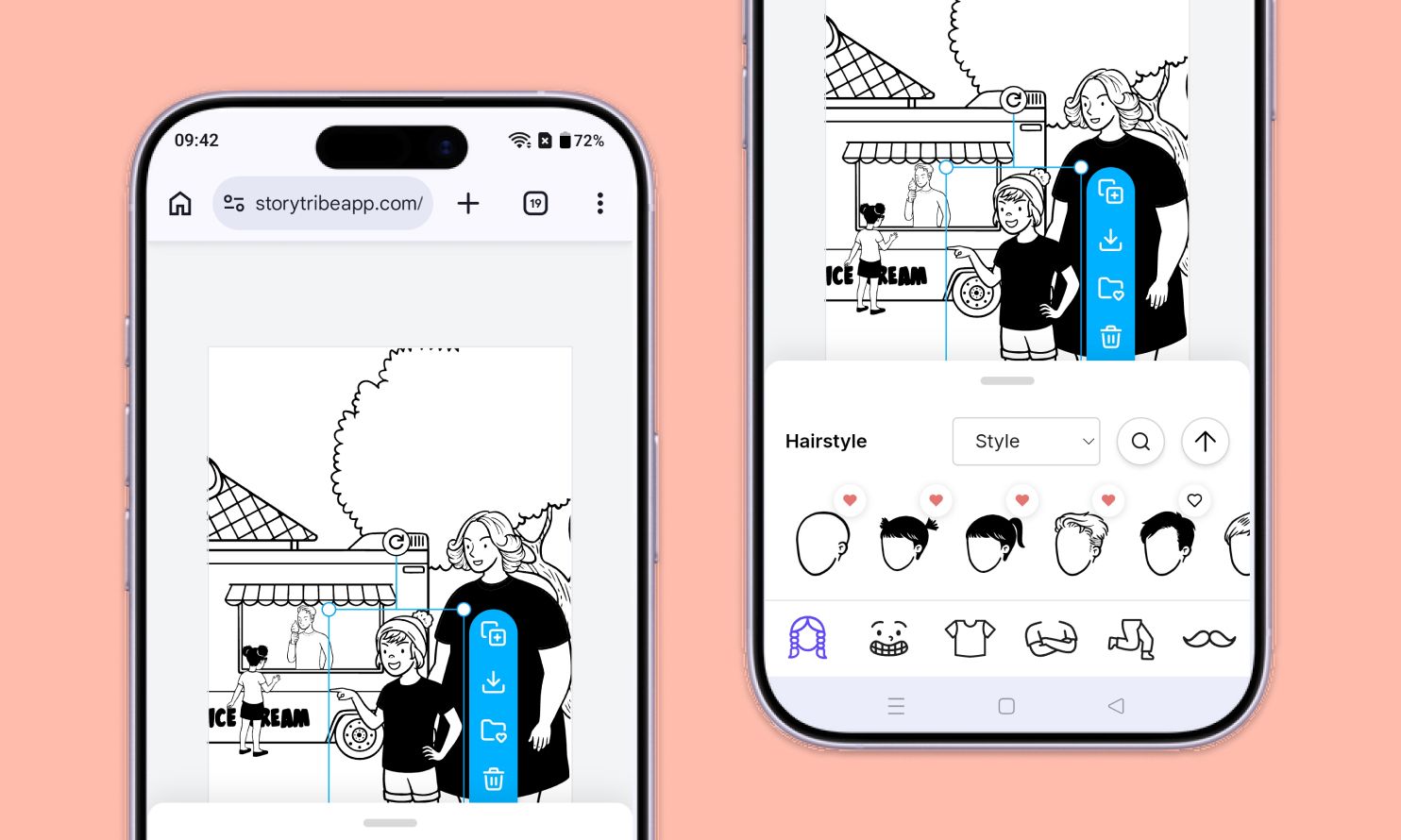
Don't let device-switching break your flow. The full StoryTribe editor now lives on your phone. Build wherever ideas strike.
StoryTribe
StoryTribe Team
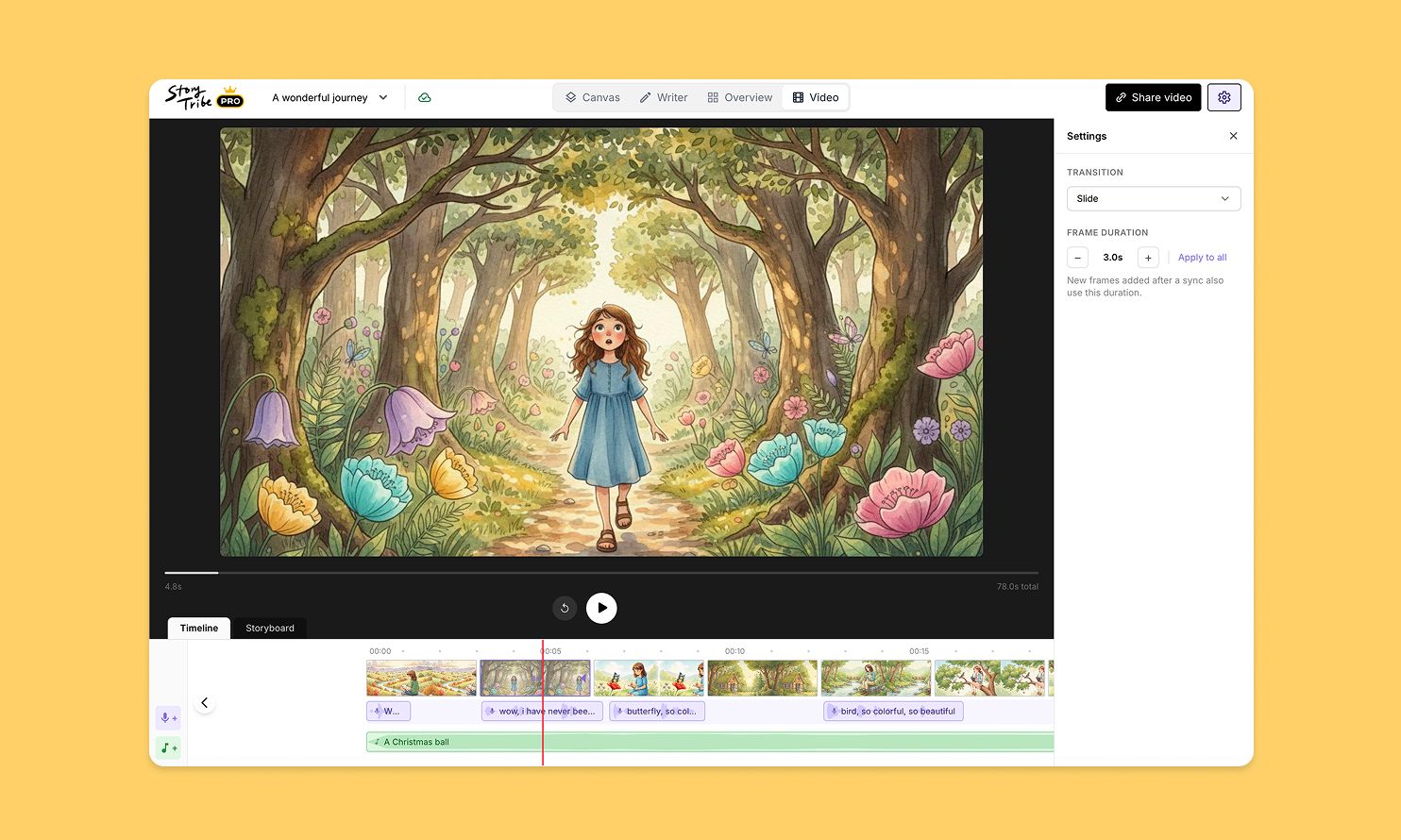
Turn your storyboard into a shareable video — set the timing, add music, and send a link. No extra tools needed.
StoryTribe
StoryTribe Team