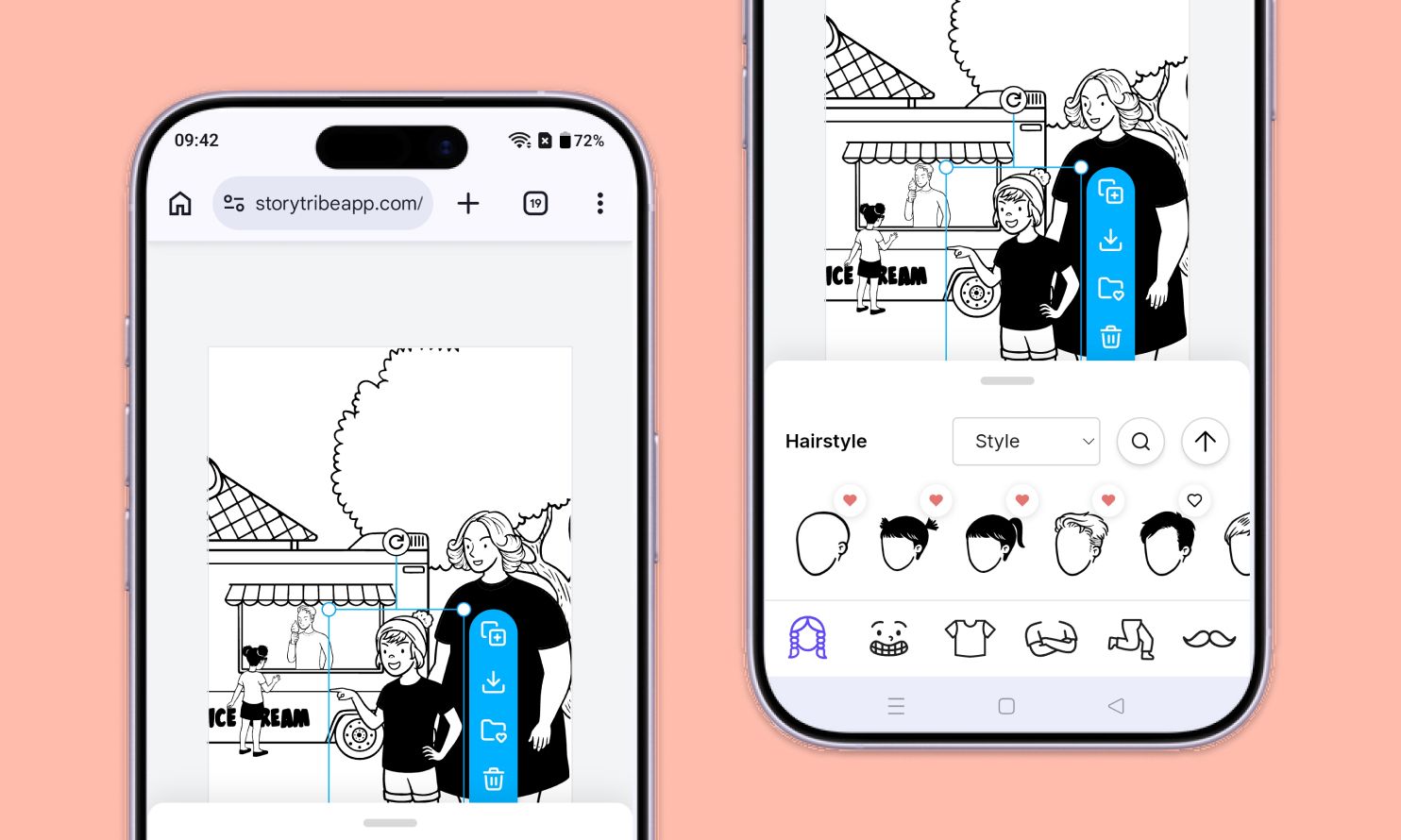
How to use the mobile editor in StoryTribe
Don't let device-switching break your flow. The full StoryTribe editor now lives on your phone. Build wherever ideas strike.

StoryTribe
StoryTribe Team
Build one reusable library of your characters, locations, props, and styles. Then bring any of them into a script, a storyboard, or an AI prompt with a single @.
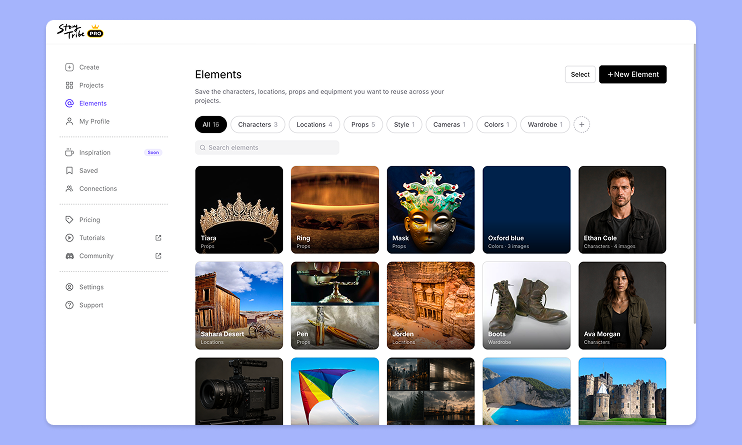
Elements is your library of Characters, Locations, Props, and any custom categories you create, such as Wardrobe or Cameras. Add a name, description, and reference images to create reusable assets that you can place on the canvas, @mention in scripts, or use to keep AI generations consistent.
Where did my Saved items go?
Saved is now Elements. Your existing items were migrated automatically the first time you opened the page: folders became categories, and any folder matching a default category (such as Characters) was merged into it. In addition to organizing your assets, Elements powers @mentions, improves AI consistency, and lets you filter storyboards by character, location, or other.
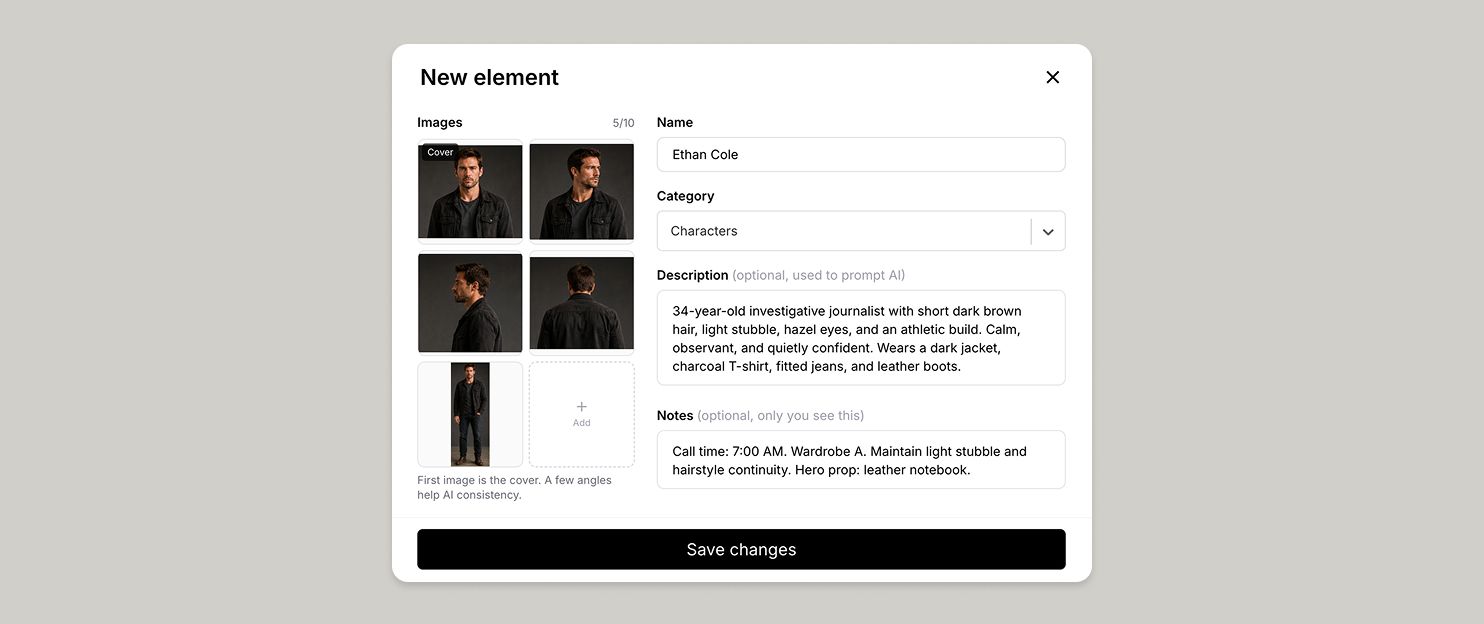
From the dashboard
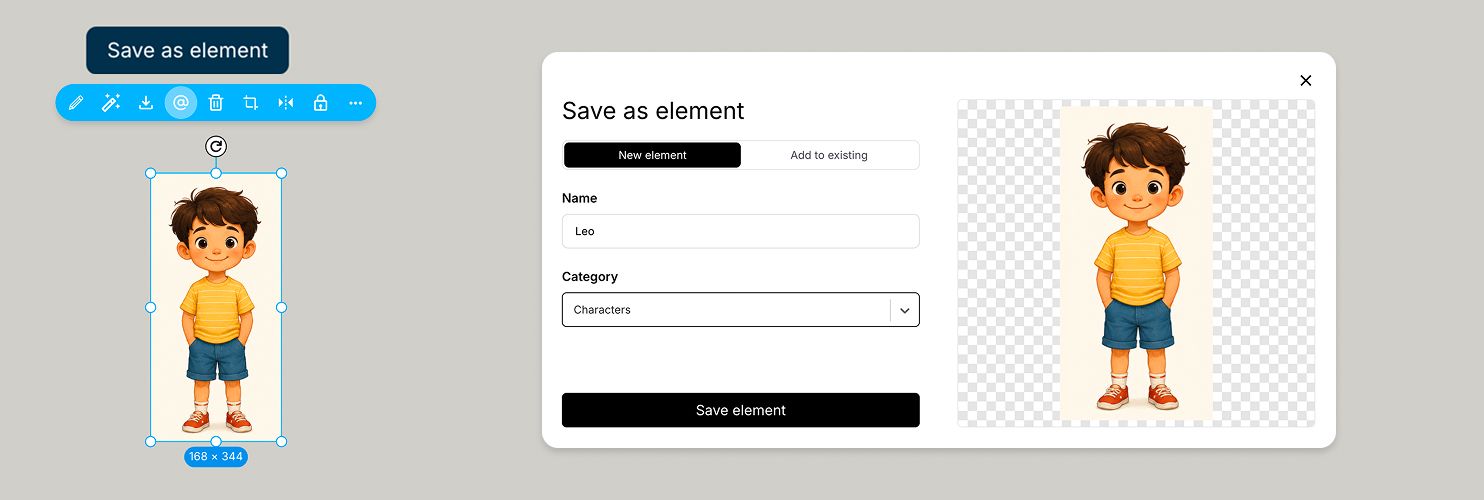
From the canvas
Select anything on the canvas and choose Save as element. Pick New element or Add to existing to append it to an element you already have. When you save a selection from the canvas, it preserves its editable layers, so when you use it again, each object remains separate and editable.
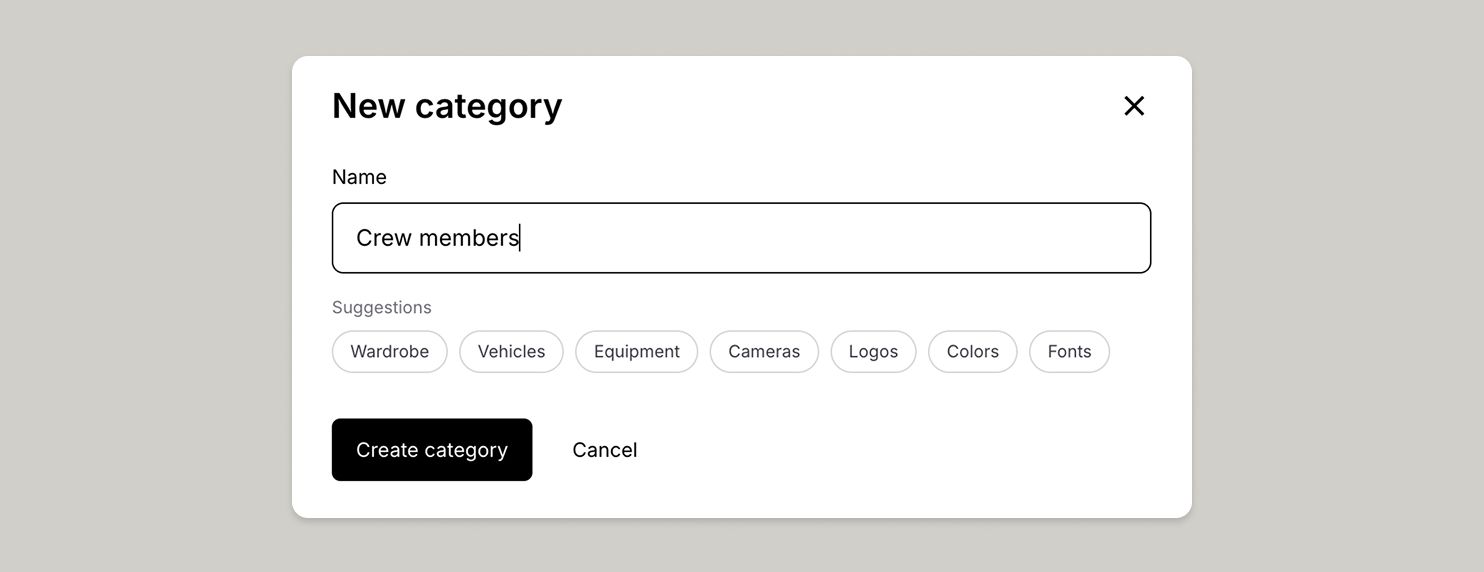
Every account starts with four fixed categories: Characters, Locations, Props, and Style. These categories can't be renamed or deleted, ensuring @mentions and AI generation remain reliable.
You can create custom categories by clicking the + button and giving them any name. Custom categories can be renamed at any time. When you delete one, you'll be asked where its elements should be moved so nothing is left orphaned.
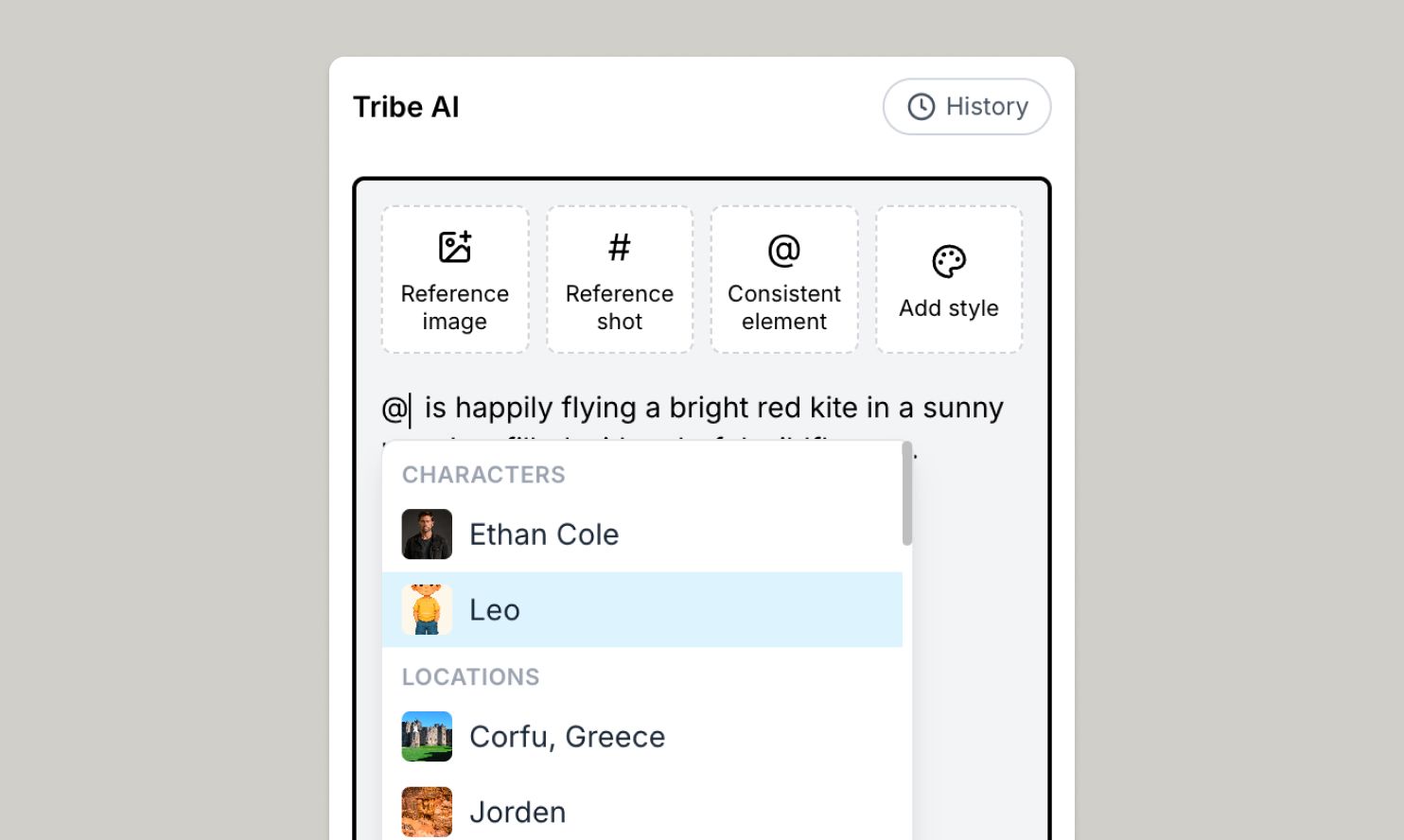
Type @ in a shot's script, a scene title or description, or the Tribe AI prompt box, and one menu opens every time: References, then Elements grouped by category, then Scenes, then Shots. Pick one and it becomes a chip.
Chips stay current on their own. Rename an element and every chip pointing at it updates everywhere; reorder your shots and a mentioned shot's chip renumbers itself.
The fast lane: #
Typing # skips straight to a scenes-and-shots-only picker, handy mid-prompt for something like "generate from #2.1." @ still opens everything. # is just the shortcut for when you already know it's a shot or scene you want.
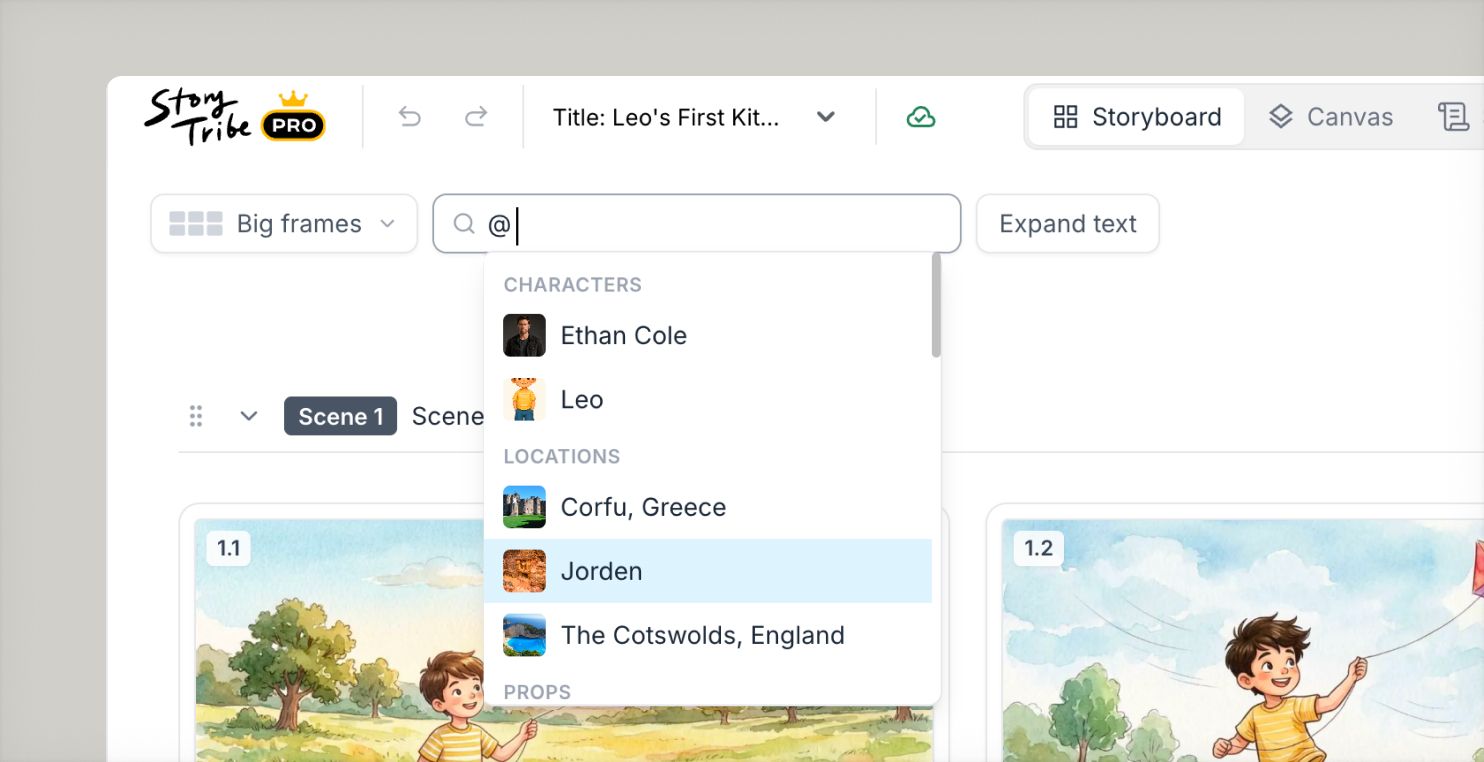
On the Storyboard tab, type @ or # into the filter bar the same way you would in a prompt. Chips narrow the grid live: combine an actor and a location to see every shot that needs both, so you can shoot everything in one location back to back.
If you notice anything not working as expected, please report it to [email protected]. Including a screenshot or short video recording helps us resolve issues faster.
You can also get help directly in the app by clicking the Help button (question mark icon) at the bottom of the screen, then selecting Help → Contact support to speak with one of our support team.
-> Start with our free storyboard maker
Don't let device-switching break your flow. The full StoryTribe editor now lives on your phone. Build wherever ideas strike.
StoryTribe
StoryTribe Team
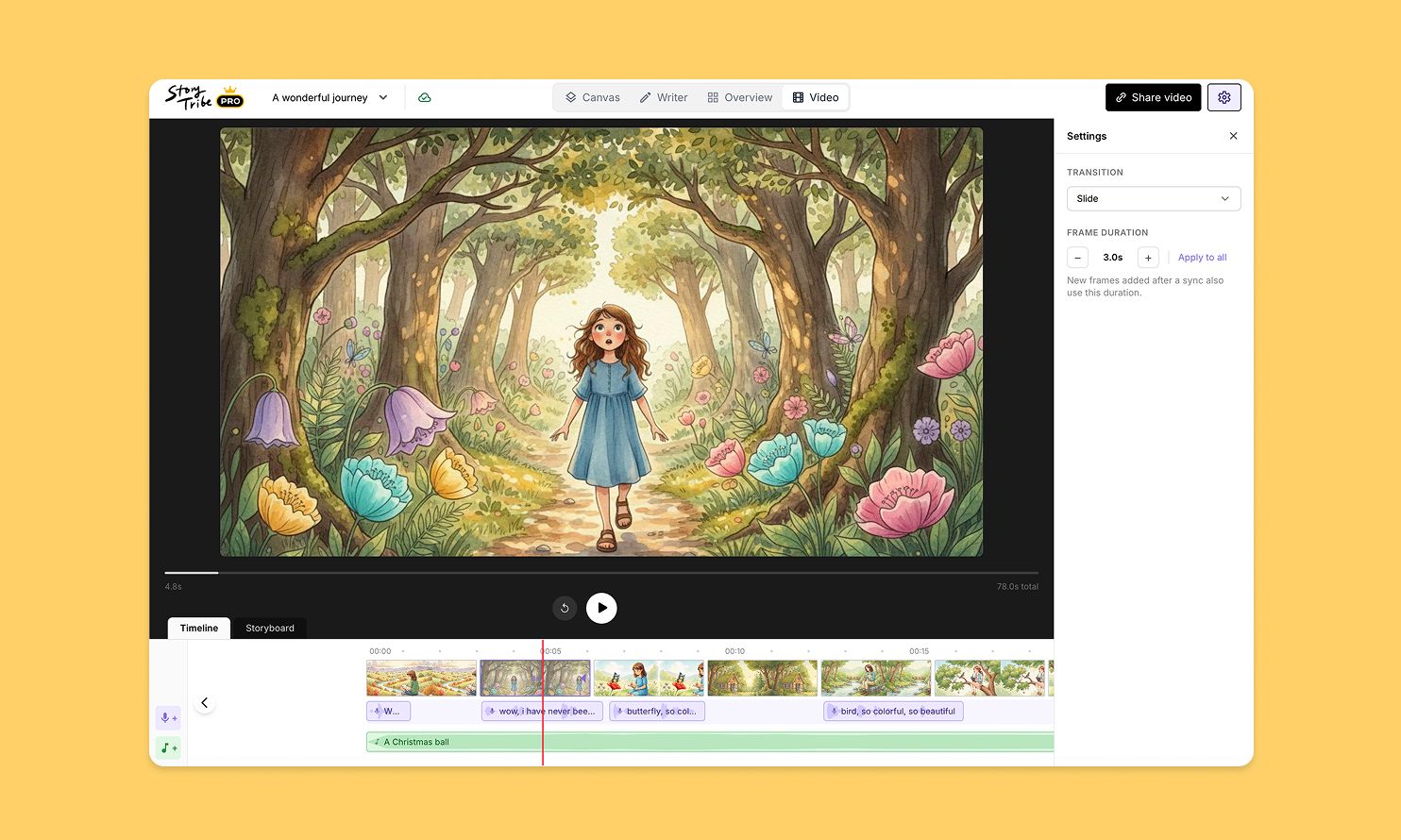
Turn your storyboard into a shareable video — set the timing, add music, and send a link. No extra tools needed.
StoryTribe
StoryTribe Team
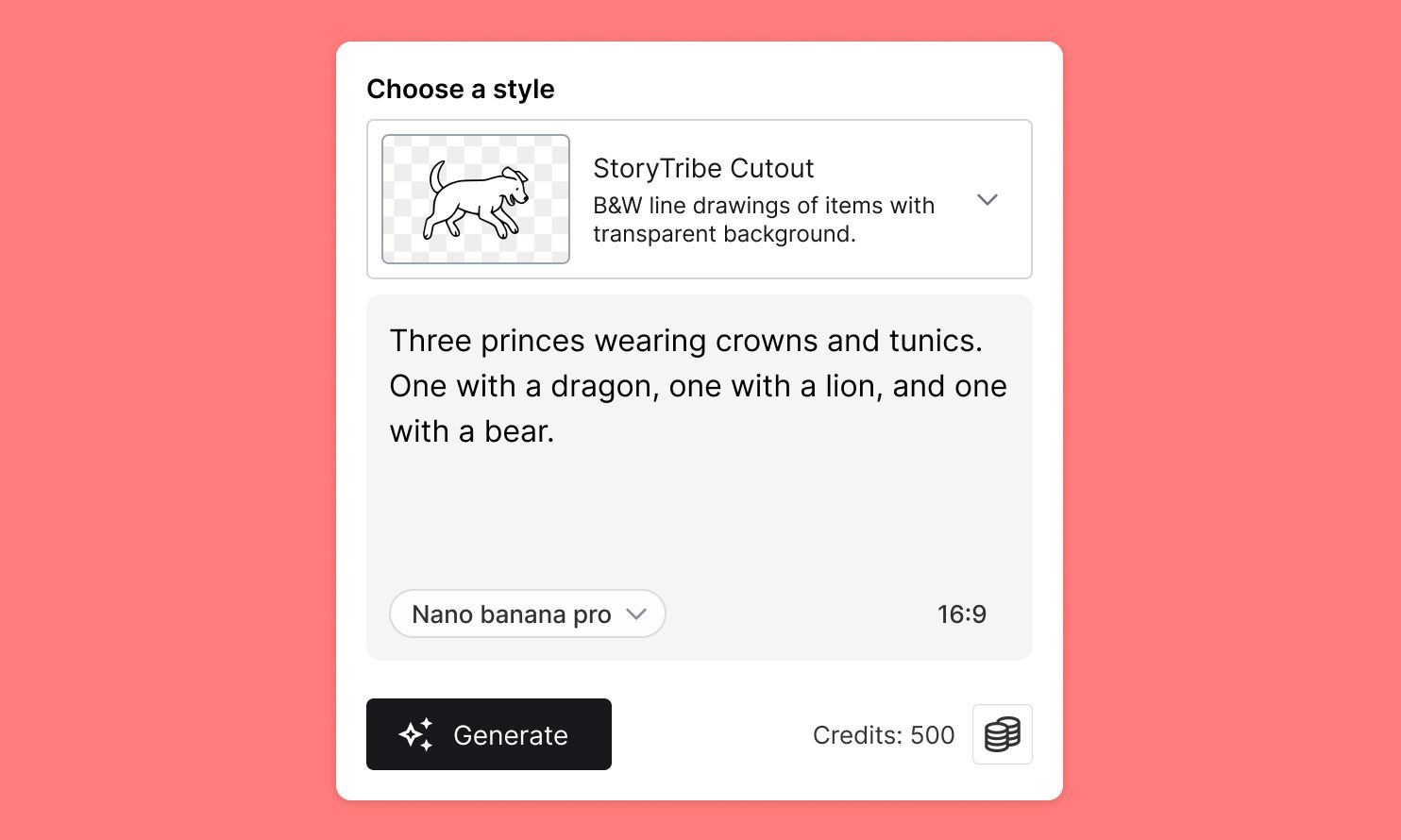
Create faster, iterate visually, and stay consistent — StoryTribe AI is designed for storytelling workflows, not one-off images.
StoryTribe
StoryTribe Team