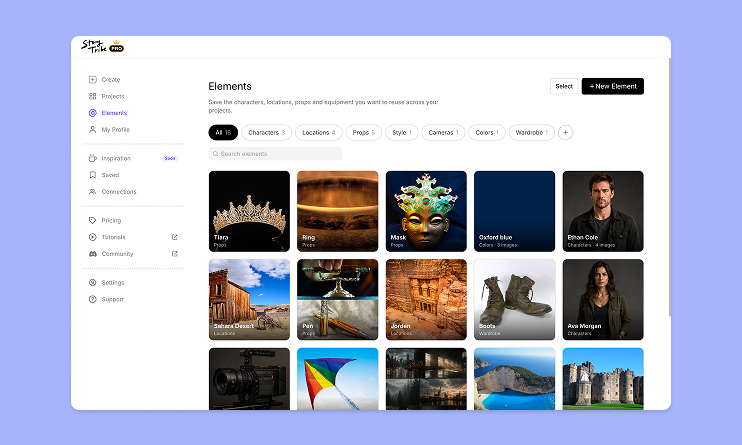
How to use Elements in StoryTribe
Build one reusable library of your characters, locations, props, and styles. Then bring any of them into a script, a storyboard, or an AI prompt with a single @.

StoryTribe
StoryTribe Team
Scripts and annotations help you add context, dialogue, and direction to your storyboard scenes. In StoryTribe, scripts live alongside visuals, so you can write, edit, hide, generate, and export them without breaking your flow.
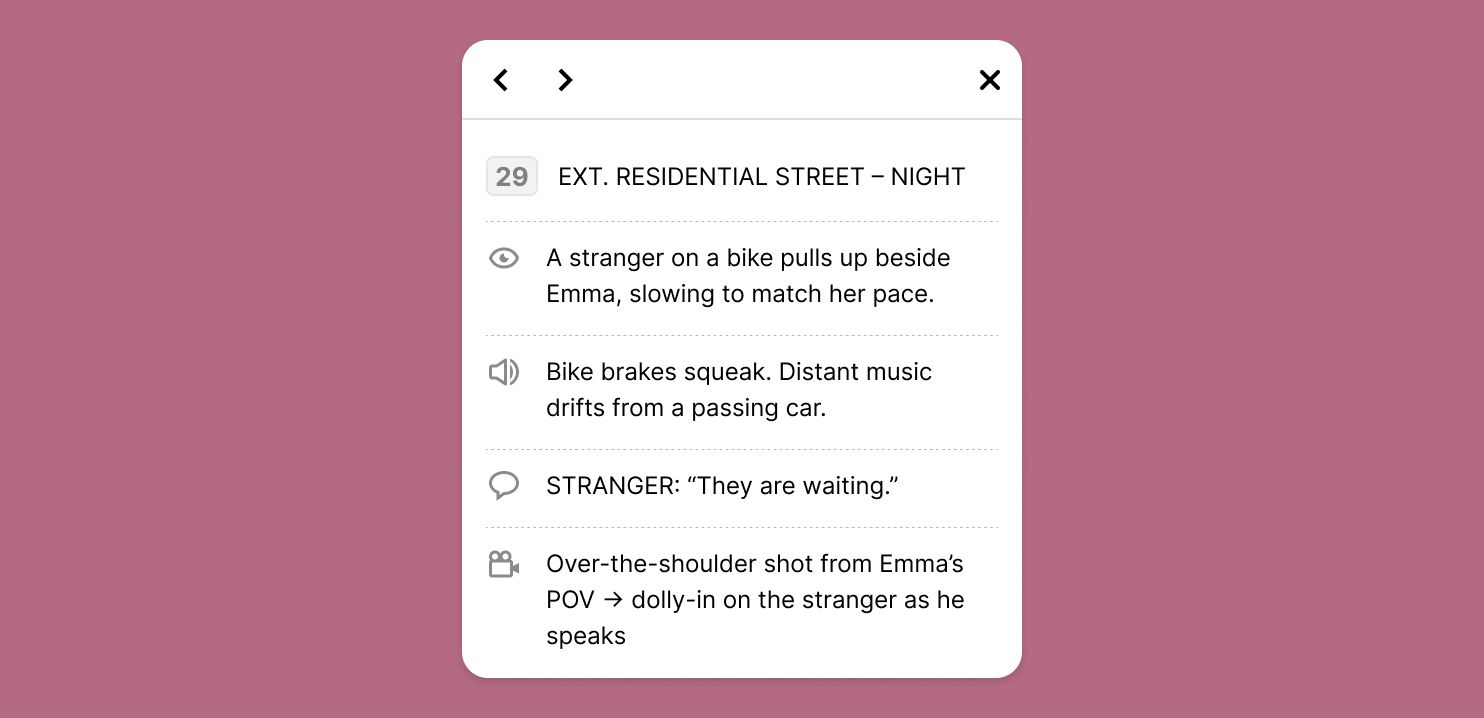
Scripts and annotations add meaning to your visuals.
Both are attached to scenes, making it easy to align what’s written with what’s shown.
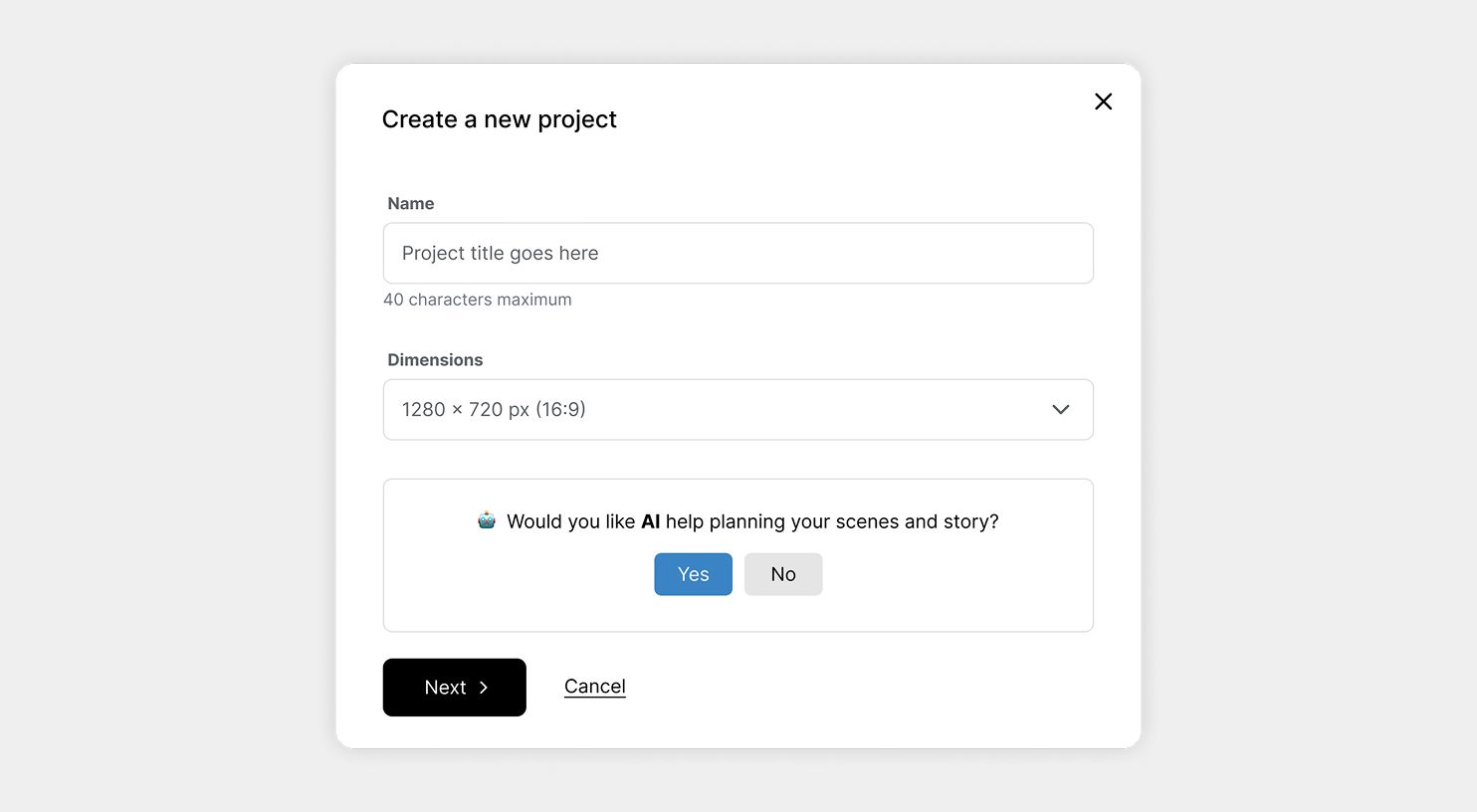
When you create a new project, you can choose to start with a script generated by AI.
This is useful when you have an idea but not a complete script yet. Instead of starting from a blank canvas, AI helps you think through the story faster and turn rough ideas into something you can storyboard.
Using an AI-generated script can help you:
You can use the AI script as a starting point — edit, remove, or rewrite anything as you build and refine your storyboard.
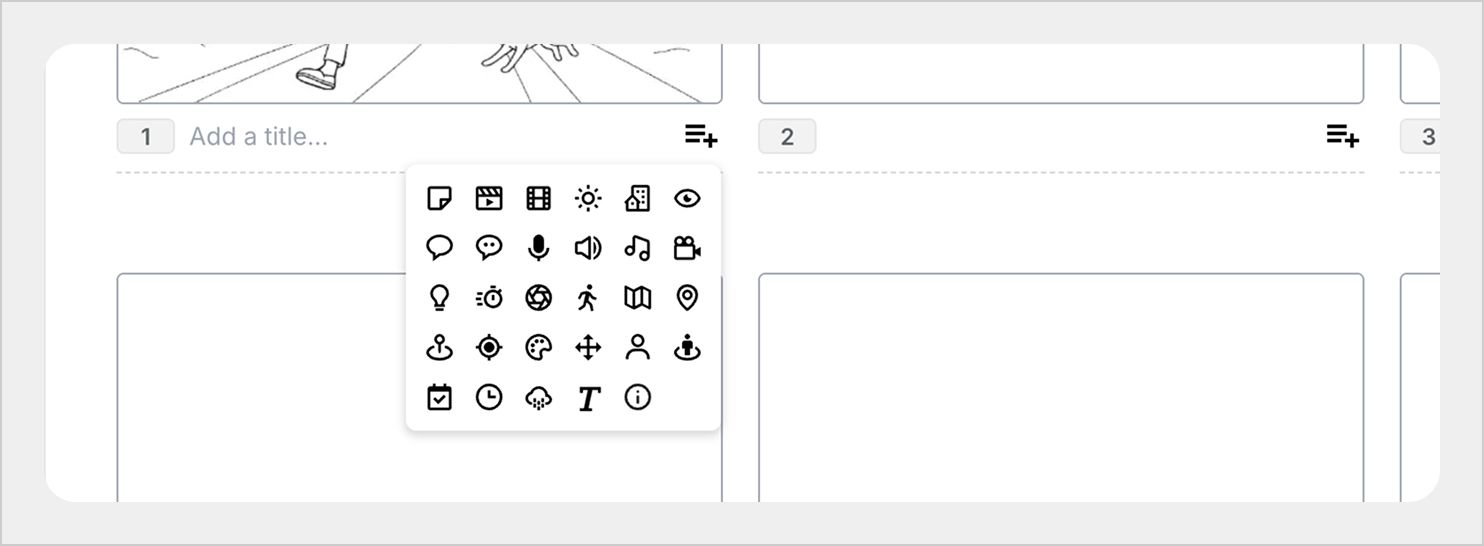
When you create or open a project, you’ll first land in the grid view. This is where you’ll do most of your script and annotation work.
Each scene in the grid has an Add script button. Click it to open the script menu, where you can choose what type of information you want to add.
From here, you can add:
Each script or annotation is added per scene, keeping everything structured and easy to manage. This makes it simple to build rich, detailed storyboards without cluttering your visuals.
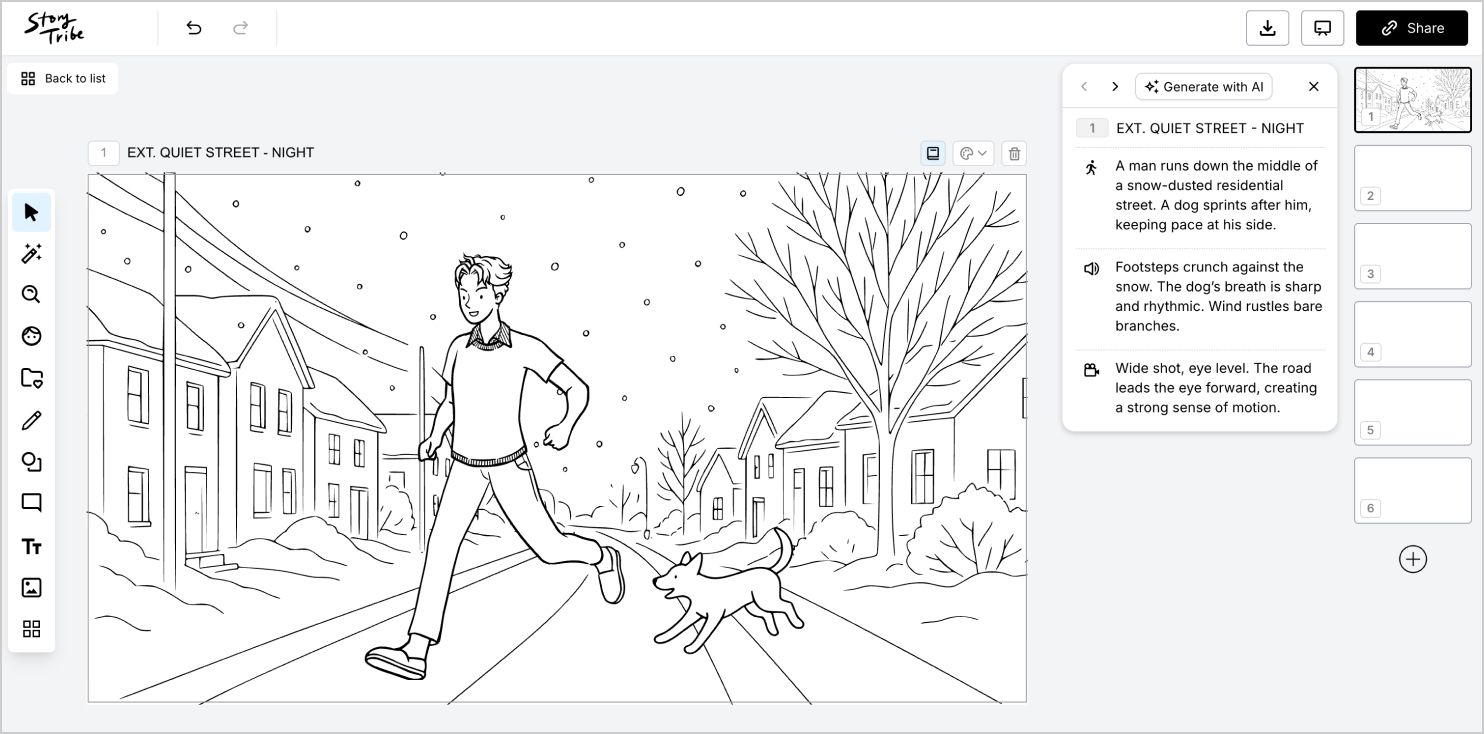
When you click a scene to edit, you’ll enter the canvas view. This is where visuals and scripts come together.
In canvas view, you can:
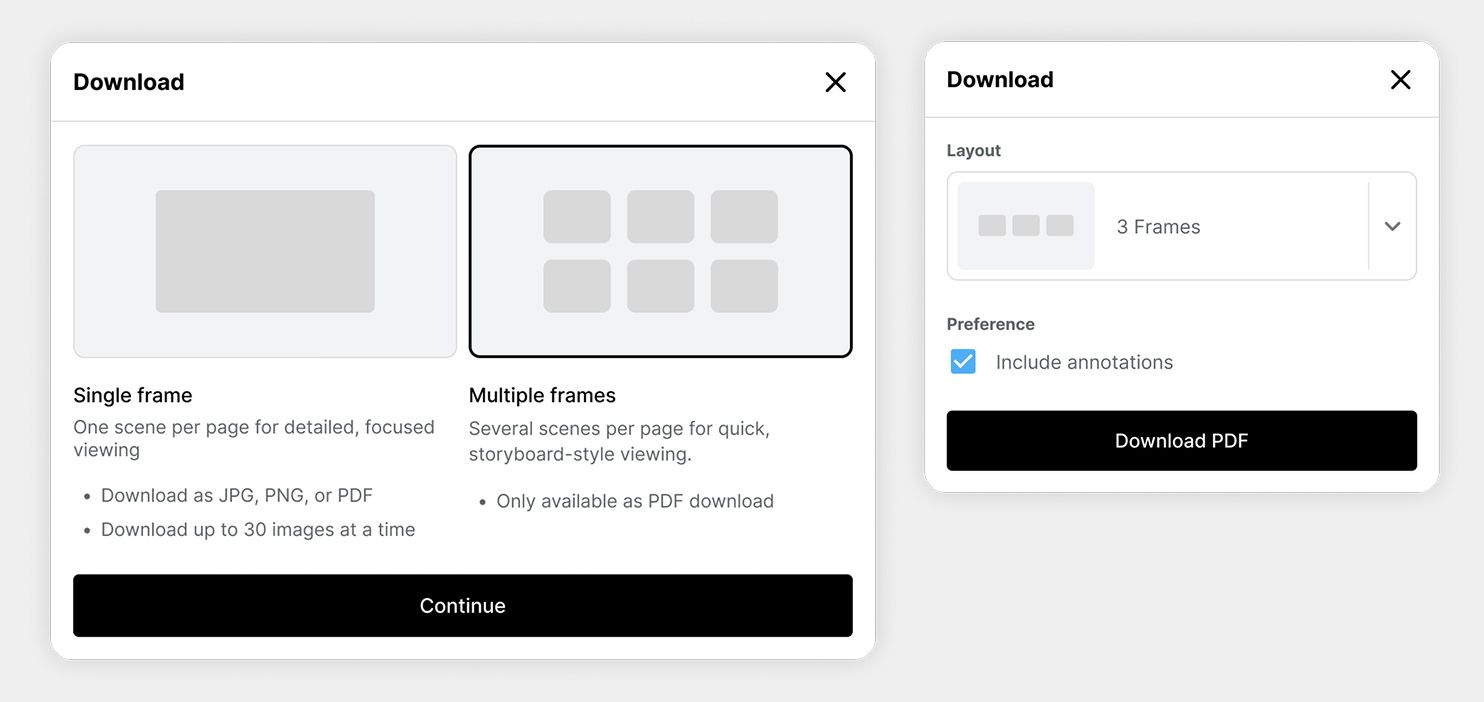
When your storyboard is ready, click the Download button at the top right of your project.
In the download panel:
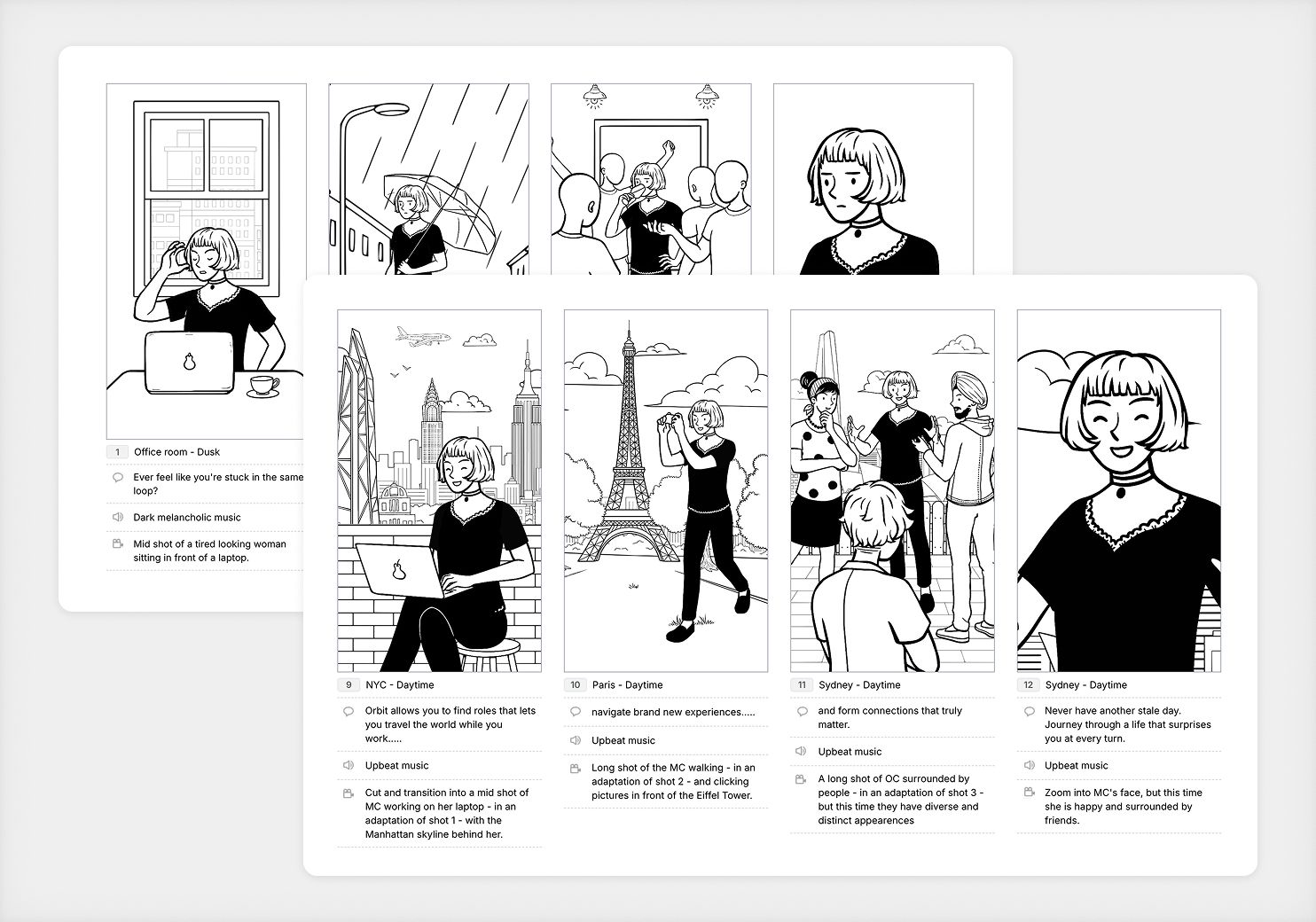
This option lets you download your storyboard as a PDF, with visuals and scripts neatly laid out together.
Multi-frame exports are ideal for:
If you notice anything not working as expected, please report it to [email protected]. Including a screenshot or short video recording helps us resolve issues faster.
You can also get help directly in the app by clicking the Help button (question mark icon) at the bottom of the screen, then selecting Help → Contact support to speak with one of our support team.
Build one reusable library of your characters, locations, props, and styles. Then bring any of them into a script, a storyboard, or an AI prompt with a single @.
StoryTribe
StoryTribe Team
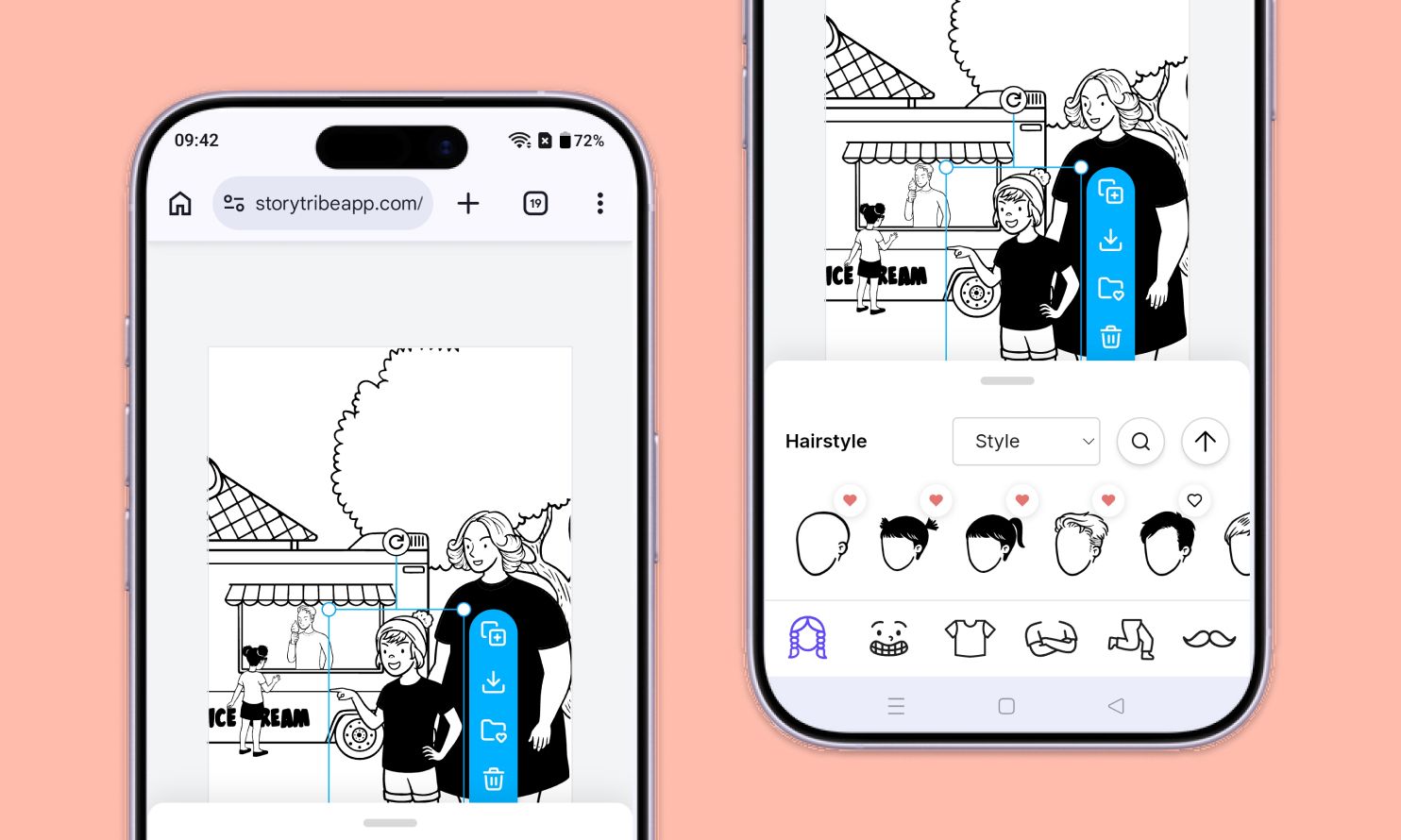
Don't let device-switching break your flow. The full StoryTribe editor now lives on your phone. Build wherever ideas strike.
StoryTribe
StoryTribe Team
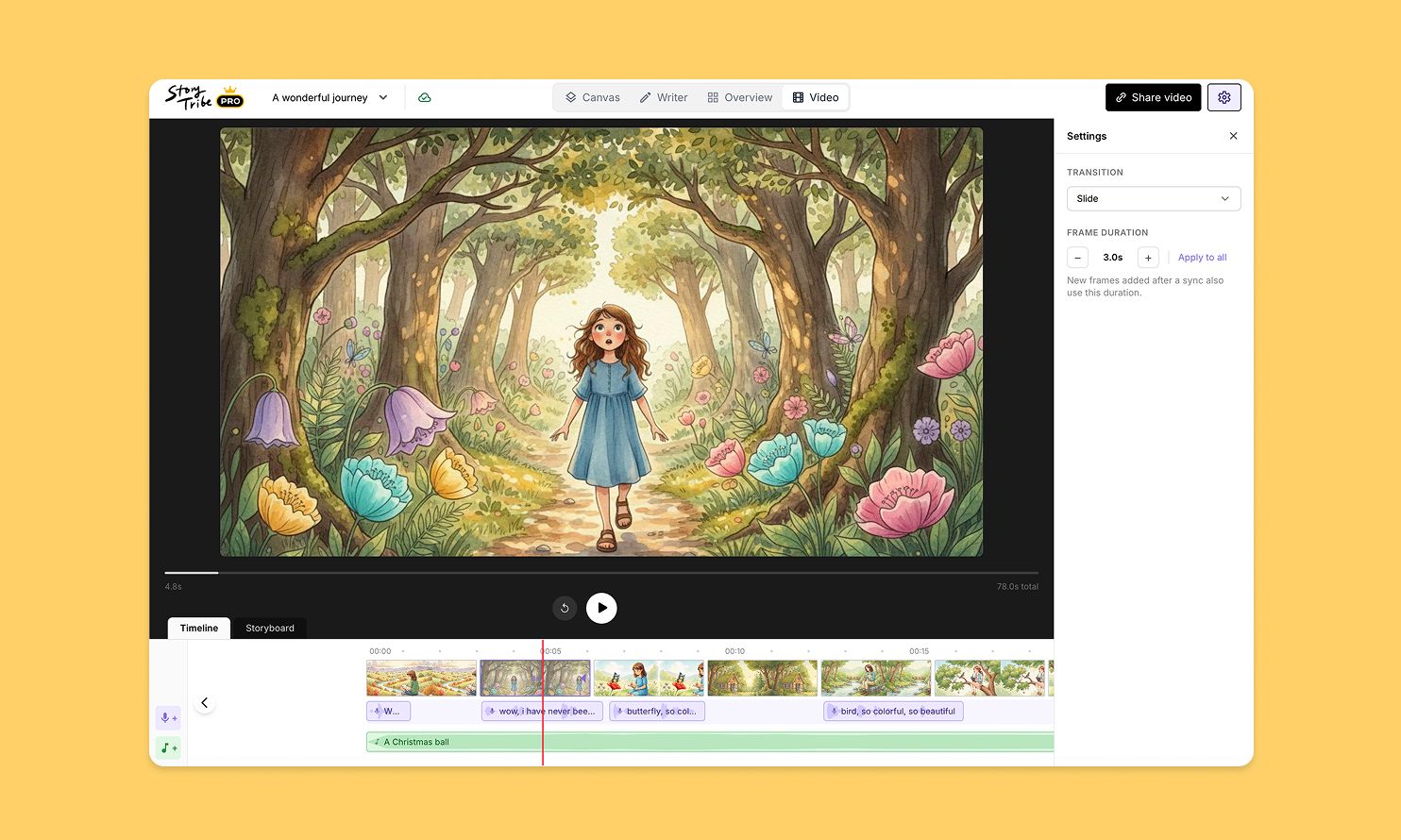
Turn your storyboard into a shareable video — set the timing, add music, and send a link. No extra tools needed.
StoryTribe
StoryTribe Team