Turn a storyboard into a video
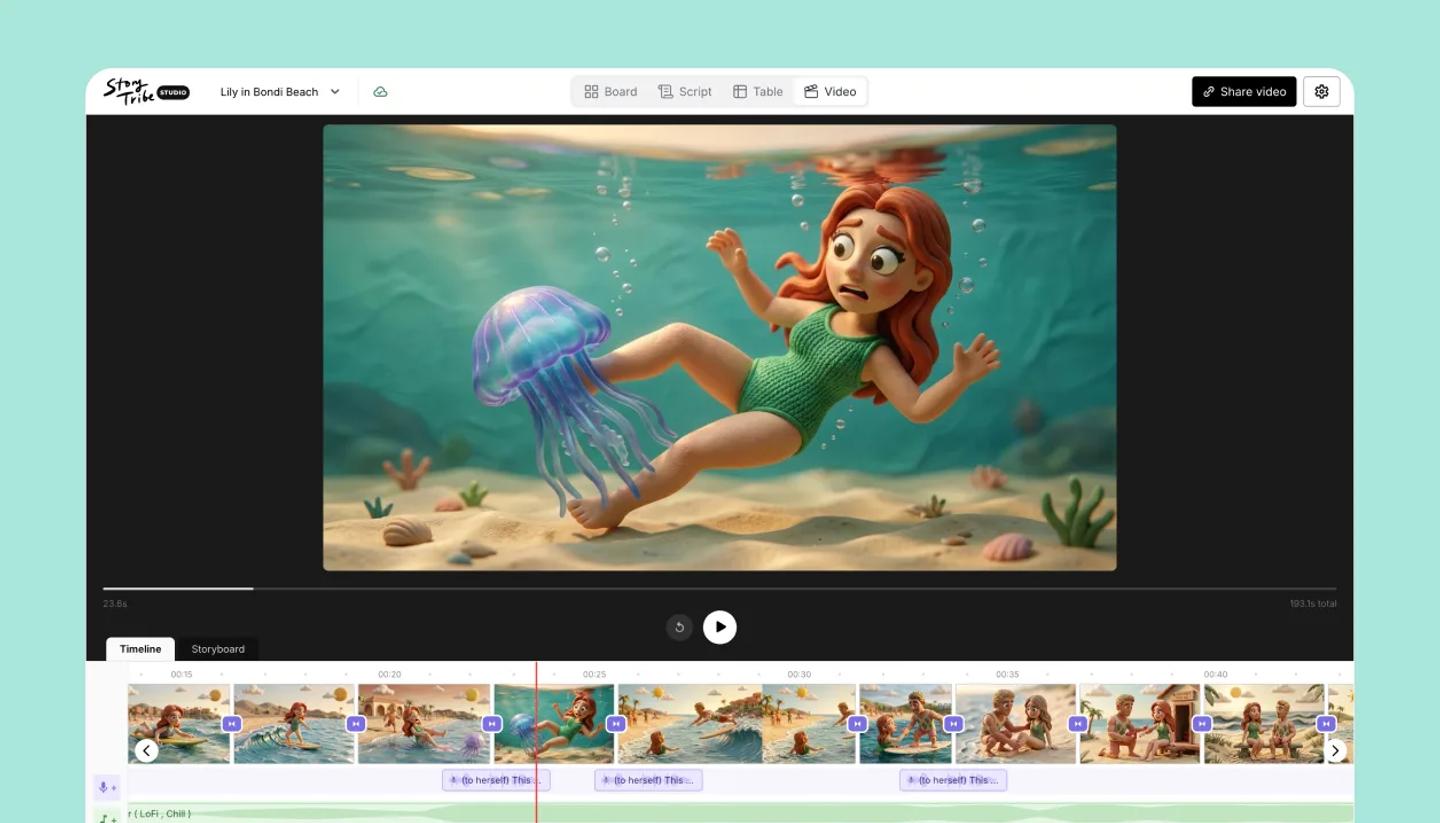
Open the Video view and click Create video. Every shot becomes a clip in storyboard order; set timing and transitions, add music and voice-over, then share a link or download the MP4 on a paid plan.
Last updated Aug 29, 2026
- Click
Videounder the header. The first time you seeTurn your storyboard into a video; clickCreate video. - The player shows your first shot. Below it is the timeline: your shots in order, each showing how long it plays, with rows for voice-over and music.
- Set how long each shot plays (3 seconds by default) and pick a transition at each cut.
- Add sound: music from the library or your own files, and AI voice-over read from your script or typed.
- Click
Share videoto publish a link, or to download the MP4 on a paid plan.
What follows the storyboard
The video is built from the storyboard: the order of shots is the storyboard's order (reorder there, not here), omitted shots are left out, and the aspect ratio is the project's canvas size. When you add or remove shots after creating the video, a banner says Your storyboard has changed so you can review timing before exporting.
In this collection
- Frame timing and the default duration.
- Music tracks, the music library, uploading your own, and AI voice-overs.
- Transitions, sharing a video link, downloading as MP4, and the video editor on mobile.
Common questions
Was this article helpful?
Need more help?
Send us a message. We reply within 3 days, usually sooner.