Download as MP4
Downloading the MP4 is on paid plans. Share video › Download video renders the animatic and gives you the file. You can keep working while it renders.
Last updated Aug 29, 2026
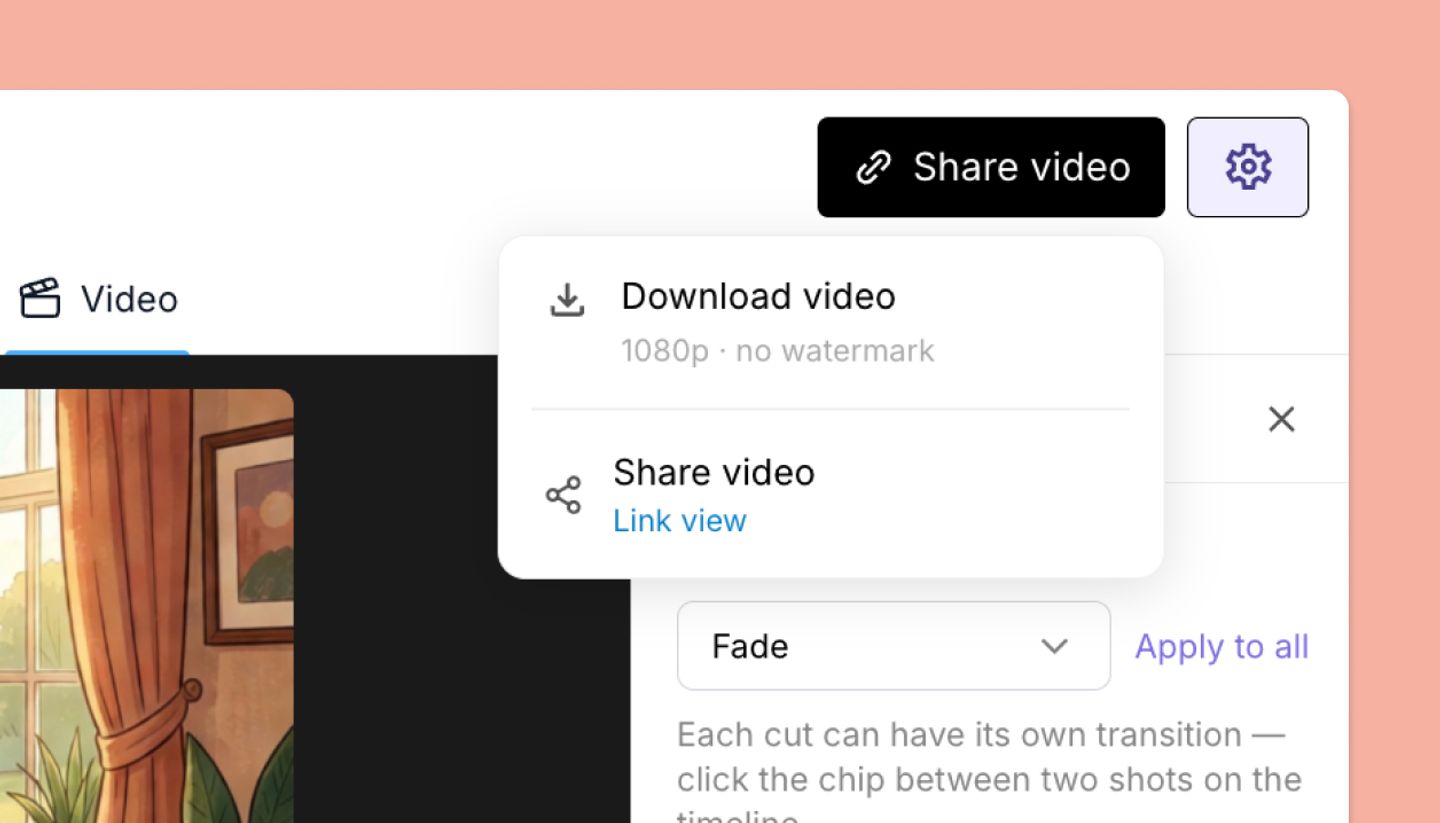
- In the Video view click
Share videoand chooseDownload video. - You'll see
Preparing your video…while it's made. You can close the dialog; a banner saysYour video is readywhen it's done. - Click
Download video. The file is named after the project (.mp4).
Once your video is ready, downloading it again is instant until you make another edit. A green Ready to download dot marks a video you can download instantly. After an edit, the next download makes a new video.
On a phone or tablet
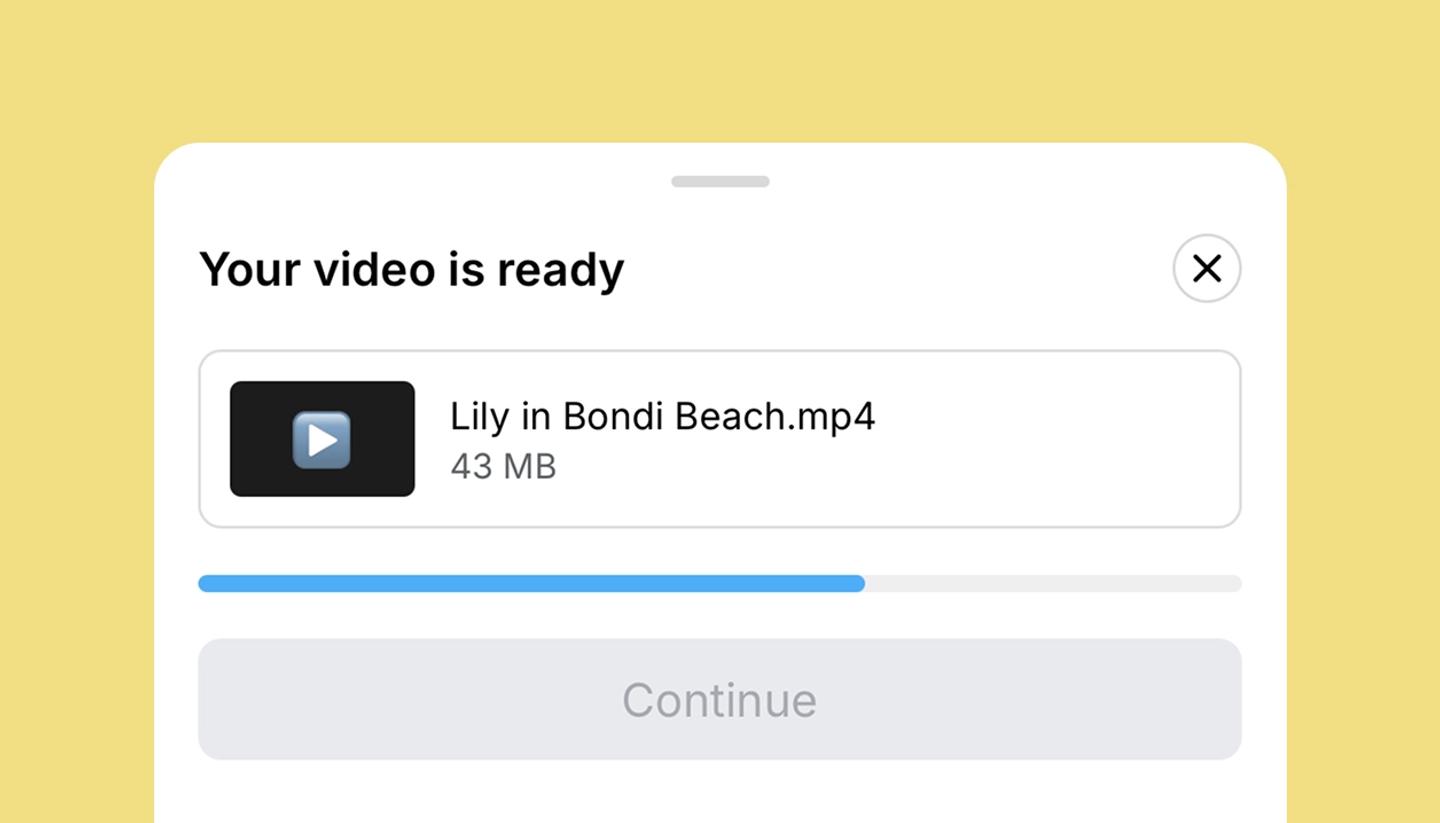
- Open the Video view and tap
Download video. - Wait for the file to be ready, then tap
Continue. - Your phone's share menu opens. Save Video puts it in Photos, or send it straight to an app.
A video over 60 MB skips the share menu and saves to Files instead.
Troubleshooting
- "Export didn't finish" with "Your video is taking longer than expected." Very long animatics can time out; try again, or shorten it (split into two videos) if it repeats.
- "Regenerating — try again when ready" on the button. Shot images are still being synced; wait for the batch to finish.
- Audio missing in the file. If the error names audio, re-add the track (an uploaded file may have failed to load) and export again.
Common questions
Related articles
Share a video linkWas this article helpful?
Need more help?
Send us a message. We reply within 3 days, usually sooner.