Music tracks
In the Video view, click the music row to add a track from the library or a file of your own. Drag it to move it, drag its ends to trim it, and click it for volume, loop and fades. Three can overlap.
Last updated Sep 12, 2026
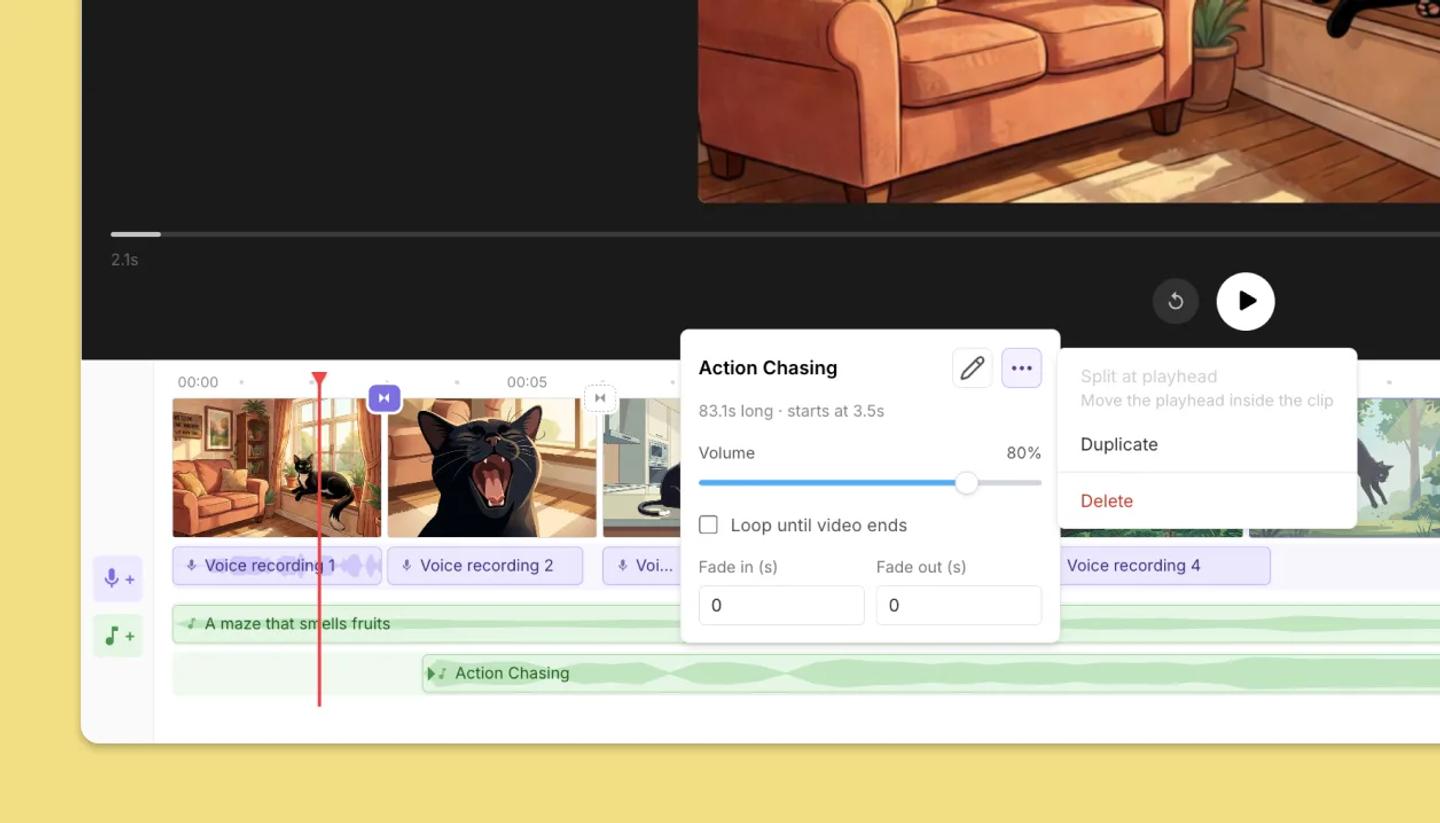
- In the Video view, click the music row to open
Add music. - Search the library or filter it by genre and mood, play a track to hear it, then click it to add it. For a file of your own, click
Upload your own. - Drag the block along the row to change where the music starts.
- Drag either end of the block to trim it.
- Click the block for its settings:
Volume, which starts at 80%,Loop until video ends,Fade inandFade out. You can rename the track here too.
Split, duplicate, delete
Right-click a block, or open the menu next to its name, for Split at playhead, Duplicate and Delete. With a block selected, S splits it at the playhead and Delete removes it.
Layer two or three tracks
Add another track to put a short cue over your main one. The music lane holds three rows, so three tracks can play at the same time. Drag a block toward an empty row and a dashed outline shows where it will land. More tracks than that still fit, one after another along a row.
Was this article helpful?
Need more help?
Send us a message. We reply within 3 days, usually sooner.