Remove a member or change their role
Workspaces only. On the Members page, the role control on someone's row switches Admin and Member; the ⋯ menu removes them. Their projects stay in the workspace.
Last updated Sep 12, 2026
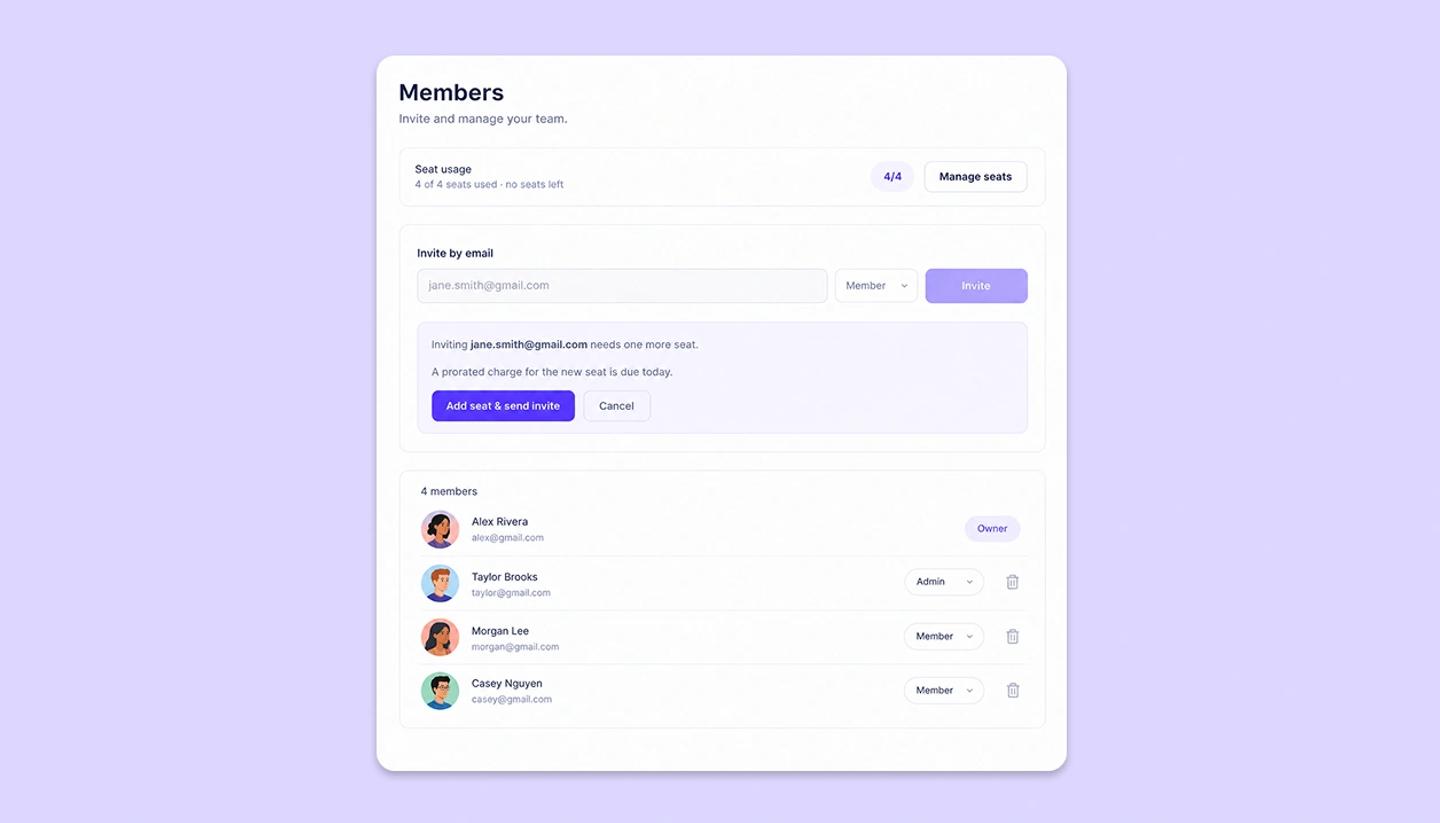
Both actions need you to be the Owner or an Admin of the workspace. Open Members from the side menu.
Change a role
- Find the person in the member list.
- Click the role control on their row and pick
AdminorMember.
The change applies immediately. The Owner can grant Admin or Member. An Admin can only grant Member. The Owner's row cannot be changed, and nobody can change their own row.
What each role can do
- Owner. Everything an Admin can do, plus buying and removing seats. Only the Owner pays.
- Admin. Invites and removes members, changes roles, and changes who can open any project in the workspace.
- Member. Works on projects, and sees the member list read-only. Cannot invite, remove, or re-share a teammate's project.
Remove a member
- Open the ⋯ menu on their row and choose Remove from workspace.
- Click
Confirm.Cancelbacks out.
They lose access to every project in the workspace at once, including ones they created. Those projects stay in the workspace.
Someone who has not accepted yet is not on this list. Cancel their invite with Revoke on their row in the invite panel above.
What happens to their seat
- The Owner removes them. The paid seat count drops by one on its own, and the unused time becomes a credit on the next invoice.
- An Admin removes them. The seat is free for a new invite, but the plan keeps paying for it until the Owner lowers the count from Manage seats.
Hand the workspace to someone else
- Hand the workspace to someone else. The subscription is tied to the Owner's account. Email [email protected] if the person paying is changing.
Need more help?
Send us a message. We reply within 3 days, usually sooner.