Remove someone's access
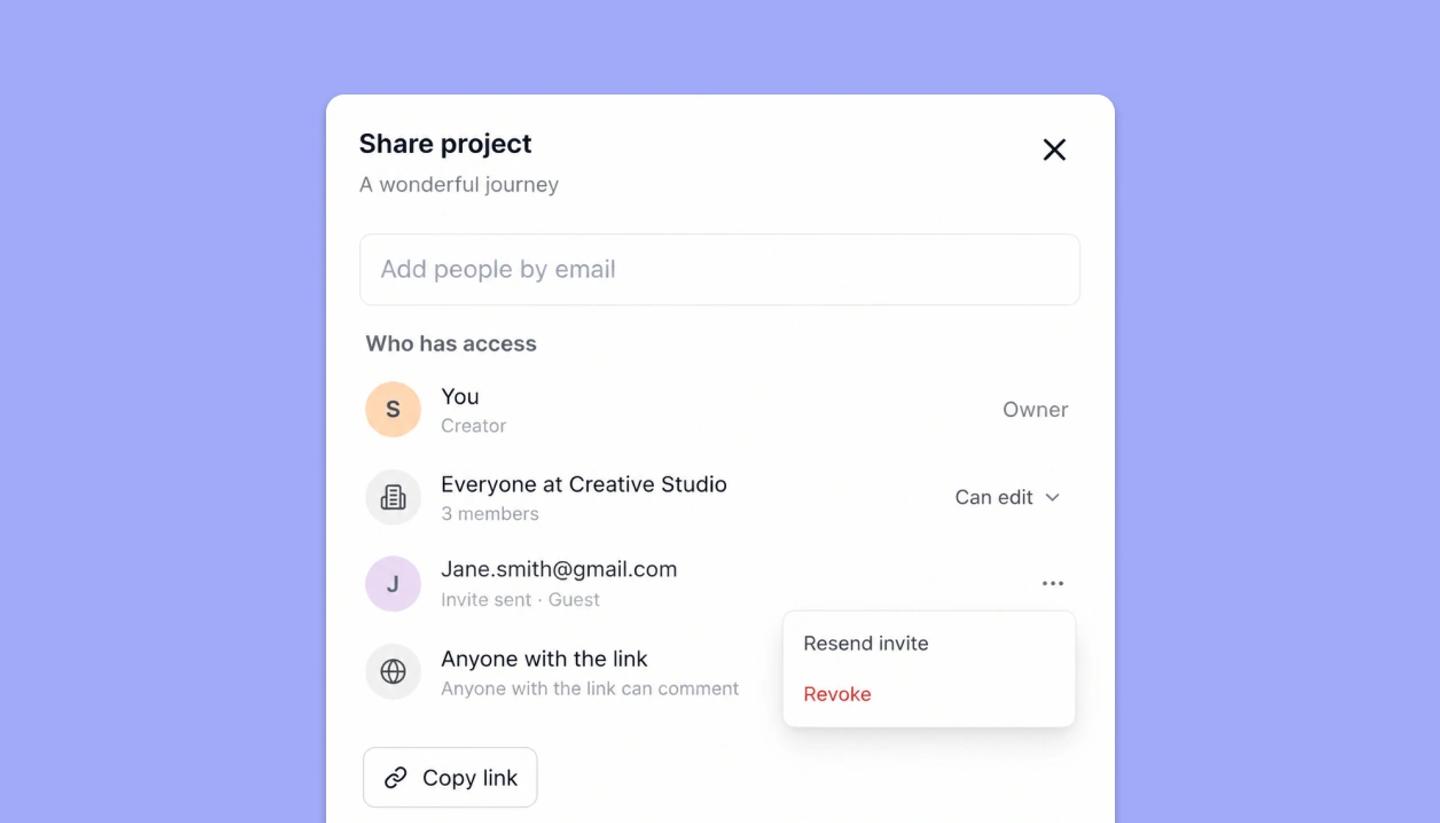
In Share project, open the person's row. Remove guest takes a guest off, Remove override returns a teammate to the workspace default, and Revoke cancels an invite. Nothing asks for confirmation.
Last updated Sep 12, 2026
Only the project's creator, or an Owner or Admin of its workspace, can change who has access. Anyone else sees the list without the controls.
Take someone off
- Open the project and click
Share. - Find the person under
Who has access. - Open the dropdown or the menu at the end of their row.
- Choose the red item. It takes effect at once, with no confirmation step.
Which item to use
- Remove guest. Takes an outside guest off the project completely.
- Remove override. Drops a teammate's personal level. They fall back to whatever
Everyone at your workspaceis set to. - Revoke. Cancels an invite nobody has accepted yet. It works on a guest invite and on a member invite.
Shut the door harder
- Lock out one teammate. Set their level to
No accessinstead of removing the override. The project is then hidden from their dashboard. - Close the link. Set
Anyone with the linktoOff. Only the people listed above it can open the project after that.
What they see
There is no notification. If they open the link they get You don't have access to this project. If they had the project open at the time, the editor drops them to read-only and any edit they try is refused with You don't have edit access to this project.
Was this article helpful?
Need more help?
Send us a message. We reply within 3 days, usually sooner.