Invite teammates
Workspaces only. On the Members page, enter an email, pick a role and send. Each teammate takes a paid seat on the Owner's Studio plan. Guests on a single project are free and take no seat.
Last updated Sep 12, 2026
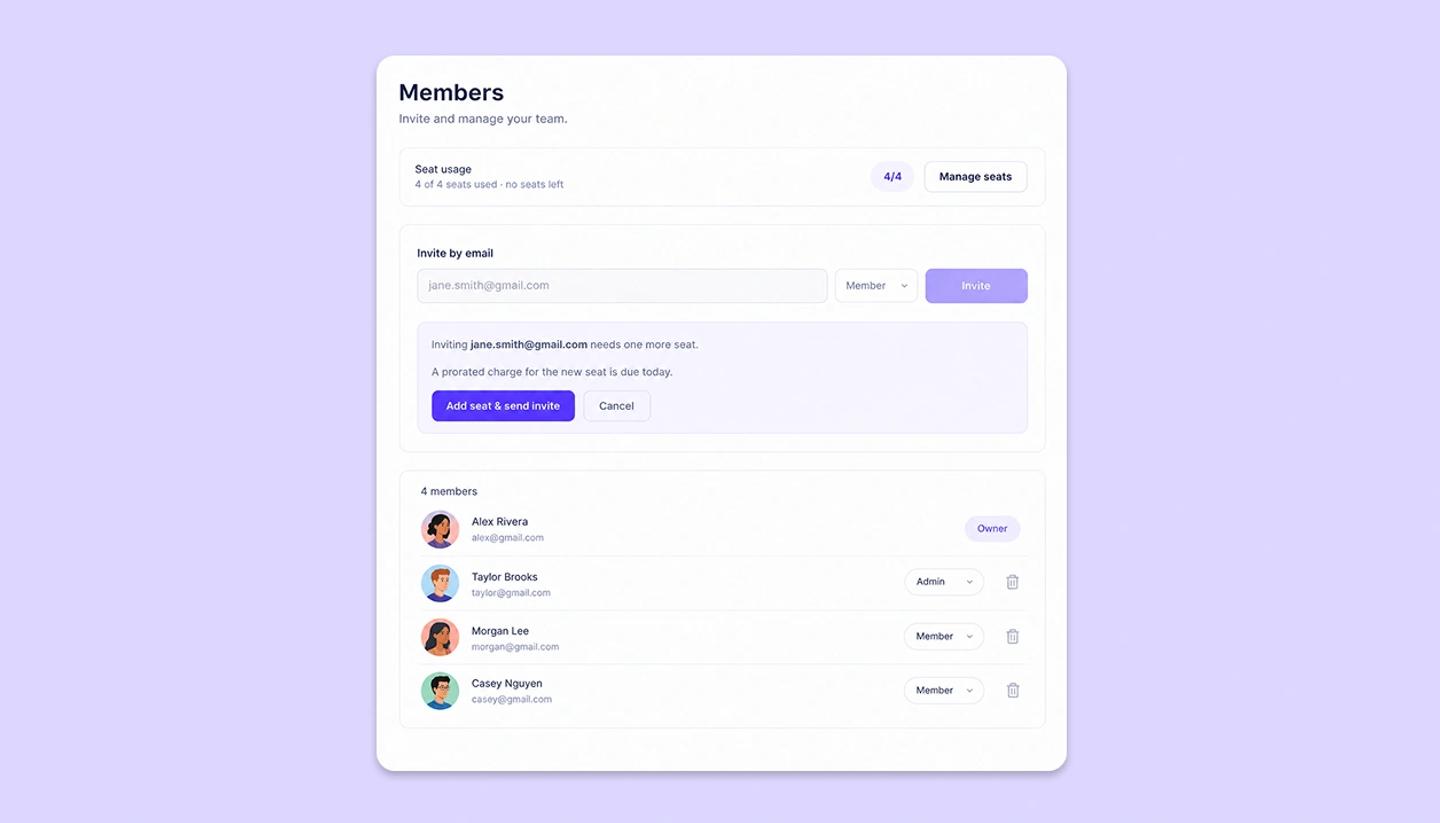
Inviting teammates is a workspace feature. You need a workspace on an active Studio plan, and you need to be its Owner or an Admin to invite other members.
Send the invite
- Switch to the workspace and open
Membersfrom the side menu. - Under
Invite by email, type the person's email address. - Pick a role. The Owner can grant
AdminorMember. An Admin can only grant Member. - Click
Invite. The panel confirms withInvite sent toand the address.
The invite arrives by email. Your teammate needs a StoryTribe account to accept it, which is free to create. They never need a paid plan of their own.
Track the invite
The row appears under Pending invites and reads Pending · Member until they accept. Resend sends the email again. Revoke cancels it. If they turn it down the row moves to Declined, where Resend invite offers it again.
What a seat costs, and who pays
- The Owner pays. Seats are billed on the workspace Owner's Studio subscription. An Admin can invite but cannot buy a seat.
- A pending invite holds a seat. It stops counting only when the invite is accepted or revoked.
- Out of seats, as the Owner. The panel says
All your seats are in use. Inviting someone will add a seat to your plan.Clicking Invite shows what the extra seat costs today, andAdd seat & send invitebuys it and sends. - Out of seats, as an Admin. The form locks and the panel says
All seats are in use. Ask the workspace owner to add a seat.

When you do not need a seat
Someone who only has to look at one project does not need a seat and does not join the workspace. Invite them from that project's Share dialog instead. A guest can view and comment on it for free, and only needs a free account to sign in.
Need more help?
Send us a message. We reply within 3 days, usually sooner.