Layers panel
The Layers tab in the side panel lists every object on the shot, top layer first. Drag to restack, click the padlock or eye to lock or hide, double-click to rename, right-click for more.
Last updated Aug 29, 2026
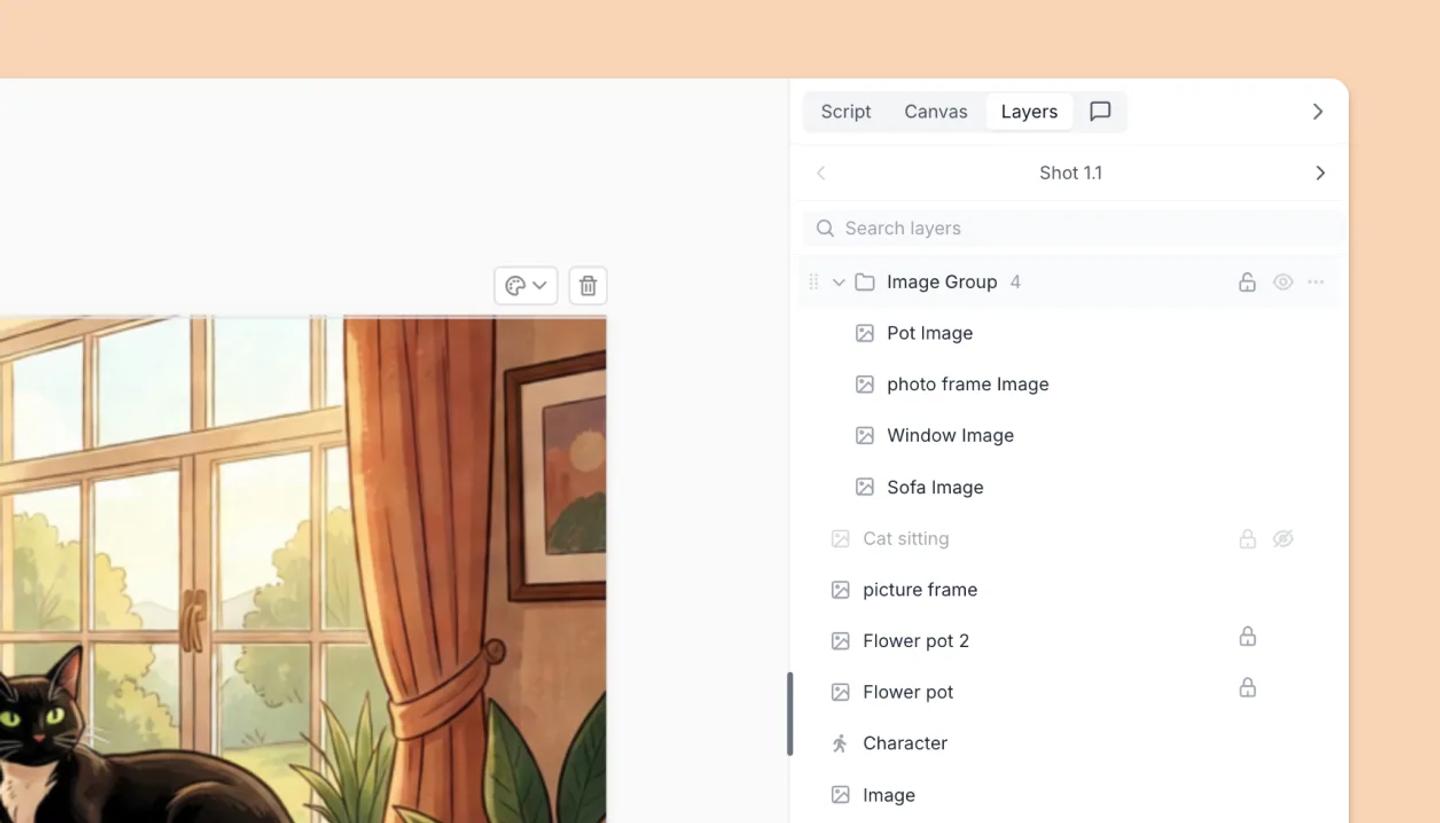
- On the Canvas, open the side panel and click
Layers. Each row shows a type icon (Character, Image, Text, Speech Bubble, Rectangle, Freehand and so on) and a name; groups are one row you can expand.Search layersfilters by name. - Click a row to select the object on the canvas; ⌘-click toggles, Shift-click selects a run. On touch, swipe right on a row.
- Drag the handle to restack: drop in the top quarter of a row to go above it, the bottom quarter to go below, or the middle of a group's row to put the object inside the group.
- Use the row buttons: the padlock (
Lock/Unlock) and the eye (Hide/Show). Hidden objects dim in the list and vanish from the canvas and exports until shown again. - Double-click a name to rename it (Enter saves, Esc cancels). Right-click a row for
Rename,Duplicate,Group Selection,Ungroup,Flatten,Bring to Front,Send to Back, Lock, Hide andDelete. Delete or Backspace works while the panel has focus.
Was this article helpful?
Need more help?
Send us a message. We reply within 3 days, usually sooner.