Editing text on the canvas
Press T to add a text box, double-click it to type, and style it in the Text panel. Text inside a shape or speech bubble has more choices: any font, any color, and bold, italic and underline.
Last updated Sep 12, 2026
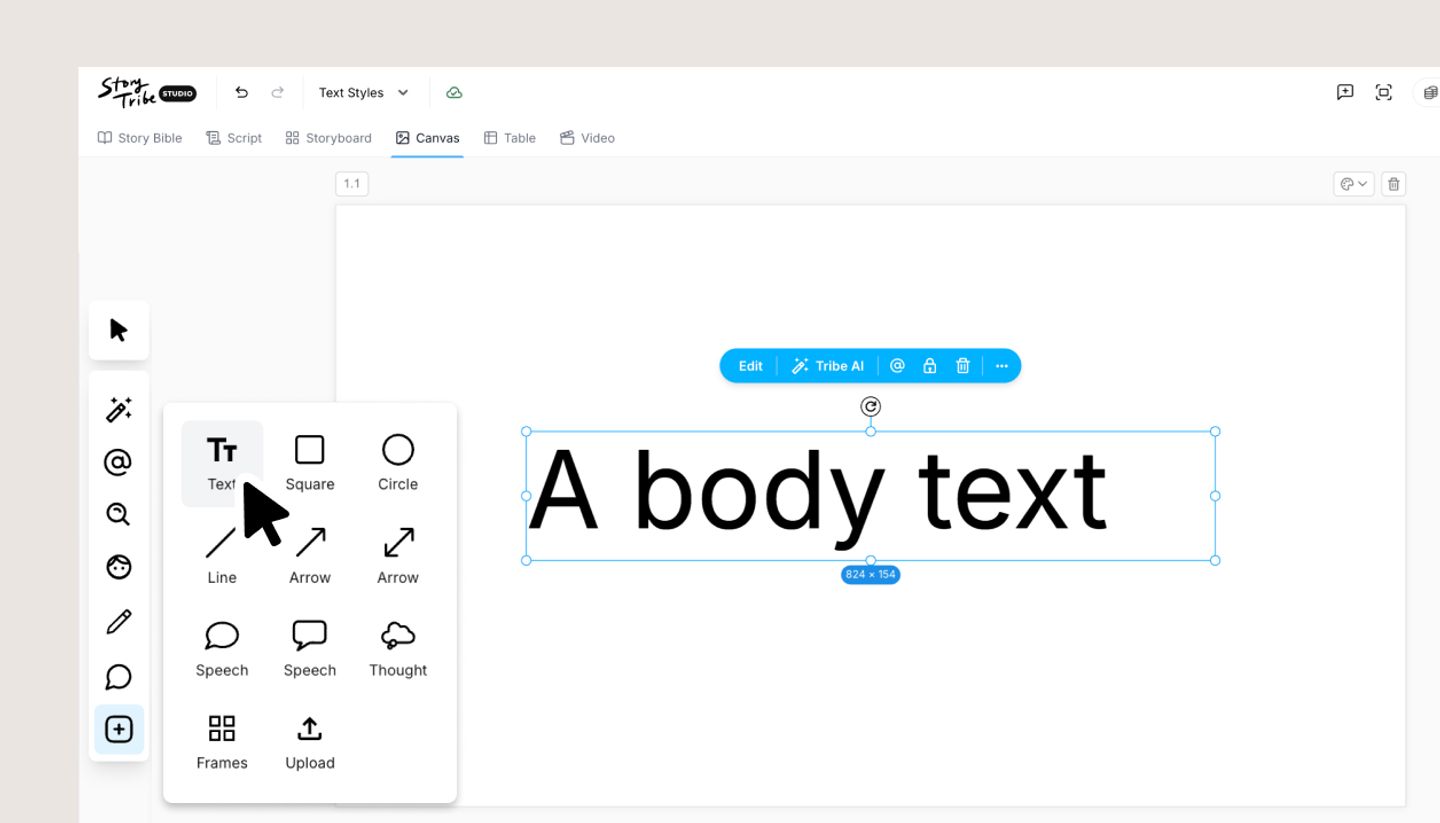
- Press T, or use the create menu, to add a text box. It lands in the middle of your view with placeholder text.
- Double-click the box to type, or click it once more while it's selected. The cursor lands where you clicked. Enter starts a new line, and Esc or a click elsewhere finishes.
- Style it in the Text panel. You can set Font Type (Inter to start with), Size, Alignment (left, center or right) and Color, which offers white, light gray, gray and black. The box shows each size as you pick it.
- Drag the box to move it. A corner handle scales the text, and a side handle changes the width, with the text wrapping to fit.
Text in shapes and speech bubbles
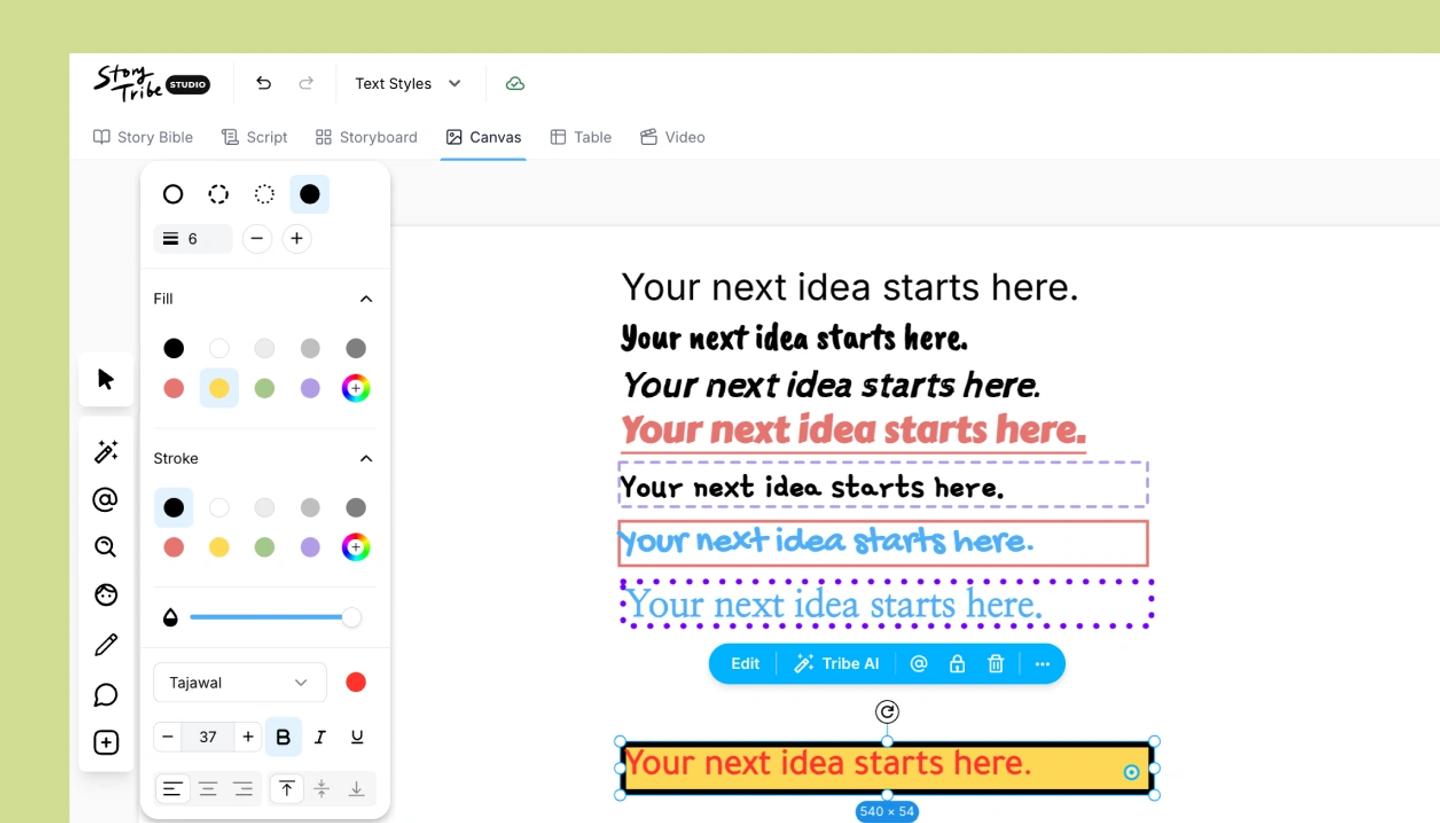
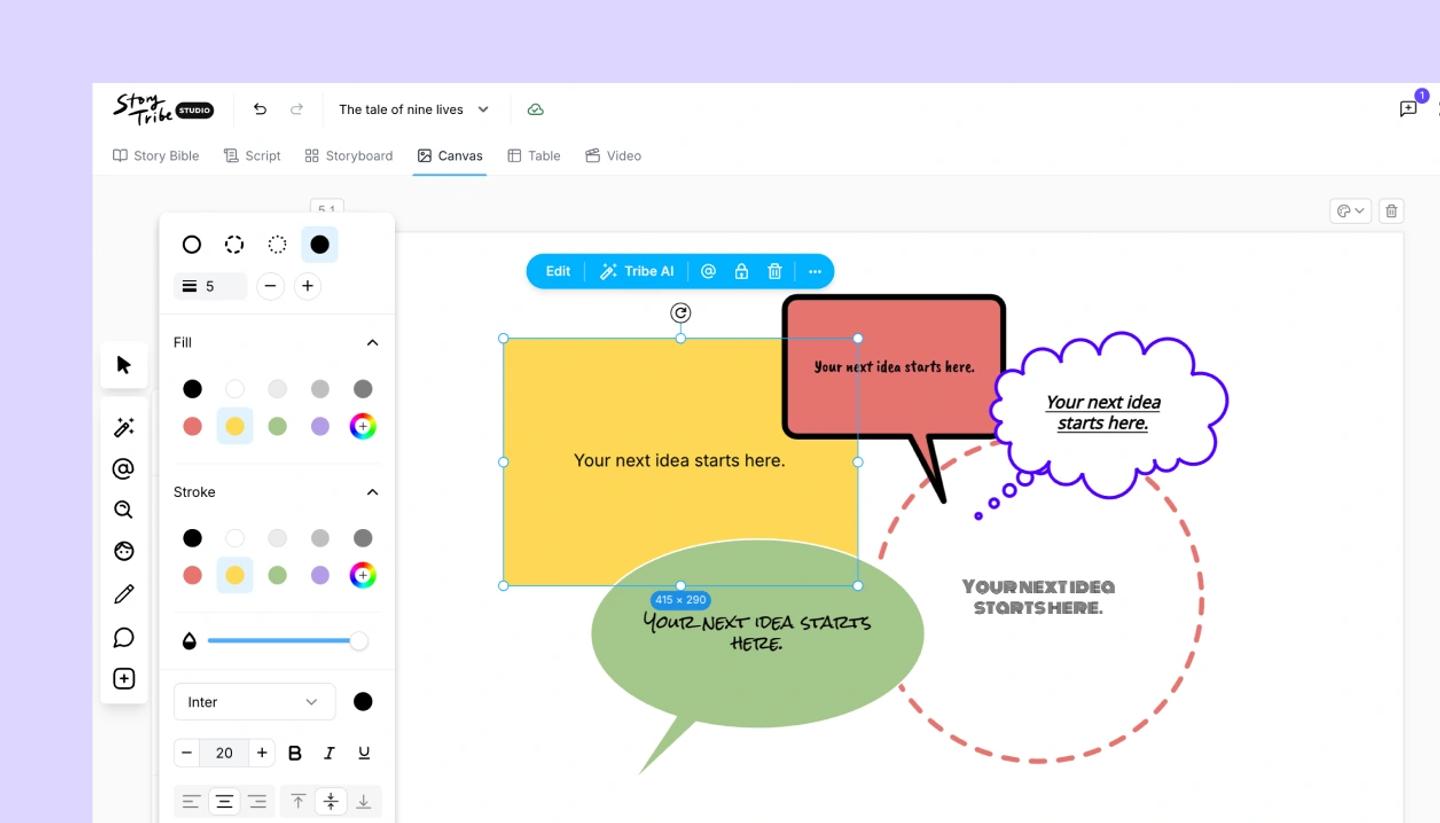
Add one from the same Add menu as text: Square, Rounded, Circle, Line, Arrow, Speech and Thought. Double-click it to type, the same as a text box. Its panel offers more than a plain text box:
- Search the font list, including Korean, Chinese, Japanese, Thai and Arabic.
- Pick any font color, fill colour or stroke colour.
- Set the size, and turn on Bold, Italic or Underline (⌘ B, ⌘ I, ⌘ U).
- Align the text left to right and top to bottom.
On a phone
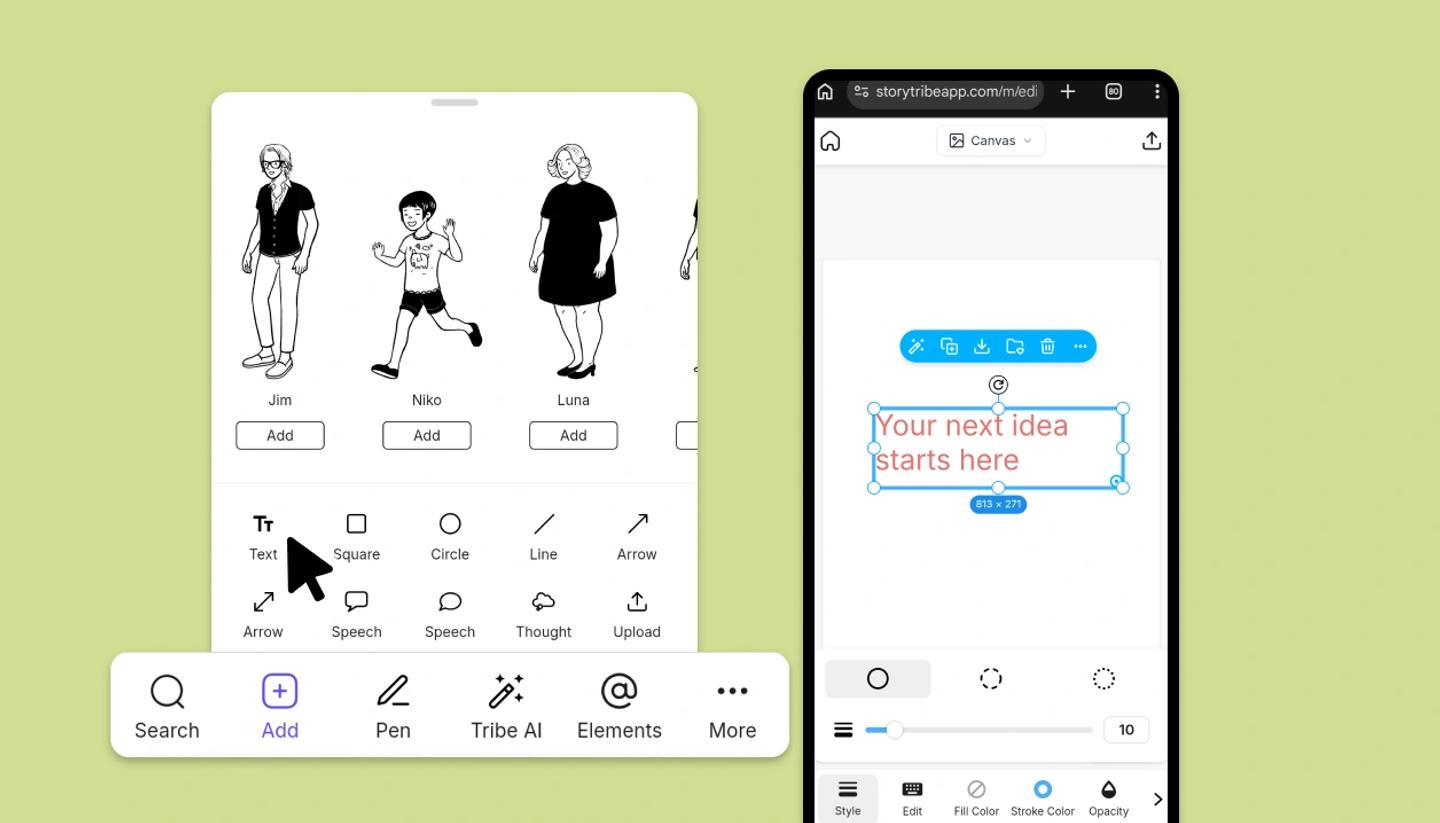
Select the text and use the toolbar at the bottom: Font, Font size, Font color, and Format for bold, italic, underline and alignment.
Was this article helpful?
Need more help?
Send us a message. We reply within 3 days, usually sooner.