Sketch on the canvas
Press P and draw straight onto the shot. Ink comes in Inertia, Normal, Dashed and Dotted styles with width, color and opacity controls, and every stroke stays its own object to move, restyle or delete.
Last updated Sep 4, 2026
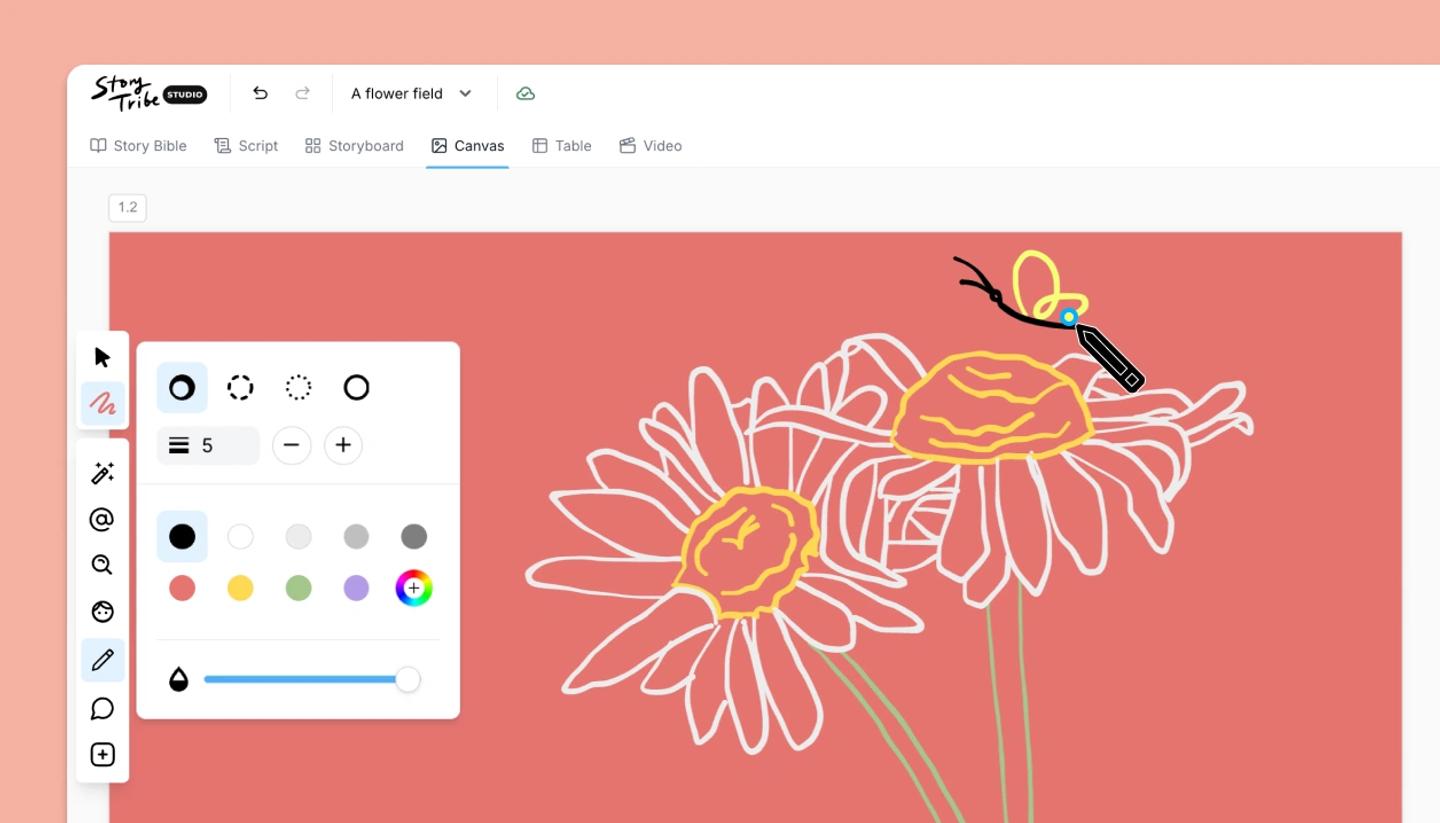
- Press
P, or click the pen in the left toolbar (Pen mode). The cursor becomes a pencil and you draw straight onto the shot. - Draw. The ink is smoothed as you go, and every stroke lands as its own object.
- Open
Sketch settingsin the toolbar. It appears while the pen is active. - Choose a line style:
Inertia(the default, which thins and thickens with your hand),Normal,DashedorDotted. You can also set the stroke width from 1 to 100, the color and the opacity. - To put the pen away, press
EscorV, pressPagain, or pick another tool.
Every stroke is an object
Select a stroke like any object: move it, resize and rotate it, reorder it in the Layers panel (it appears there as Freehand), or delete it. Selecting a stroke reopens the same settings, so a line can change style, width, color or opacity after it is drawn. Undo removes one stroke at a time and works without leaving the pen.
There is no eraser inside pen mode: remove ink by undoing, or by selecting strokes and deleting them.
On phone and tablet
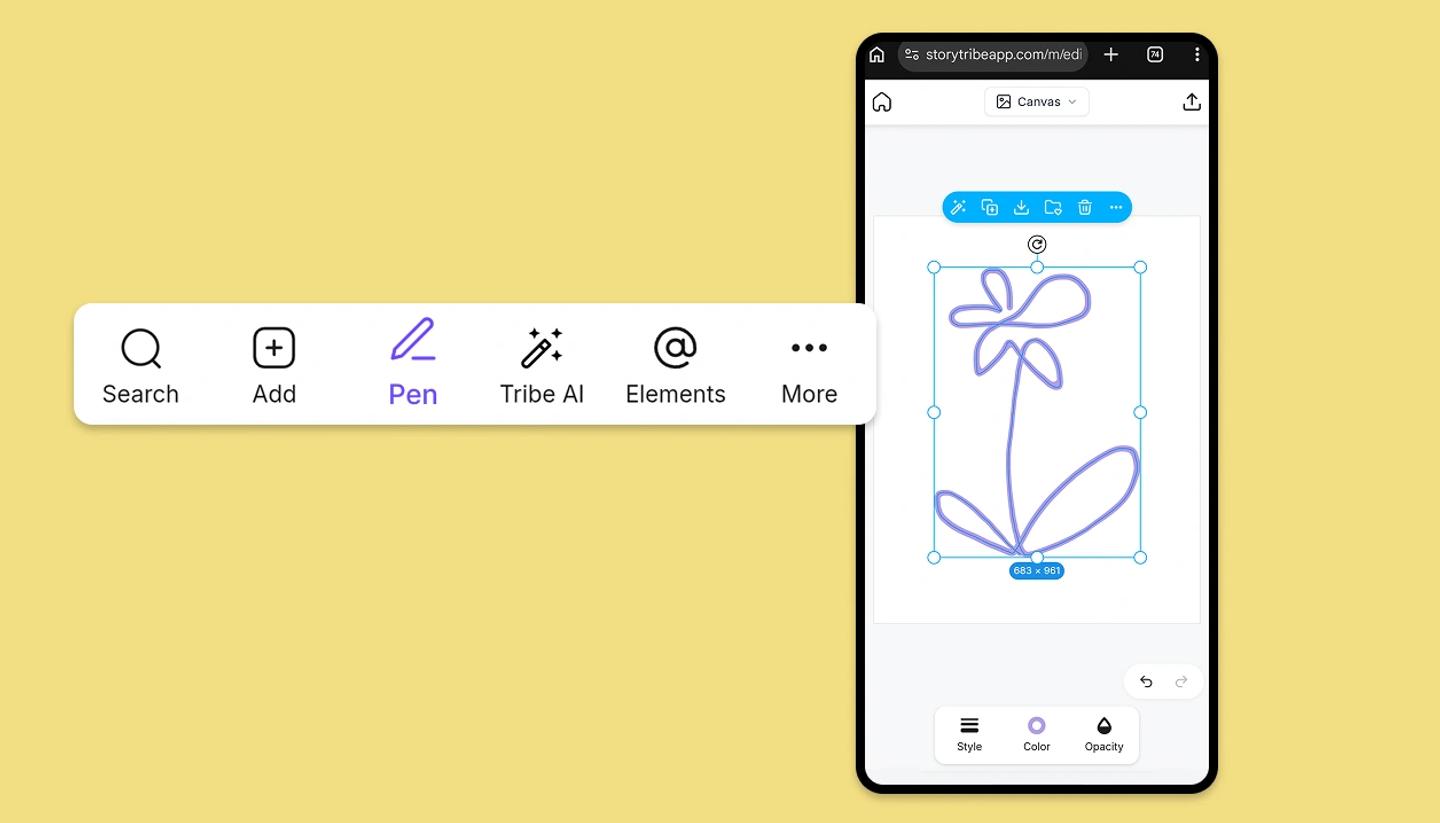
Drawing works with touch everywhere. On a phone, the Pen tab in the bottom bar starts sketching, with Style, Color and Opacity beside it; Done puts the pen away. Keyboard shortcuts stay on desktop and tablet keyboards.
Need more help?
Send us a message. We reply within 3 days, usually sooner.