The Script view
The Script view lays the whole project out as a screenplay: scene headings, then one card per shot with its script and thumbnail. Write here and the shots appear on the Storyboard.
Last updated Sep 12, 2026
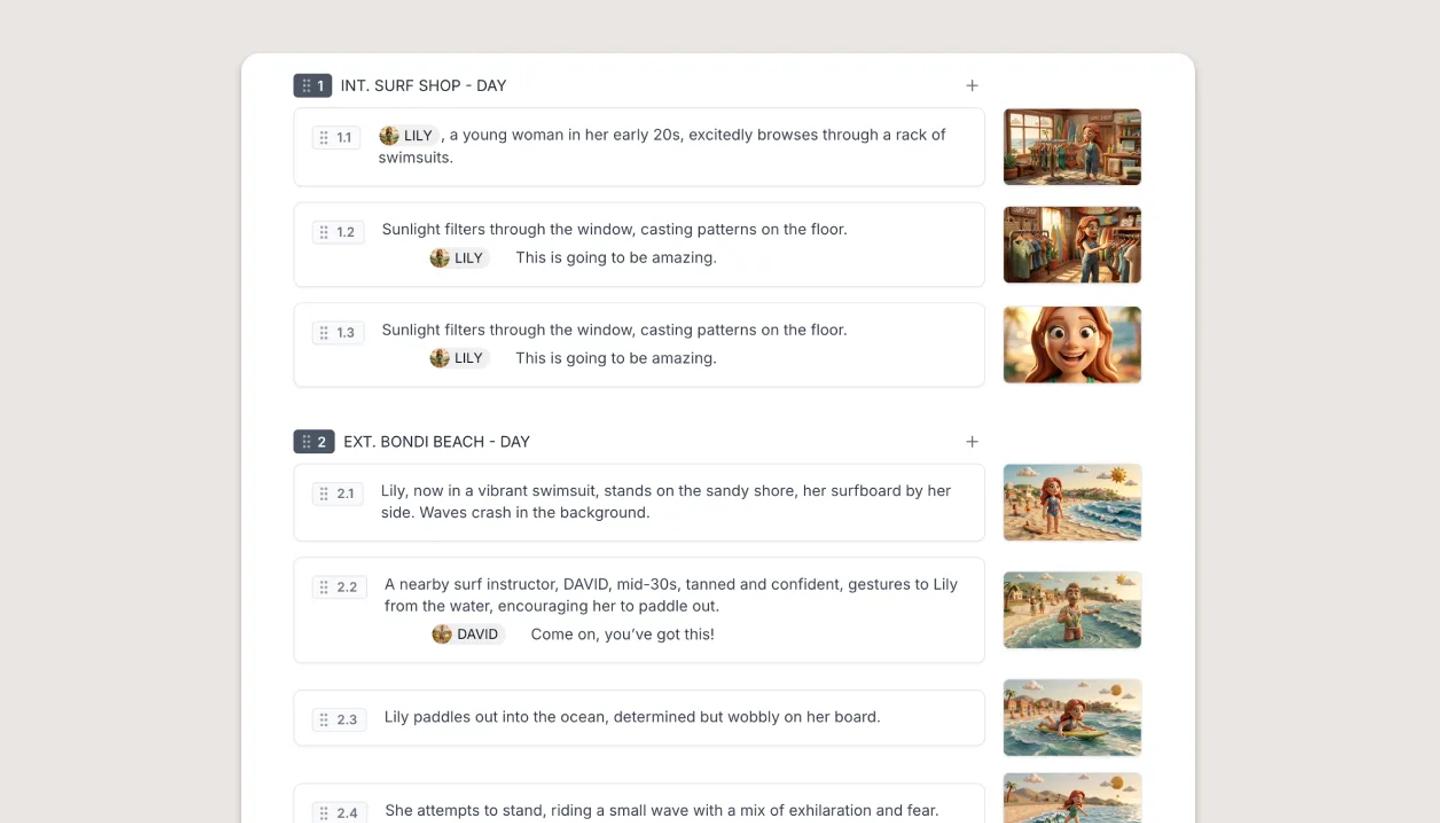
Open the Script tab. If the project has Project info, it sits at the top. Below it, each scene gets a heading row carrying its number, its title and, if you want one, a description. An unnamed scene reads Untitled scene.
Under each heading is one card per shot, showing the shot number, its script and a thumbnail on the right. Click the thumbnail to open that shot on the Canvas. Shot properties are not shown here; they live in the Table and in the Canvas side panel.
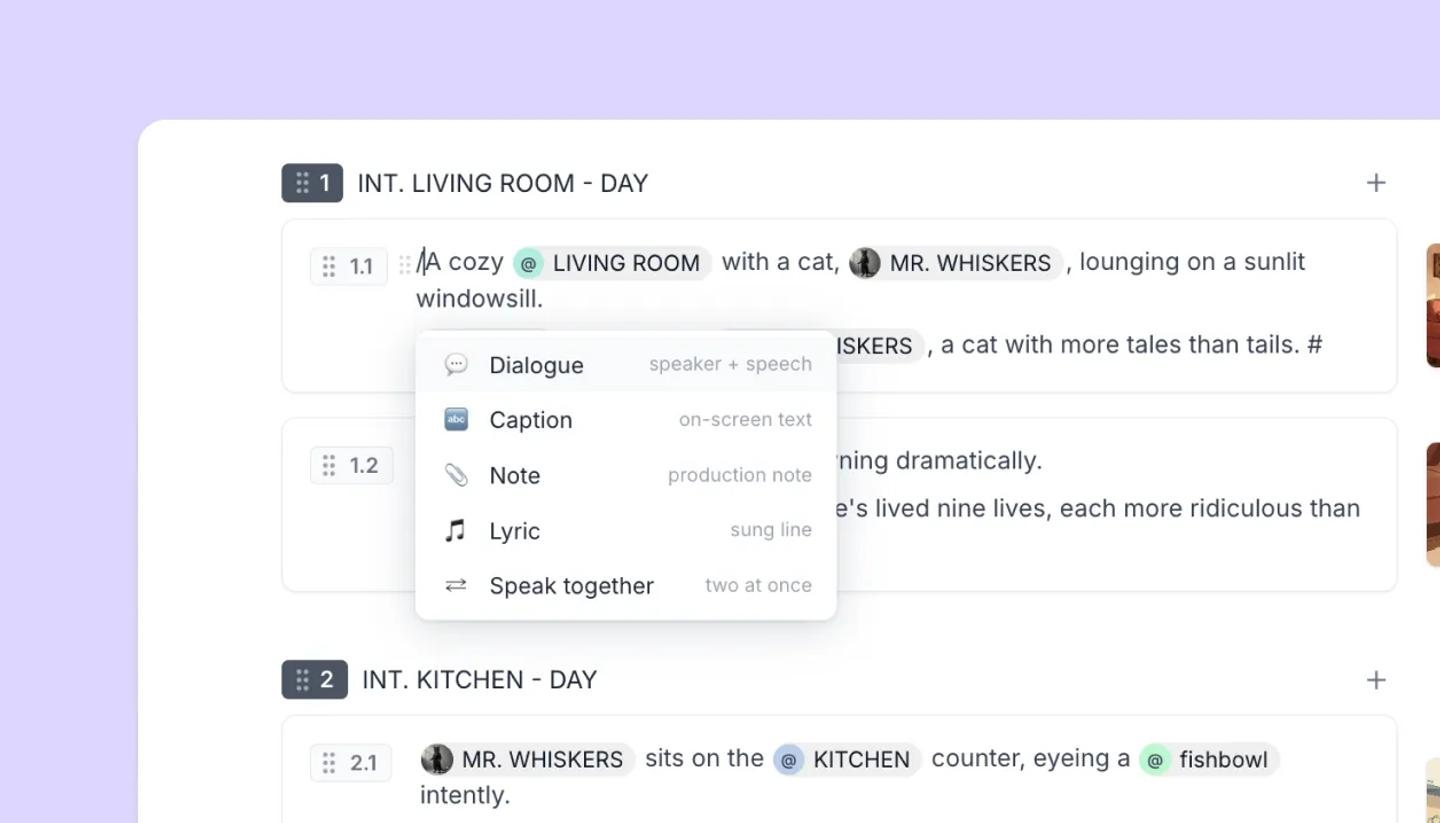
Writing
Click into a card and type. What you type is action prose until you make it something else.
- Enter starts a new line. Mid-sentence it splits the line at the cursor. It never jumps you out of the script.
- A line that is just a name, typed as MAYA, Maya: or @Maya, becomes a speaker when you press Enter.
- Tab on an action line starts dialogue. On a dialogue line it adds another line for the same speaker.
- Backspace at the start of a line turns it back into plain action first. Press it again to merge the line into the one above.
- Cmd Enter splits the shot at the cursor, so everything below becomes a new shot.
- Type / anywhere in a line to pick Dialogue, Caption, Note or Lyric. Read more on Script blocks: Action, Dialogue, Caption, Note and Lyric
- The six-dot handle on the left of a line opens Turn into, Color, Duplicate and Delete.
Learn more about keyboard shortcut
Scenes
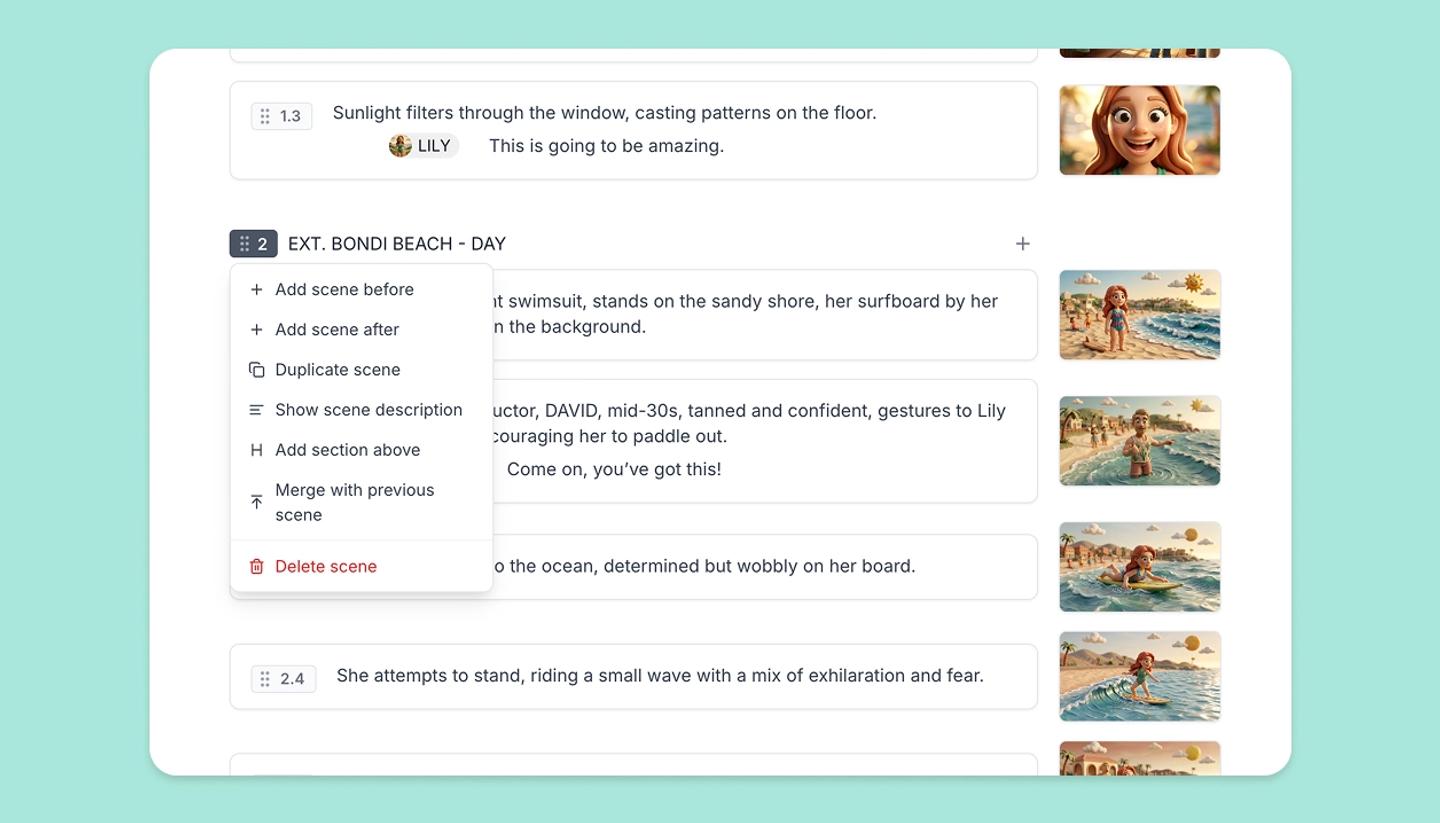
A scene is a heading row plus the shots under it. The heading carries the scene number, its title and, if you turn it on, a description. Click the title to name it, and drag the heading's handle to move the scene and all its shots together.
- Add a scene. + Add scene, pinned at the bottom, puts one at the end. On a phone that button reads + Add shot and adds a shot instead.
- Add a shot to a scene. Use the + on that scene's heading.
- The scene menu. The six-dot handle on a heading opens Add scene before, Add scene after, Duplicate scene, Show scene description, Add section above, Merge with previous scene and Delete scene.
- Sections. A section is a centered act or chapter title above a scene, such as ACT ONE. Add one with Add section above, and it travels with that scene when you move it. See Sections: mark acts and chapters.
- Merging. Merge with previous scene empties this heading and moves its shots up into the scene above.
- Descriptions. Show scene description opens a line under the heading for a summary of the scene, which is separate from any shot's script.
Shots
Every shot card carries a number, a name, its script and a thumbnail. Click the number to renumber the shot, and type a name beside it if you want one; left empty, it shows the automatic name. Click the thumbnail to open the shot on the Canvas.
- Drag the six-dot handles on shot cards and scene headings to reorder them.
- Hover between two cards and an Insert shot strip appears.
- An omitted shot collapses to a row reading Omitted, with a Restore button.
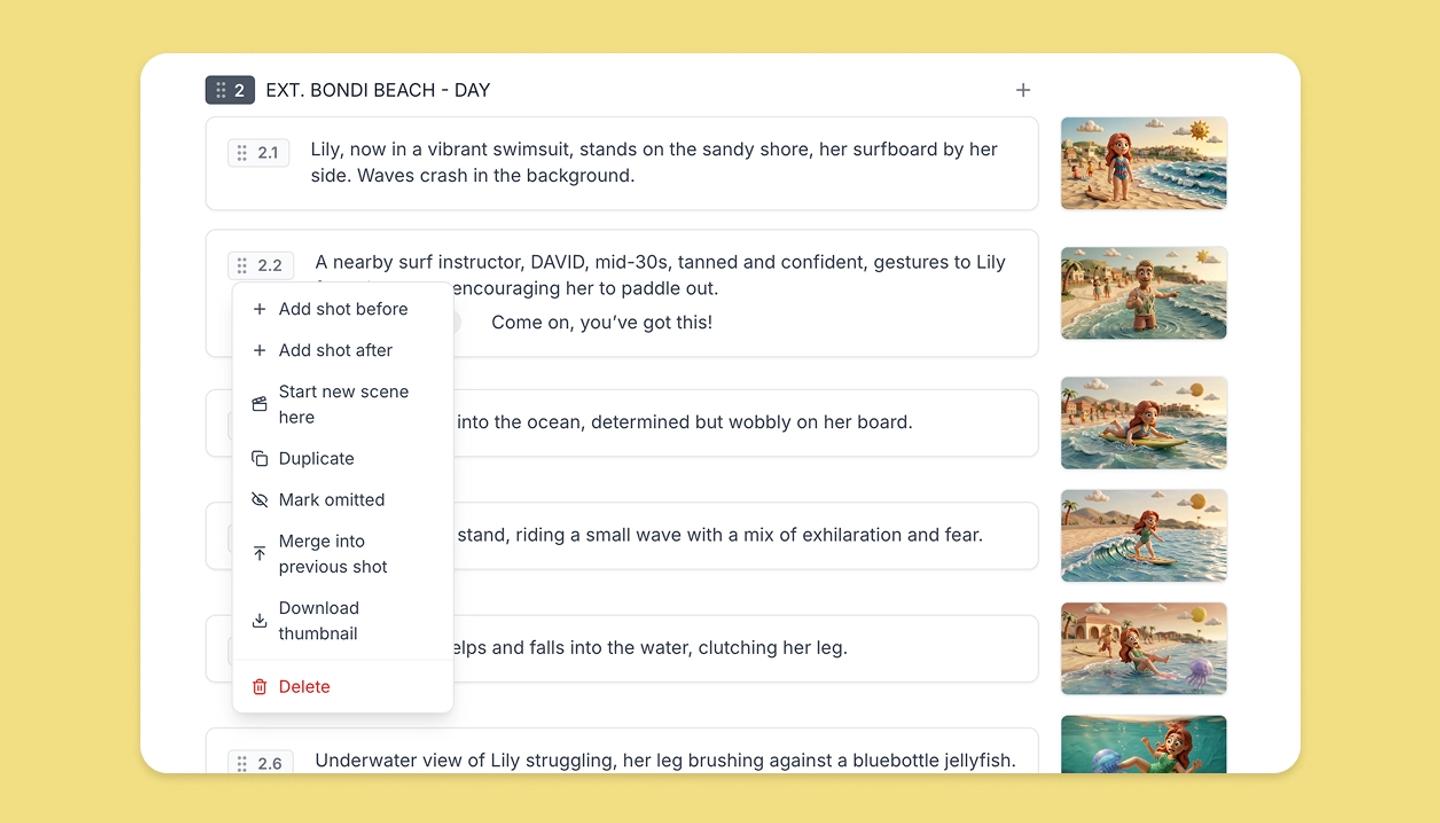
The six-dot handle on a shot card also opens its menu:
- Add shot before and Add shot after put a blank shot on either side of this one.
- Start new scene here breaks the scene at this shot, so it and everything after it begin a new one.
- Duplicate copies the shot, with its frame and script, straight after the original.
- Mark omitted cuts the shot from the story but keeps its number, the way a screenplay does. The card collapses to a row reading Omitted with a Restore button, and the menu offers Restore shot.
- Merge into previous shot joins this shot's script and canvas onto the one above. The first shot has nothing to merge into, so it's unavailable there.
- Download thumbnail saves that shot's frame as an image.
- Delete removes the shot straight away, with a Shot deleted message that holds an Undo button for ten seconds.
Writing in a shot changes it everywhere: the same script sits under the card on the Storyboard and in the Canvas side panel. Cmd Enter while you type splits the shot in two, which is the quickest way to break a long block of action into separate shots.
Script tools
On desktop and tablet a small rail sits on the left of the screen with AI Script, Import script and Elements.
On a phone the rail is replaced by a row above the script with Write script with AI and Import script. Elements is not there; open it from the menu instead.
Need more help?
Send us a message. We reply within 3 days, usually sooner.