Scenes, shots and frames explained
A project is a list of shots grouped into scenes, and a frame is the picture inside a shot. Here is how the three fit together and where you'll see each one.
Last updated Aug 29, 2026
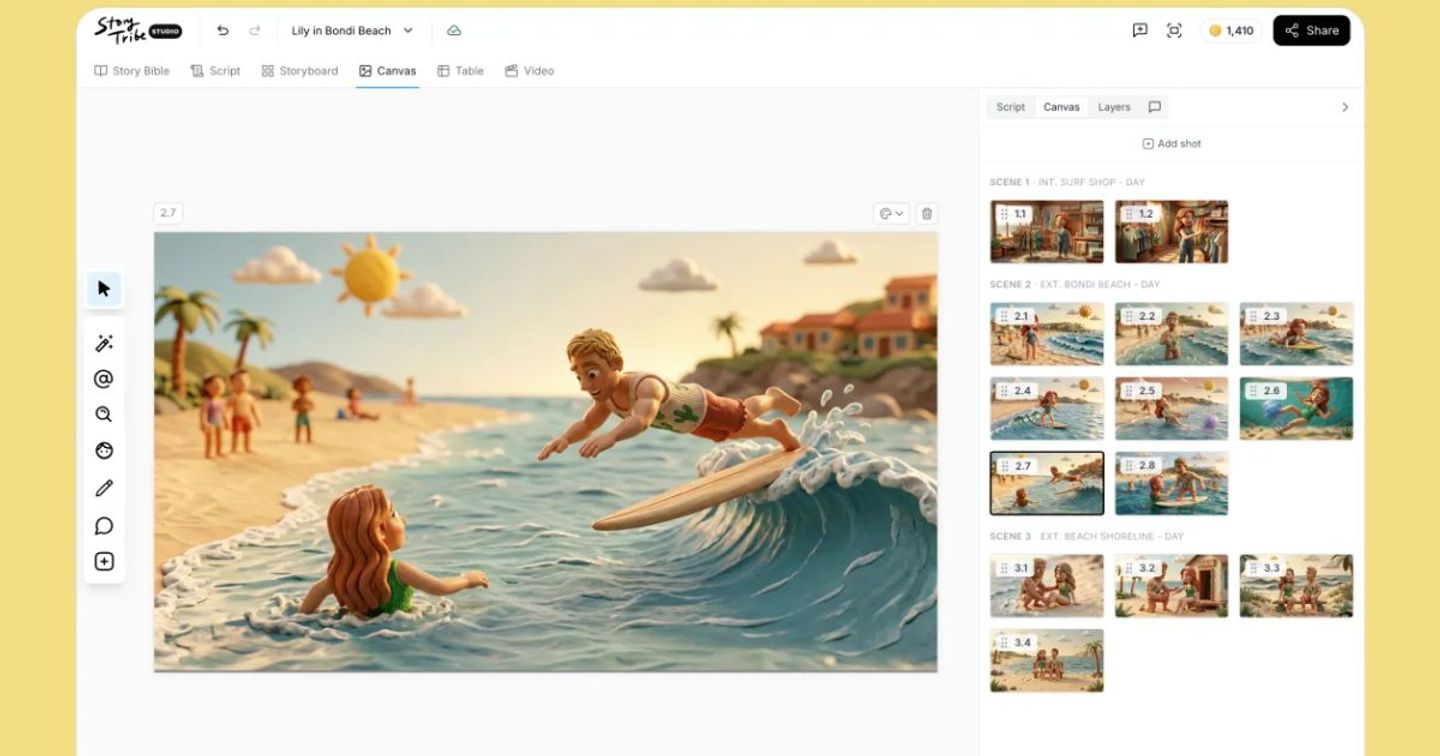
StoryTribe uses three words for the pieces of a storyboard, and other tools use the same words differently. Here is what each one means here, how they fit together, and where you'll see them.
Shots: the building block
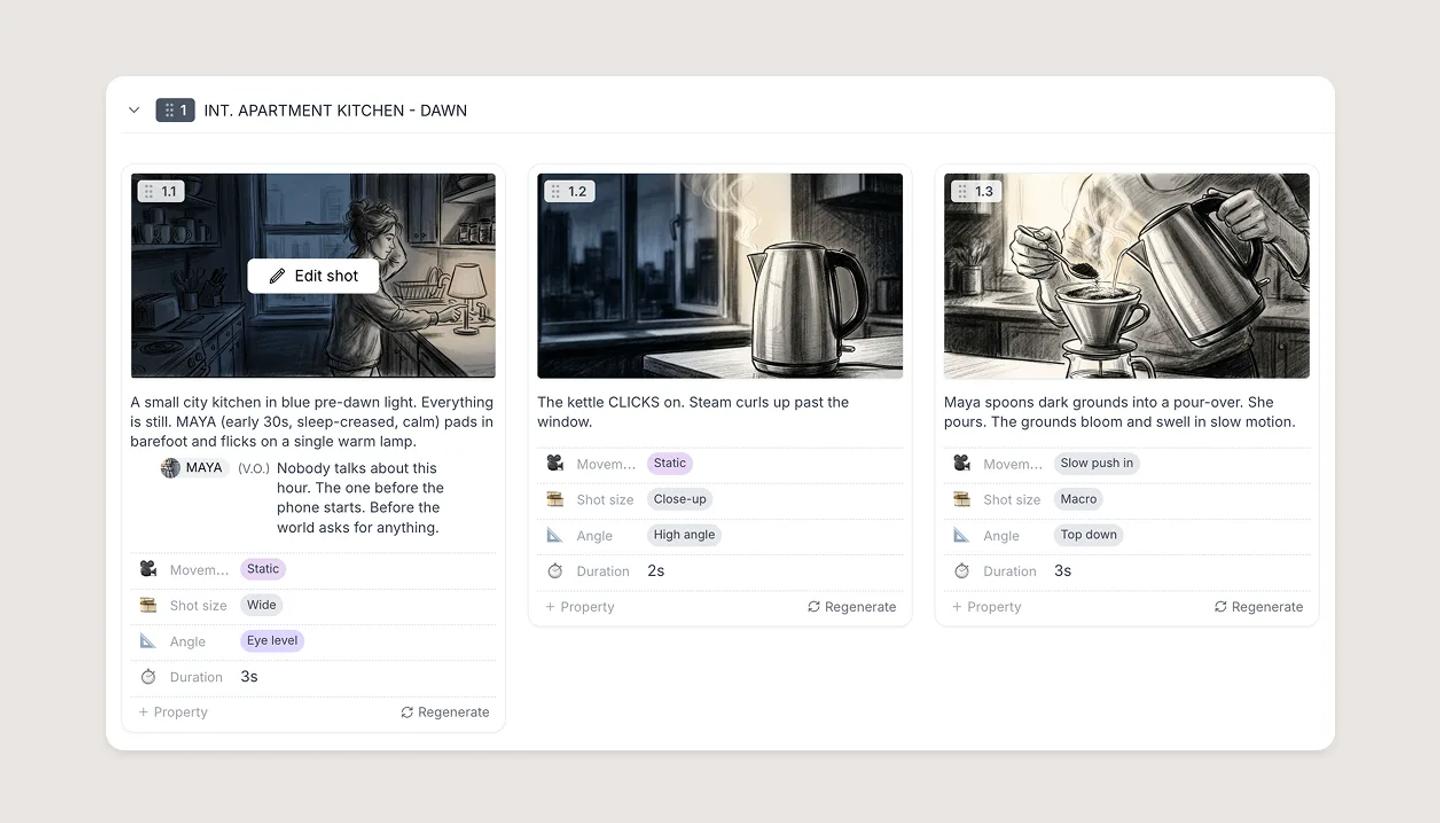
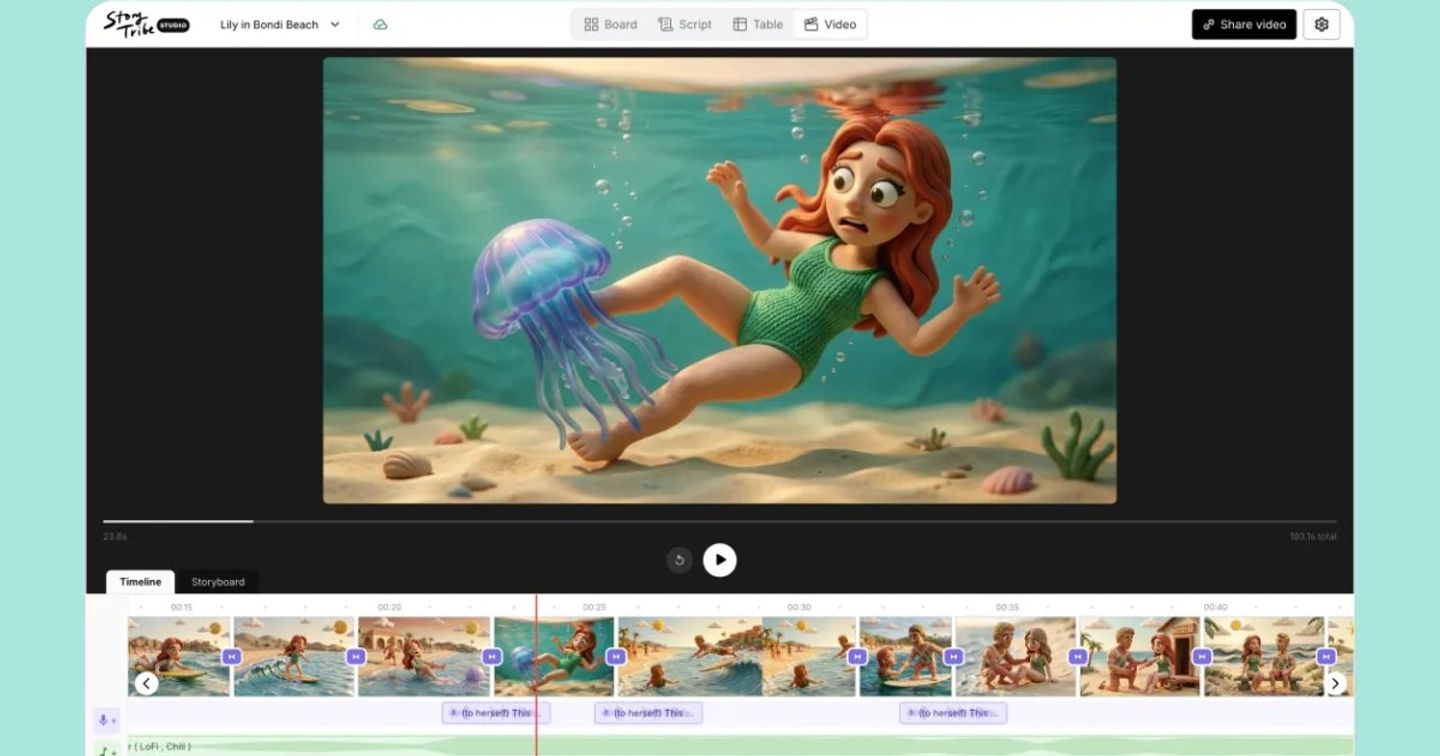
A shot is the unit everything else is built from. Each shot has its own canvas (the picture), its own script text (the action, dialogue and captions that go with it) and its own properties (Shot size, Angle, Movement, Duration and any others you turn on). On the Storyboard a shot is one card; in the Table it is one row; in the Video editor it is one clip.
A new shot is blank and uses the project's canvas size. If you want a copy of an existing shot, use Duplicate from the shot's menu.
Scenes: how shots are grouped
Every shot belongs to exactly one scene, and scenes sit in order. A new project starts with Scene 1 holding all of its shots. Add scenes as your story needs them with Add scene on the Storyboard, or Add scene below from a scene's menu.
A scene has a title (Untitled scene until you name it) and an optional description. You can also add a section above a scene, such as ACT ONE, to group scenes into acts or chapters.
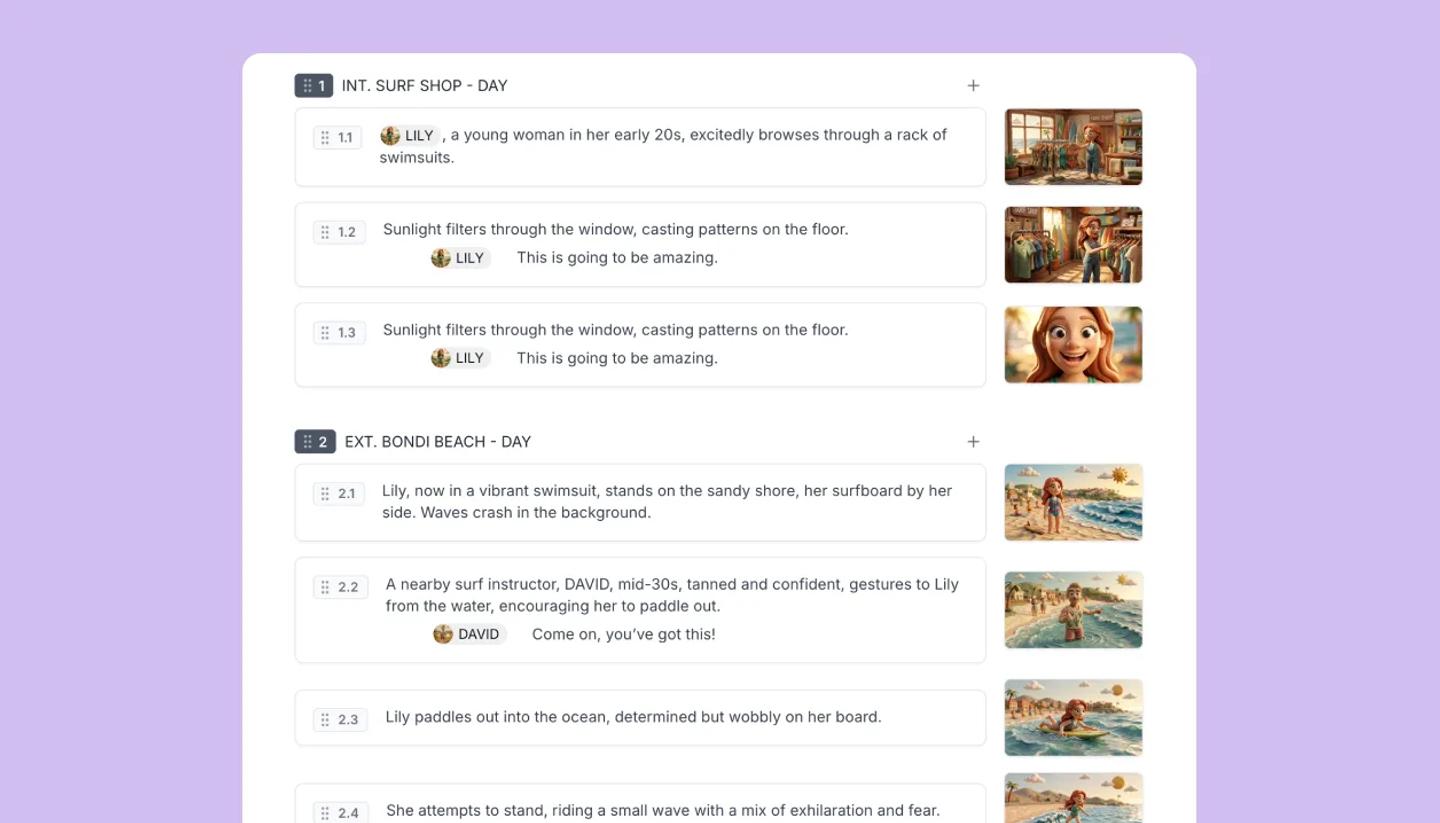
In the Script view, a scene's heading is its title row, and the shots sit underneath it. When you import a script, each scene heading (the INT. and EXT. lines) becomes a scene, and the text under it becomes shots.
Frames: the picture in a shot
A frame is the image on a shot's canvas: what you draw, place and generate. You don't create frames separately, because every shot has one. You'll see the word in three places. In the Table view, the Frame column shows each shot's thumbnail. The export layouts describe how frames sit on a page. In the Video editor, each shot's frame plays for its duration.
How numbering works
- With one scene, shots are numbered 1, 2, 3.
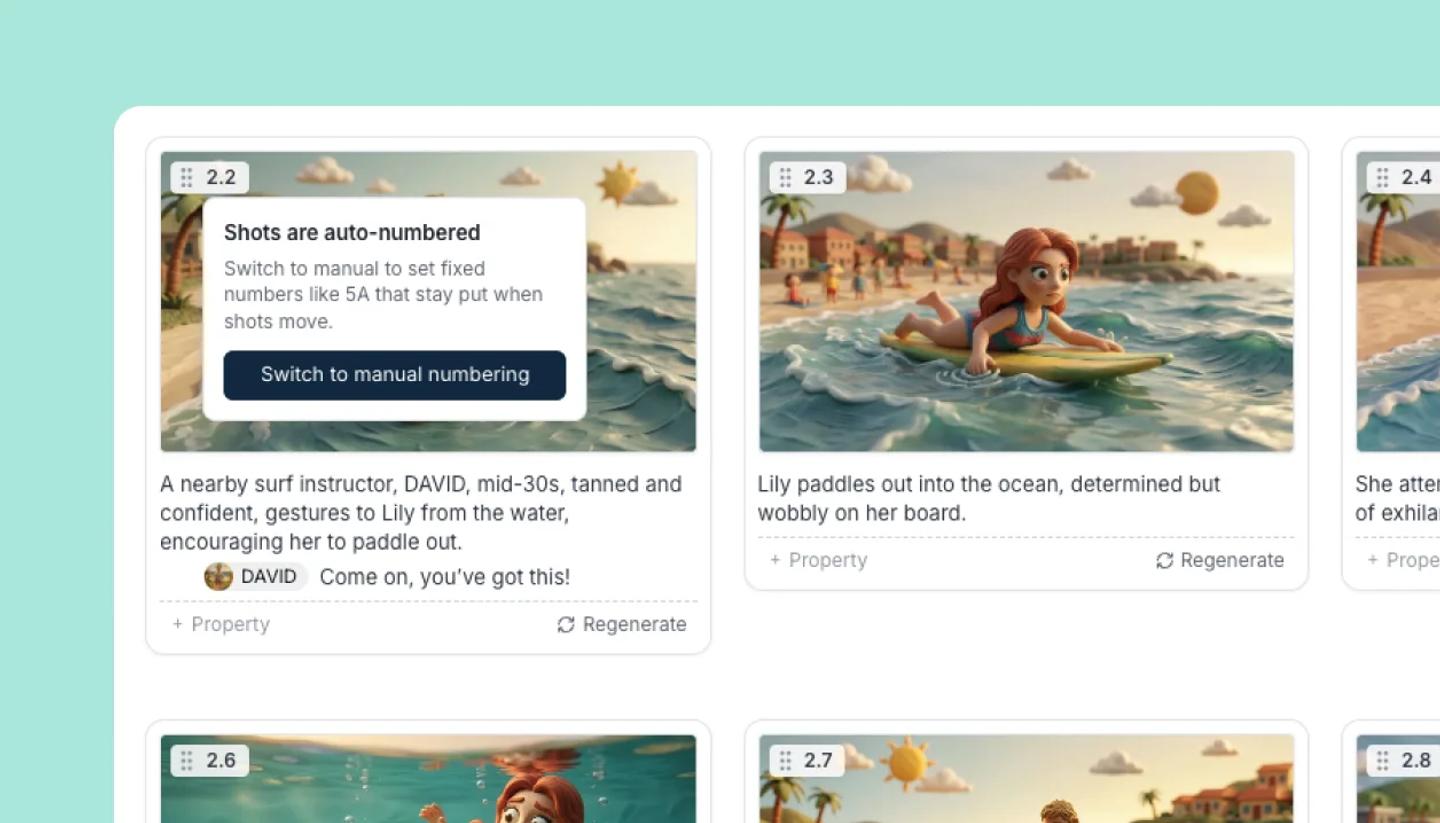
- With two or more scenes, each shot carries its scene number: 1.1, 1.2, 2.1.
Scene numberingin Project settings has two modes.Automaticnumbers scenes by their order.Manualkeeps numbers you set, such as 46A, so they stay put when scenes move; the shots in that scene then read 46A.1, 46A.2. Importing a script switches the project to Manual.
Where you'll see them
Story Bible: your story's world and cast, above the level of scenes.Script: scenes and their shots as a screenplay, in order.Storyboard: one card per shot under each scene's header; drag to reorder.Canvas: one shot at a time, with theCanvastab in the side panel to jump between shots.Table(desktop only): one row per shot with its properties, under a banner row for each scene.Video: each shot as a clip with a duration, in storyboard order.
If you're coming from other tools
Other tools use different words. Comic and animation tools call the picture a panel. Some storyboard apps call every unit a frame. Screenwriting tools talk about beats. In StoryTribe, the unit is the shot, and the picture inside it is the frame. A shot is not a beat. A beat is a moment in the writing. A shot is a camera setup you can draw, list and time.
Need more help?
Send us a message. We reply within 3 days, usually sooner.