Sections: mark acts and chapters
A section is a centered title above a scene, like ACT ONE, for marking acts or chapters. Add one from a scene menu in the Script view. Sections travel with their scene and appear in script exports.
Last updated Sep 13, 2026
- Open the Script view and find the scene the section should sit above.
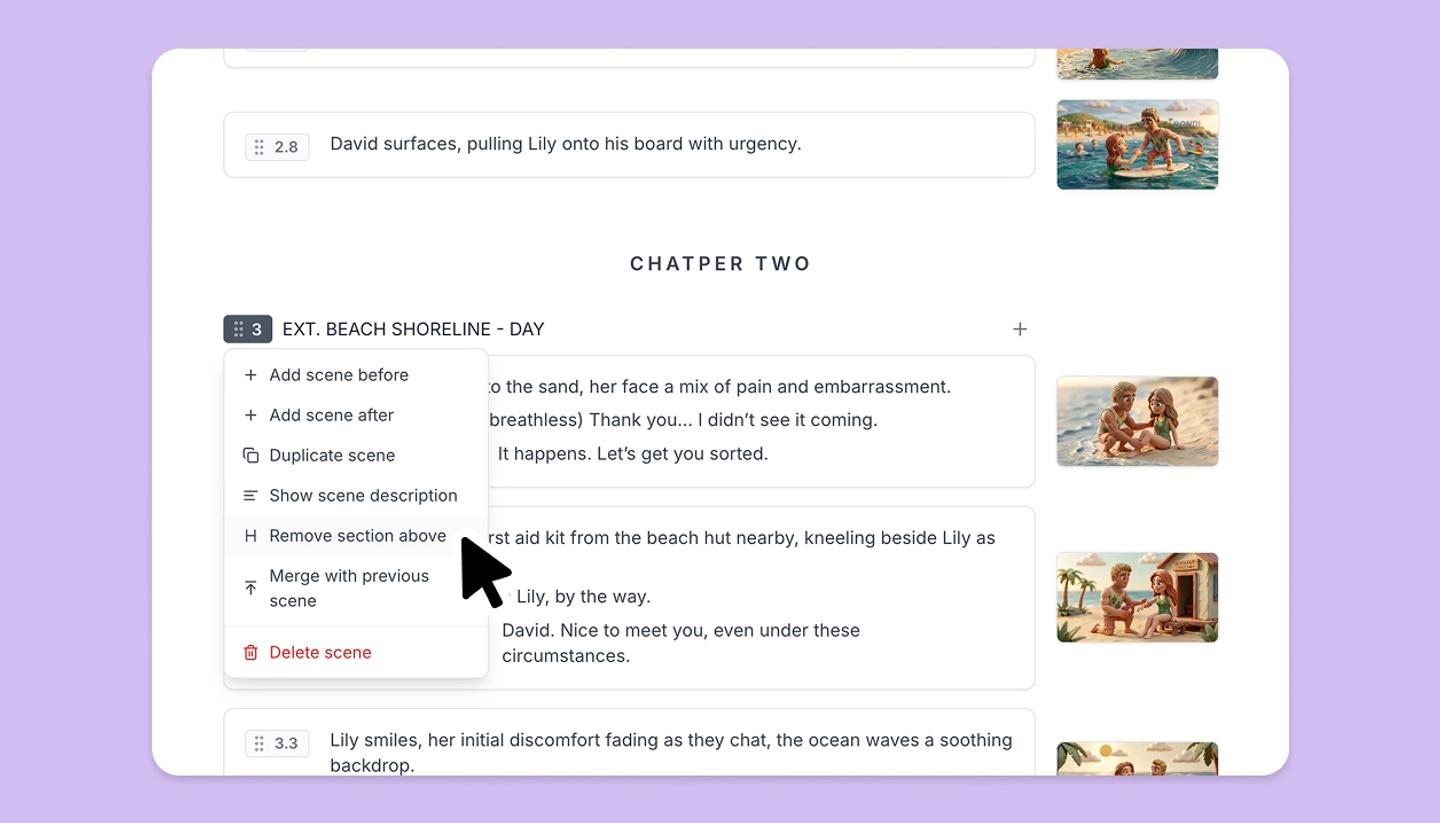
- Open the scene's menu from the six-dot handle on its heading and choose Add section above.
- Type the title. The empty row shows ACT ONE as a hint, and anything works: ACT TWO, Chapter 4, Opening montage.
What a section does
- It belongs to the scene below it. Move that scene and the section goes with it, so the act titles stay where you put them while you reorder.
- It carries into script exports. Final Draft, Fountain, the screenplay PDF, Word and plain text all print it, centered above the scene.
- It is a script-side label. Sections don't appear on the Storyboard, in the Table or in a storyboard export.
Rename or remove one
Click the title to rename it. To take it away, open the same scene menu, where the item now reads Remove section above. Removing a section deletes the title only; the scene and its shots stay as they are.
Imported scripts
A script that already marks its acts brings those sections in with it, and the import review step lets you drop any you don't want before the project is built.
Was this article helpful?
Need more help?
Send us a message. We reply within 3 days, usually sooner.