Why a generation takes a while
Tribe AI sends your prompt to an AI model and waits for the picture; that wait is the model's, not the app's. The tray shows a running timer, you can queue up to five at once, and you can keep working while they run.
Last updated Sep 11, 2026
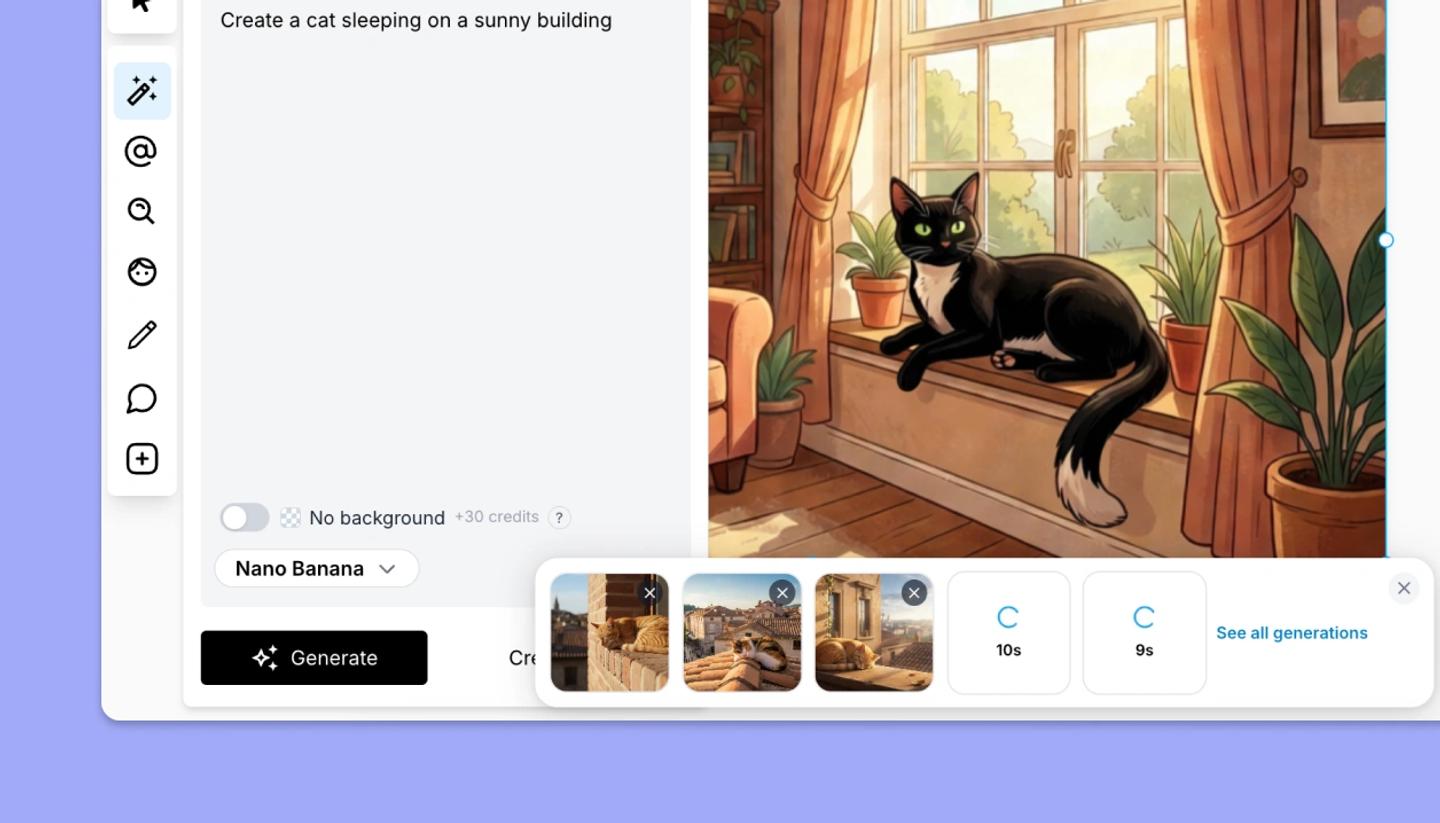
What you see while it runs
Click Generate and a tile appears in the generation tray with a spinner and a timer counting up (12s, 1m 5s). There is no estimate, because the time depends on the model, the number of reference images and how busy the provider is. When the image is ready the tile shows it with Click to place. Nothing lands on the board until you place it. If a generation fails, its tile shows Failed and a message explains why.
What affects the time
- The model. Each entry in the model menu is a different provider and speed; if one is slow today, try another for the same prompt.
- Reference images. Every @mentioned element, attached style and uploaded image is sent along with the prompt, and more references mean a longer request.
- No background. The cutout step runs after the image is made, so transparent results take a little longer.
- Demand. When a provider is overloaded the request fails with
Service unavailable due to high demandrather than waiting forever; switch model or retry in a minute.
Working while you wait
Up to five generations can run at the same time. If you start a sixth, you see Up to 5 generations at a time. Wait for one to finish. Start a batch, keep editing, and place the ones you like as they arrive. The tray stays on the canvas until you leave the project. Results you haven't placed are then gone from the tray, but every generation is kept in your AI history. If a result takes more than ten minutes, the app stops waiting and reports a failure.
Need more help?
Send us a message. We reply within 3 days, usually sooner.