Generate with reference images
Attach up to 10 images with Reference image, then name each one in the prompt as @Image 1, @Image 2 so the model knows what to take from where. Every generation spends credits.
Last updated Sep 12, 2026
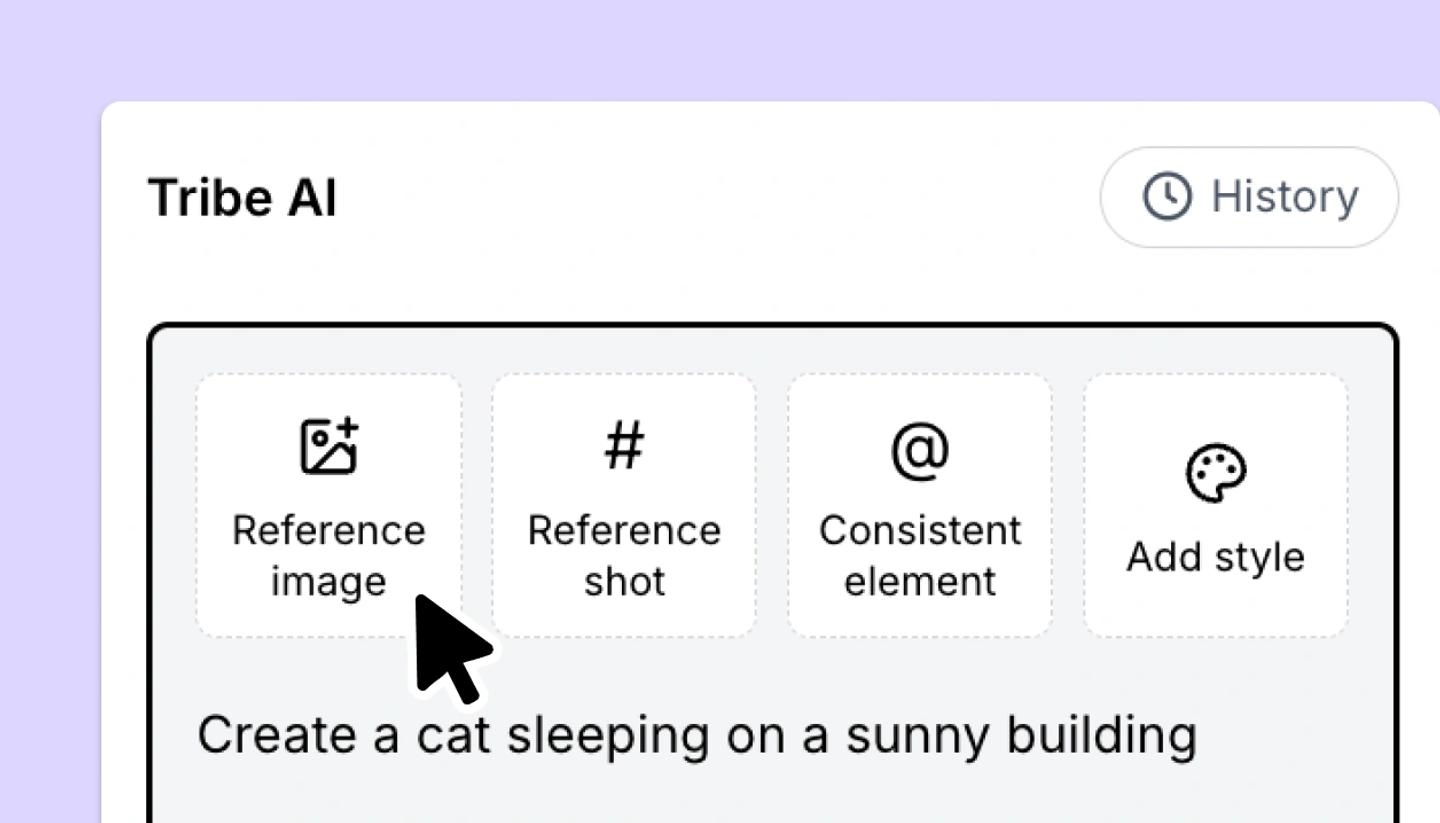
- In the Tribe AI panel, click
Reference imageand choose a file. Dragging an image onto the panel or pasting one works too. Each image becomes a numbered thumbnail: Image 1, Image 2. - Write the prompt and name each reference in it, so the model knows what to take from where. For example:
@Image 1 sits at the table from @Image 2, looking out of the window. - Choose the look with
Add style, then set the model and the aspect ratio. - Click
Generate. Every generation spends credits from the balance shown beside the button.
Other ways to bring in a reference
Consistent elementpicks a character or location you have saved. Its pictures and its description go with the prompt.Reference shotpoints at a shot you have already made, so the new image follows it.
Troubleshooting
- The result ignores a reference. Name it in the prompt as @Image and its number, and say what to take from it: the face, the room, the color.
- Getting a warning 'You need more credits'. The generation costs more than your balance, and the app names the gap before it runs. The cost depends on the model and the AI actions you take.
Was this article helpful?
Need more help?
Send us a message. We reply within 3 days, usually sooner.