Generate an image from a prompt with Tribe AI
Open Tribe AI from the canvas toolbar, describe the image, pick a style, model and aspect ratio, and click Generate. Results land in the tray; click one to place it.
Last updated Sep 11, 2026
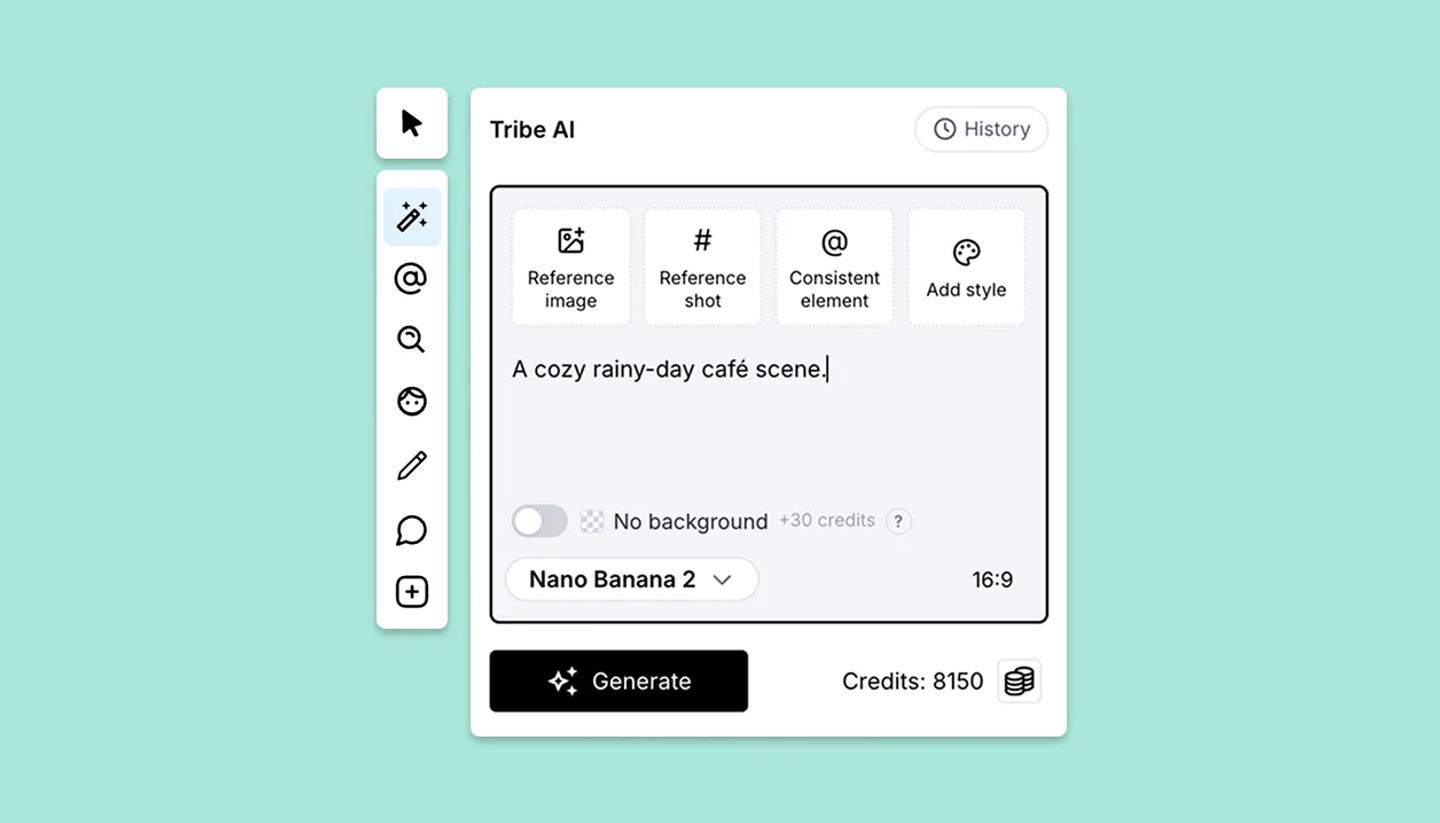
- Open a shot on the Canvas and click
Tribe AIin the left toolbar. - Type what you want in the box (
Describe image here to generate with AI.). Be concrete: subject, setting, light, mood. @ names an element you want kept consistent; # points at a scene or shot. - Set the look.
Add stylelets you choose from your styles, your workspace's styles, StoryTribe styles or No style. TheModelmenu lists each model with a description and its credit cost. The aspect ratio menu starts at your canvas's ratio and also offers the model's other ratios. - Turn on
No backgroundfor a cut-out (a character or prop as a transparent PNG); it adds a small surcharge shown next to the toggle. Leave it off for a full scene or backdrop. - Click
Generate. The footer shows your credit balance. The result appears in the generation tray; hover it andClick to place. A background-style image fills the frame behind everything; a No background image lands as an object you can move.
Writing a prompt that works
- One subject per generation. Describe a wide shot of a kitchen at dawn, or a character mid-stride; not both at once.
- Put the camera in the words: low angle, over the shoulder, close-up. You can also set the shot's Angle and Shot size properties, which StoryTribe uses when it generates shots for a new project.
- For recurring characters and places, attach the element (Consistent element) or a reference image rather than describing them again.
Troubleshooting
- "Service unavailable due to high demand. Try another model or retry." A capacity issue, not your prompt. Switch model or try again in a minute.
- "The input or output was flagged as sensitive" or "blocked by content moderation". Reword the prompt; see AI image request failed.
- "Up to 5 generations at a time. Wait for one to finish." The tray runs five in parallel; the sixth waits.
Common questions
Was this article helpful?
Need more help?
Send us a message. We reply within 3 days, usually sooner.