How to use Elements in StoryTribe
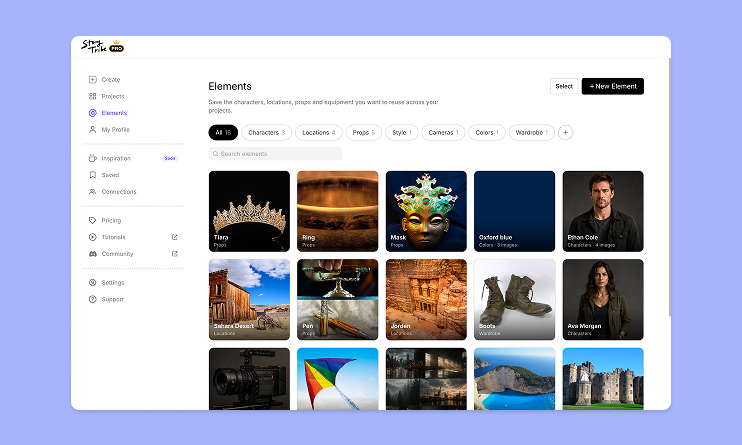
Build one reusable library of your characters, locations, props, and styles. Then bring any of them into a script, a storyboard, or an AI prompt with a single @.

StoryTribe
StoryTribe Team
Starting a storyboard from scratch can feel overwhelming. Story Frameworks give you a proven structure to build on — so you spend less time planning and more time creating.
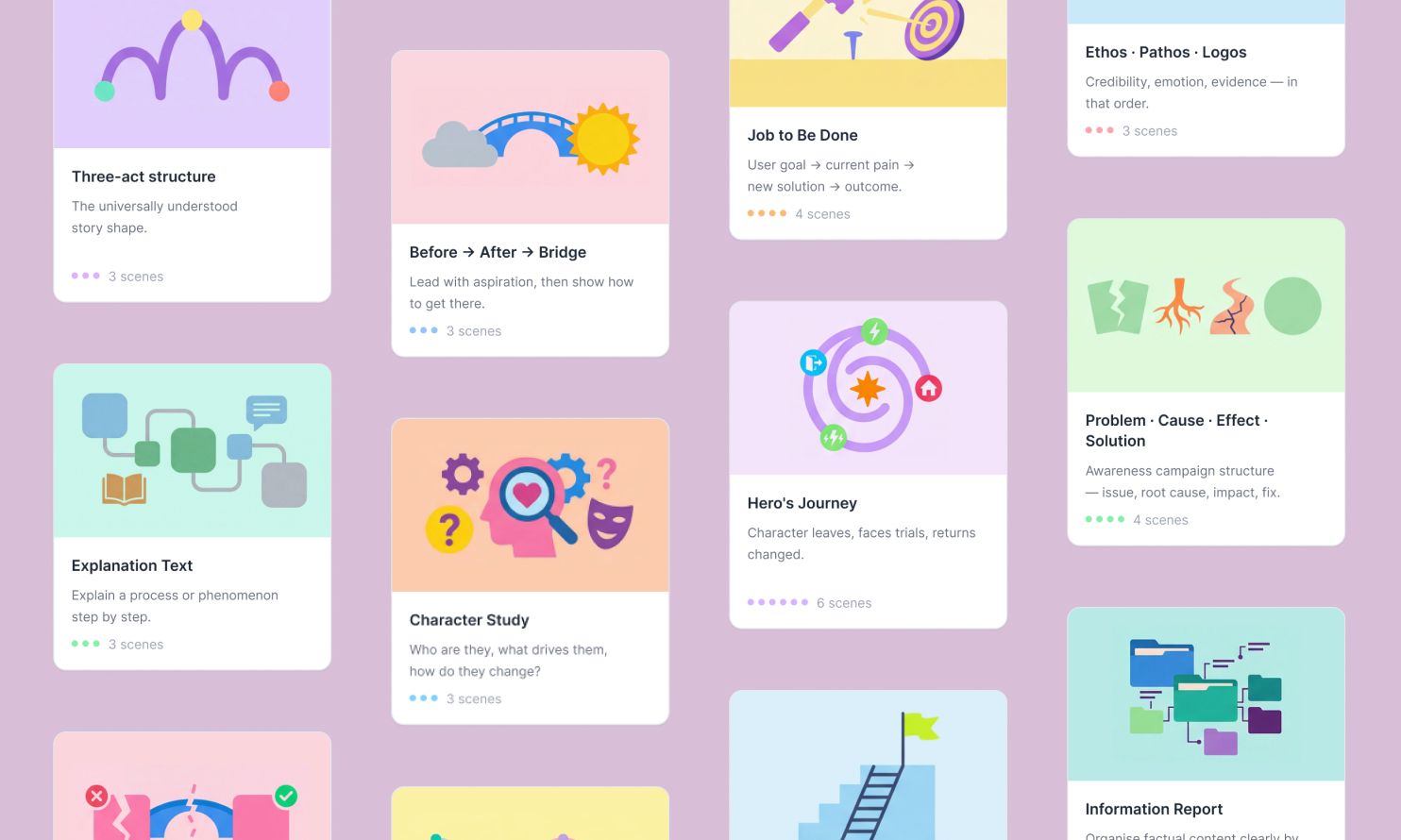
Story Frameworks are pre-built scene structures based on proven storytelling models — like the Hero's Journey, Three-Act Structure, AIDA, and more.
When you start a new project, instead of staring at a blank canvas, you can pick a framework and instantly get a set of scenes with titles and writing prompts to guide you through the story.
StoryTribe includes 47 frameworks across 5 categories — whether you're creating a brand video, a lesson plan, a product demo, or a short film.
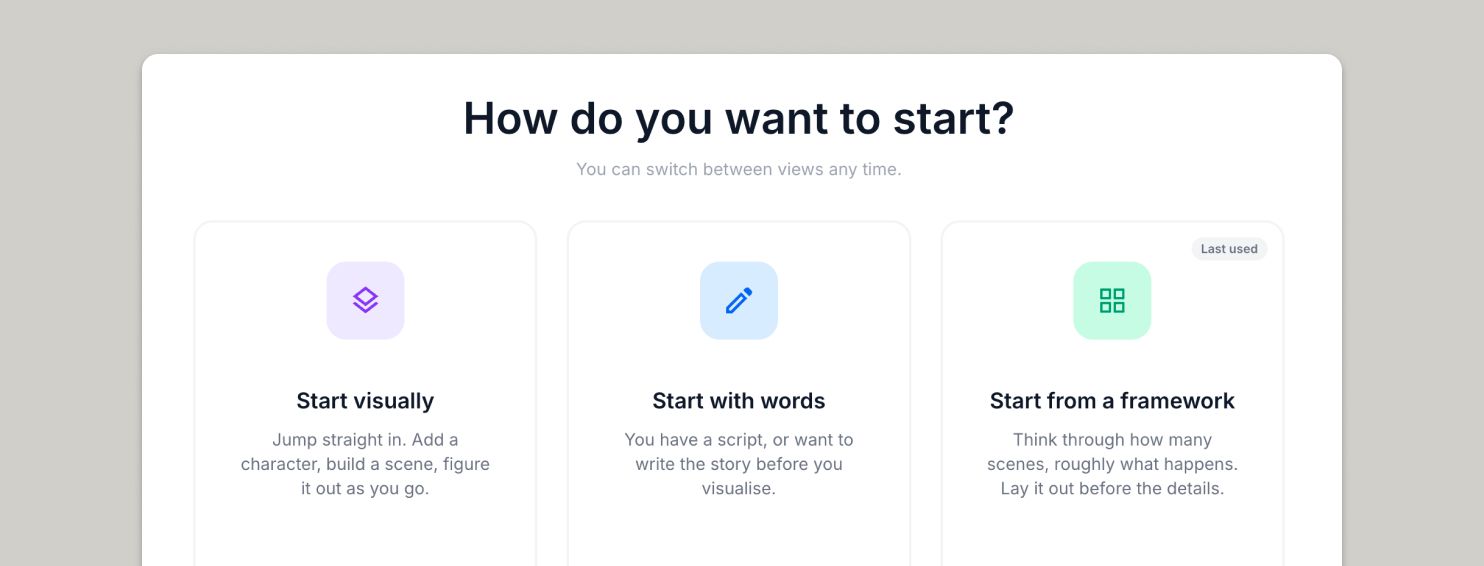
Create a new project and choose Start from a framework. You’ll be taken to the Overview tab, where you can browse and select a framework. Here’s how it works:
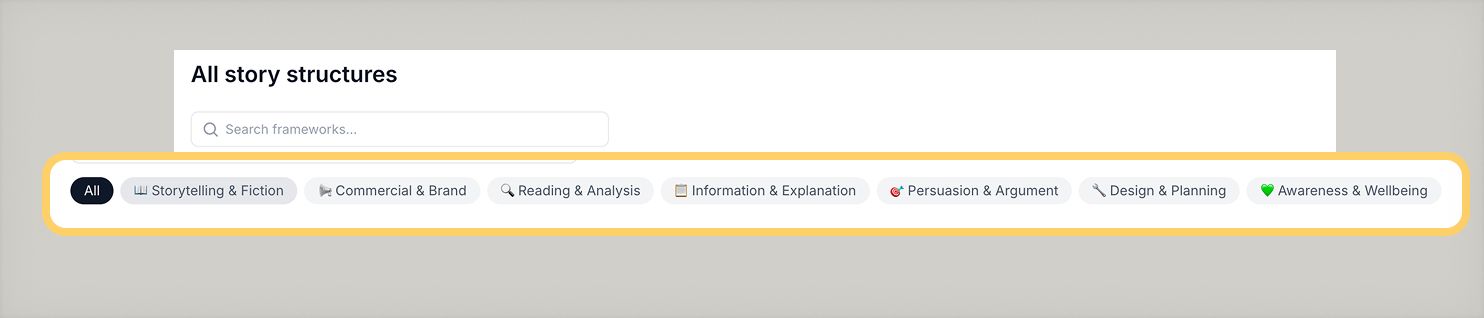
Frameworks are organised into 7 categories, each designed for different types of projects:
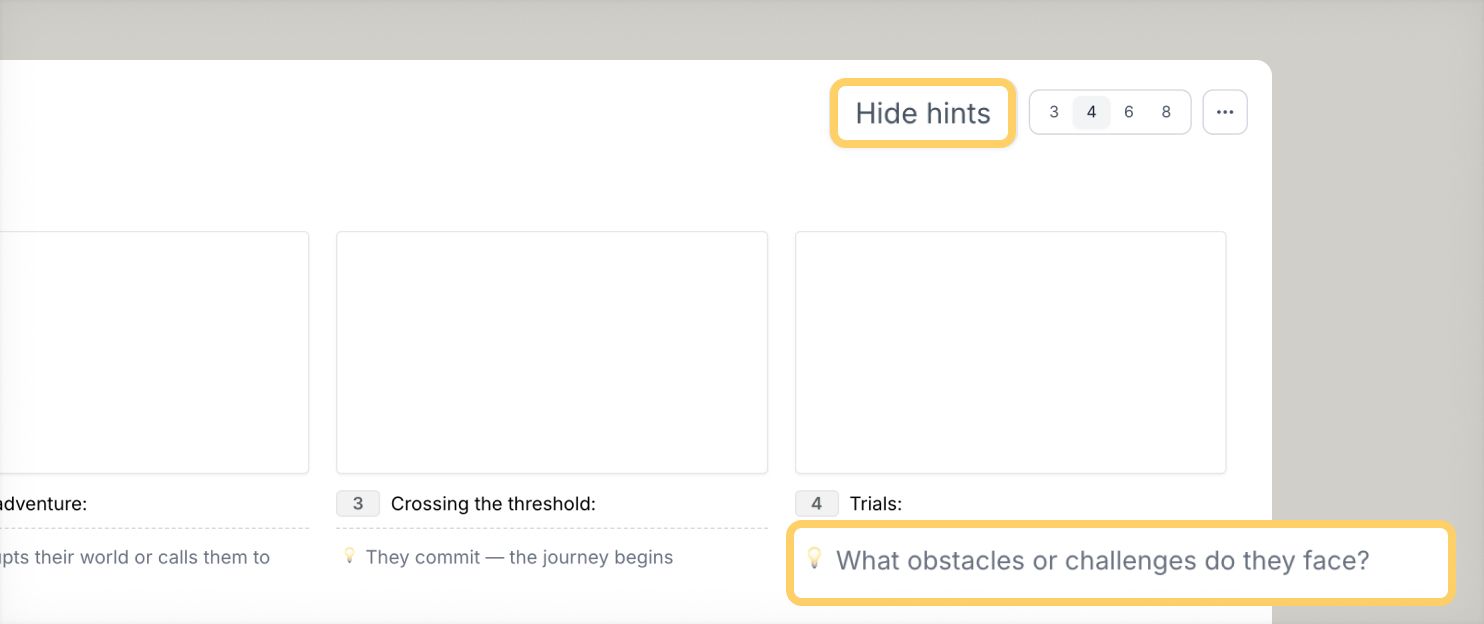
All frameworks come with built-in writing hints — short prompts that appear below each scene title to help you think about what belongs in that scene.
For example, the AIDA framework might prompt you with: "What is the most unexpected, provocative, or relatable thing you could open with?" for the Attention scene.
You can show or hide hints at any time using the toggle in the Overview or Writer toolbar.
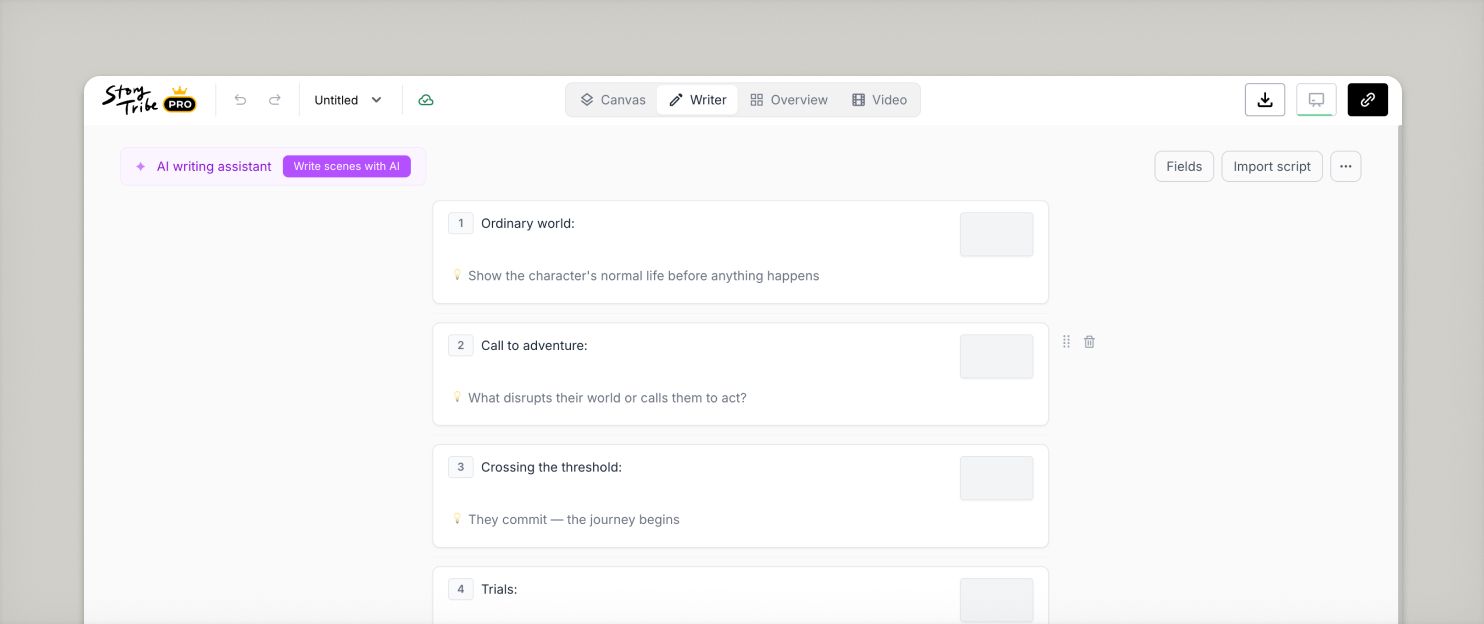
After applying a framework, switch to Writer view to start filling in your script. Each scene appears as a card with the title, hints, and annotation fields ready to go.
Press Enter to move between fields, Shift + Enter to add a new line. Drag scenes to reorder. Click any canvas thumbnail to jump to the visual editor when you're ready.
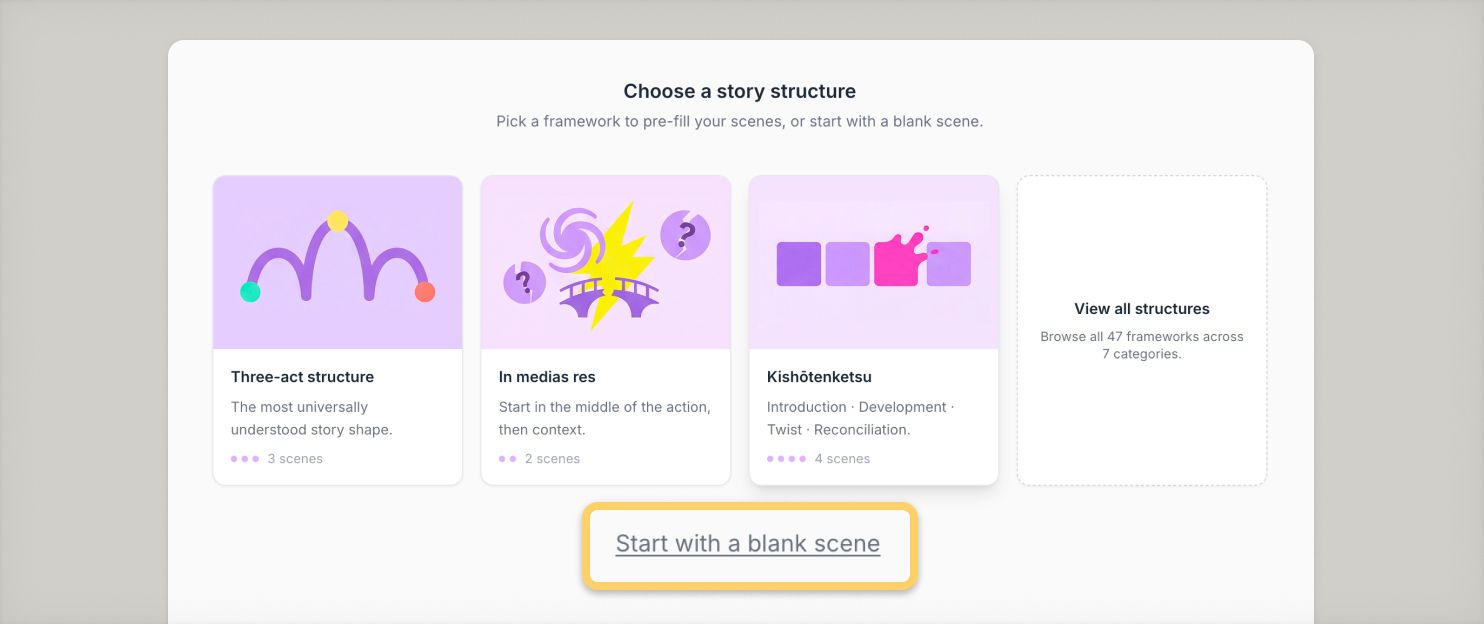
Frameworks are completely optional. You can always click "Start with a blank scene" on the framework picker, or skip straight to Canvas or Writer view from the view toggle.
You can also delete all scenes at any time from the "..." menu in Overview or Writer — this resets your project to a single blank scene and brings back the framework picker.
If you notice anything not working as expected, please report it to [email protected]. Including a screenshot or short video recording helps us resolve issues faster.
You can also get help directly in the app by clicking the Help button (question mark icon) at the bottom of the screen, then selecting Help → Contact support to speak with one of our support team.
-> Start with our free storyboard maker
Build one reusable library of your characters, locations, props, and styles. Then bring any of them into a script, a storyboard, or an AI prompt with a single @.
StoryTribe
StoryTribe Team
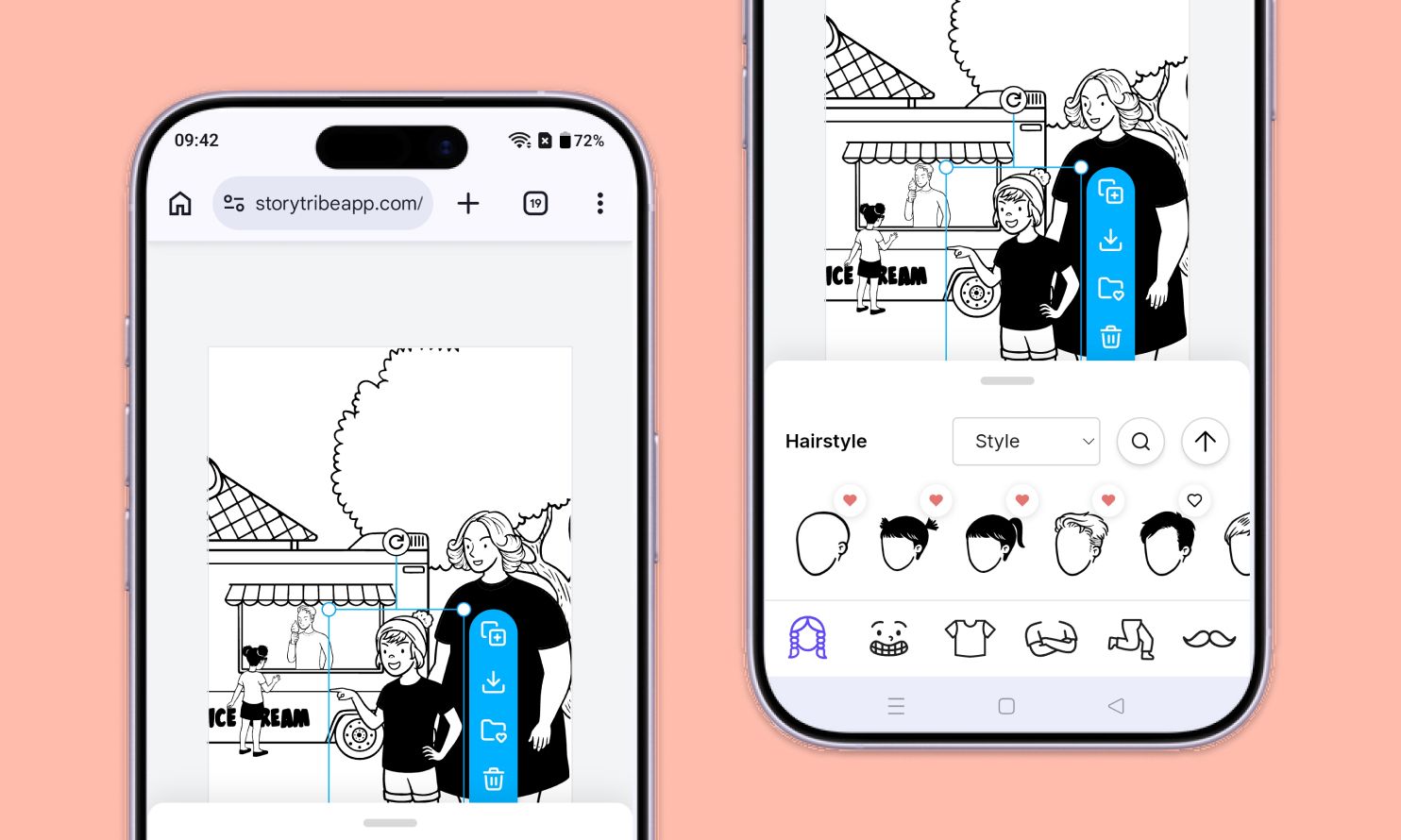
Don't let device-switching break your flow. The full StoryTribe editor now lives on your phone. Build wherever ideas strike.
StoryTribe
StoryTribe Team
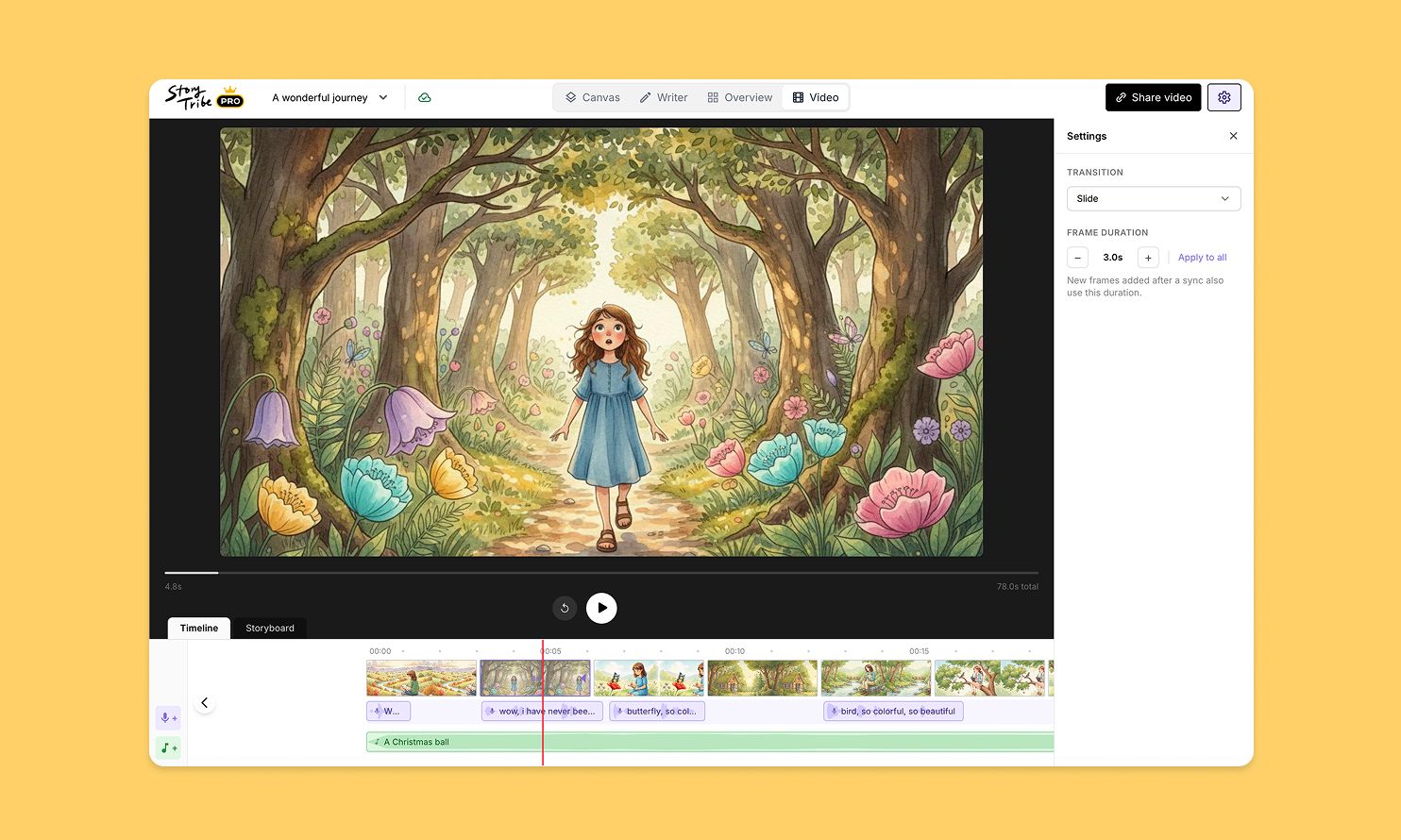
Turn your storyboard into a shareable video — set the timing, add music, and send a link. No extra tools needed.
StoryTribe
StoryTribe Team