Create an AI video
In the Video view, click a shot and choose Create ai video. Describe what happens, pick a model and click Generate. When it's ready, Add to timeline puts it over its shot. Each video costs credits.
Last updated Oct 21, 2026
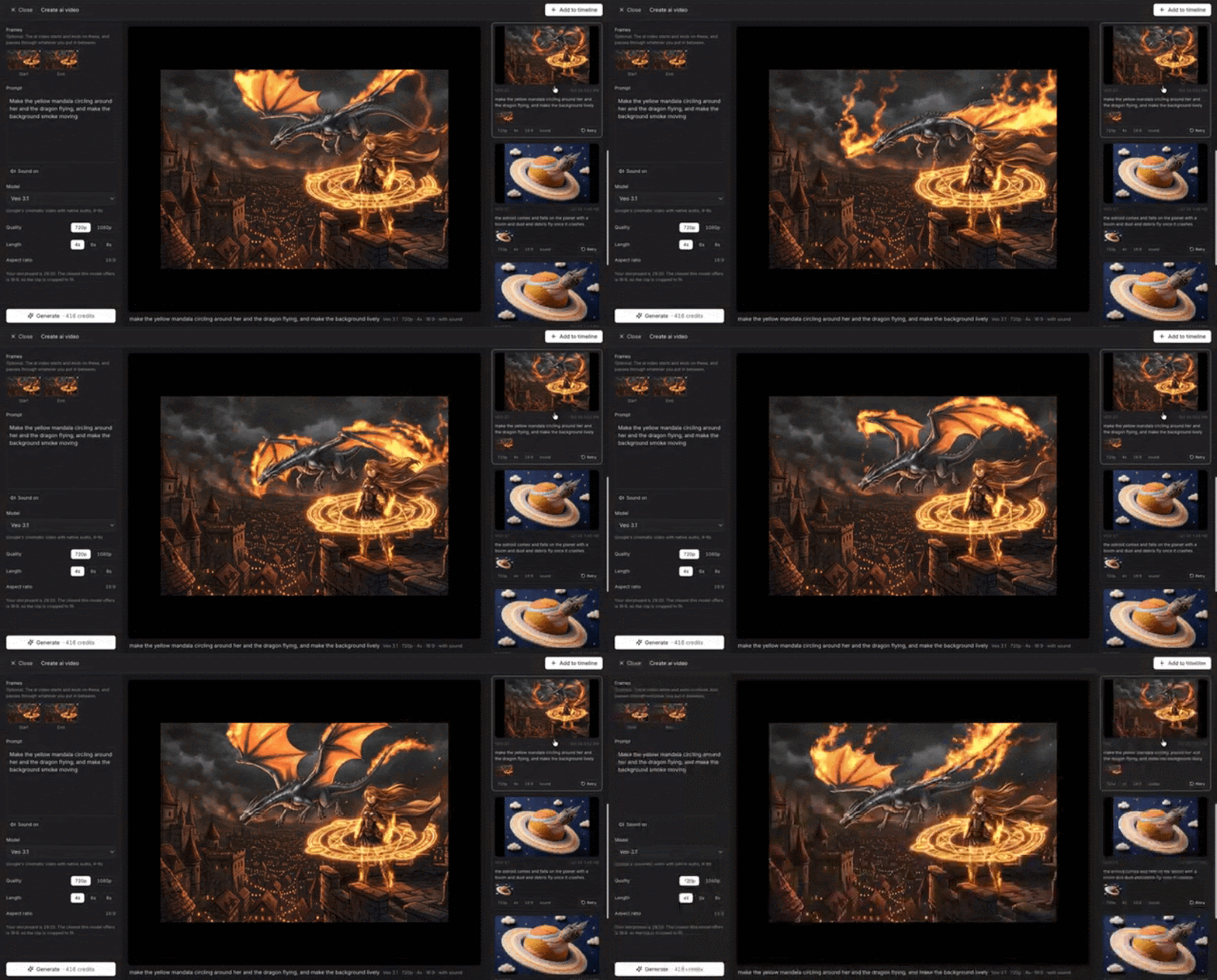
- In the Video view, click a shot on the timeline and choose
Create ai video. Or click+at the start of the video clip row to start from the shot under the playhead. TheCreate ai videopanel opens with that shot as theStartframe. - Under
Frames, set where the video starts and ends, and what it passes through. Frames are optional. ClickStart,In betweenorEndto pick fromYour shots,Ai videosorUpload. Start and End take images only. In between also takes one of your AI videos, or an MP4 of up to 15 seconds and 100 MB. - Under
Prompt, describe what happens. Type@to mention an element or a shot. If the model can make sound, clickSound onto turn it off. - Under
Model, pick a model, then setLengthandQualitywhere the model offers a choice. The length starts at the shot's own length. The aspect ratio follows your storyboard and can't be changed. - Click
Generate. The button shows what the video will cost. AI videos take a few minutes, and you can close the panel and keep working while they generate. - Click the finished video in the list, then
Add to timeline. It goes over the shot it started from, or at the playhead if it had no start frame. If that spot is taken, it goes in the next free gap. The list keeps every AI video you've made, so you can add one later.
Working with the clip
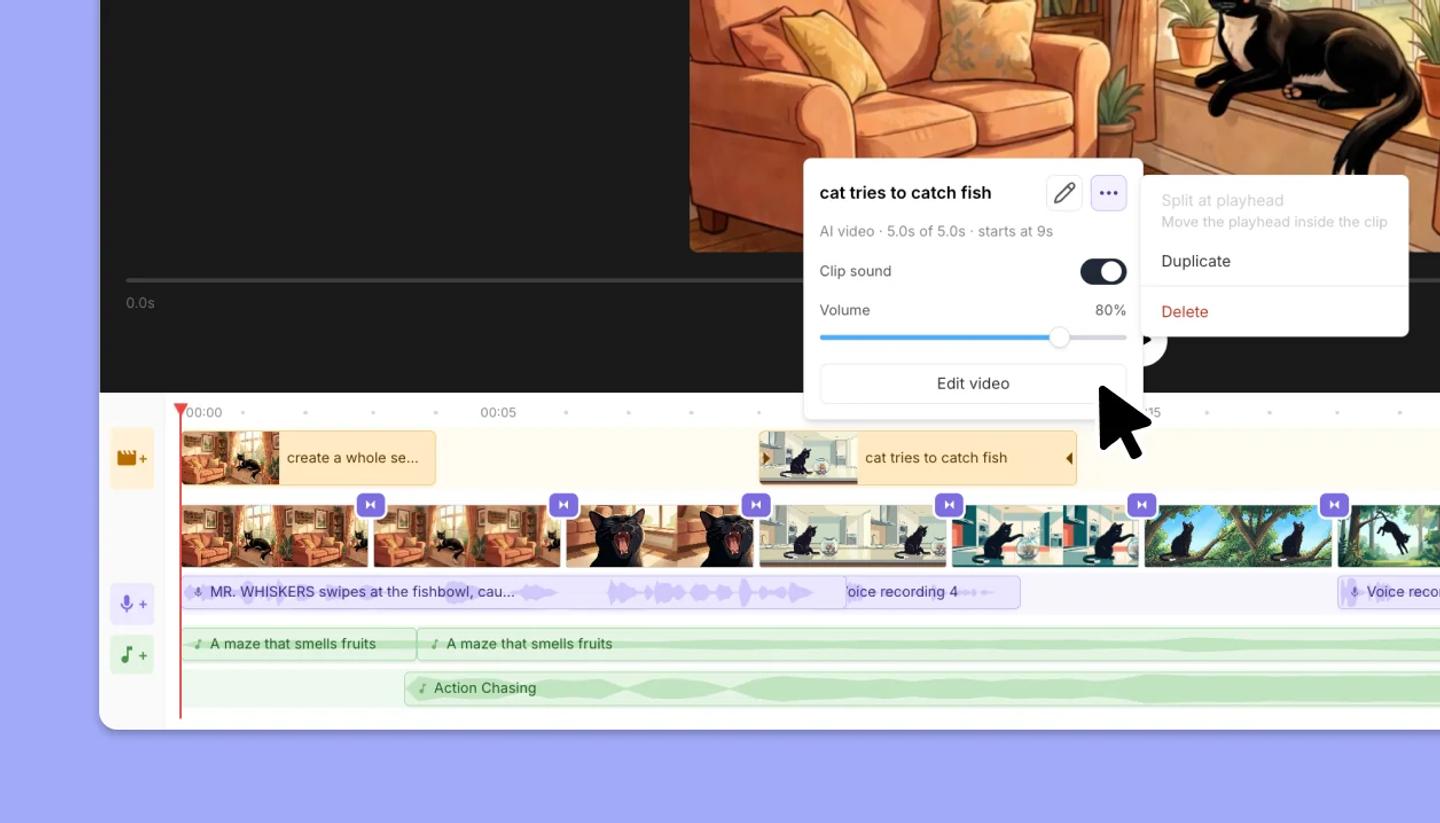
- Click the clip to rename it, and for
Clip soundandVolume. Edit videoreopens the panel with this clip in between, so you can make a new version of it.- Its menu holds
Split at playhead,DuplicateandDelete.
Credits and limits
- The cost depends on the model, the length, the quality and whether there's sound. Using a video in between can cost more.
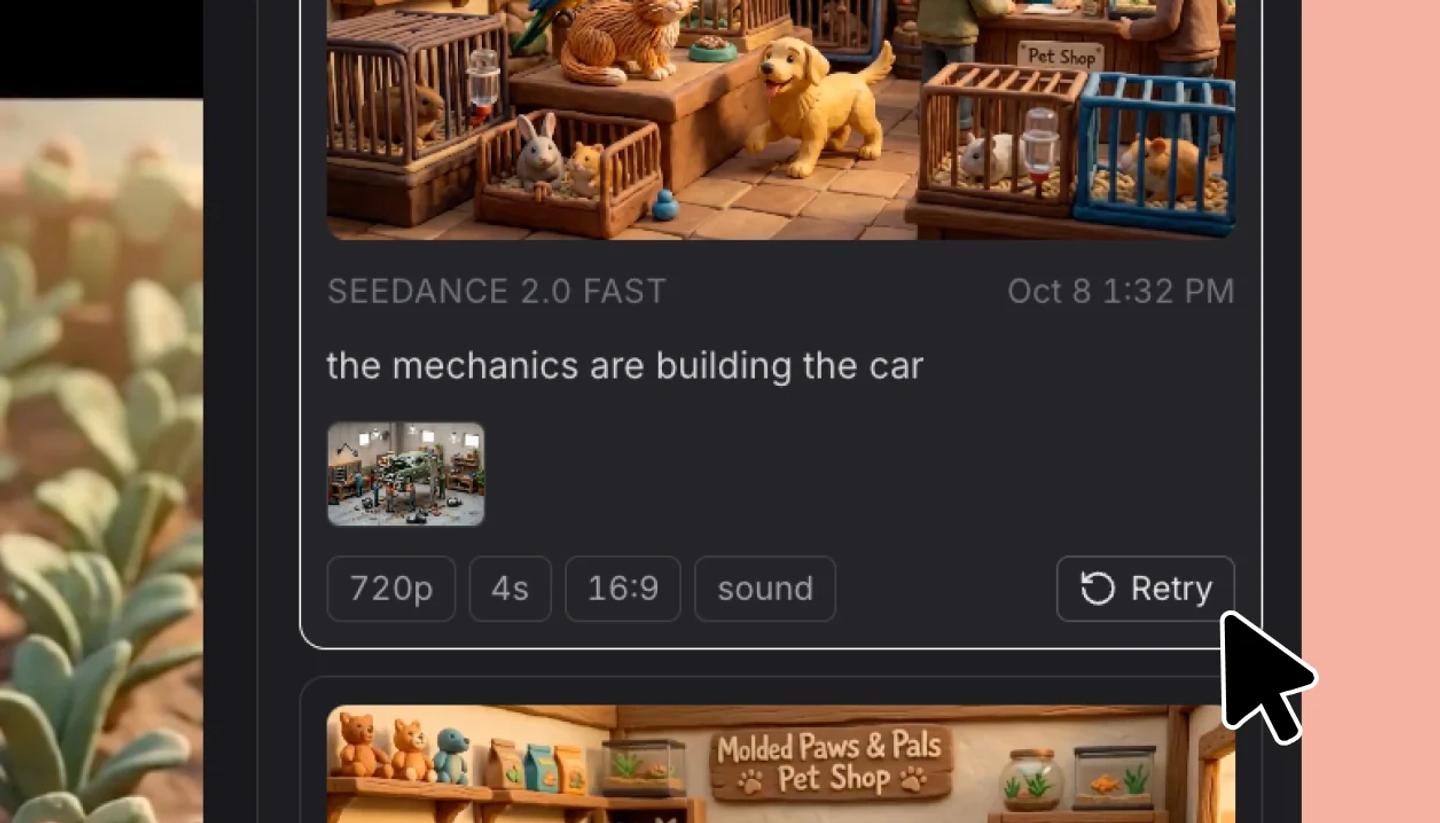
- If a video fails, or the model's safety filter blocks the prompt or an image, the panel says so. When your credits are refunded, it says
Your credits were refunded.Retryputs the prompt, frames and settings back in the panel; clickGenerateto try again. - Up to 5 AI videos can generate at once for each video.
- If a model has no ratio that matches your storyboard, the panel tells you, and the clip is cropped to fit.
Was this article helpful?
Need more help?
Send us a message. We reply within 3 days, usually sooner.