Using Search: characters, props, templates, icons and images in one place
One search box in the canvas toolbar finds scene templates, characters, props, icons and stock photos. Click a result to put it on the canvas.
Last updated Aug 29, 2026
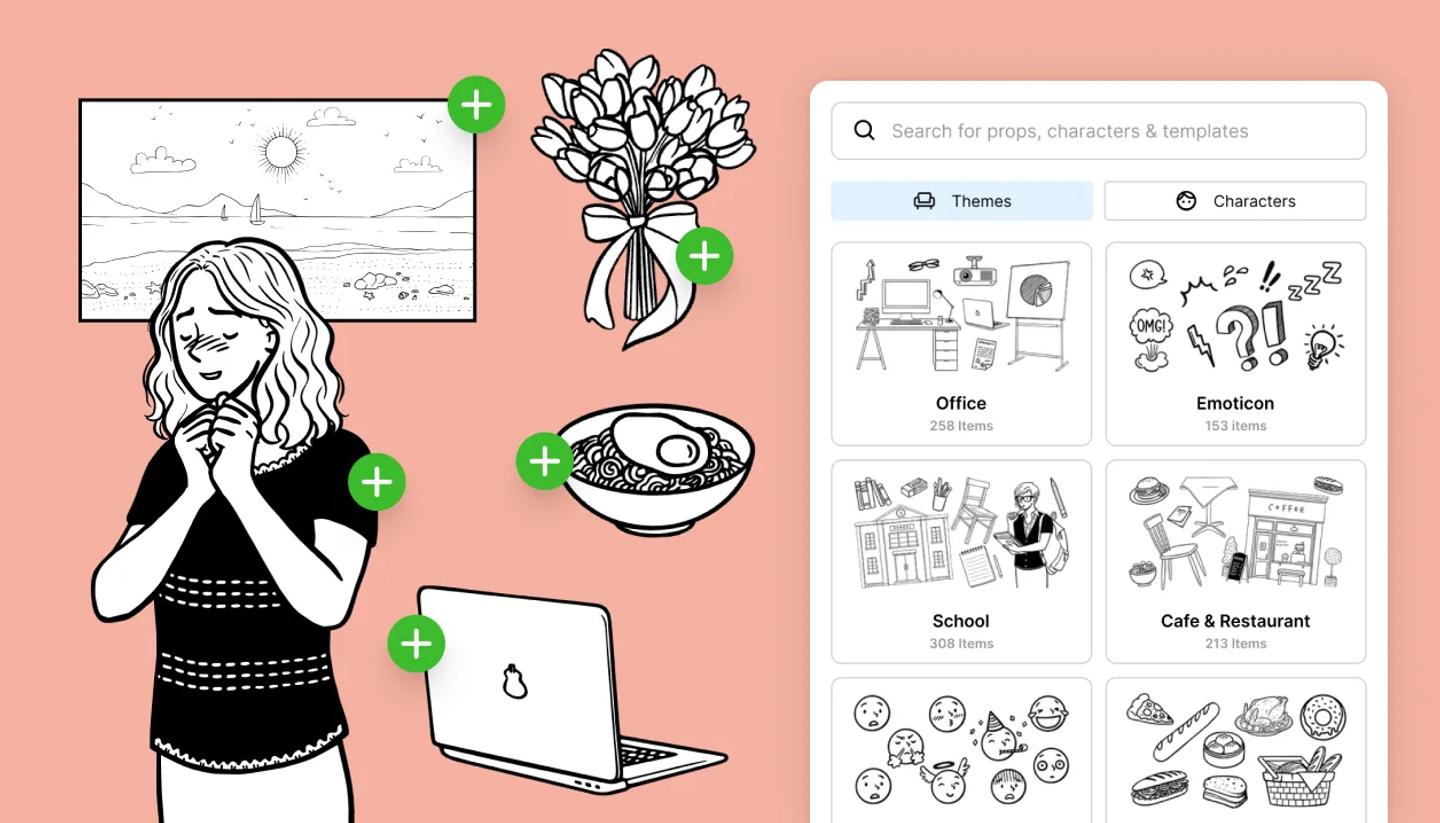
- Open a shot on the Canvas and click the magnifier in the left toolbar. The panel opens on two tabs:
Themes, a grid of browse-able sets, andCharacters, the preset characters. - Type what you need in
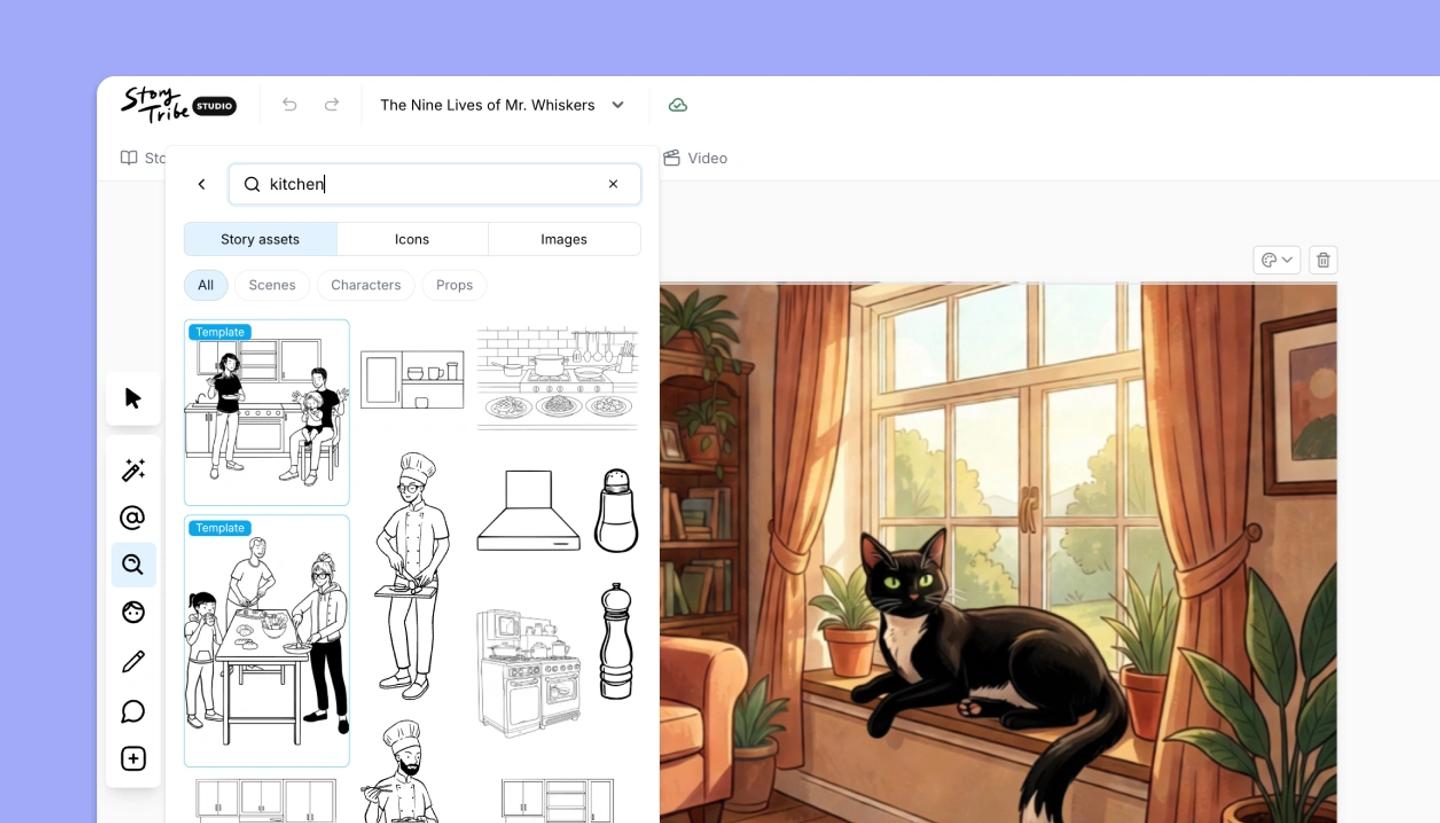
Characters, props, templates, icons and images. Results come in three groups you can switch between:Story assets(StoryTribe's own library),IconsandImages. - Inside Story assets, narrow your search with the filters:
All,Scenes,CharactersandElements(props and objects). - Click a result. It lands on the canvas and you move and resize it from there.
Browsing without a query
Pick a theme in the Themes tab to see everything in that set. Your last eight searches appear under Recently searched.
When nothing matches
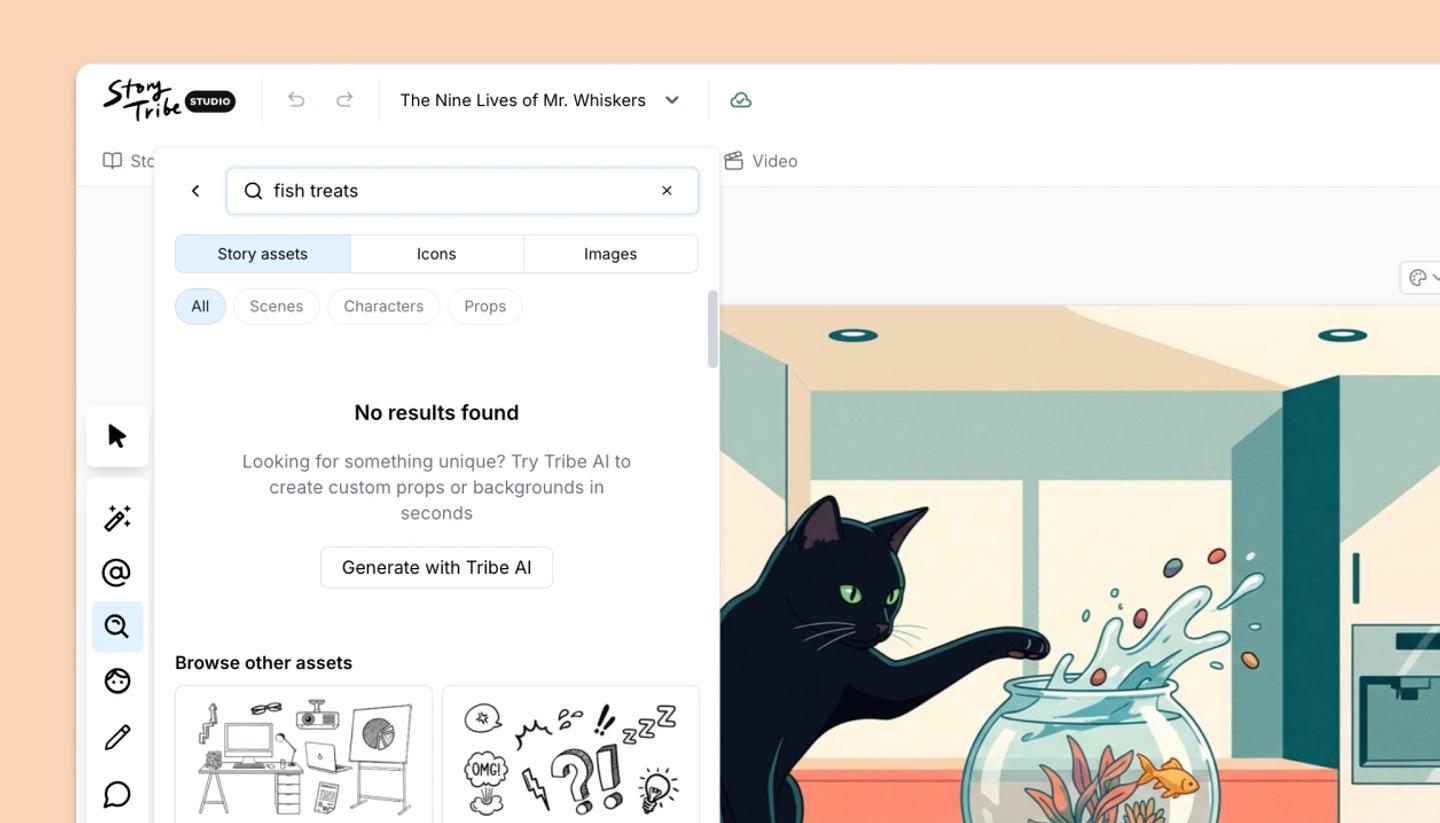
The empty result offers a route to Tribe AI: describe the prop or background and generate it instead. Alternatively, use stock photos from the library in images tab.
Was this article helpful?
Need more help?
Send us a message. We reply within 3 days, usually sooner.