Scene templates: what you get when you drop one on the canvas
A scene template drops a ready-made set of objects on top of what is already on the canvas. Every piece stays separate and editable, and the whole set is scaled to your project's canvas size.
Last updated Sep 12, 2026
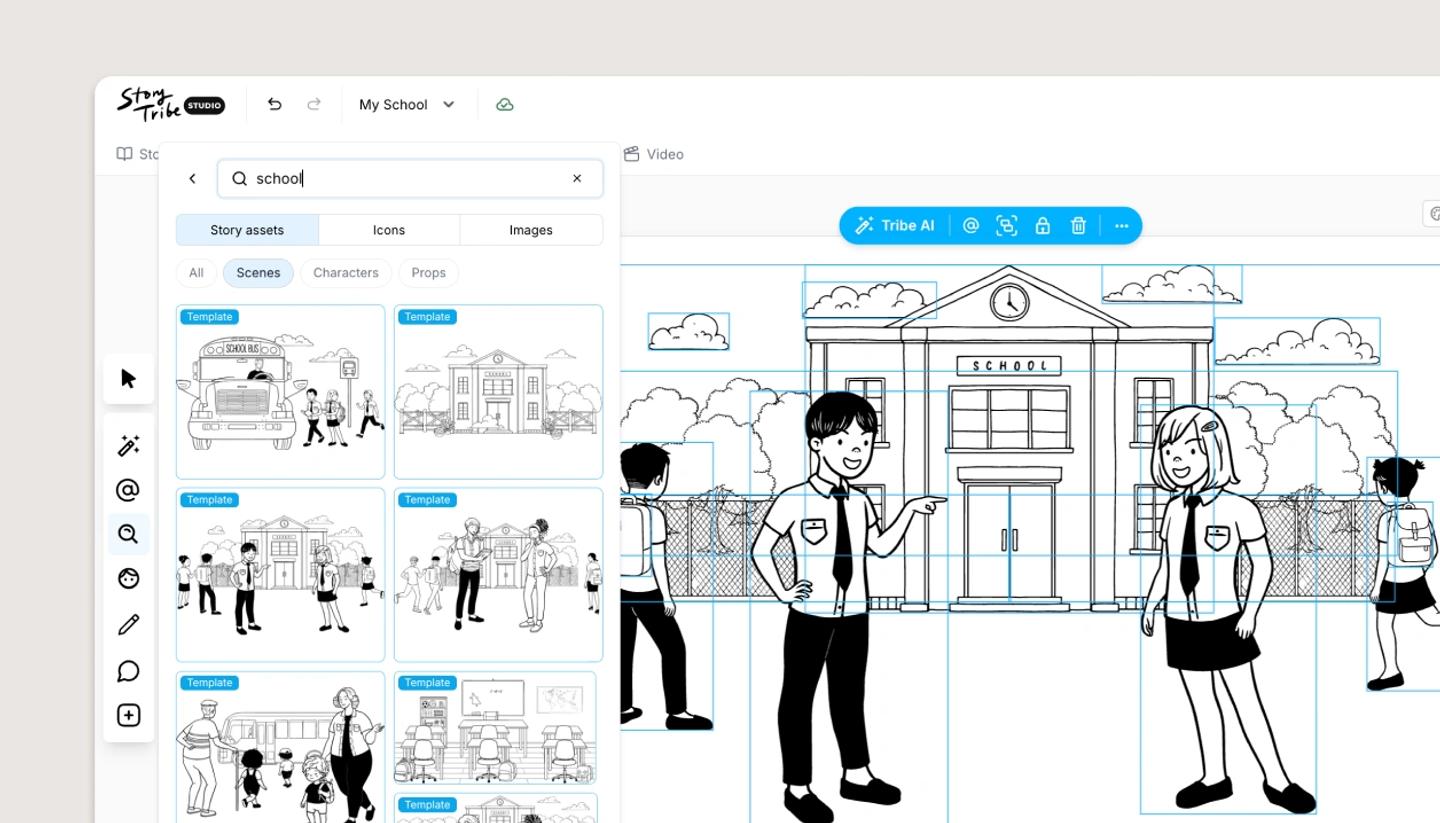
In Search, stay on the Story assets tab and choose the Scenes filter. Every result there carries a Template badge. Click one and its props, shapes, drawn lines and characters are copied onto the current shot as separate objects, scaled to fit your canvas and centered in view. A Template added! message confirms it landed.
What that means in practice
- It adds, it never replaces. Anything already on the canvas stays where it is. For a clean start, delete or hide those objects first.
- Each piece is its own object. Move the sofa, delete the lamp, restack the window behind a character. The Layers panel lists the pieces by their real names.
- It is scaled, not rearranged. The whole arrangement keeps its proportions and is sized to fit your canvas, so a template built for a wide frame sits smaller in a tall one. Expect to nudge a few things.
- Everything arrives selected. Drag the set into place as one, or press Ctrl G, or Cmd G on a Mac, to group it before you start editing.
- One undo removes the lot. Ctrl Z, or Cmd Z on a Mac, takes the whole template back off in a single step.
Was this article helpful?
Need more help?
Send us a message. We reply within 3 days, usually sooner.