Searching and browsing for props
Find props in Search under Story assets, click one to place it, then move, resize, restack, flip and crop it from the blue bar or the right-click menu.
Last updated Sep 12, 2026

- Open
Searchfrom the toolbar and type what you are after. Results open on theStory assetstab. - Choose the
Propsfilter to see props only. For flat symbols, switch to theIconstab instead. - To browse rather than search, pick a theme from the
Themeslist. Each card shows how many assets it holds. - Click a prop to drop it on the current shot. A
Prop added!message confirms it landed. - Drag it into place. Corner handles resize it in proportion, side handles stretch one axis, and the handle just above the selection rotates it.
The blue bar above a selected prop
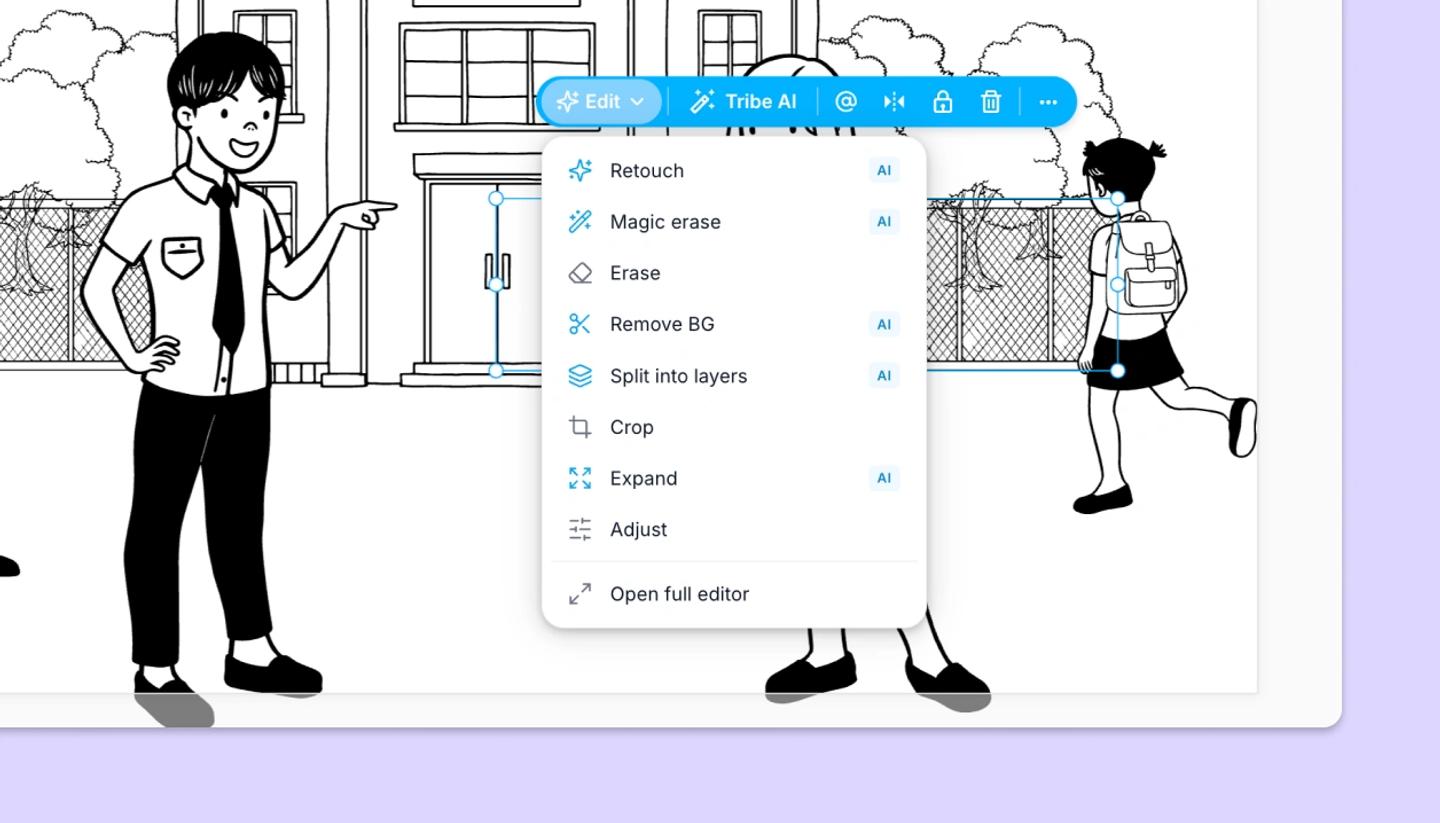
A prop is an image, so its bar reads Edit, Tribe AI, then Save as element, Flip, Lock, Delete and More.
- Edit opens a dropdown holding
Crop,Adjust,Erase, and the AI itemsRetouch,Magic erase,Remove BG,Split into layersandExpand. The AI items spend credits. - Adjust opens a panel with an Opacity slider and Brightness, Contrast, Saturation and Temperature.
- More opens the same list as a right-click.
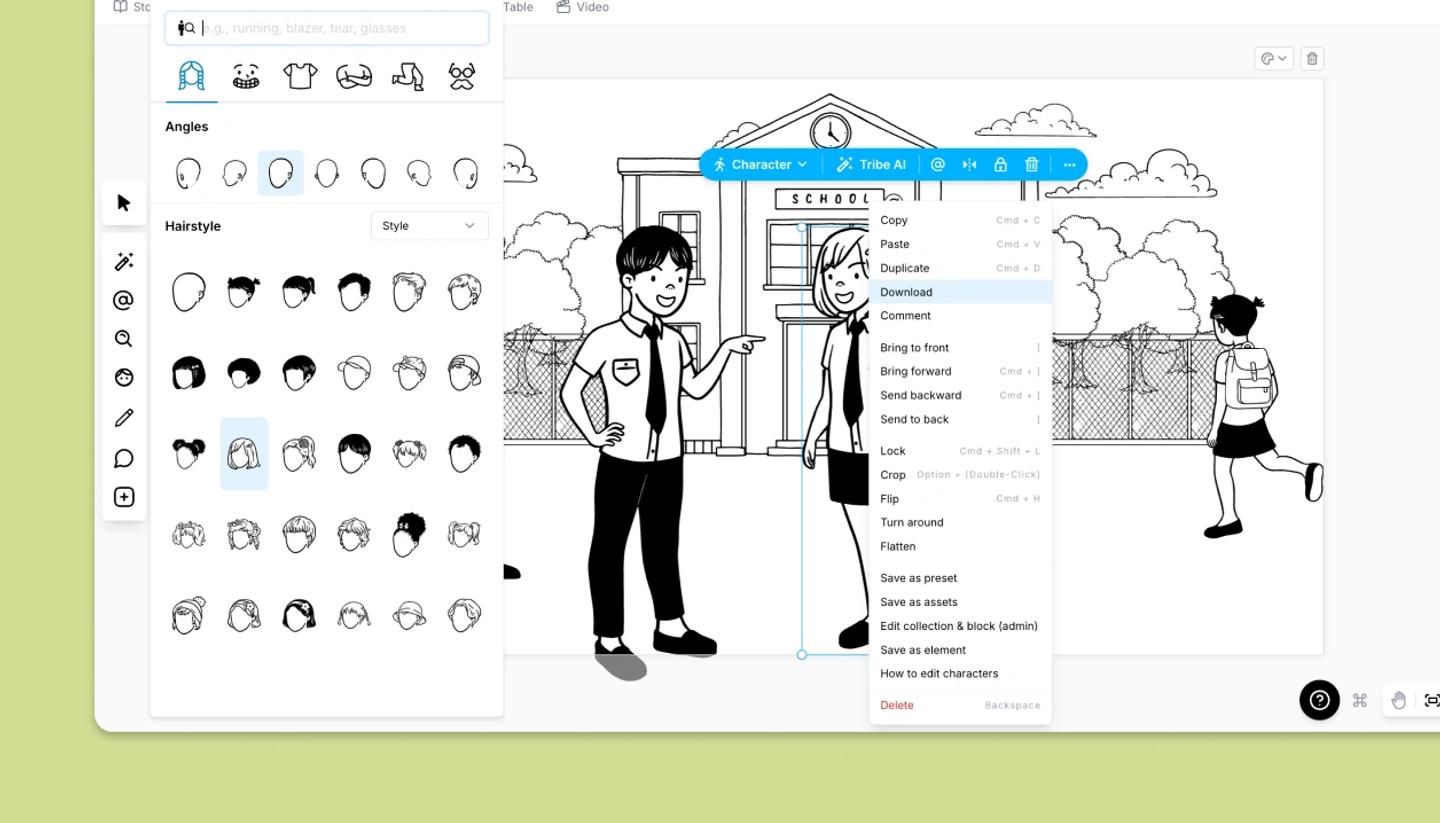
The right-click menu
It holds Duplicate, Bring to front and Send to back with one-step versions beside them, Crop, Flip, Lock, Save as element, Download and Delete. Turn around is for characters only and does not appear on a prop.
Shortcuts worth knowing
- Ctrl D duplicates and Ctrl H flips, or Cmd D and Cmd H on a Mac.
- The ] key brings the prop to the front and [ sends it to the back. Add Shift to move it one layer at a time.
- A double-click opens Crop. Press Enter to leave it.
- Ctrl Shift L locks and unlocks, on Windows and on Mac alike.
Learn more about keyboard shortcuts
Was this article helpful?
Need more help?
Send us a message. We reply within 3 days, usually sooner.