Publish as a book
Choose Book in the Publish dialog, pick a cover (Photo, Solid color or Aura), and Publish. Readers get a cover, a page of script before each frame, and a back cover, with page turns.
Last updated Aug 29, 2026

- Open
Share›Publish to weband choose theBookcard. - Under
Cover, choose one of three options.Photofills the cover with the story's first frame.Solid coloroffers twelve colors.Auraoffers five soft color washes, like the Story Bible cover. - Choose
PublicorUnlistedand clickPublish. Copy the link or View page.
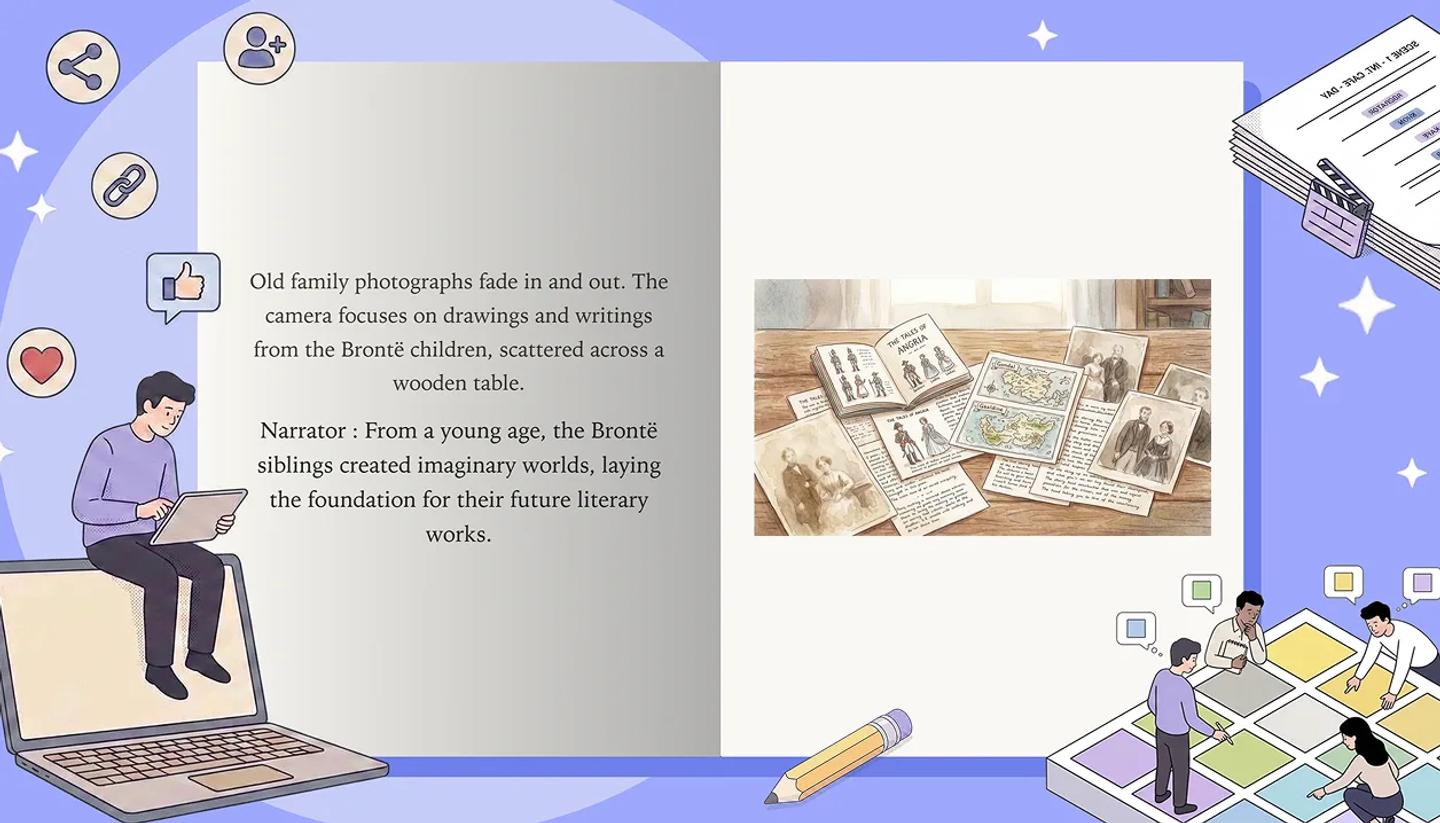
What the reader sees
The book opens with a front cover showing the project title and your name. Each visible shot then gets a page of its script, followed by its frame. Shots with no script skip the text page, and omitted or hidden shots are left out. A back cover reading The end closes the book. On desktop, readers turn pages in a two-page spread. On a phone, they swipe one page at a time.
Title and length
The cover prints the project title, which is capped at 80 characters; long titles scale down to fit the board. Only the narrative script (action, dialogue, captions) appears on the text pages. Shot properties do not display.
Need more help?
Send us a message. We reply within 3 days, usually sooner.