The Story Bible
The Story Bible is the first view in every project: a cover, a synopsis, and every character, location, prop and vehicle your story uses, gathered automatically from your script and shots.
Last updated Aug 29, 2026
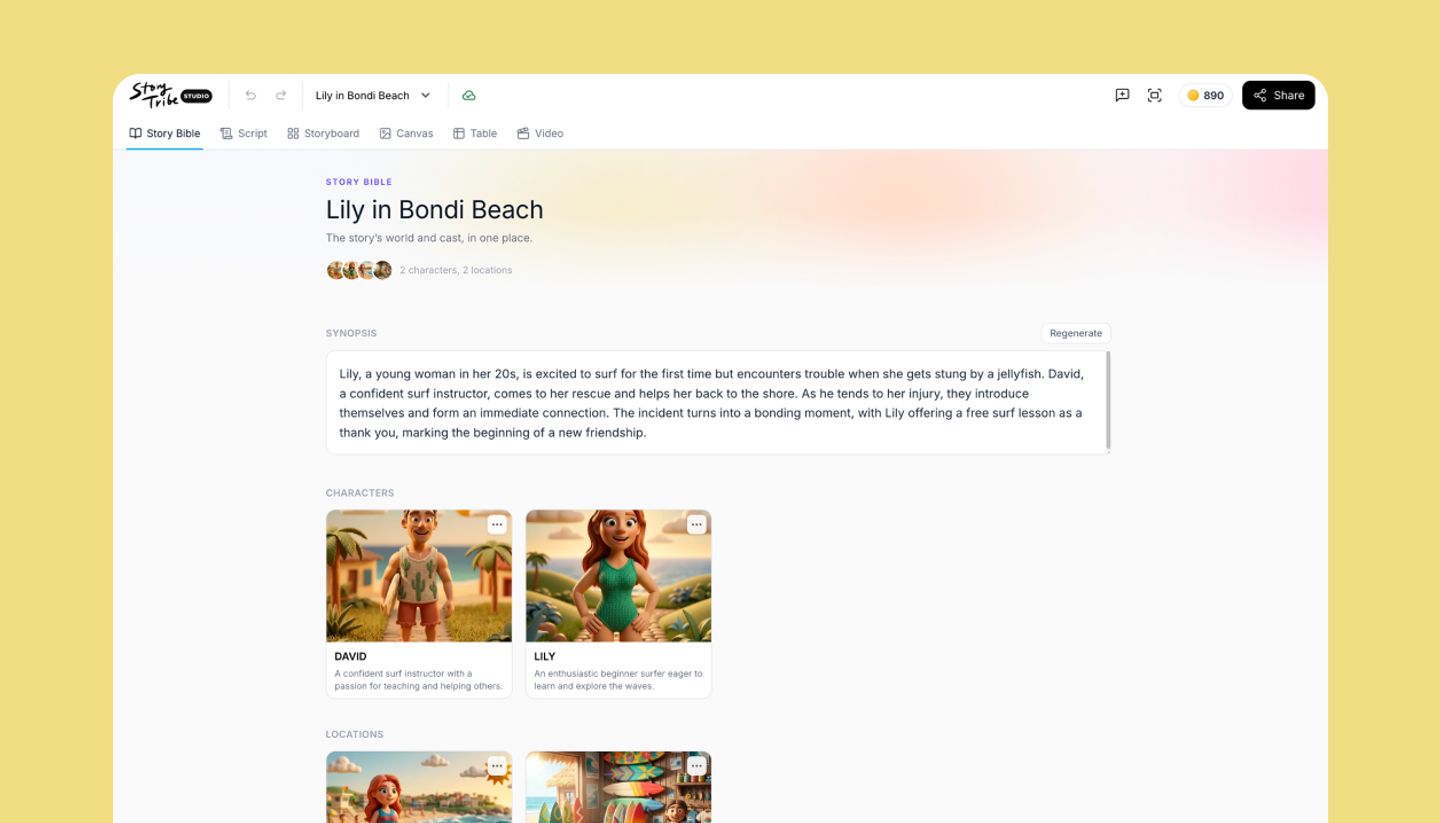
Open any project and the first tab is Story Bible. It is the one-page overview of your story's world and cast: who and what is in it, and what it's about. You don't fill it in by hand; it reads what you've already made.
The cover
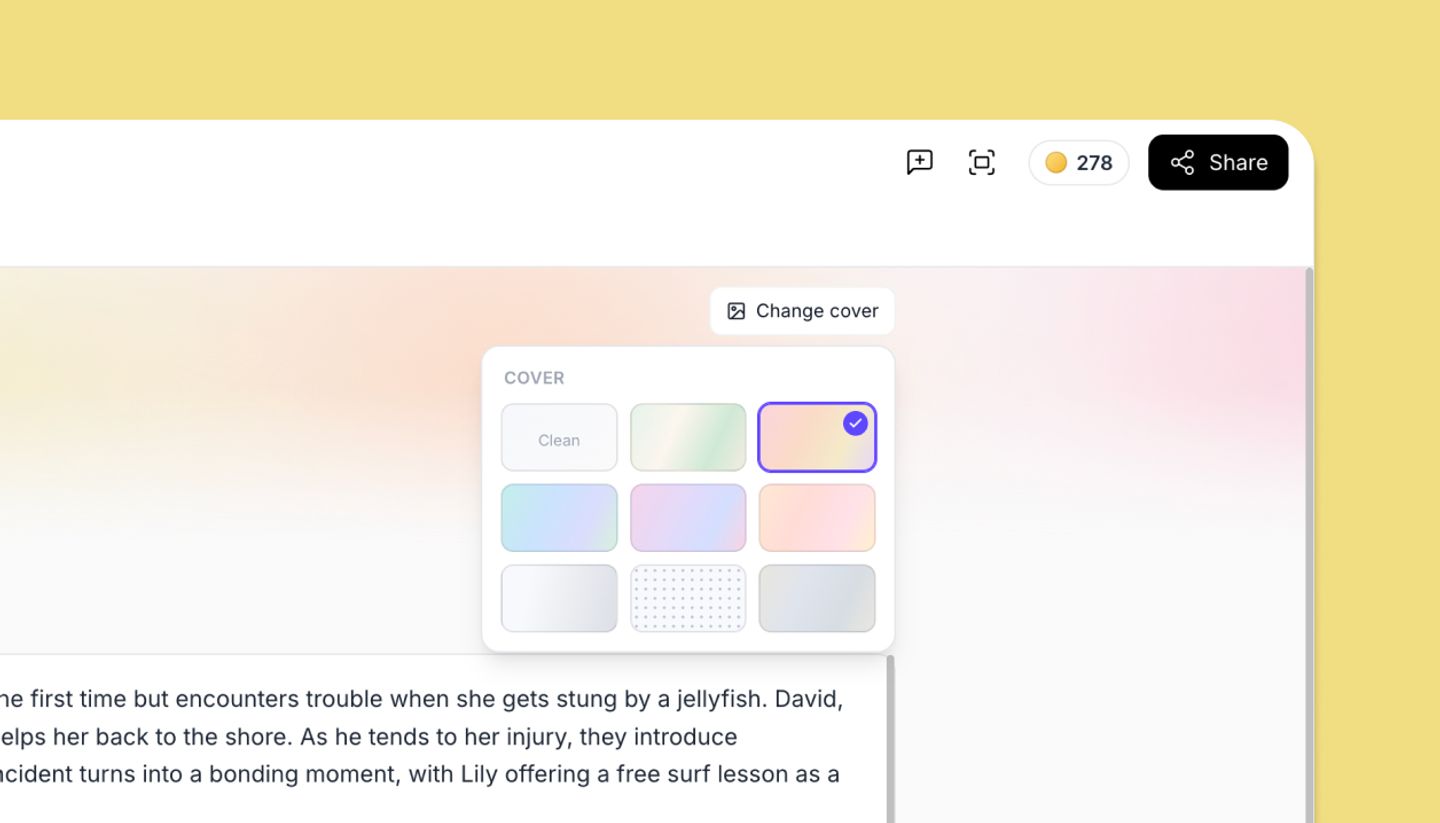
The top of the page is a cover plate with the project title (double-click it to rename). Click Change cover to pick a style: choose Clean, or 8 variants of soft colour washes and patterns.
Synopsis
A short paragraph about the story. Type it yourself, or click Summarise with AI to have one written from your script (the button is greyed until at least one shot has script text). Once there is a synopsis the button becomes Regenerate. It saves when you click away.
Characters, Locations, Props, Vehicles
These sections list the Elements your project uses: everything saved to the project plus anything the script refers to (dialogue speakers, @mentions, shot fields). Empty sections are hidden, so a new project shows nothing here until you add a character or mention one.
Each tile shows the element's name, its image (or No image yet) and the first lines of its backstory. The tile's menu offers Generate (an AI image for the element, using credits), Edit element, Remove from project and Delete element.
The backstory is written in the element editor under Backstory (optional, story context). It is story canon for you and your collaborators.
Where it shows up
The Story Bible is the same on desktop, tablet and phone. People you share the project with see it too; only editors get the cover picker and the element menus.
Need more help?
Send us a message. We reply within 3 days, usually sooner.