Table view (desktop and tablet)
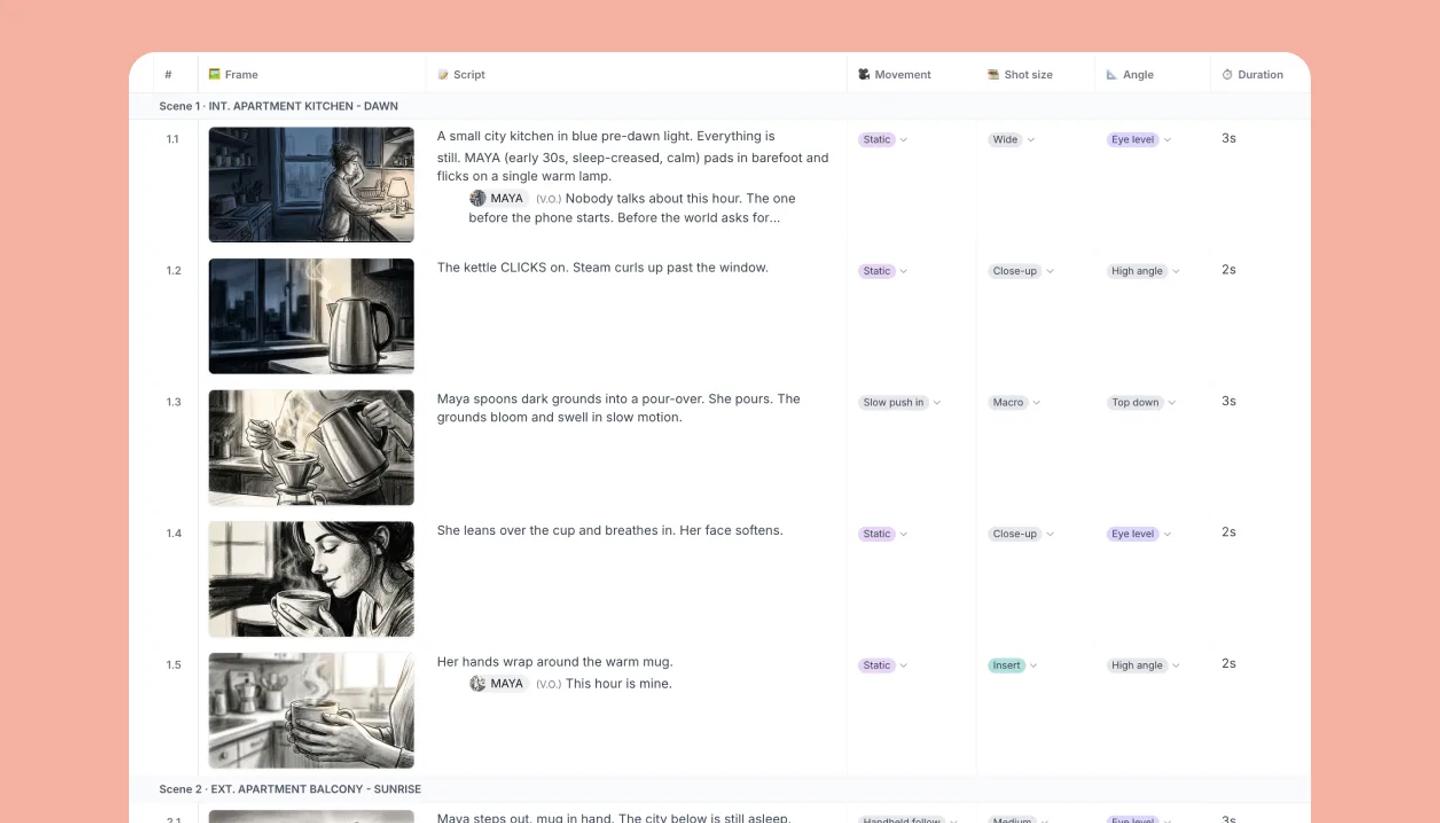
The Table is your shot list: one row per shot under a banner for each scene, with a column for the frame, the script and every property. Edit in place, reorder columns and rows, and export it.
Last updated Aug 29, 2026
- Click
Tableunder the header. The fixed columns are#(always visible),FrameandScript; then one column per property. Scene banners run across the table. - Click a cell to edit it. Type text and @ mentions straight into the cell. Select cells open a list where you can search for a value or type one. Dates and durations have their own controls, and image cells offer
Add image. Press Enter on a Frame cell to open the shot on the Canvas. - Use the arrow keys and Tab to move around. Hold Shift and press an arrow key to select a range. Press Enter or F2 to edit, Delete to clear, and Esc to deselect. Right-click a selection for
Copy,PasteandClear. To repeat a value, drag the fill handle down a column. - To reorder columns, drag a column header. To resize a column, drag the edge of its header, or open the column's menu and choose
Resize column(S, M or L). To show or hide properties, openView settingsand drag them betweenShown in tableandHidden in table. You can create a property there too. To reorder shots within a scene, drag a row's number. - A column's caret menu also has
Edit property,Hide property,Add property before/after,Delete all values…andDelete property….
Was this article helpful?
Need more help?
Send us a message. We reply within 3 days, usually sooner.