Export the shot table (CSV, Excel, PDF)
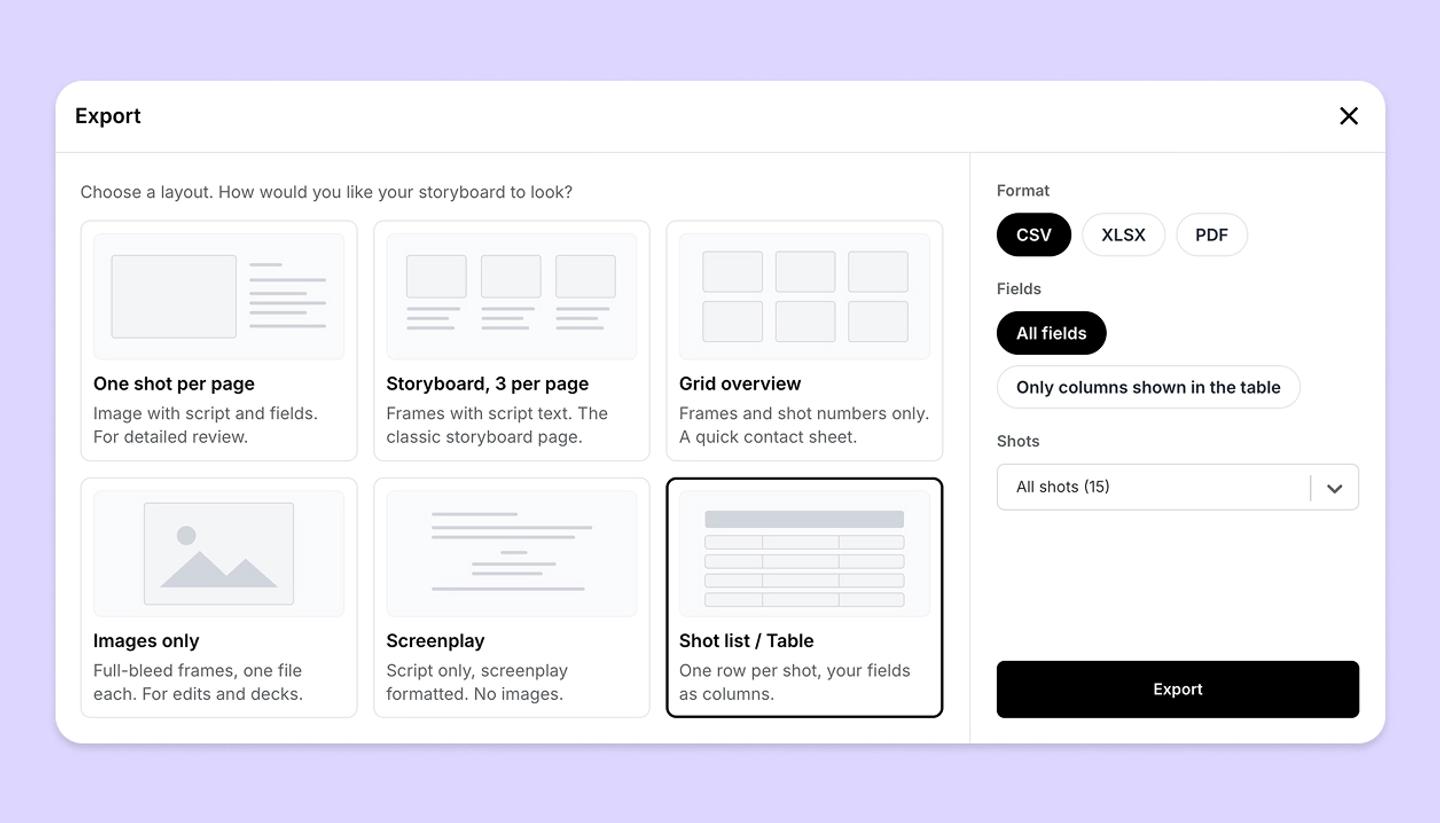
Share › Download › Shot list / Table gives one row per shot with your fields as columns, as CSV, XLSX or an A4 landscape PDF with thumbnails. No watermark on any plan.
Last updated Sep 12, 2026
- Click
Share, then theDownloadtile. - Pick
Shot list / Table. - Choose
CSV,XLSXorPDF. - Under
Fields, pickAll fieldsorOnly columns shown in the table. - Under
Shots, exportAll shotsor aShot range (from / to). - Click
Export. The file is named after the project.
What is in the file
- CSV. Plain text, for any scheduling tool.
- XLSX. Data only, no pictures, ready to sort and filter.
- PDF. An A4 landscape table with a thumbnail on each row.
The columns
- All fields gives Scene, Shot, Frame, Heading, Title, Script, then your fields in the table's order, then Omitted.
- Only columns shown in the table mirrors what is on screen: your column order without the hidden ones, Frame next to the shot number, and no Omitted column.
- Frame reads Yes when the shot has something drawn on it, and is empty when it does not.
- An image field exports as a count, such as 2 images, not as the pictures.
Common questions
Was this article helpful?
Need more help?
Send us a message. We reply within 3 days, usually sooner.