Download your storyboard (PDF, PowerPoint, PNG)
Share, then the Download tile, opens the Export dialog. Pick a layout, a format and which shots, then click Export. On the free plan, PDF and image files carry a watermark and PowerPoint is on paid plans.
Last updated Sep 12, 2026
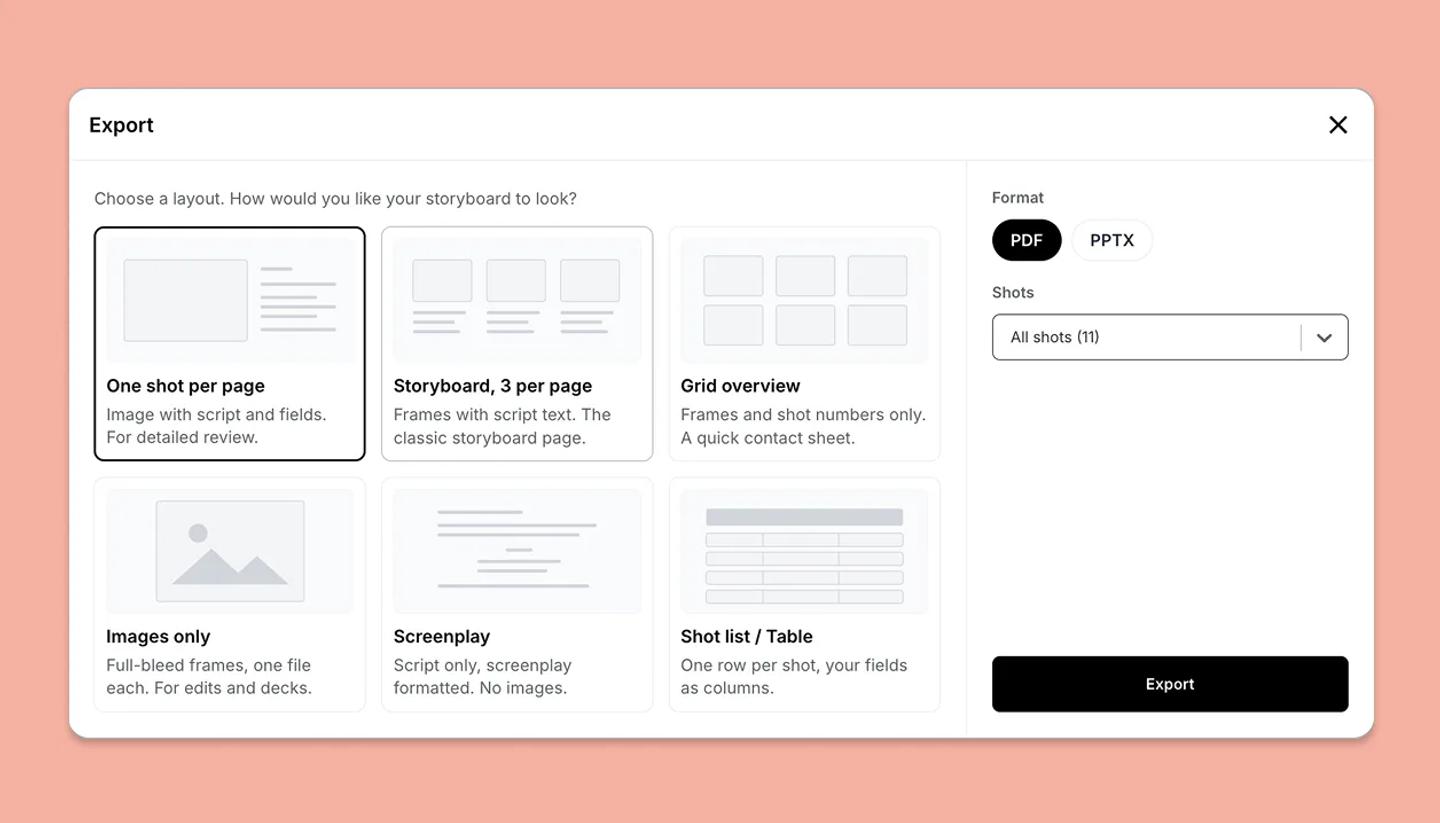
- Open the project and click
Shareat the top right, then click theDownloadtile. The Export dialog opens. - Pick a layout card:
One shot per page,Storyboard, 3 per page,Grid overvieworImages only. - Choose a
Format. The page layouts offer PDF and PPTX (PPTX is on paid plans). Images only offers PNG, JPG and PDF. - In Grid overview, pick a
Densityof 3 or 6 per page. - Under
Shots, keepAll shotsor chooseShot range (from / to)and set From and To. - Click
Export. On the free plan the button readsExport with watermarkfor PDF and image files. The file is named after your project.
Images-only download needs two extra steps
- Resolution. 1x and 2x are free. Choosing 3x, 4x or 5x opens the upgrade dialog unless you are on a paid plan.
- A preview step. Export opens a Preview screen that renders every frame. Wait until they have all loaded, then click Download.
- A batch limit. Images only handles up to 30 shots at a time on desktop and 15 on a tablet. Above that, use a shot range.
- What you get. PDF gives one file. PNG and JPG arrive as a .zip, one image per shot.
Scripts, shot lists and video
- Screenplay. The script alone, with no images, as Fountain, Final Draft, PDF, docx or txt.
- Shot list / Table. One row per shot with your fields as columns, as CSV, XLSX or PDF.
- Video. Not in this dialog. Switch to the Video view and use
Share video. Downloading the MP4 is on paid plans.
Common questions
Related articles
Export a single shot (PNG)Was this article helpful?
Need more help?
Send us a message. We reply within 3 days, usually sooner.