Export a single shot (PNG)
Use Download thumbnail in a shot's menu for a quick PNG, or the Export dialog's Images only layout with a one shot range for a full quality file at up to 5x.
Last updated Sep 12, 2026
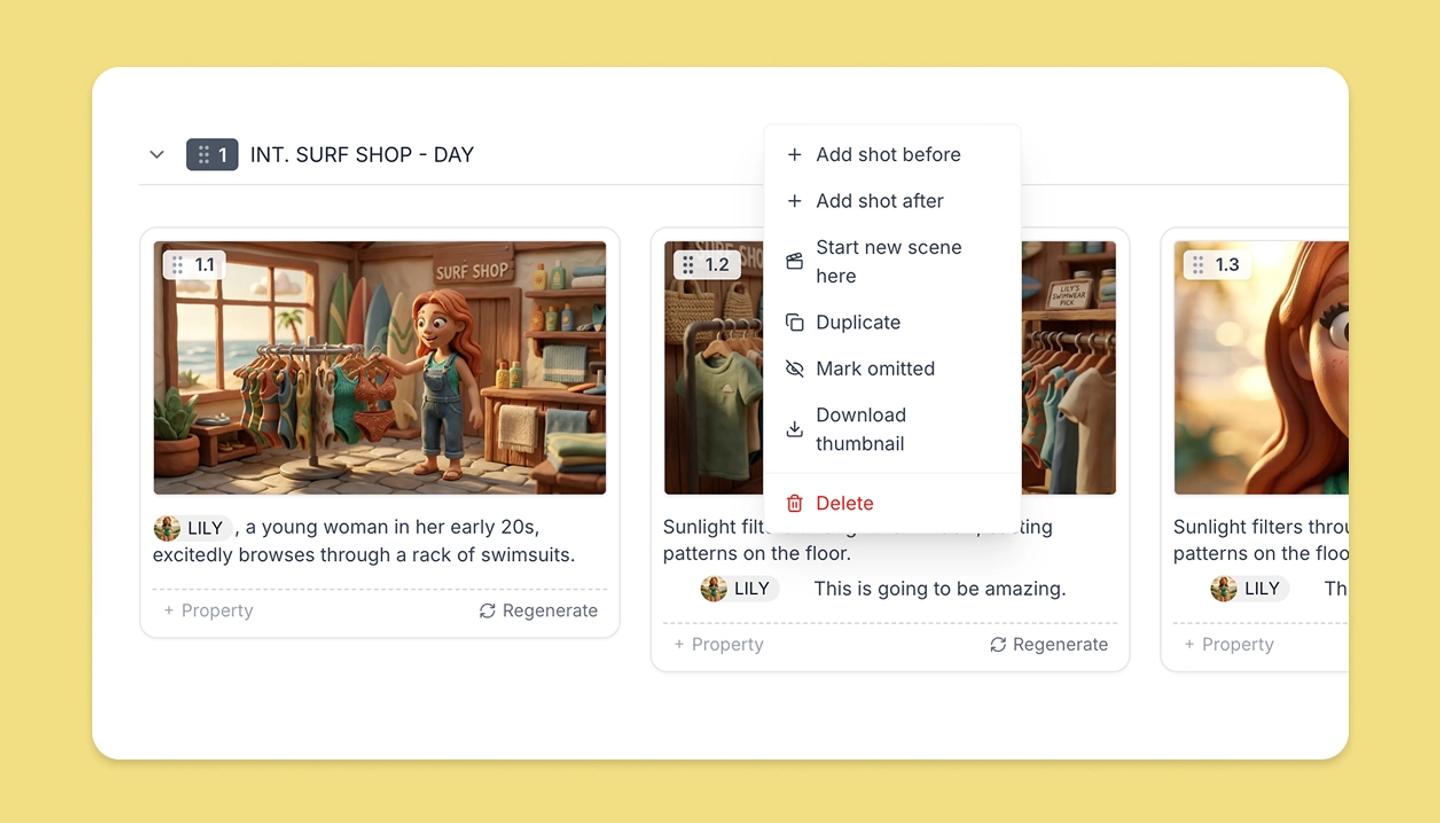
Quick: Download thumbnail
- Open the shot's menu. It is on the shot tile in the Storyboard, on the card handle in the Script view, and on the row in the Table.
- Choose
Download thumbnail.
A PNG saves, named after the project and the shot number. It is the shot's stored preview image rather than a fresh full size render, and on the free plan it carries a watermark.
Full quality: the Export dialog
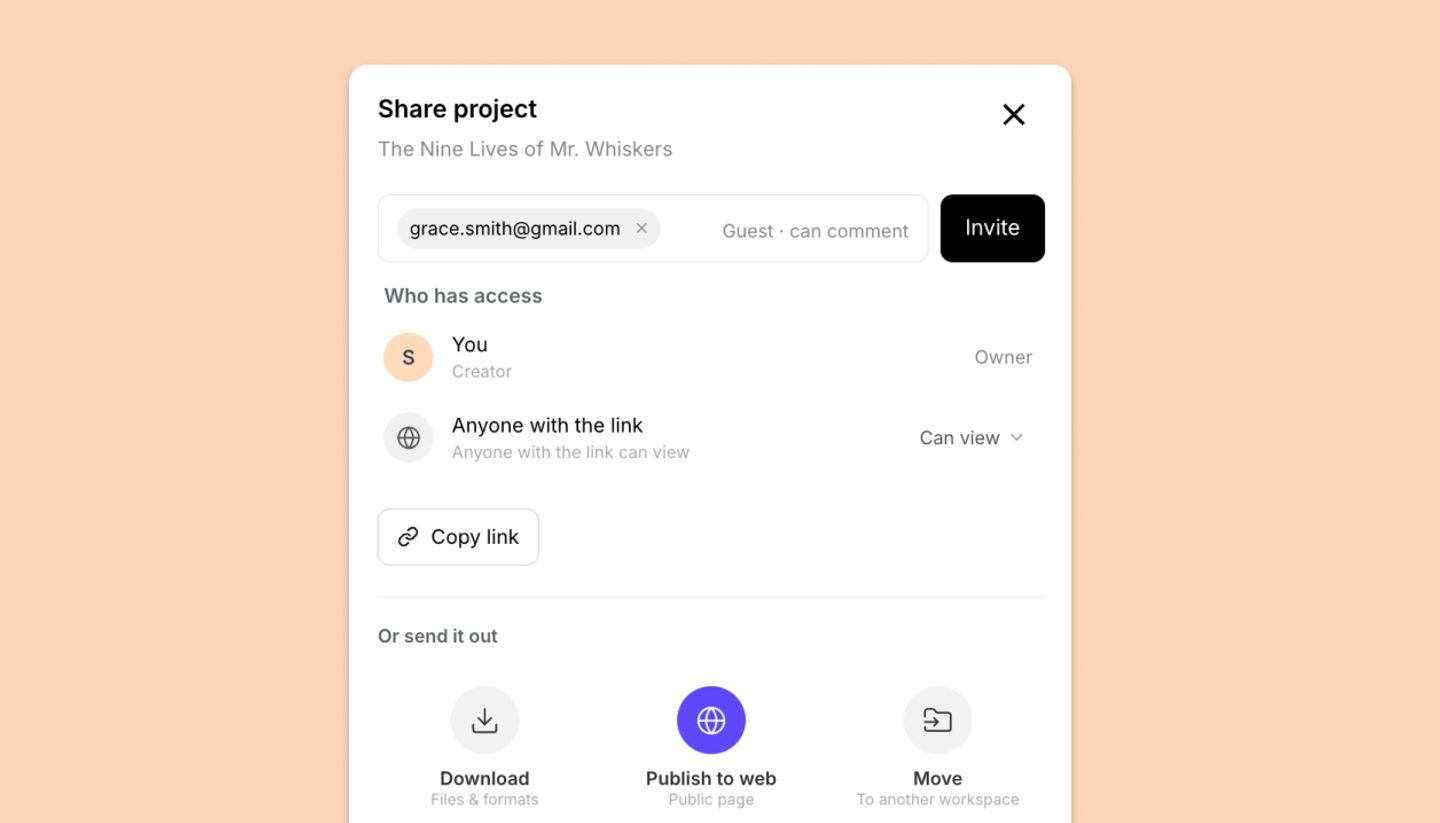
- Click
Shareat the top right, then theDownloadtile. - Choose the
Images onlylayout, then a Format: PNG, JPG or PDF. - Under
ShotschooseShot range (from / to)and set From and To to the same shot. - Pick a
Resolution. 1x and 2x are free, and 3x to 5x need a paid plan. - Click
Export, wait for the frame to finish loading on the Preview screen, then click Download.
A single PNG or JPG still arrives inside a .zip. Choose PDF if you want a loose file.
Related articles
Download your storyboard (PDF, PowerPoint, PNG)Was this article helpful?
Need more help?
Send us a message. We reply within 3 days, usually sooner.