What shot properties are and where to edit them
A property is a typed detail every shot can carry: Shot size, Angle, Movement, Duration, Cast, Location and any custom ones you add. Edit them in the Table, the Canvas side panel or a shot's card.
Last updated Aug 29, 2026
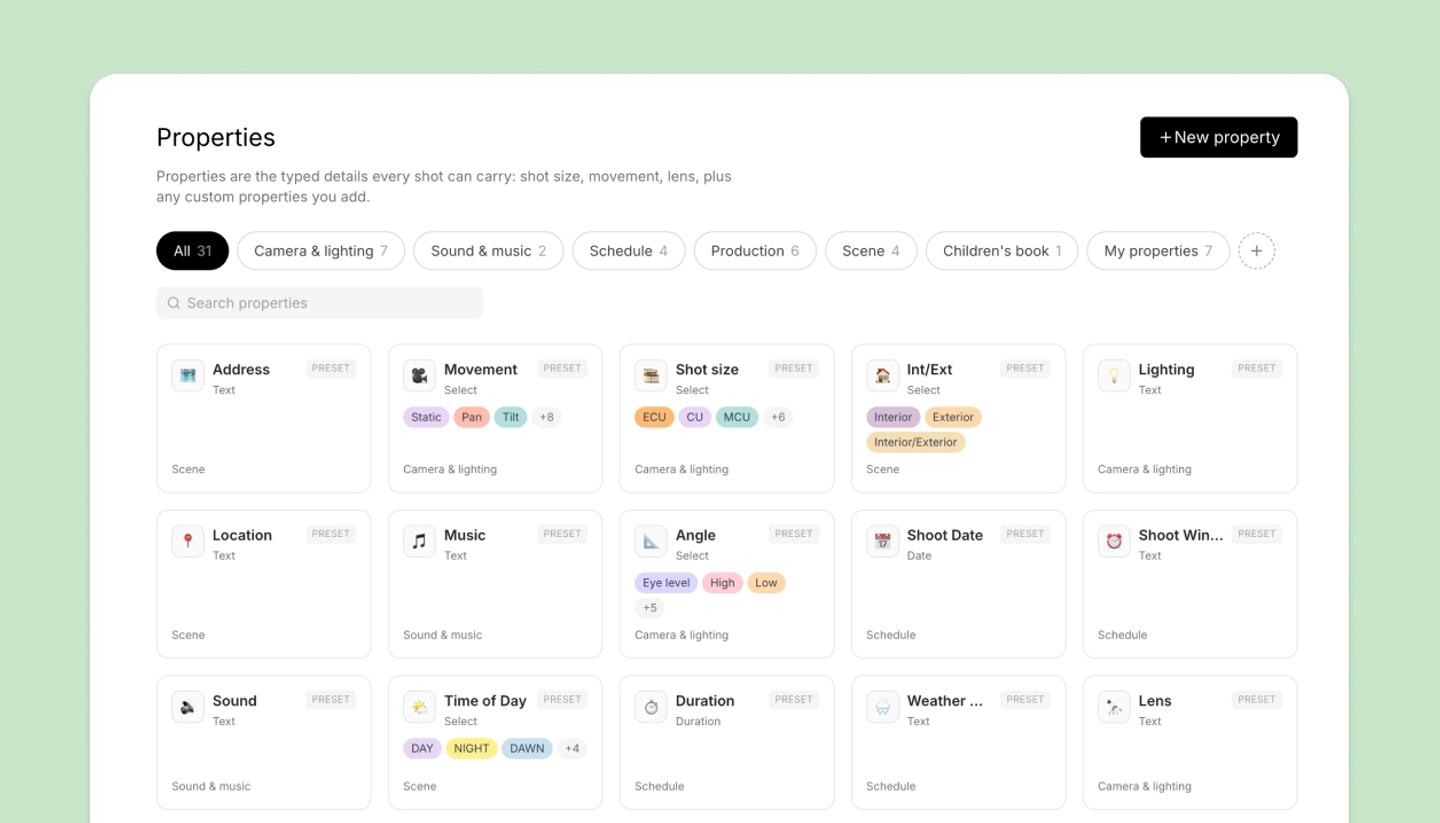
Every shot has a frame and a script. Properties are the third thing: the production details that turn a storyboard into a shot list.
Each property has a type (text, a pick-list, a number, a date, a time, a duration, an image) and a value per shot. A property you create is available in all your projects. The values you fill in are separate for each project.
Where you edit them
- Table view: one column per property, one row per shot. Best for filling in a whole column at once.
- Canvas side panel › Script tab: the open shot's properties under its script, with a
Propertybutton to add one. - Storyboard cards:
+ Propertyon a card. (The Script view keeps properties out of the way; they don't show there.) - Properties in the dashboard sidebar: the list of every property you have, grouped by category. Rename, retype or retire them here on any plan; creating a new one is on paid plans. This page is about the properties themselves; the values live on your shots.

Showing and hiding
A property is shown on a shot when you've added it there, whether or not it has a value yet. Open a property's menu (click its label) for Hide on this shot, Show on all shots and Hide from all shots. The picker's search box (Search or create a property…) lists every property with This shot and All buttons. Hiding never deletes values.
Deleting
The same menu has two delete options. Delete all values… clears the property in this project. Delete property… removes it from your account, so it is no longer offered anywhere. Shots that still have a value keep showing it, marked retired. Built-in properties can be hidden and cleared but not deleted or renamed.
Need more help?
Send us a message. We reply within 3 days, usually sooner.