Custom properties
Creating a property is on paid plans. Type a name in the property picker and choose Create, pick a type (Text, Number, Date, Time, Duration, Select, Image), and it is yours in every project.
Last updated Aug 29, 2026
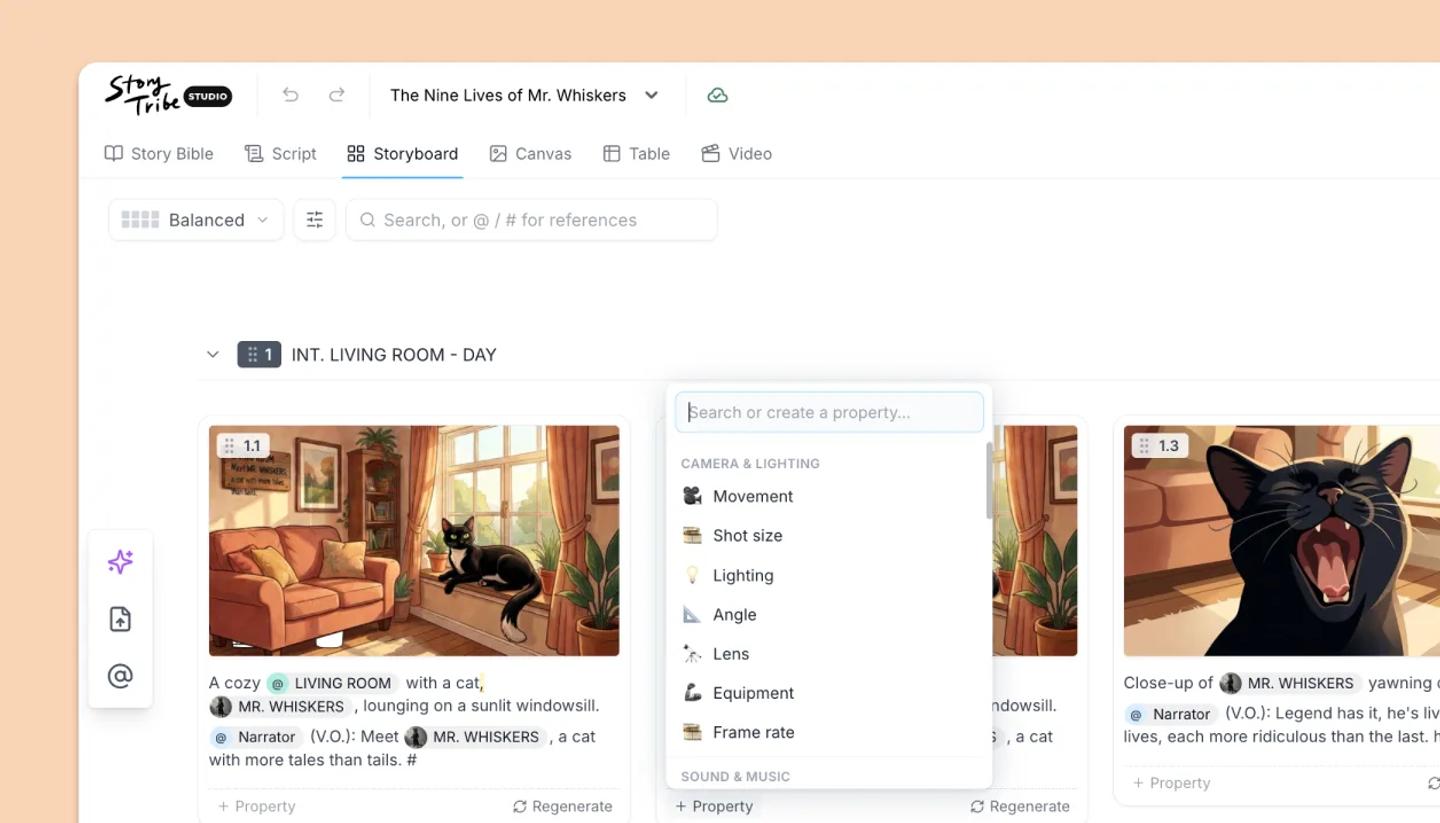
From a shot
- Click
Propertyin the Canvas side panel (or+ Propertyon a Storyboard card, or the+at the end of the Table's header). - Type the name you want in the box that reads Search or create a property. Say you want one called Mood: type Mood, then click Create "Mood" in the list. It's created straight away as Text and added to the shot.
- In the panel that opens, choose a
Type(Text, Number, Date, Time, Duration, Select, Image) and pick an icon. For a Select property, add options in the box that readsAdd an option and press Enter. Press Enter after each one. ClickSave. - To use it on every shot, open its menu and choose
Show on all shots.
From the Properties page
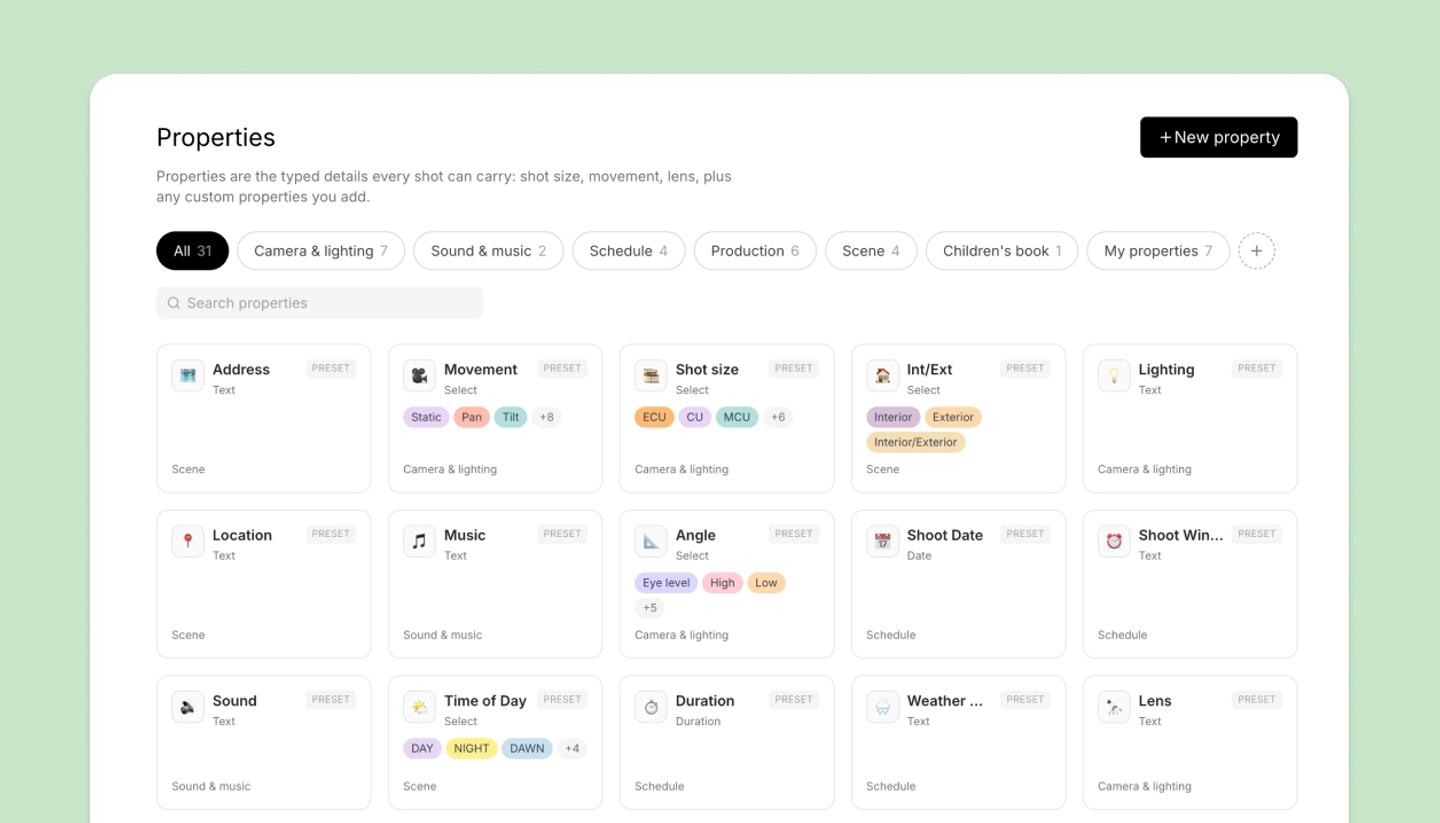
Properties in the dashboard sidebar lists everything you have, grouped by category, with New property (on paid plans) and an editor for name, type, options and icon. It's the place to tidy up: rename, retype, or retire properties you no longer use.
Good to know
- Custom properties belong to your account and are offered in every project; each project keeps its own values.
- Changing a property type never changes stored values.
- People you share a workspace project with can see your custom properties and their values. They can't add your properties to their own projects.
Was this article helpful?
Need more help?
Send us a message. We reply within 3 days, usually sooner.