The video editor on mobile
Edit your video on a phone: change shot lengths and transitions, add music and voice-over, then publish it or download it on a paid plan.
Last updated Aug 29, 2026
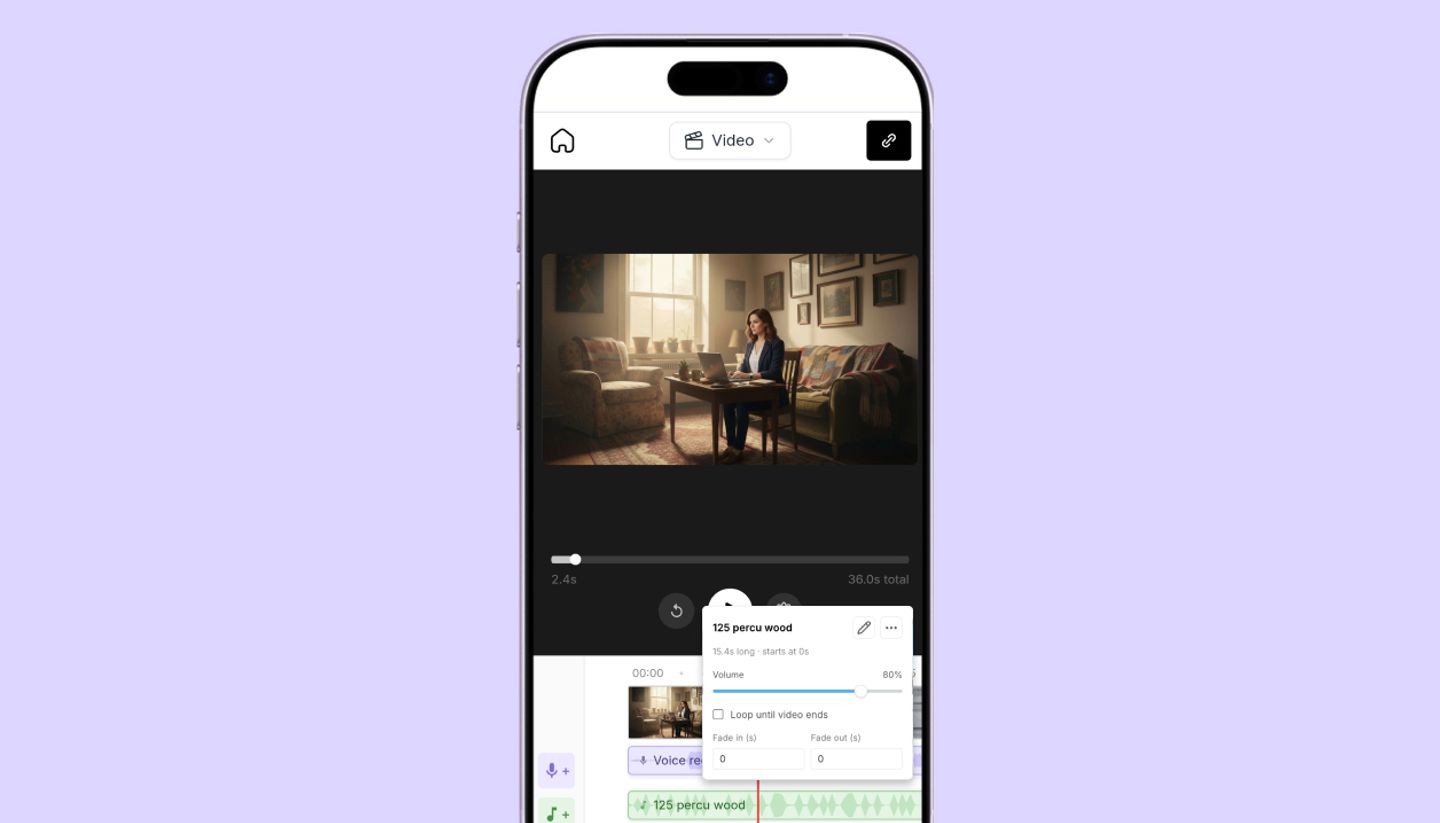
On a phone, open the view dropdown under the header and choose Video. The player is at the top and the timeline is underneath.
Edit your video
- Shot length. Tap a shot's duration to change how long it plays.
- Transitions. Tap the button between two shots to pick a transition.
- Music. Tap the music row on the timeline to add a track. A panel slides up where you can browse the library by genre and mood.
- Voice-over. Tap the voice-over row on the timeline to add a voice-over. A panel slides up where you choose what to say and pick a voice.
- Video settings. Tap the gear in the player.
Download or publish
Tap Share video in the toolbar to publish the video page, or to download the MP4 on a paid plan. You get the same file as on desktop.
On a tablet
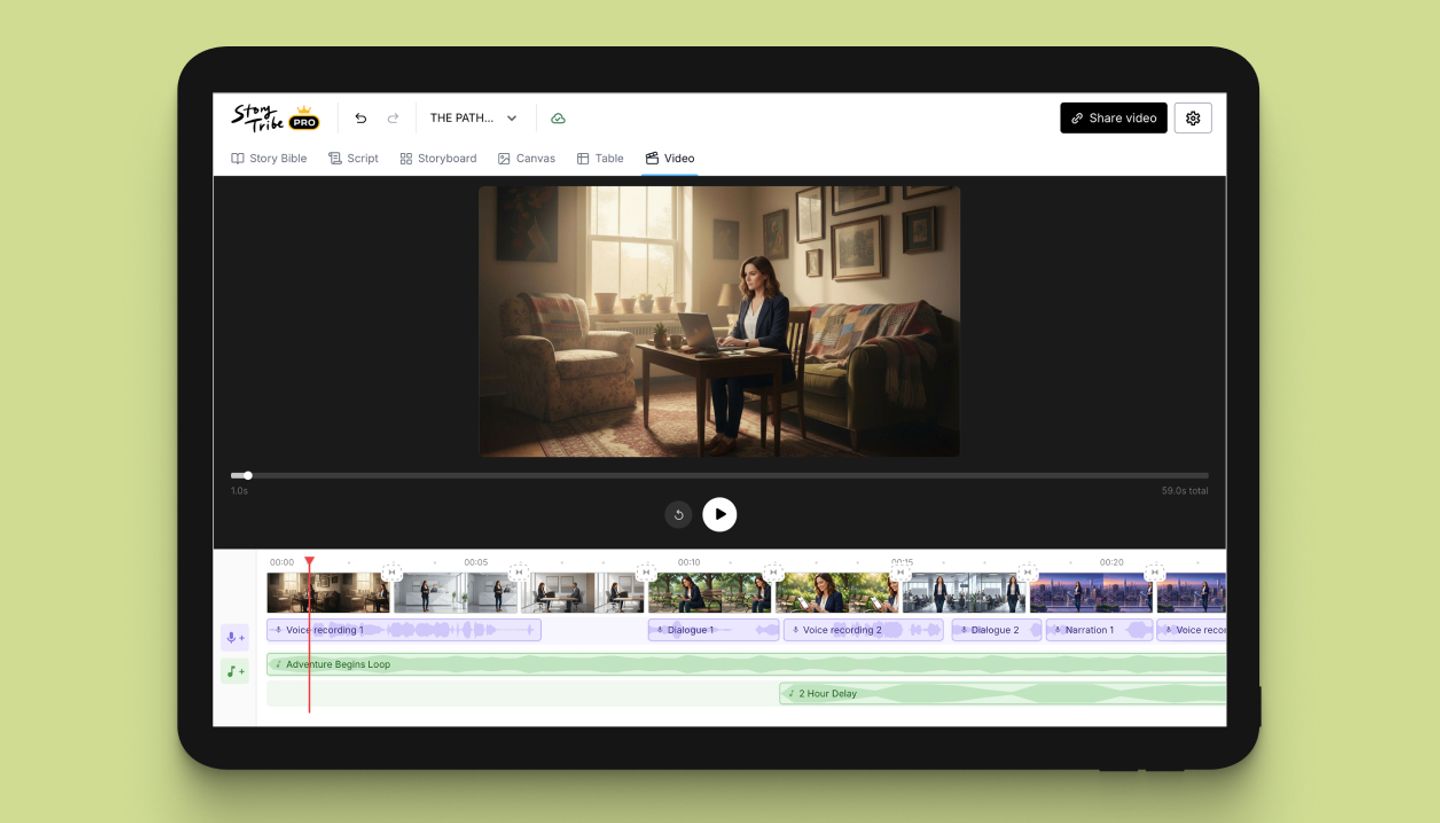
Tablets get the full desktop video editor, including the timeline you can resize.
Was this article helpful?
Need more help?
Send us a message. We reply within 3 days, usually sooner.