Scene numbering: Automatic or Manual
Automatic numbers your scenes by their order. Manual keeps the number you give each one, such as 46A, so it stays put when scenes move around.
Last updated Sep 12, 2026

Scene numbering is in Project settings. It decides what the number on each scene header means.
The two modes
- Automatic is the default. Scenes read 1, 2, 3 in the order they sit, and the numbers reflow the moment you move one.
- Manual keeps whatever number you type on a scene. Move the scene and the number goes with it. This is how a locked production script works: a scene inserted between 46 and 47 becomes 46A.
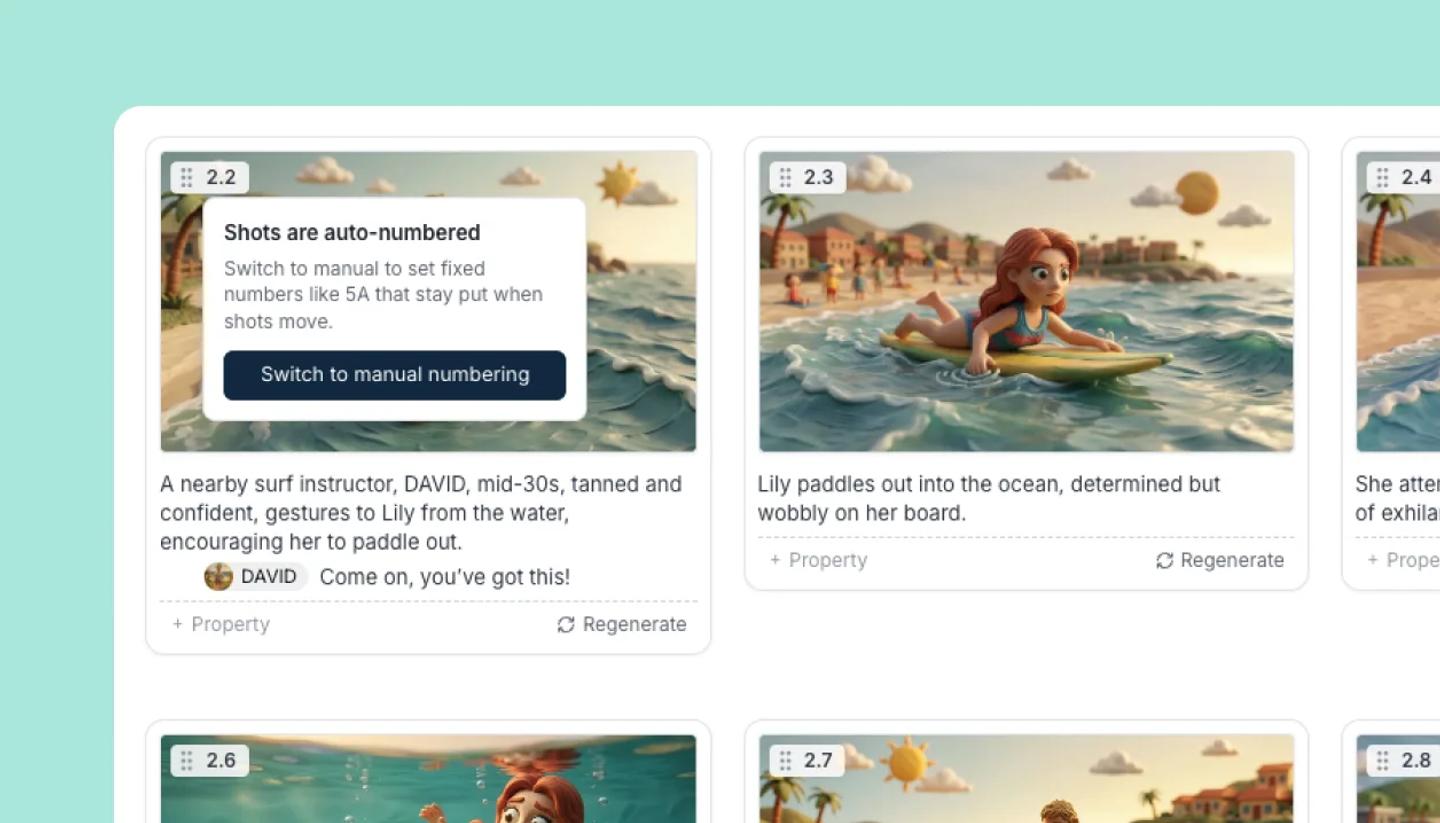
In a project with more than one scene, shots take their scene's number as a prefix: 2.1 and 2.2 under scene 2, or 46A.1 and 46A.2 under scene 46A.
Setting a number
- Click the number on a scene header. In Automatic you get a small panel that explains the modes and offers Switch to manual numbering.
- Click that, or set Scene numbering to Manual in Project settings first.
- Type the number you want and press Enter. Escape cancels.
Shot numbers work the same way: click a shot's number to edit it in Manual, or to be offered the switch in Automatic. Setting either one switches the whole project to Manual.
Numbers are yours alone. Nothing is generated for you and nothing is renumbered behind you, so a scene you never numbered falls back to its position.
Switching modes
Switching is safe in both directions. The numbers you typed are kept either way; the mode only decides whether they are shown or the positions are.
Need more help?
Send us a message. We reply within 3 days, usually sooner.