Magic Edit
Magic Edit changes an image in place: retouch a detail, erase something, change the angle or lighting, adjust tone. Select an image, open Edit or Magic edit in its bar, describe or paint the change, and click Generate.
Last updated Aug 29, 2026
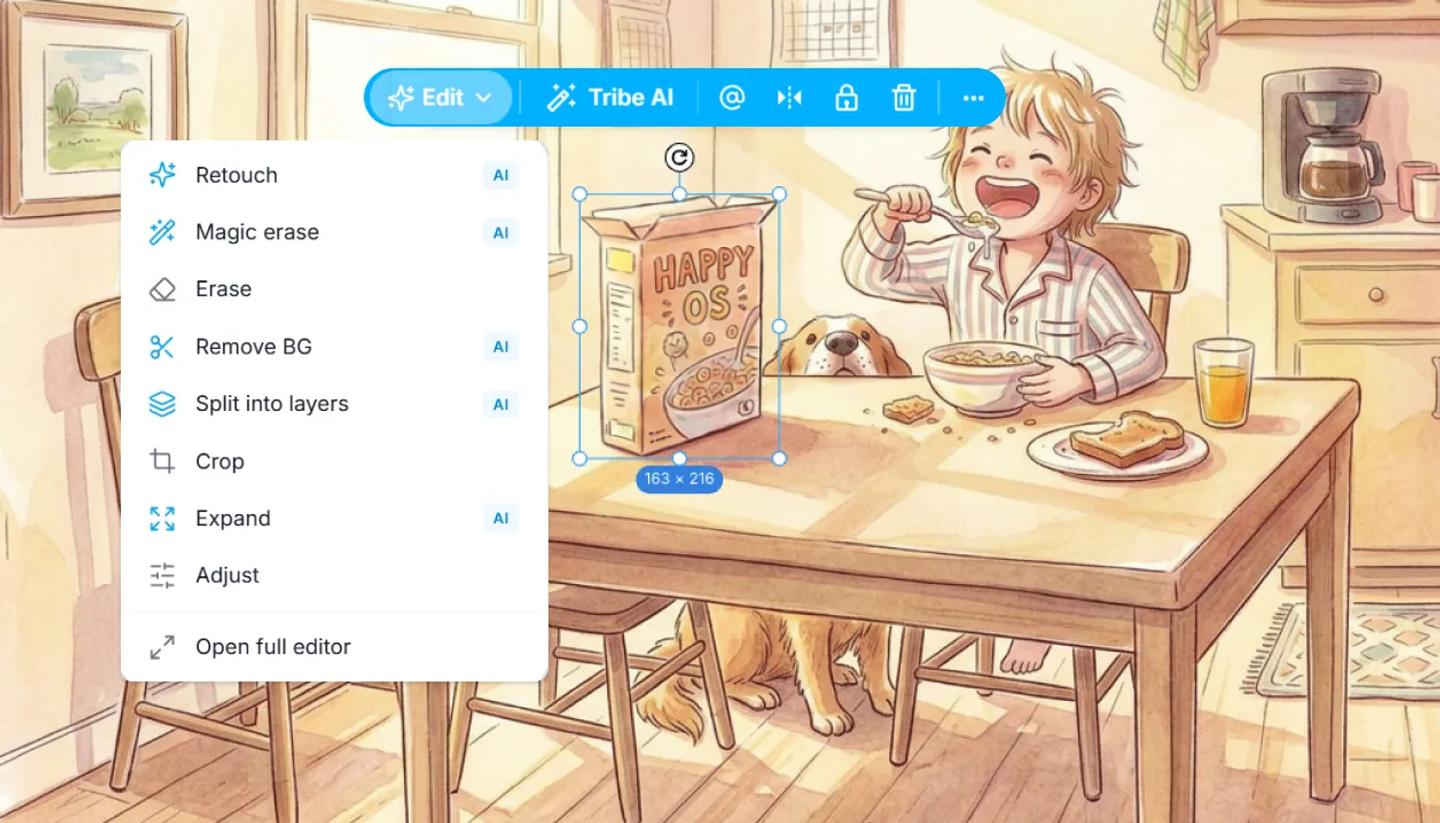
- Select an image, a generated frame, or a character on the Canvas. In the blue bar, open
Edit.Retouch,Magic erase,Remove BG,Split into layersandExpandare marked AI.Erase,CropandAdjustare not.Open full editoropens Magic Edit with everything in one place. - In the full editor, pick a tab.
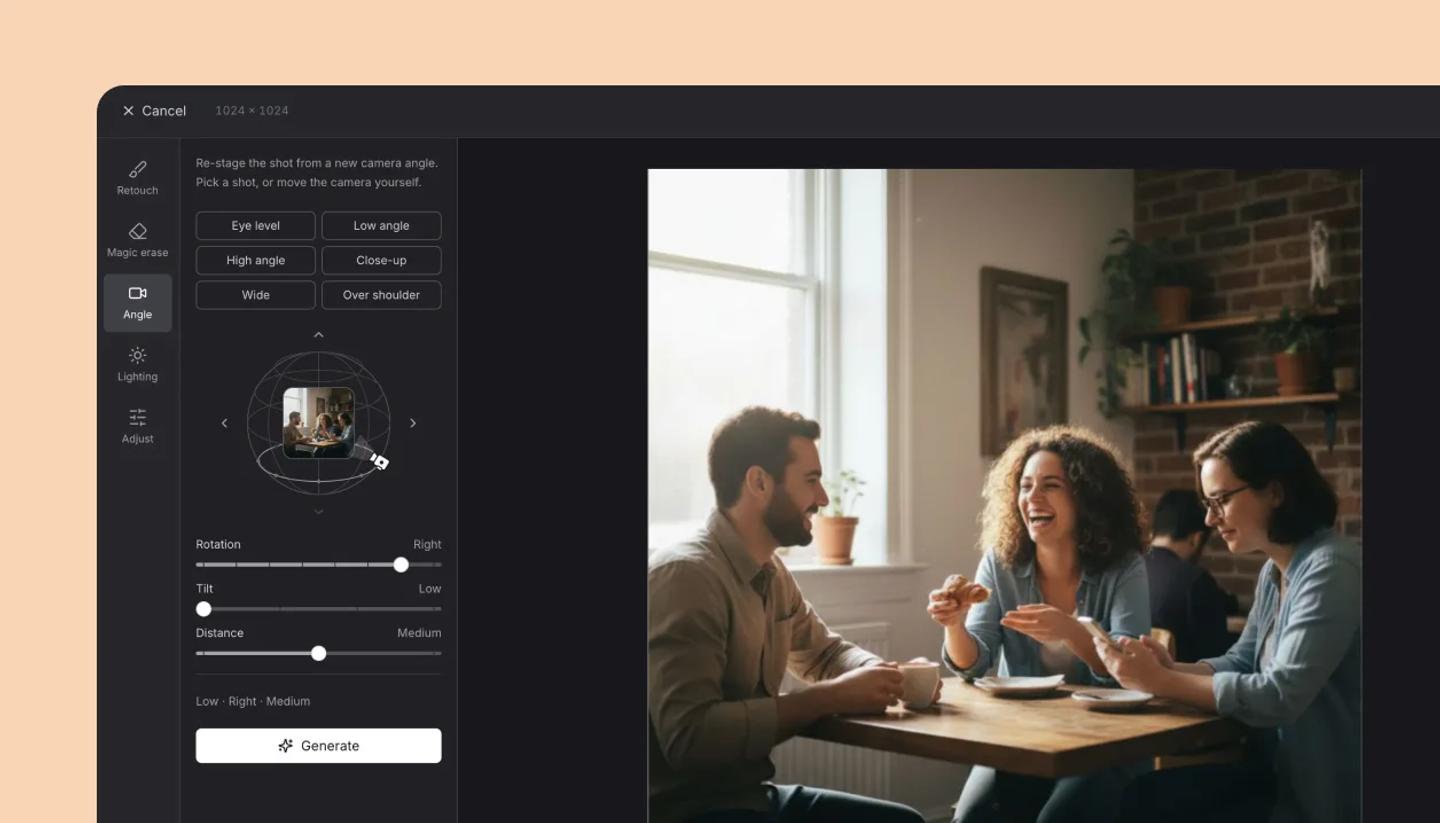
Retouch: describe a change, like "make her jacket red".Magic erase: paint over what should vanish.Angle: pick a new camera angle.Lighting: relight the image.Adjust: change Brightness, Contrast, Saturation and Temperature. It uses no AI and no credits. - Click
Generate. The button tells you what's missing first: Describe your edit first, Paint over something first, Pick an angle first. Each AI operation uses credits at the rate shown. - Click
Doneto apply the result to the object on the canvas (Applied), orCancelto leave it as it was.
Was this article helpful?
Need more help?
Send us a message. We reply within 3 days, usually sooner.