Aspect ratios in Tribe AI
The ratio menu defaults to your project's canvas shape and offers the model's other ratios, from 1:1 to 16:9 and 9:16. Generate at the canvas ratio for backdrops.
Last updated Aug 29, 2026
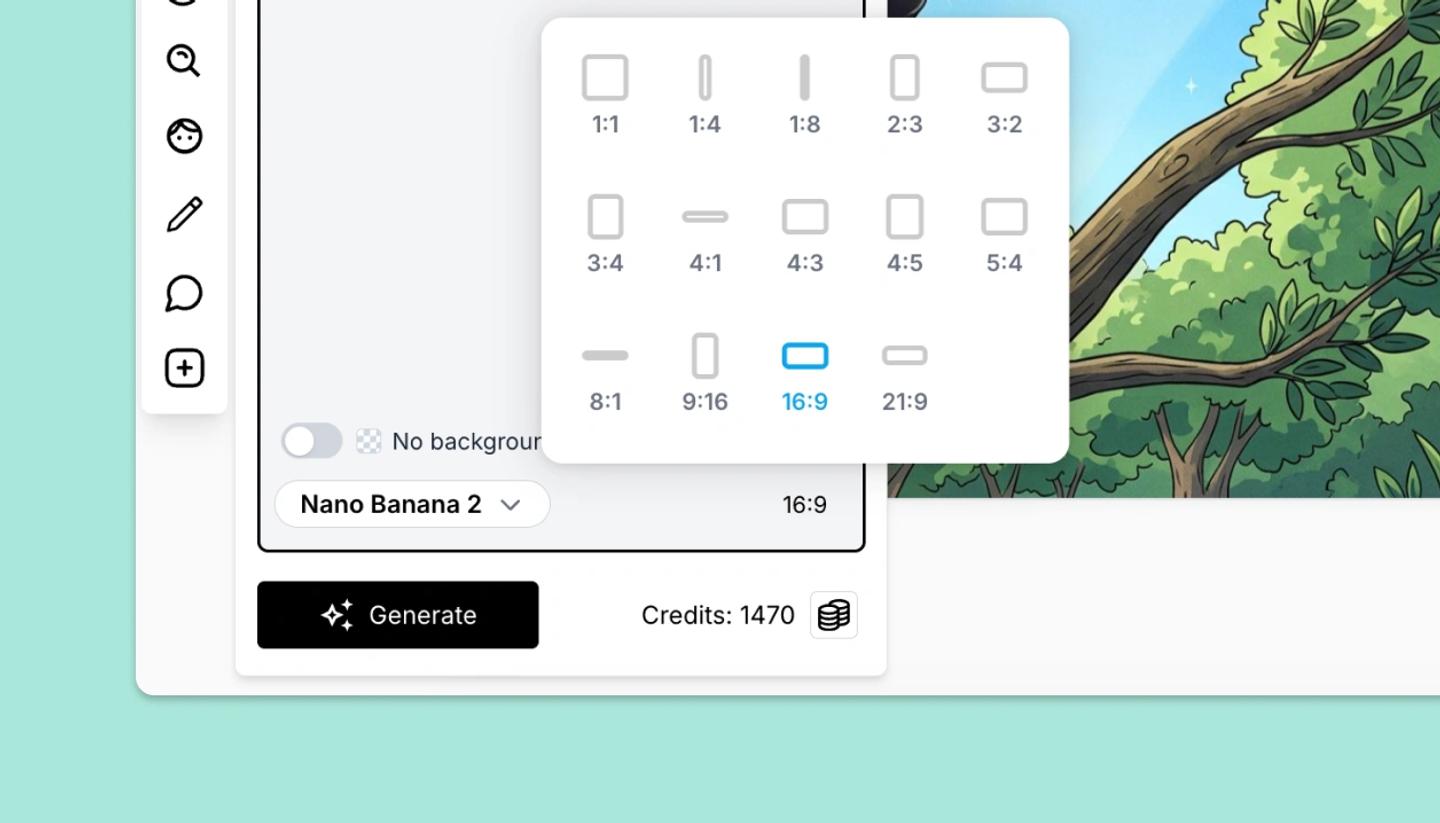
When you open Tribe AI the ratio is preset to match the canvas (a 16:9 project generates 16:9). If the model doesn't offer the canvas ratio exactly, the nearest is chosen. The menu lists what the model supports, typically 1:1, 3:2, 2:3, 4:3, 3:4, 5:4, 4:5, 16:9 and 9:16.
Which to pick
- Backdrops and full frames: keep the canvas ratio, so the placed image fills the frame without cropping.
- Characters and props: a portrait ratio (3:4, 9:16) plus No background gives a taller cut-out with less wasted image.
- Social formats: a 9:16 project already sets 9:16; for a square post choose 1:1.
If a backdrop is generated at a different ratio from the canvas, it is scaled to cover the frame and the edges are cropped. To extend an image instead of generating it again, use Expand in Magic Edit.
Was this article helpful?
Need more help?
Send us a message. We reply within 3 days, usually sooner.