@mentions and #references in your script
Type @ to mention an element (a character, location, prop or style) and # to point at a scene or shot. A mention shows the element's picture, keeps names consistent and gives Tribe AI the element's details.
Last updated Aug 29, 2026
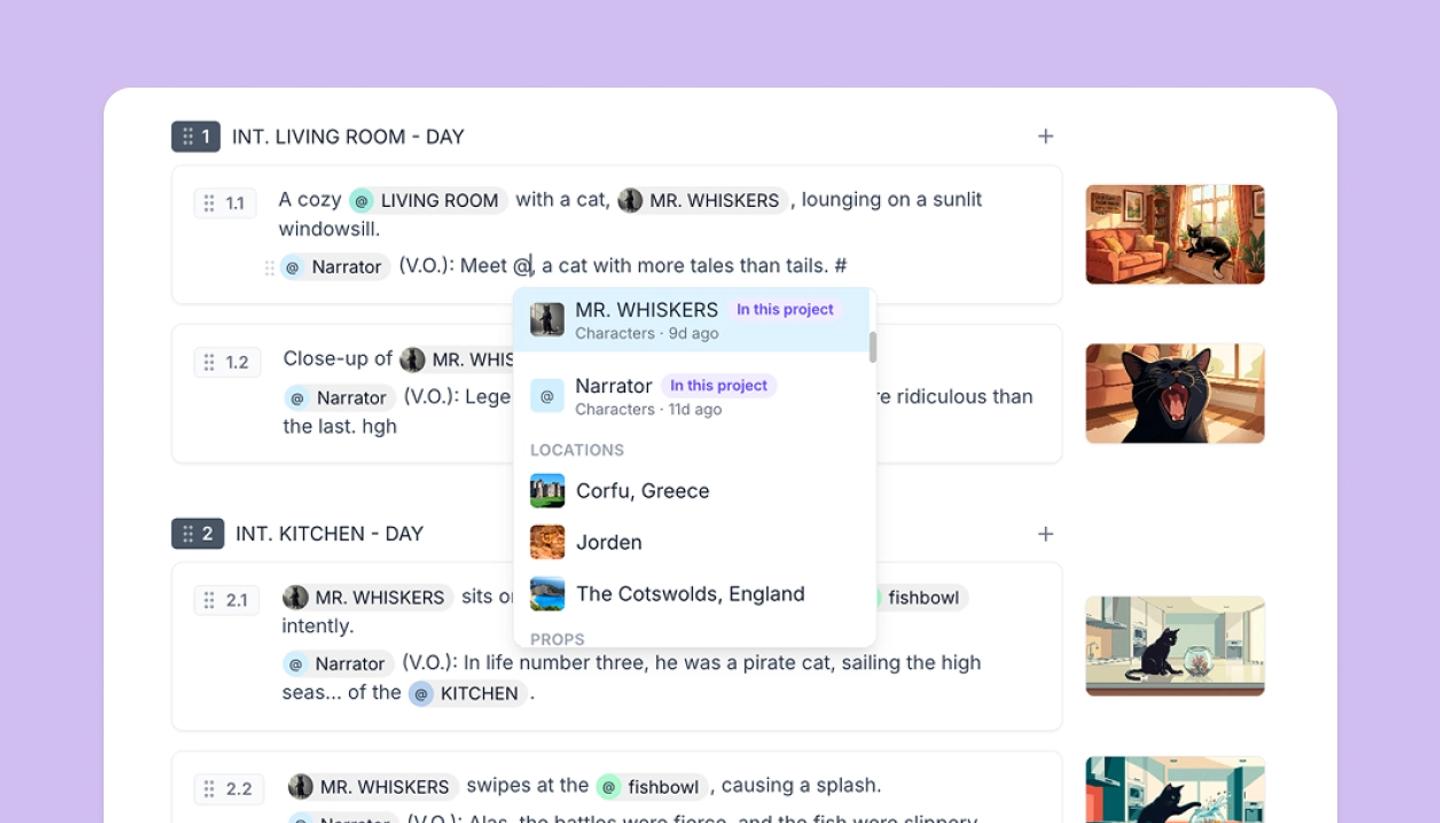
@ for elements
In any script block, scene heading, property or the Tribe AI prompt, type @ and start the name. Pick from the list and the name becomes a mention with the element's picture. Dialogue speakers are mentions too. A name typed in capitals links itself when that element is already in the project. Hover a mention for Edit, which opens the element, or Turn into text. Click it to Replace it with another element or Remove it.
Why bother: the Story Bible lists everything mentioned, the board's search finds shots by element, and Tribe AI and the AI writer use the element's description and images to keep it consistent. If an element is later deleted, its chips say This element was deleted and offer Replace, Turn into text or Remove.
# for scenes and shots
Type # to point at a scene or shot by number, like #Scene 2 or #Shot 2.1. The reference stays correct when numbers change. That makes it useful in notes such as "continuity from #Shot 1.4", in the AI writer's prompt, and in Tribe AI to reuse a shot's look.
In Tribe AI
Reference images you attach are numbered Image 1, Image 2 and so on; typing @Image 2 in the prompt turns into a chip that points at that image. Elements attached as Consistent element work the same way with @.
Need more help?
Send us a message. We reply within 3 days, usually sooner.