Duplicate a project (Make a copy)
Choose Make a copy from a project's card menu, or from the title menu in the editor. The copy appears in your list as Copy of your project.
Last updated Aug 29, 2026
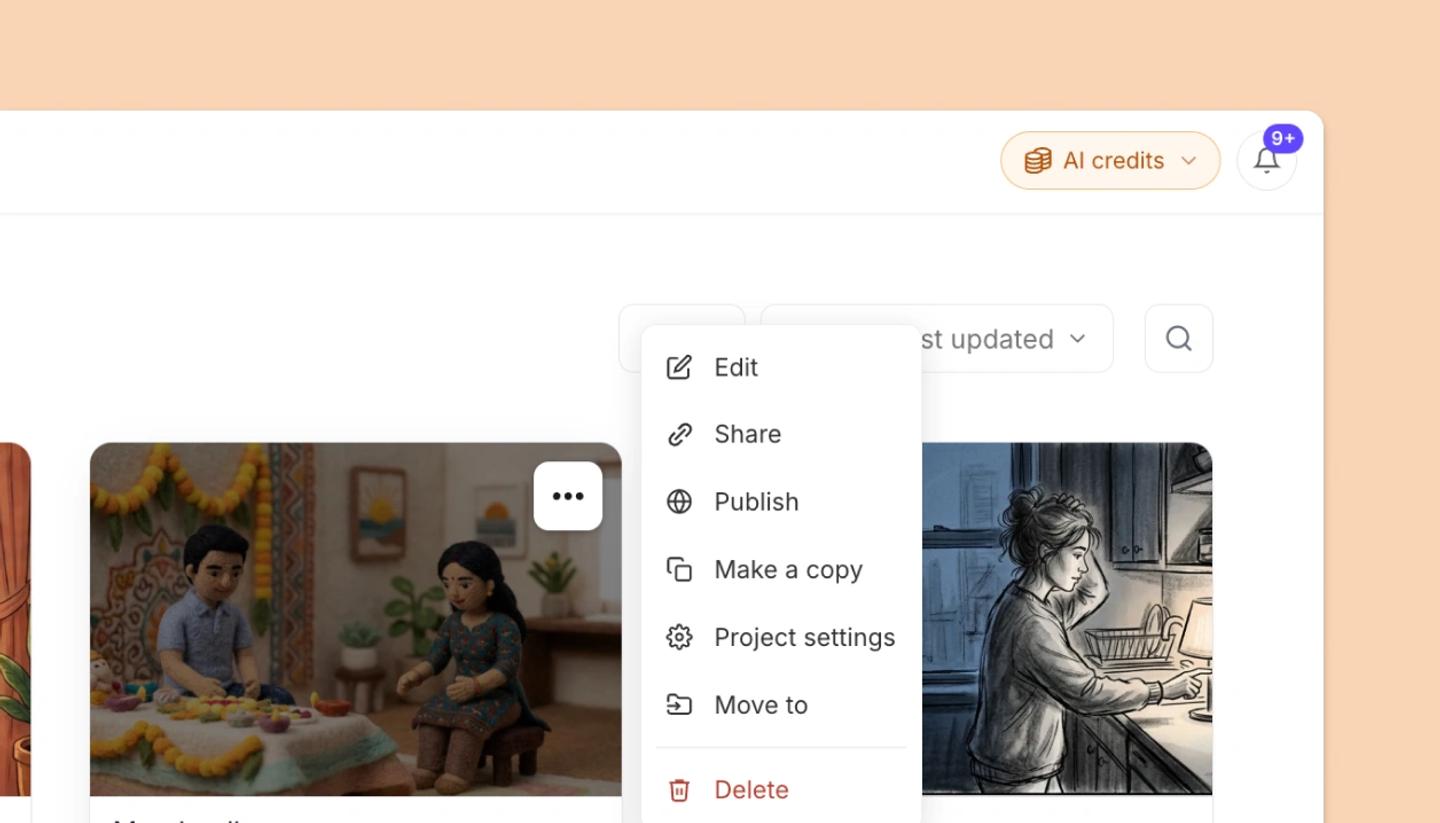
- Open the project's menu. On Home or the Projects page, use the menu on its card. In the editor, click the project title in the header.
- Choose Make a copy and wait for Duplicating project to finish.
- Open the copy. In your project list it's the new card called Copy of your project; in the editor, the Copy created message has an Open copy button.
The copy is a separate project. Rename it, resize it, share it or delete it, and the original stays as it was.
A published project can't be copied from its card menu. Unpublish it first, then make the copy.
Troubleshooting
- "Couldn't duplicate the project. Please try again." Try once more; if it keeps failing, send support the project name.
Was this article helpful?
Need more help?
Send us a message. We reply within 3 days, usually sooner.