Import a script (.fdx, .fountain, .docx, .txt, or paste)
Paste a script or drop a Final Draft, Fountain, Word or text file, review how it splits into scenes and shots, map any properties it mentions, and confirm. Scenes and dialogue arrive intact.
Last updated Aug 29, 2026
- When you create a project, the Create page offers three ways to start: describe your idea, upload a script, or open a blank canvas. To bring in a script you already have, click
+ Upload script. (The idea box sends your text to AI to write a script;+ Upload scriptimports your file exactly as written.) - Paste the script into the box, or drop a file (
.fdx, .fountain, .docx, or .txt, one at a time). ClickReview; a dropped file goes straight to the review. - In
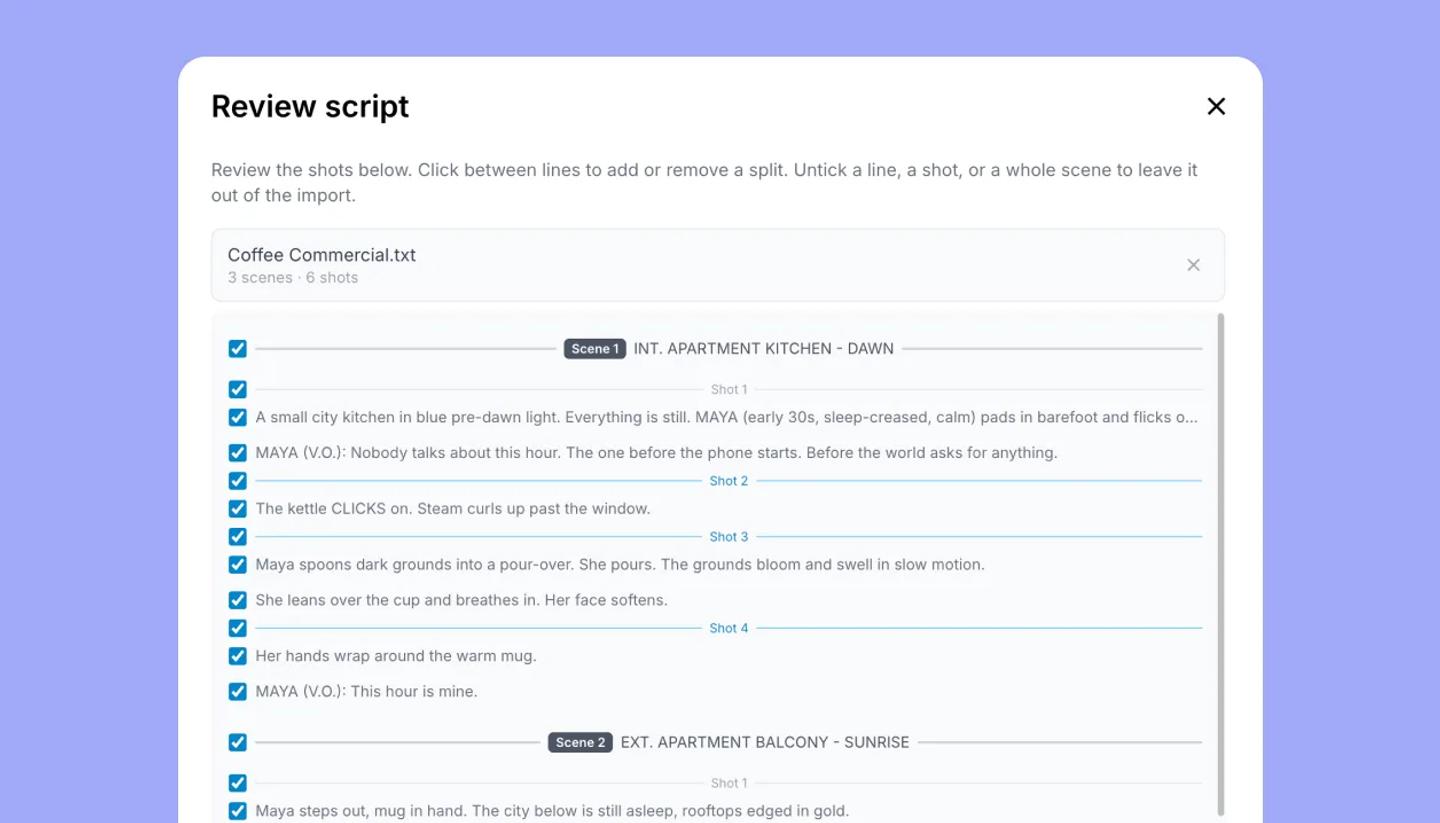
Review script, check the scenes and shots identified. Click between lines to add or remove a split; untick anything you don't want. - Click
Import. InReview properties, match any labels the script used (Camera:, Location:) to shot properties, orSkipthem, thenConfirm import. - It builds a draft project from your script and opens Step 2: the script beside the characters and places as Element tiles.
- Choose the project's aspect ratio, AI art style and AI model.
- Generate shots when you are ready; your scenes and shots are already in place from the script.
Already in a project?
In the Script view, click Import script in the toolbar on the left (desktop and tablet). You go through the same steps. At the end, choose Add to end to add this script to the end of the project, or Replace all to start the project over with it.
What you get
- Each scene heading (INT./EXT. lines, or SCENE 3 style markers) becomes a scene; the text under it becomes shots, split where the review showed.
- Speakers become dialogue rows linked to
elements. Transitions come through. Scene numbers in the file are kept, and Scene numbering switches to Manual. - A title page goes to Script details, and any notes before the first scene go to Project info, so nothing in the file is lost.
Troubleshooting
- "Unsupported file type." Only .fdx, .fountain, .docx and .txt. Export a PDF script to Word or text first, or paste its text.
- "Not a Final Draft document" or "Invalid XML". The .fdx is damaged or is really another format renamed. Re-export it from Final Draft.
- "Canvases can't be replaced while others are working in the project." Replace all waits until collaborators leave; Add to end works any time.
- Everything landed in one shot. The script had no scene headings, so the process kept it whole. Go back to the review and click between lines to split.
Was this article helpful?
Need more help?
Send us a message. We reply within 3 days, usually sooner.